Understand your results in Reporting
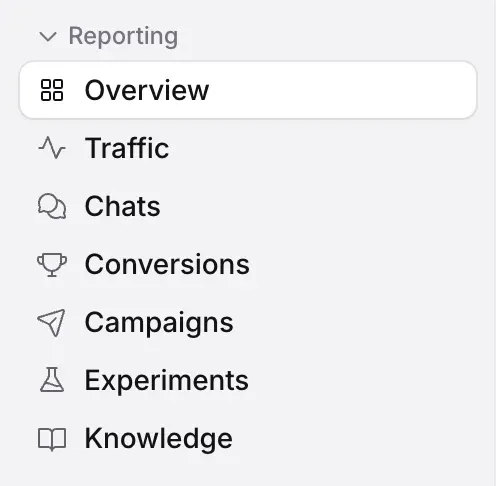
Reporting: seven reports (Overview, Traffic, Chats, Conversions, Campaigns, Experiments and Knowledge) with any date range, filters by page, source, campaign, device or country, saved views and CSV export.
- In Darwin: ReportingOpen in Darwin
- Updated
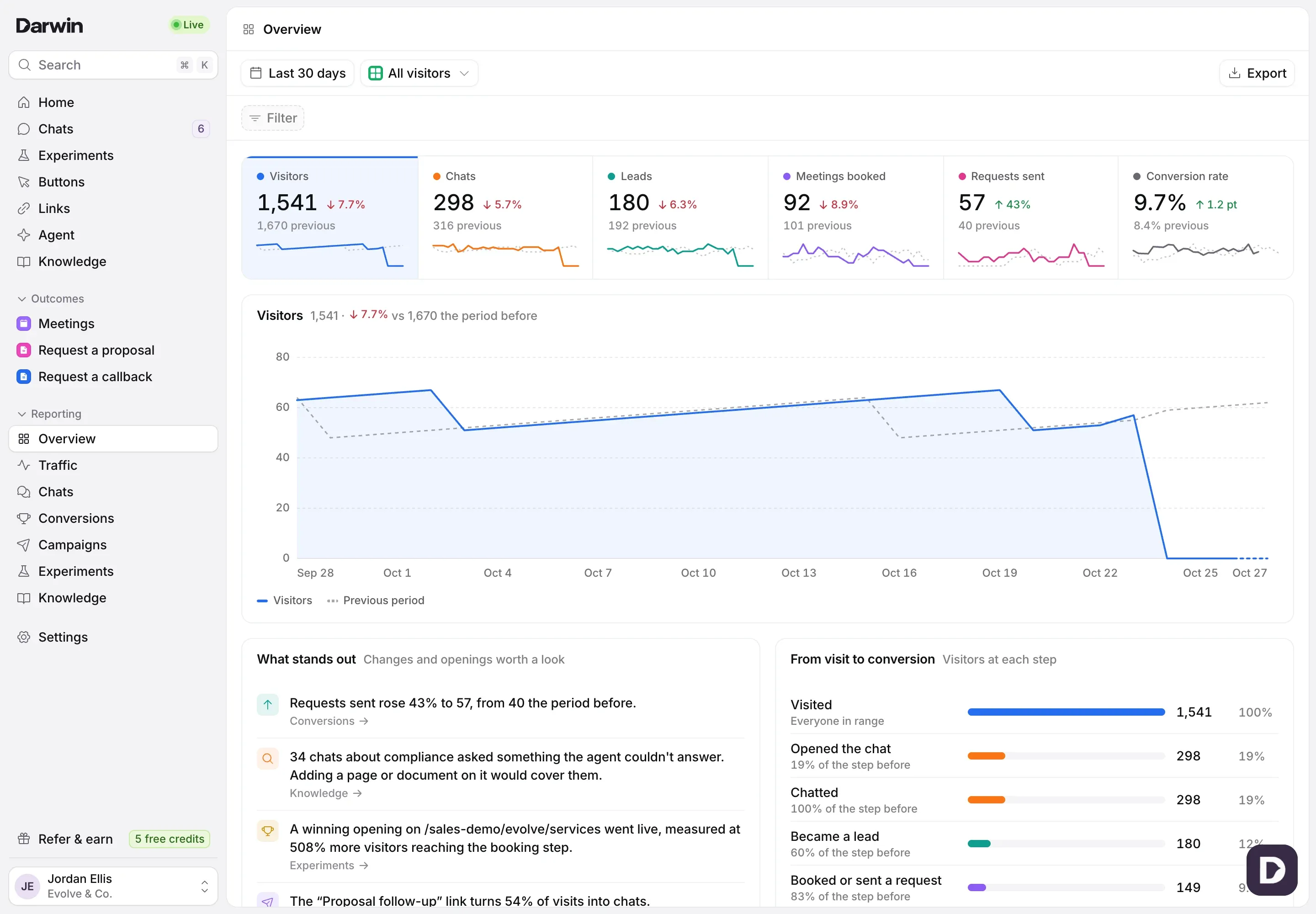
Reporting is a group in the sidebar with seven reports. Each one answers a question about your website and your agent, and every report works the same way: pick a date range, filter, read the numbers at the top, then the charts and tables below.
The reports
| Report | The question it answers | What’s in it |
|---|---|---|
| Overview | Is Darwin working? | Visitors, chats, leads, meetings, requests and conversion rate; the steps from visit to conversion; top sources; pages that convert; chat quality |
| Traffic | Who comes, from where, and when? | Sources, landing pages, UTM campaigns, pages, the days and hours visitors come and chat, devices and new against returning visitors |
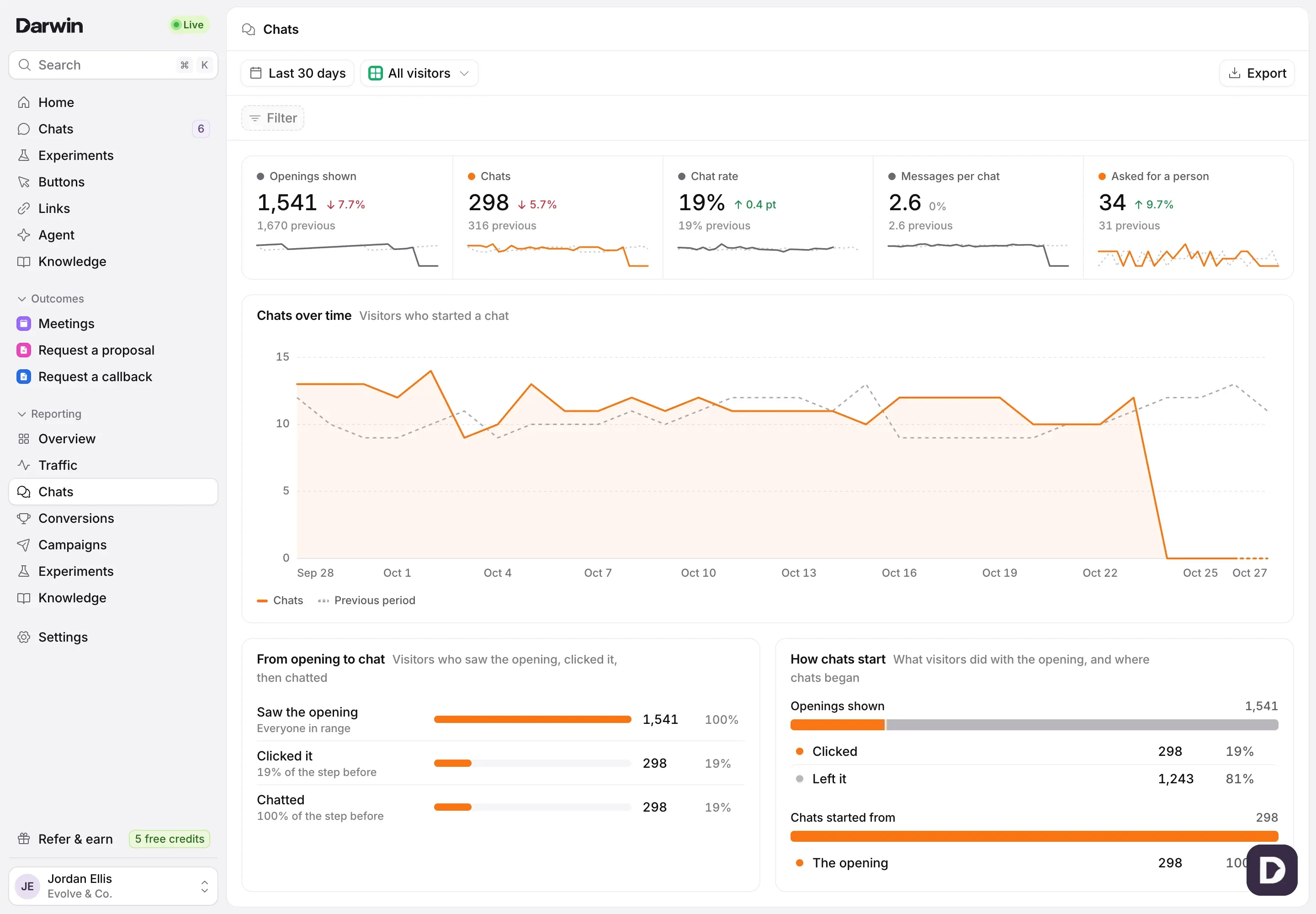
| Chats | What do visitors ask, and does the agent help? | Openings shown, chat rate, how chats start, topics, buying stage and how the agent did |
| Conversions | What turns into pipeline? | Meetings and requests over time, the path to a booked meeting, cancellations and reschedules, each outcome form, and time to convert |
| Campaigns | Which outreach and buttons pay off? | Personal links, greetings compared, companies, chat buttons and UTM campaigns |
| Experiments | Is testing lifting results? | Tests running, visitors in tests, winners applied, openings by booking rate, and visitors in tests against those not in one |
| Knowledge | Does the agent know enough? | Pages learned, failing or stale; questions the agent couldn’t answer, by topic; and pages the agent looked up |
Each report has its own guide: Traffic, Chats, Conversions, Campaigns, Experiments and Knowledge. This guide covers Overview and the controls every report shares.
Open a report
Open Reporting in the sidebar and select a report. Reporting opens on Overview.
The bar at the top holds the date range (1), the view (2), Filter (3) and Export (4).

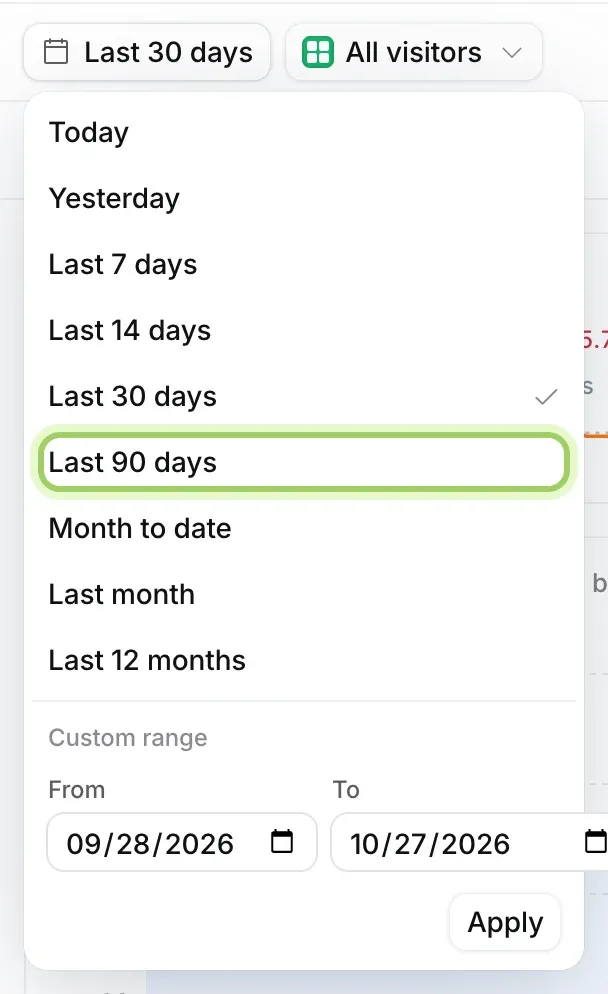
Pick the date range
Open the date range and choose Today, Yesterday, Last 7 days, Last 14 days, Last 30 days, Last 90 days, Month to date, Last month or Last 12 months. For any other dates, fill in From and To under Custom range and select Apply. Reports open on Last 30 days.
Read the numbers and the chart
The numbers at the top compare this range with the one just before it, for example 298 chats, down 5.7% from 316. On Overview, select a number to show it in the big chart. The dashed grey line is the period before.
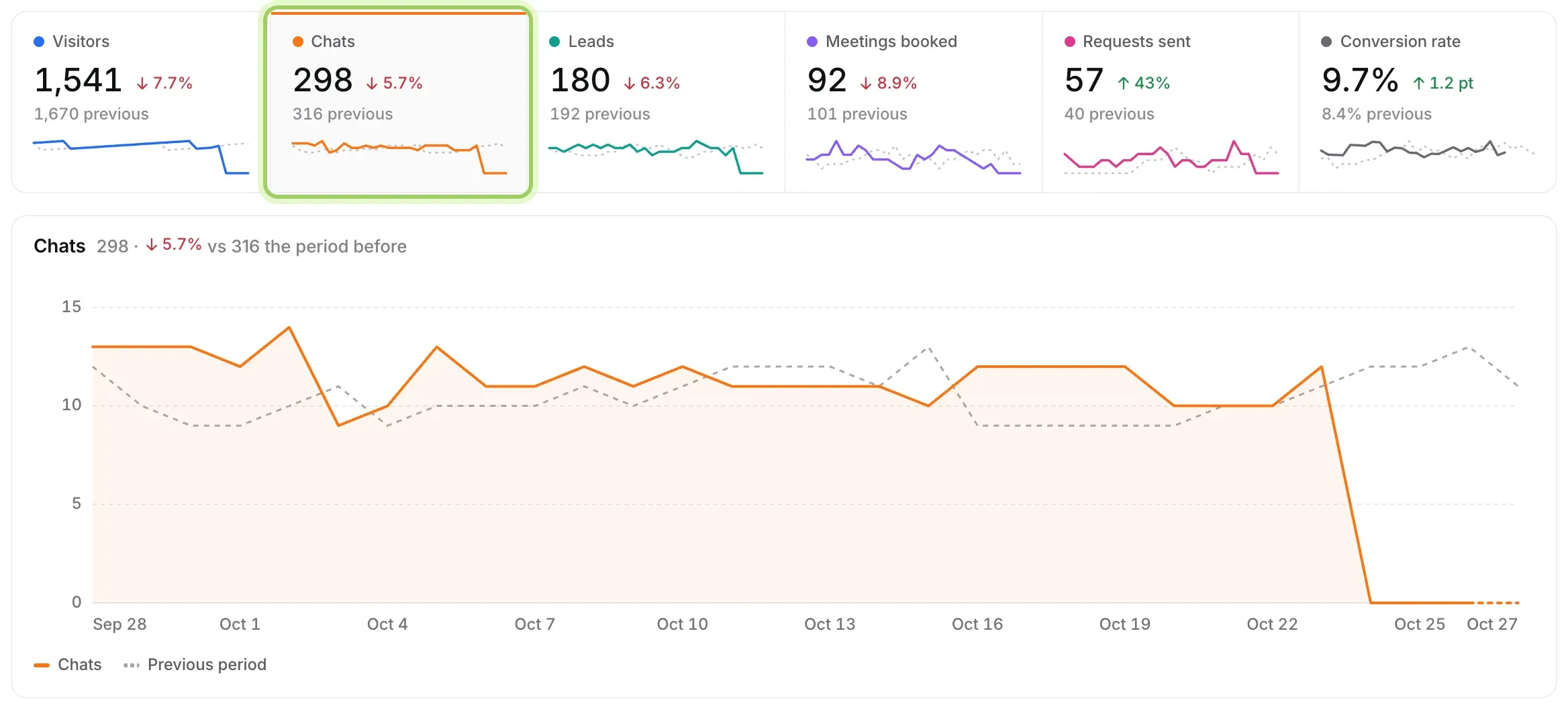
Hover over a number to see what it counts.
Filter the report
Select Filter, then Page, Source, Campaign, Device or Country, and pick the values to keep. Change the condition to is none of to leave values out instead. The whole report narrows to the filter, and your date range and filters stay in the page address, so you can share the exact view.
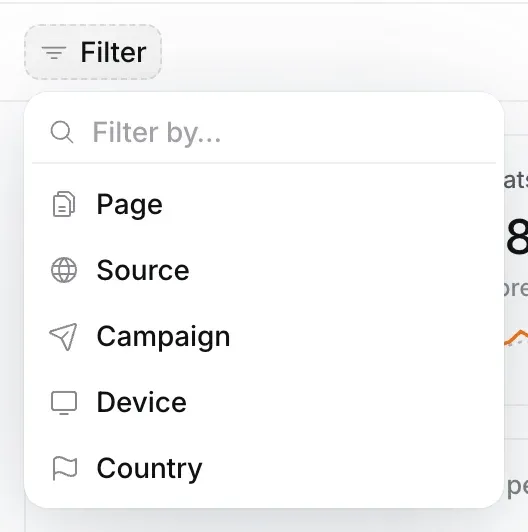
You can also select a row in a breakdown, such as a source or a page, to filter the report to it.
Save a view
Every report starts on All visitors. Once you have changed the range or filters, Save as new view keeps them under a name for everyone in your workspace. Open the view menu to switch views or select Create new view. On a saved view, Update view saves your changes to it and Reset undoes them.
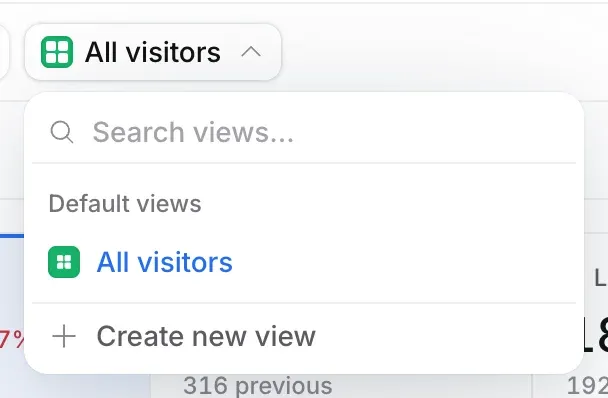
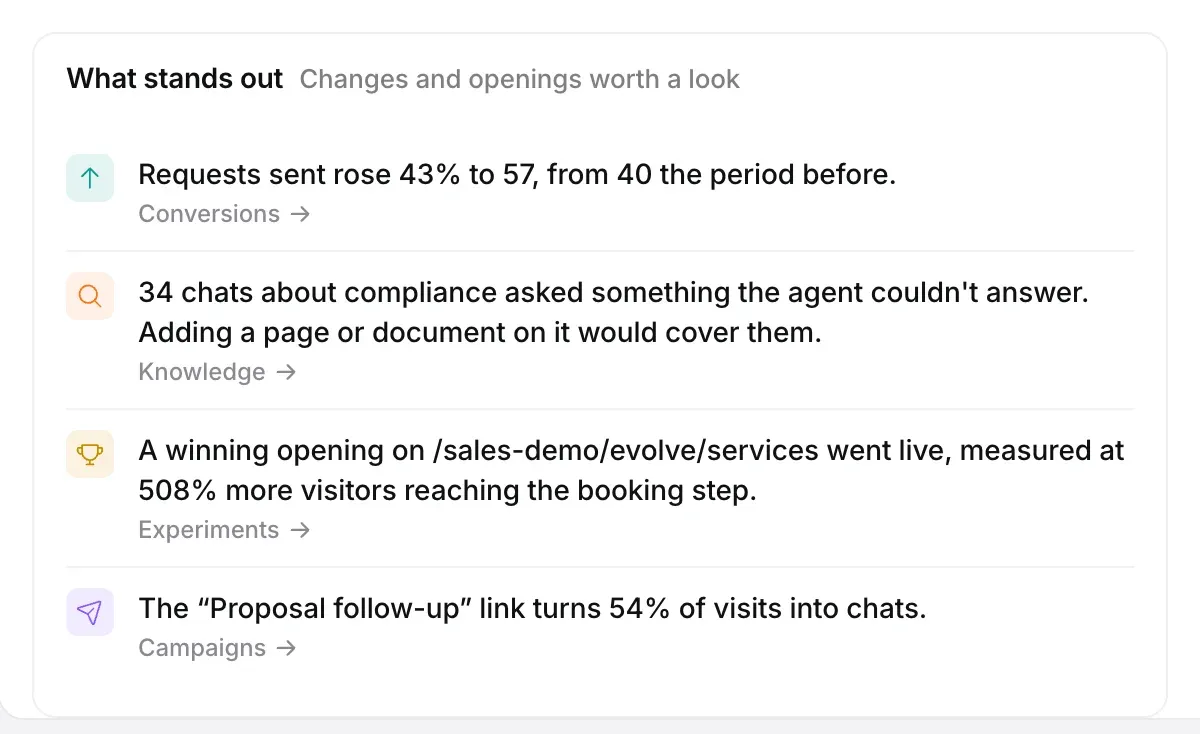
See what stands out
What stands out picks out changes and results worth a look, such as a source that converts better than the rest, a winning opening or a topic your agent couldn’t answer. Select one to open the report it comes from.
Export the numbers
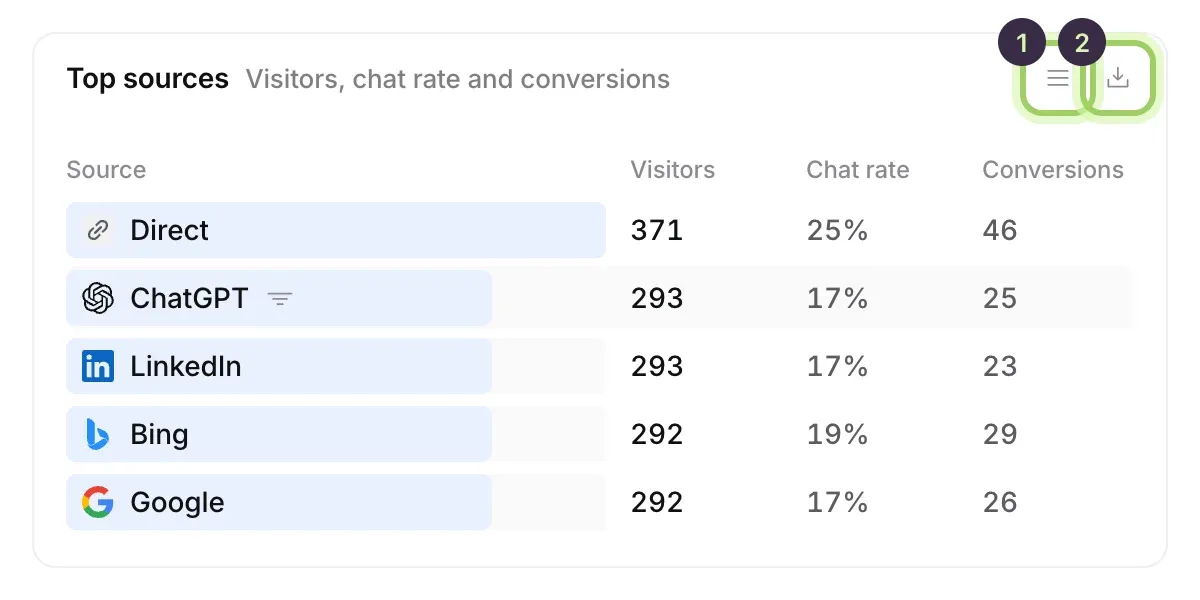
Export at the top right downloads the report as a CSV file. Each chart or table also has its own buttons when you point at it: show the chart as a table (1), or download just that part as a CSV (2).
Good to know
- Days and hours are counted in your workspace’s time zone. Change it in Settings → Workspace → Time zone.
- Ranges longer than about three months are shown week by week, and ranges over a year month by month.
- What stands out only says something when there is enough behind it, such as 30 visitors behind a rate or 10 conversions behind a conversion claim.
- Pages by state in the Knowledge report shows every page now, whatever the date range and filters.
- Fit, intent and topics come from AI grades of each chat. Use them to find chats worth reading, then read the conversation before acting.
- Old links to Analytics open Reporting’s Overview with the same range and filters.