Connect Mailchimp
Add Darwin chat leads to a Mailchimp audience through Zapier: Darwin's New Lead trigger and Mailchimp's Add/Update Subscriber action, with double opt-in and a Darwin chat tag.
- In Darwin: Integrations → CRM & automation → ZapierOpen in Darwin
- Updated
Add leads from Darwin's chat to a Mailchimp audience, tagged so you know where they came from. This runs through Zapier: Darwin's Zapier app starts the Zap and Mailchimp's Zapier app does the work.
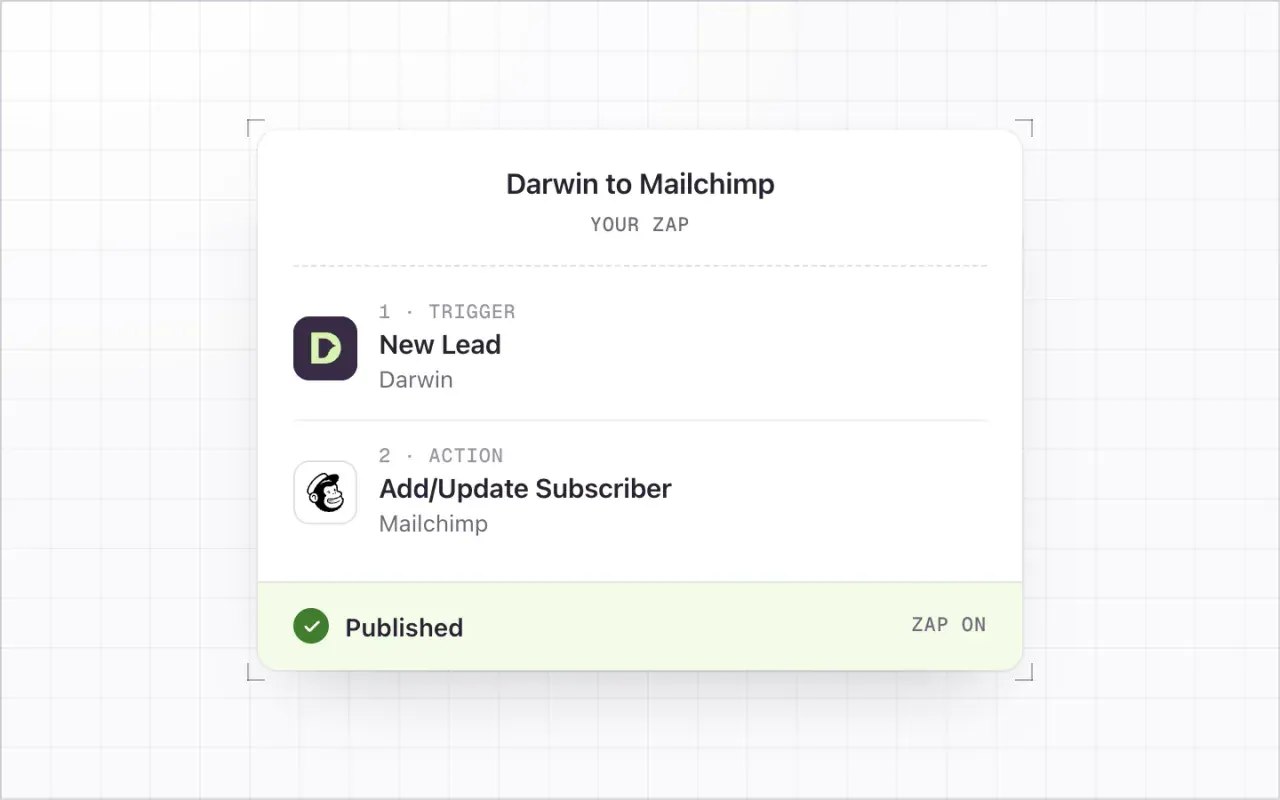
You need: A Zapier account (the free plan works for this two-step Zap) and a Mailchimp audience to add people to.
Add Darwin to Zapier
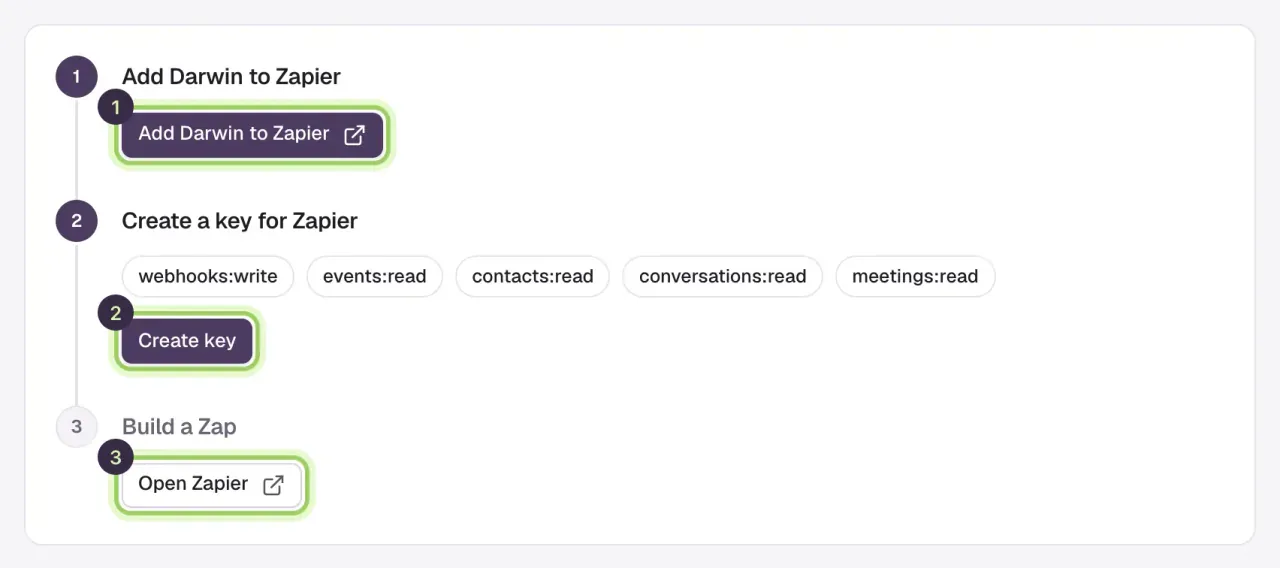
In Darwin, open Integrations and select Connect on the Zapier card. Select Add Darwin to Zapier (1) while signed in to Zapier and accept the invite. Darwin is in private beta on Zapier, so the invite adds it to your account.
Create a key for Zapier
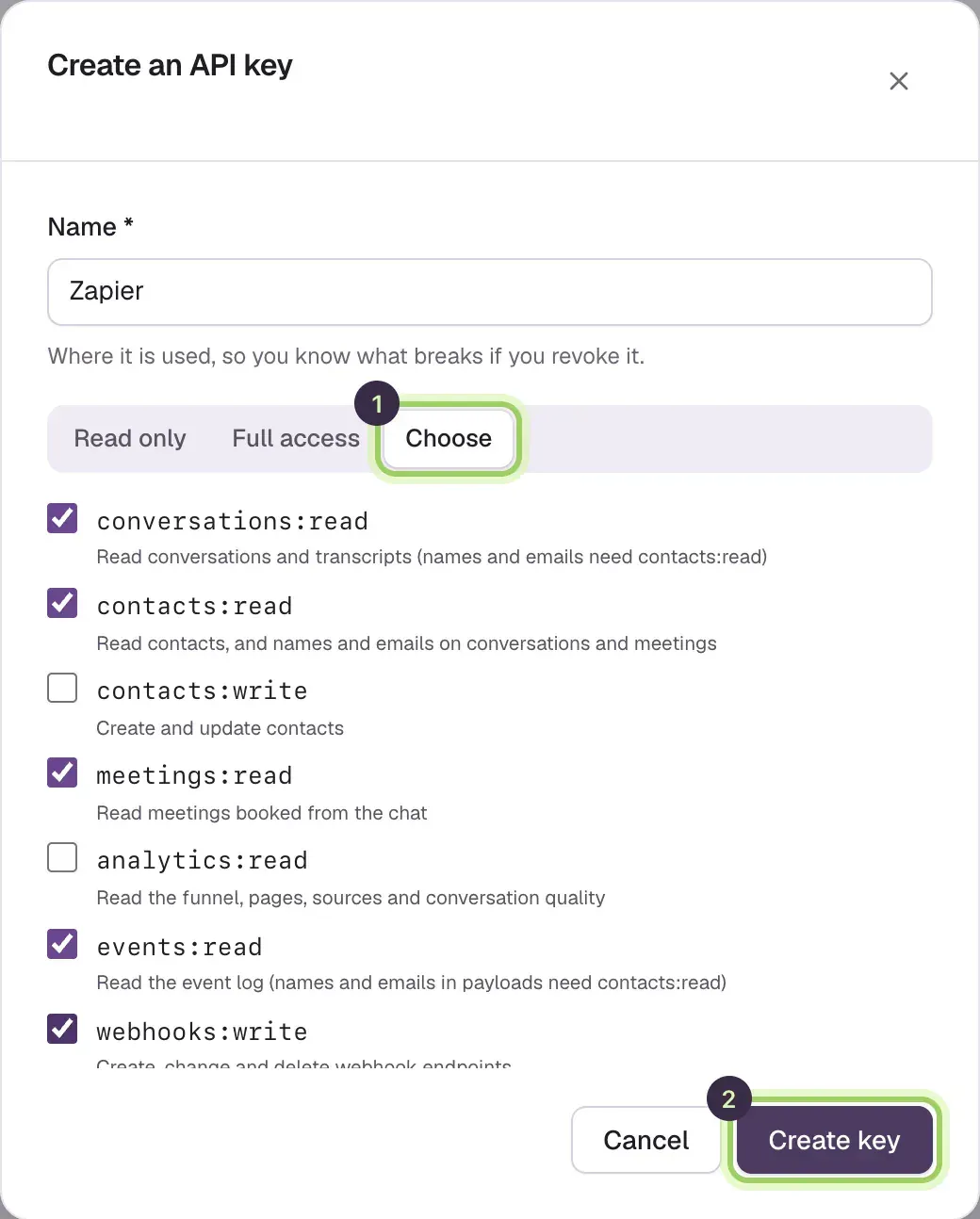
Select Create key (2). In Integrations → API, name the key Zapier, select Choose and tick the scopes Darwin lists, then select Create key and copy it. Darwin shows it only once.
Start the Zap with Darwin's New Lead trigger
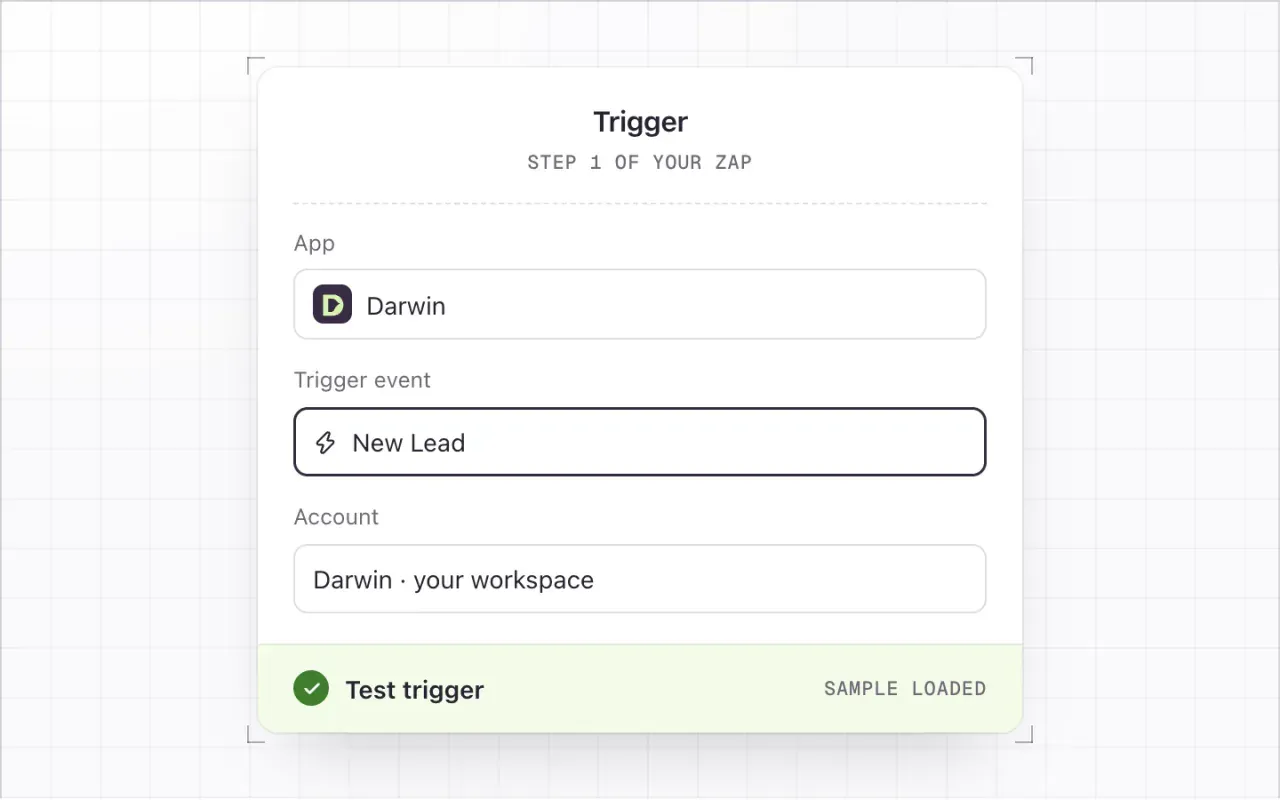
In Zapier, create a Zap. Choose Darwin as the app and New Lead as the trigger event. Connect your Darwin account by pasting the key, then select Test trigger to load a sample with the visitor's name and email when they leave them.
Add Mailchimp's Add/Update Subscriber action
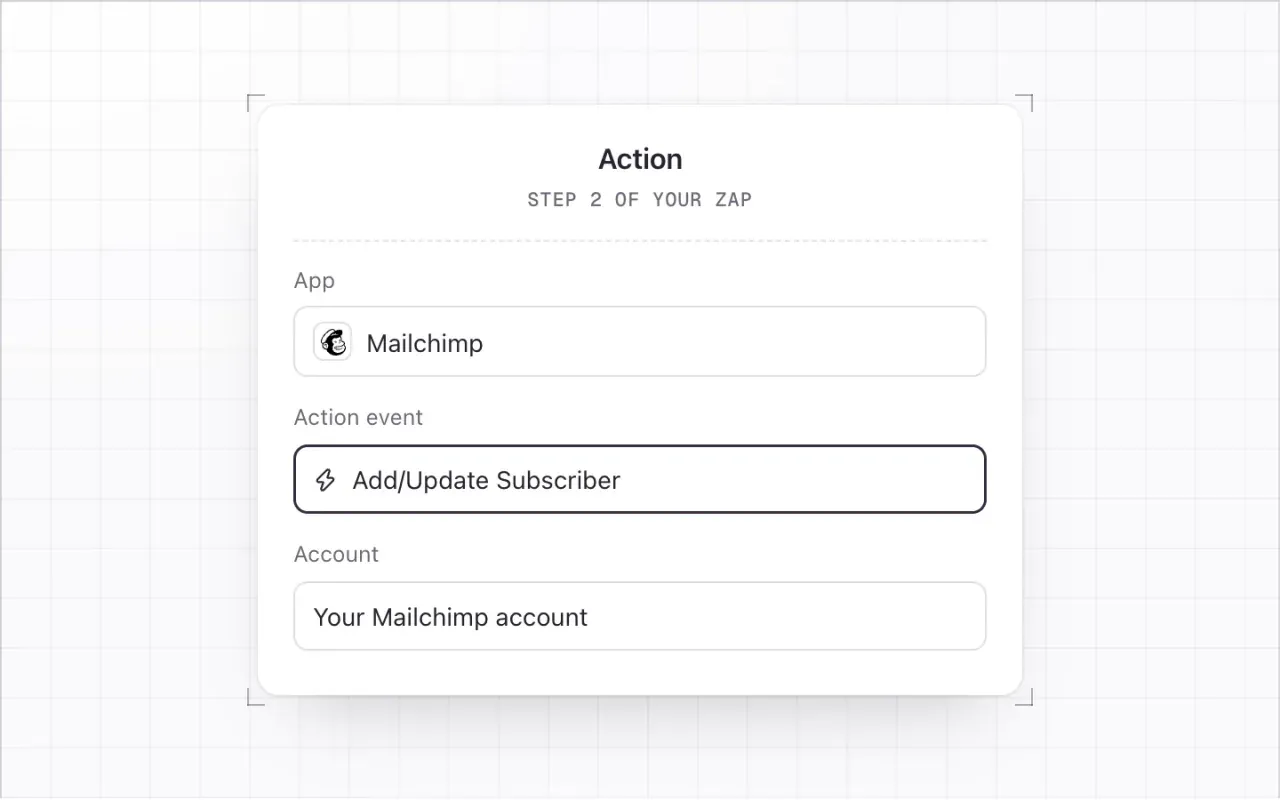
Add an action step. Choose Mailchimp as the app and Add/Update Subscriber as the action event, then connect your Mailchimp account.
Map the fields
Pick your Audience. Map Subscriber Email → Email, First Name and Last Name, type
Darwin chatin Tag(s), and set Double Opt-In to Yes.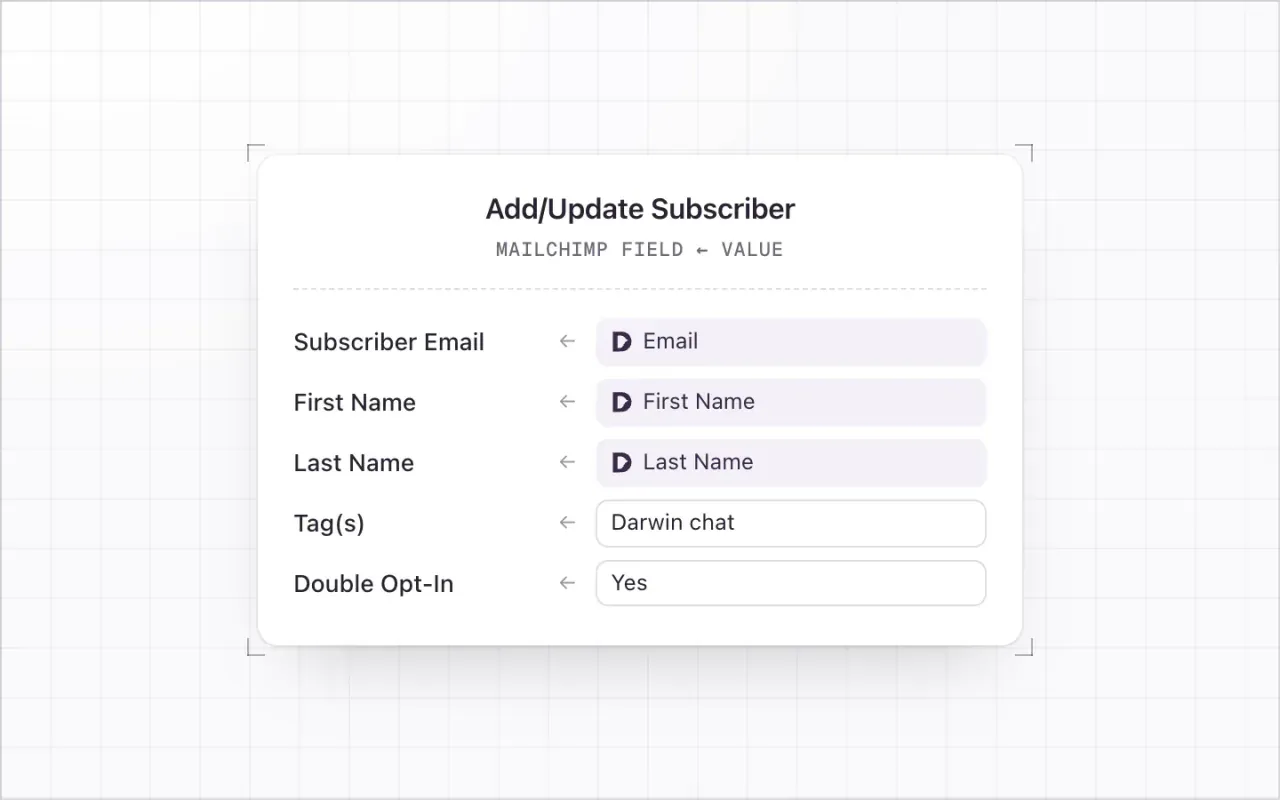
Test and publish
Select Test step and check the result in Mailchimp. Then select Publish. Back in Darwin, Build a Zap lists the Zap with its event; Open Zapier manages it.
Good to know
- Leaving an email in a chat isn't consent to marketing, so keep double opt-in on. The person shows as pending until they confirm.
- A second Zap on Meeting Booked can tag people who booked.
- Zaps act on new events from the moment you publish. Earlier leads are in Conversations, which you can export as a CSV.
- Chats in Agent Studio's preview never start a Zap. Test with a real chat on your website, or with the sample from Test trigger.