Make the chat look like your brand
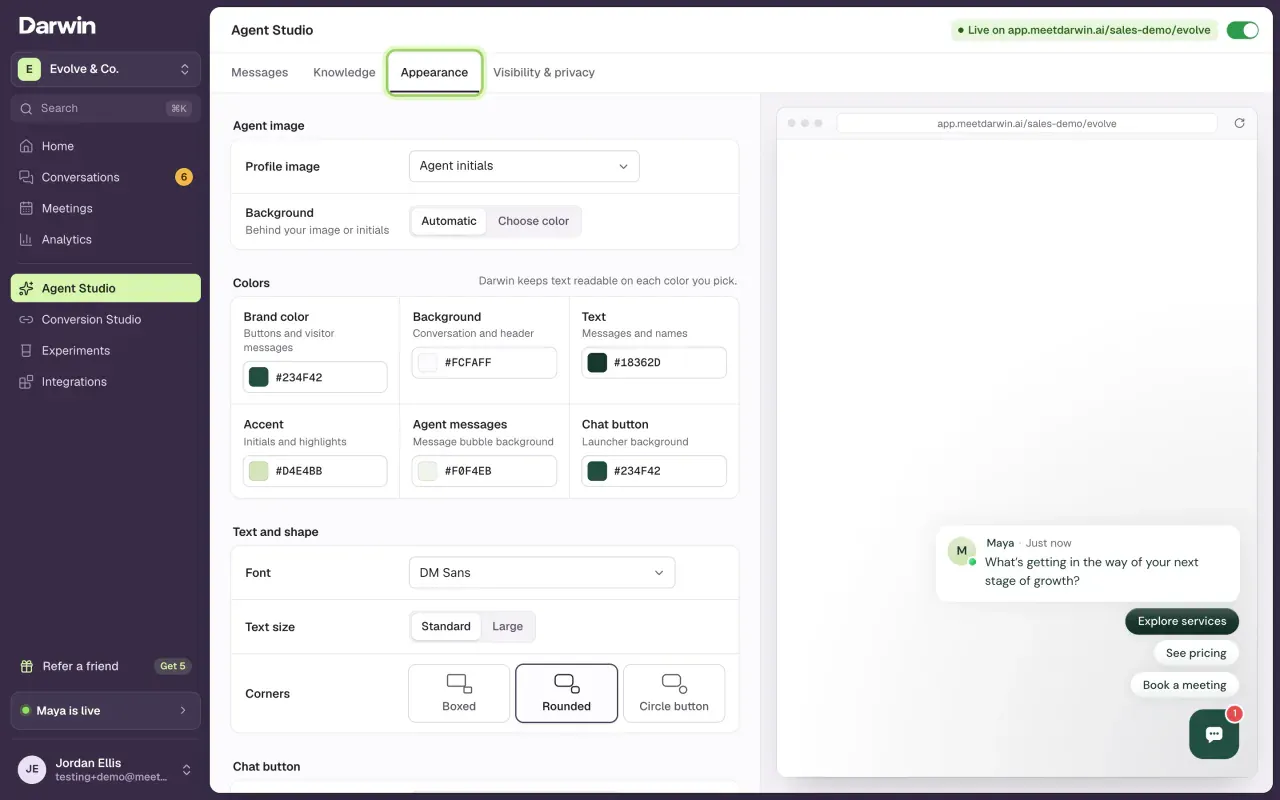
Agent Studio → Appearance: set the agent image, colors, font, corners and chat button so Darwin's chat matches your website, with a live preview.
- In Darwin: Agent Studio → AppearanceOpen in Darwin
- Updated
Every change shows in the preview on the right straight away. Your website keeps the saved design until you select Save changes.
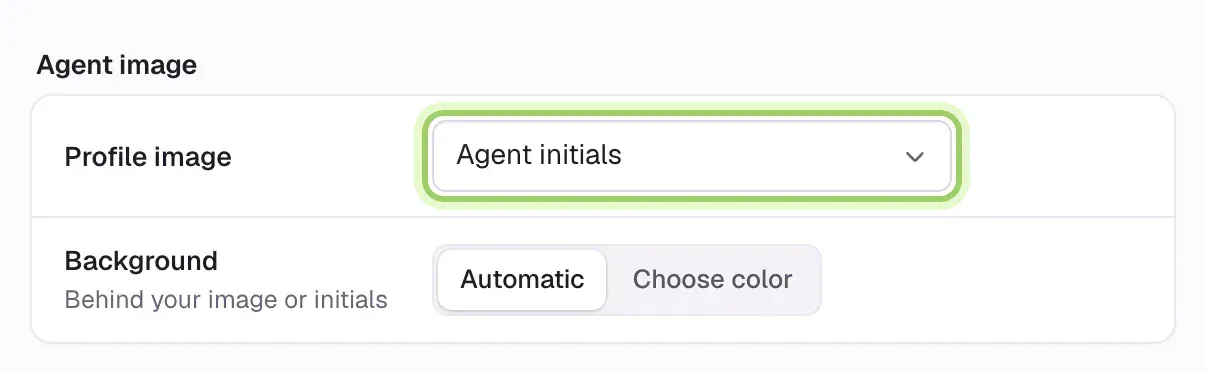
Choose the agent image
Under Agent image, set Profile image to an uploaded image, the agent's initials, or no image. Uploads can be PNG, JPG or WebP up to 5 MB. Background picks a color behind your image or initials: Automatic, or Choose color to set your own.
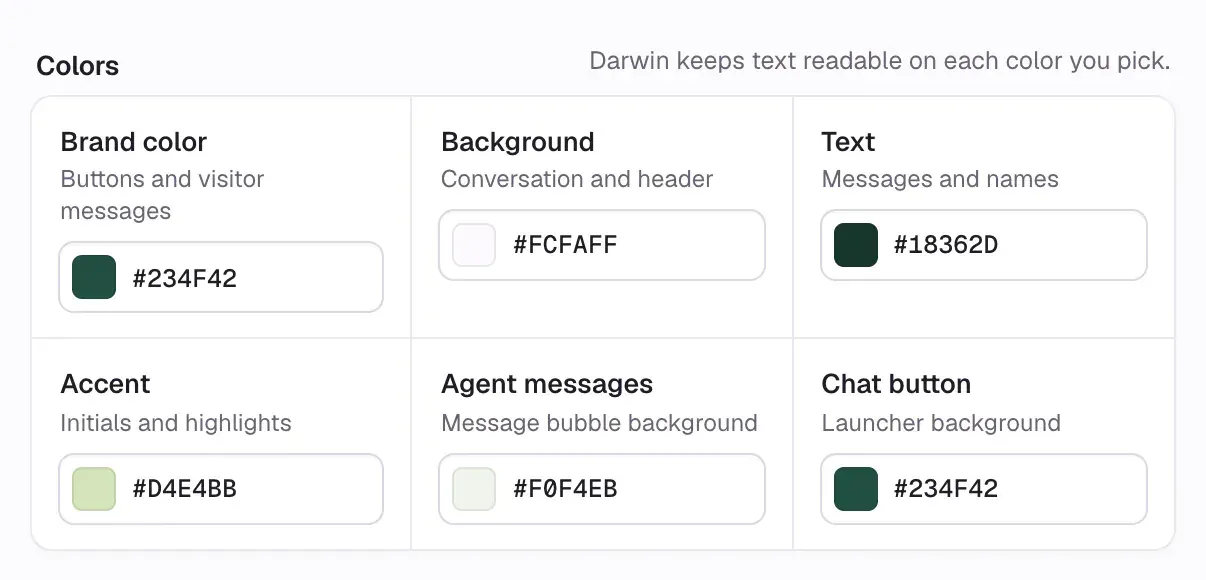
Set your colors
Under Colors, enter a hex value or use the picker for each color. Darwin keeps text readable on whatever you pick.
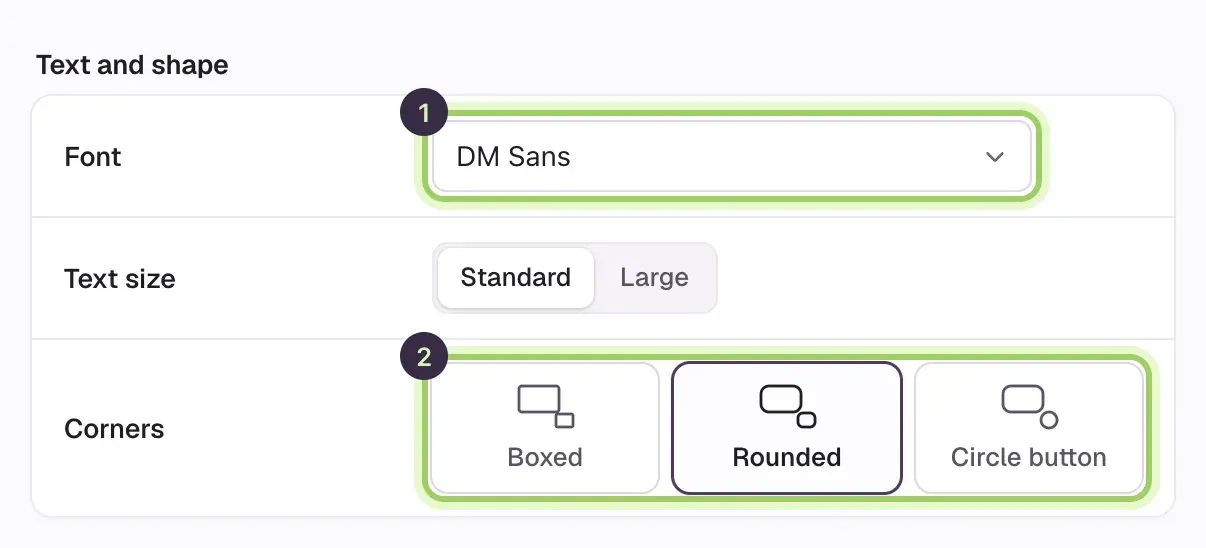
Pick the font and corners
Under Text and shape, open Font (1) to see each font in its own typeface, choose Standard or Large text, then choose the Corners (2): Boxed, Rounded or Circle button. Circle button only rounds the chat button.
Change the chat button and its label
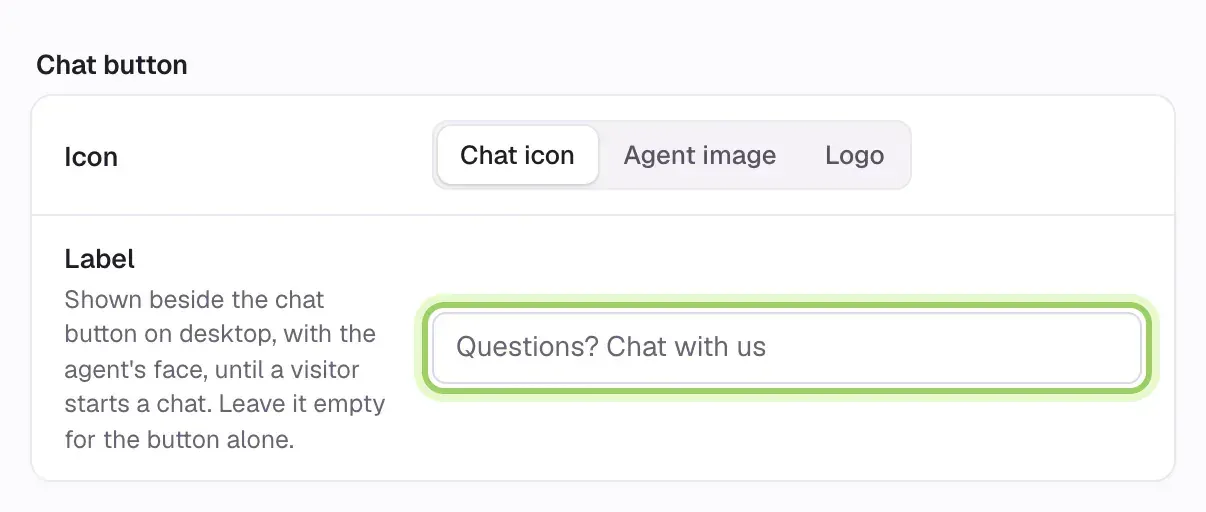
Under Chat button, set Icon to a chat icon, the agent image, or your logo on the button visitors click to open the chat. A logo can be a transparent PNG, WebP or SVG up to 200 KB.
To add a line beside the button, type it in Label, for example "Questions? Chat with us" (up to 40 characters). On desktop it shows with the agent's picture until a visitor starts a chat. Leave it empty to show the button alone.
Set dark mode, animations and sounds
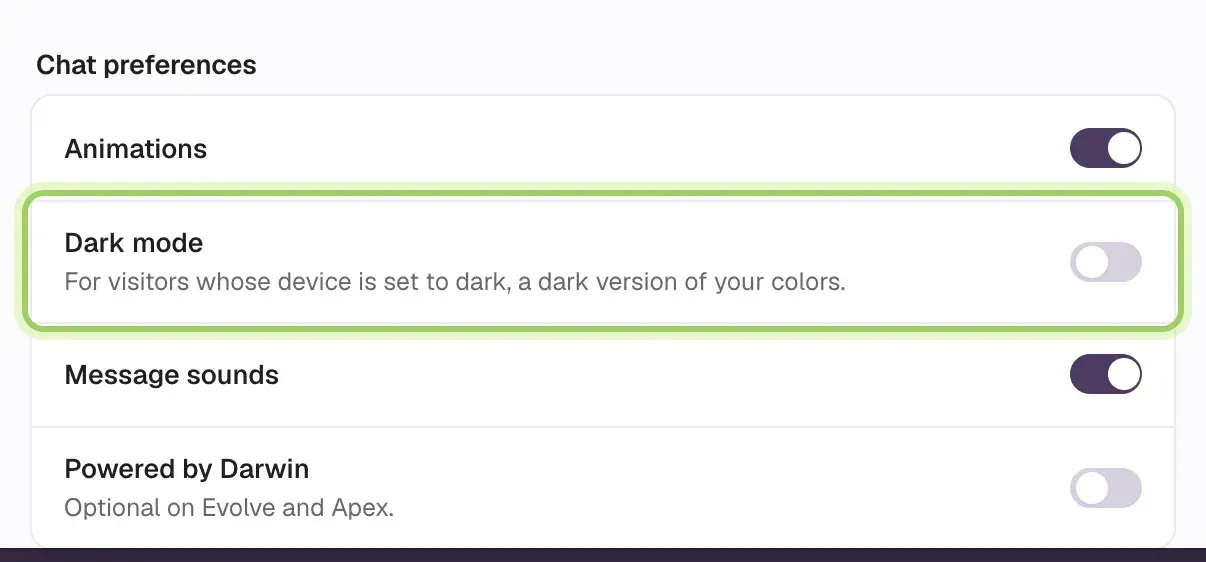
Under Chat preferences, switch animations and message sounds on or off. Turn on Dark mode to show visitors whose device is set to dark a dark version of your colors. Your brand color stays the same, and the chat button keeps its color.
Save your design
Select Save changes at the bottom of the editor. Discard goes back to the saved design. Then open your website to see it live.

Good to know
- Select the refresh icon in the preview's address bar to replay the opening.
- A consent line and privacy link under the message box are set on the Visibility & privacy tab.
- The chat shows the Powered by Darwin badge on every plan.