Install Darwin on Framer
Integrations → Framer: copy Darwin's site tag, paste it into your Framer site's custom code at the end of the body, publish, and check the installation.
- In Darwin: Integrations → Your website → FramerOpen in Darwin
- Updated
Add Darwin once in your Framer site's custom code and every published page gets the chat. It floats above the page, so it doesn't need a frame on your canvas.
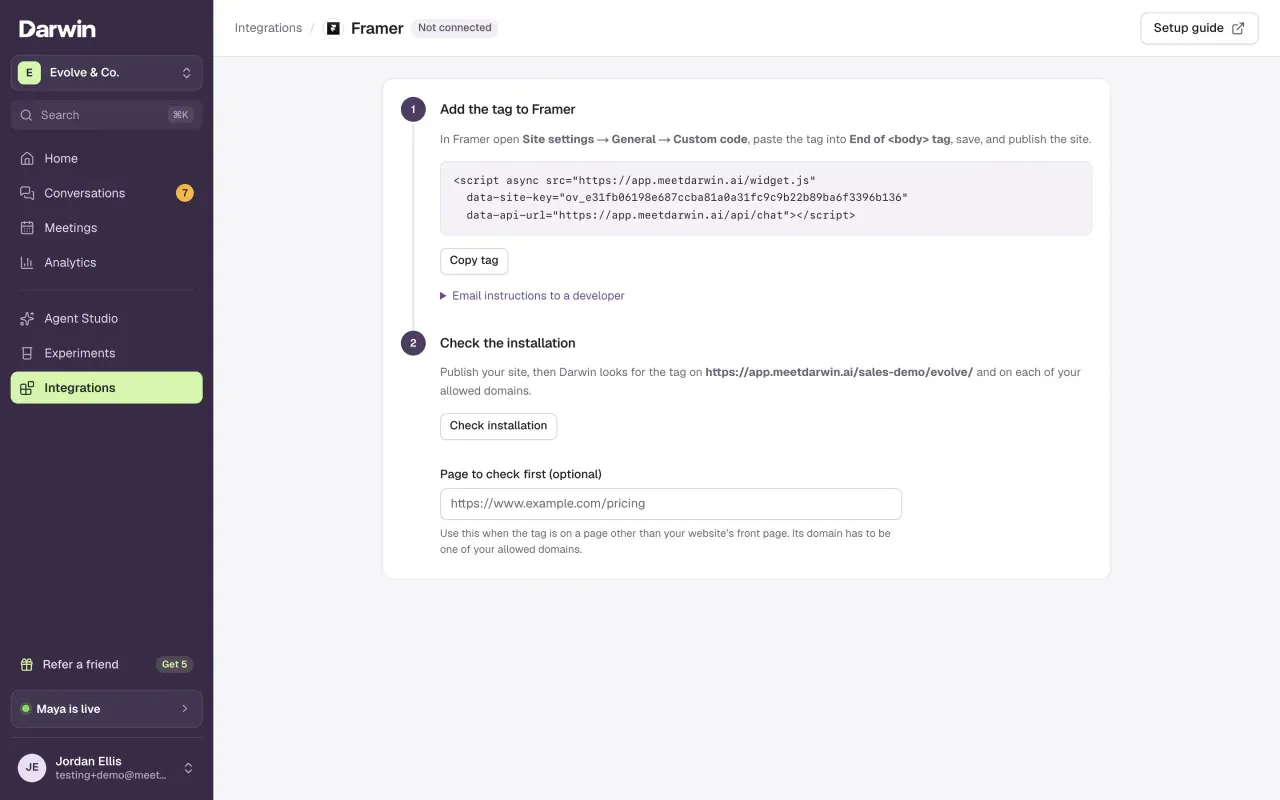
Open Framer in Darwin
Open Integrations and select Open guide on the Framer card, under Your website.
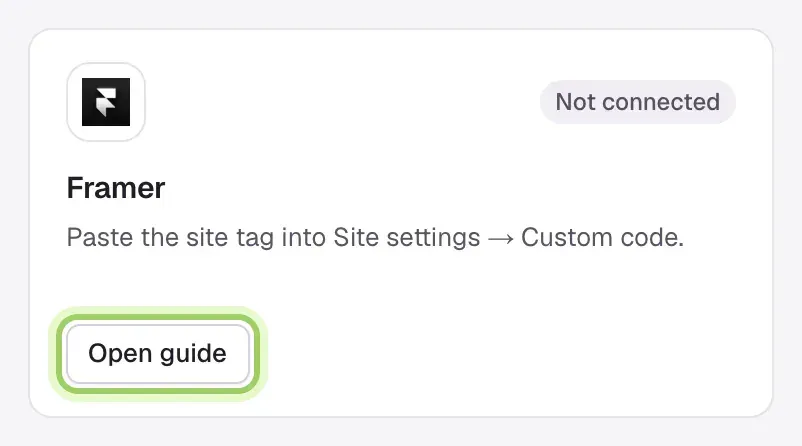
Copy the tag
Select Copy tag. To hand the job to someone else, open Email instructions to a developer.
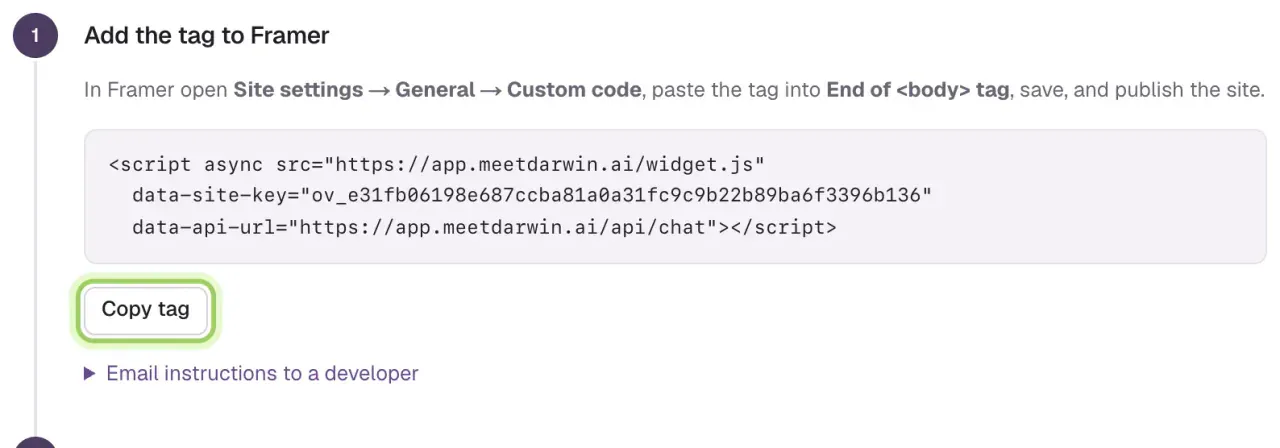
Paste it into Framer's custom code
In Framer, open your site settings and find Custom code. Paste the whole tag at the end of the body, on all pages, and keep
async. If Framer asks how often to run it, choose once, so the chat isn't added again as visitors move between pages. Use the site-wide custom code, not an Embed on one page.Publish
Save and publish the site. Then open the published site, not the editor, to test it.
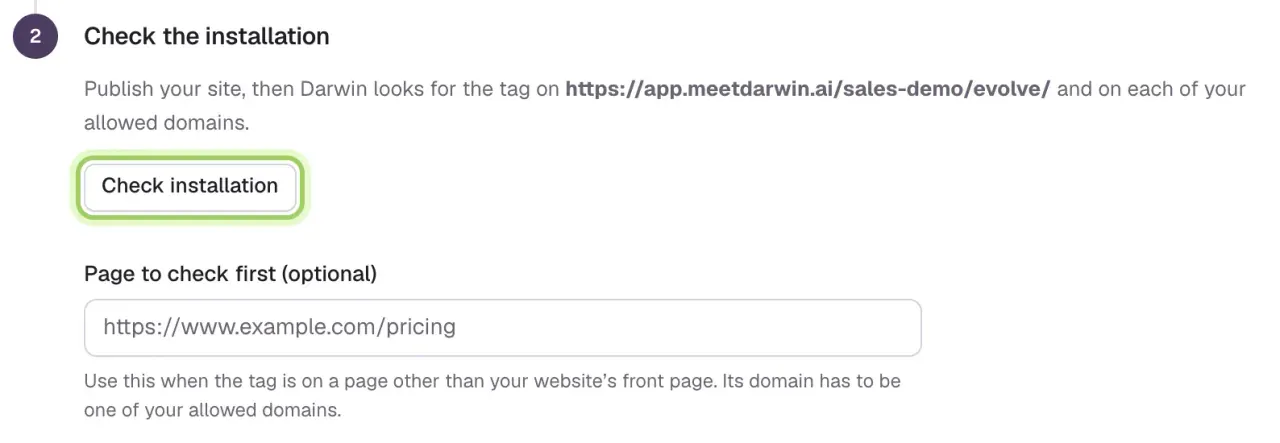
Check the installation
Back in Darwin, select Check installation. If the tag is on a page other than your front page, enter that page under Page to check first before you check.
Good to know
- Add your domain under Agent Studio → Visibility & privacy → Allowed domains first, or the chat won't run. A separate Framer preview address needs adding too.
- Follow a link to another page on your site and open the chat again. It should still work, with one chat button.
- To remove Darwin, delete the tag from Framer's custom code and publish again.