Start your day on Home
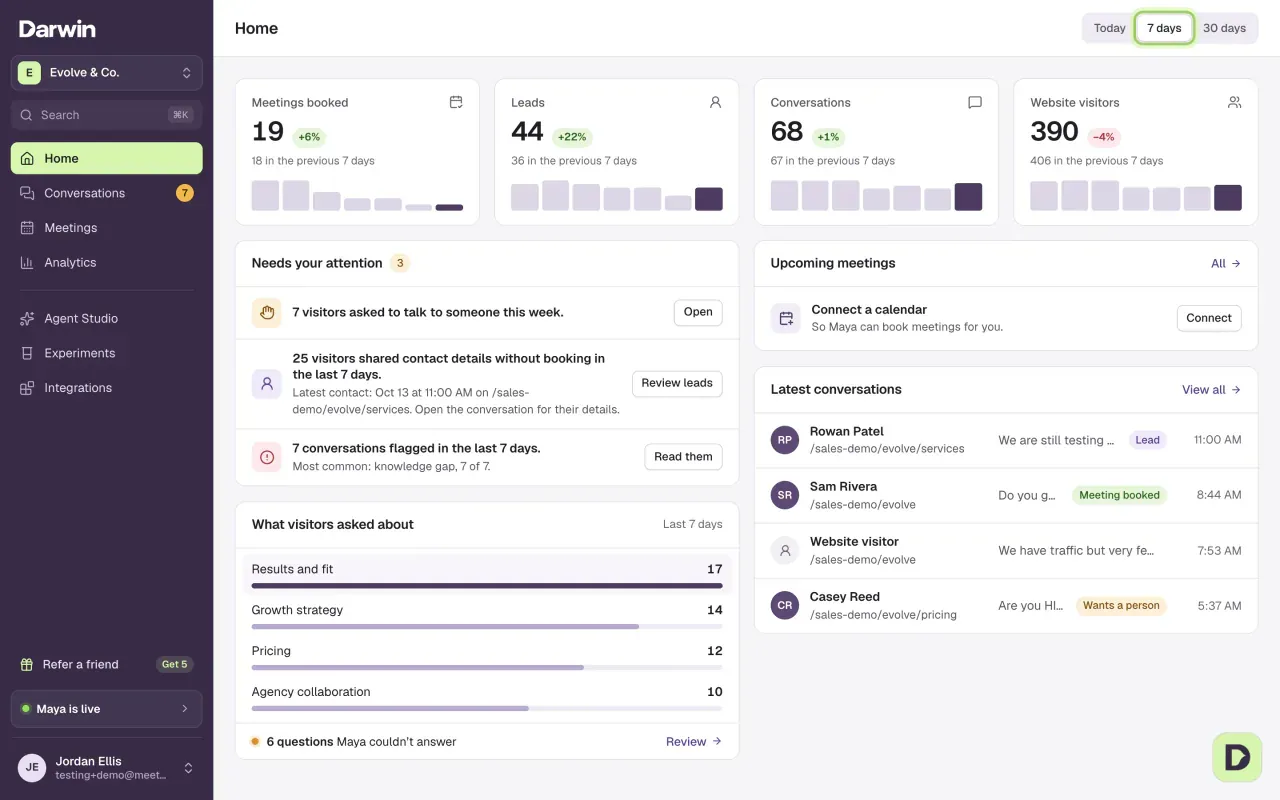
Home: your meetings, leads, conversations and visitors for today, 7 or 30 days, plus what needs your attention, upcoming meetings, the latest conversations and what visitors asked about.
- In Darwin: HomeOpen in Darwin
- Updated
Home is the first screen you see: how your chat did, and what is waiting on you.
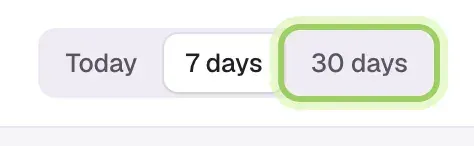
Pick the period
Use the switch at the top right: Today, 7 days or 30 days. Home opens on 7 days. The numbers and the topics follow the period you pick.
Read the four numbers
Meetings booked, Leads, Conversations and Website visitors, each with the change from the previous period and a small bar per day. Leads are visitors who left contact details or booked, counted once. With Today selected, each card shows yesterday's number instead of a change. Select a card to open its screen.

Clear what needs your attention
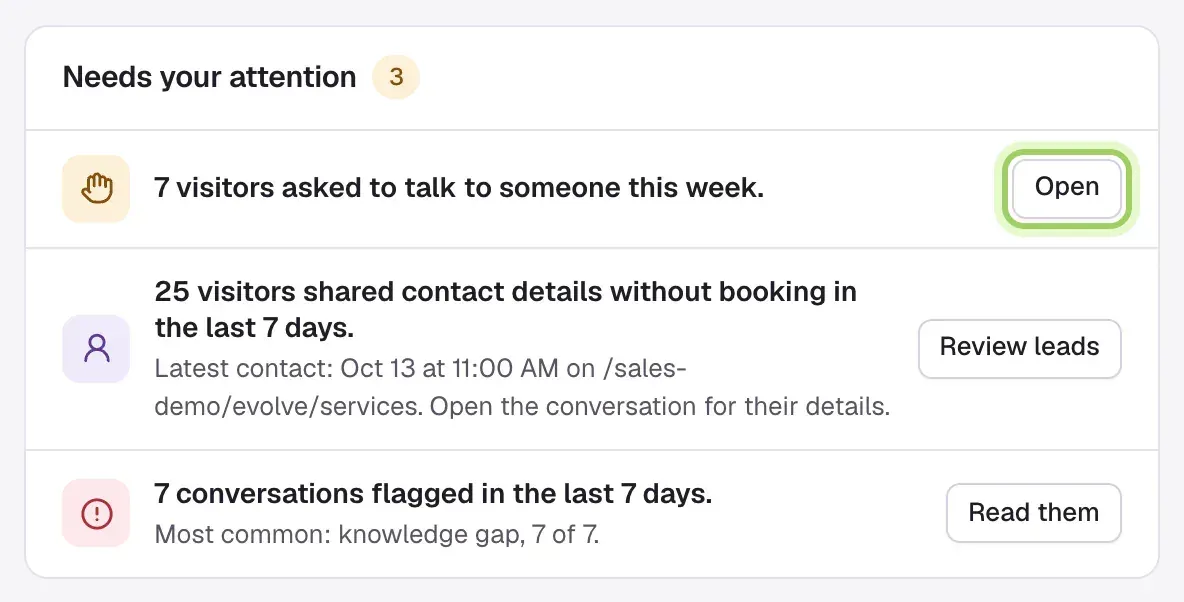
Needs your attention lists what is waiting on you: visitors who asked for a person, leads who didn't book, tests waiting for your decision, and flagged conversations. Workspace owners also see credits at 80% or used up, an add-on that would have cost less last month, and a payment that failed. Each row has a button, such as Open or Review leads, that takes you to the right place.
Check your upcoming meetings
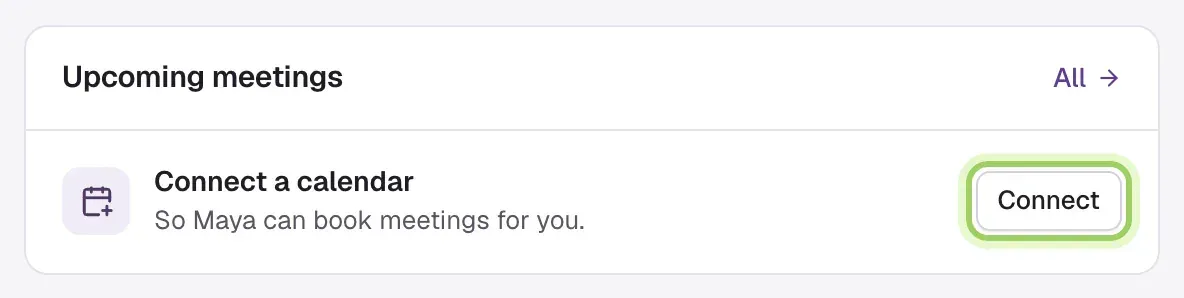
Upcoming meetings shows the next three meetings visitors booked. All opens Meetings. If no calendar is connected yet, you see Connect a calendar instead.
Open a recent conversation
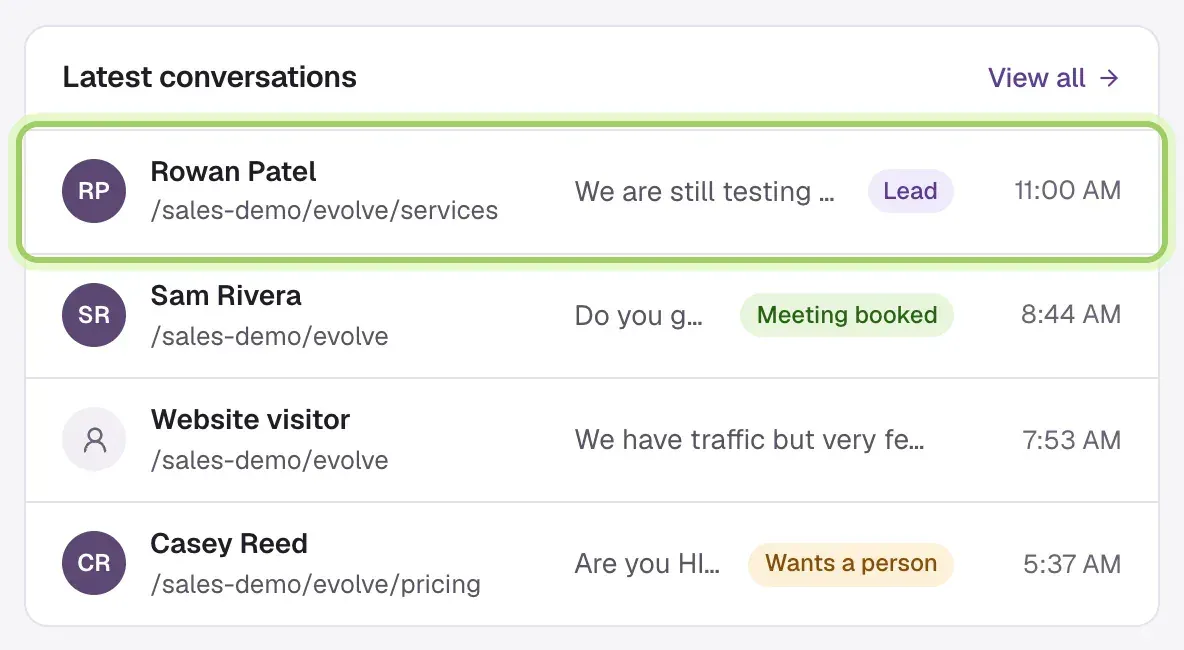
Latest conversations shows the four newest chats: who it was, the page, their first question and a badge like Lead, Meeting booked or Wants a person. Select a row to read it, or View all to open Conversations.
See what visitors asked about
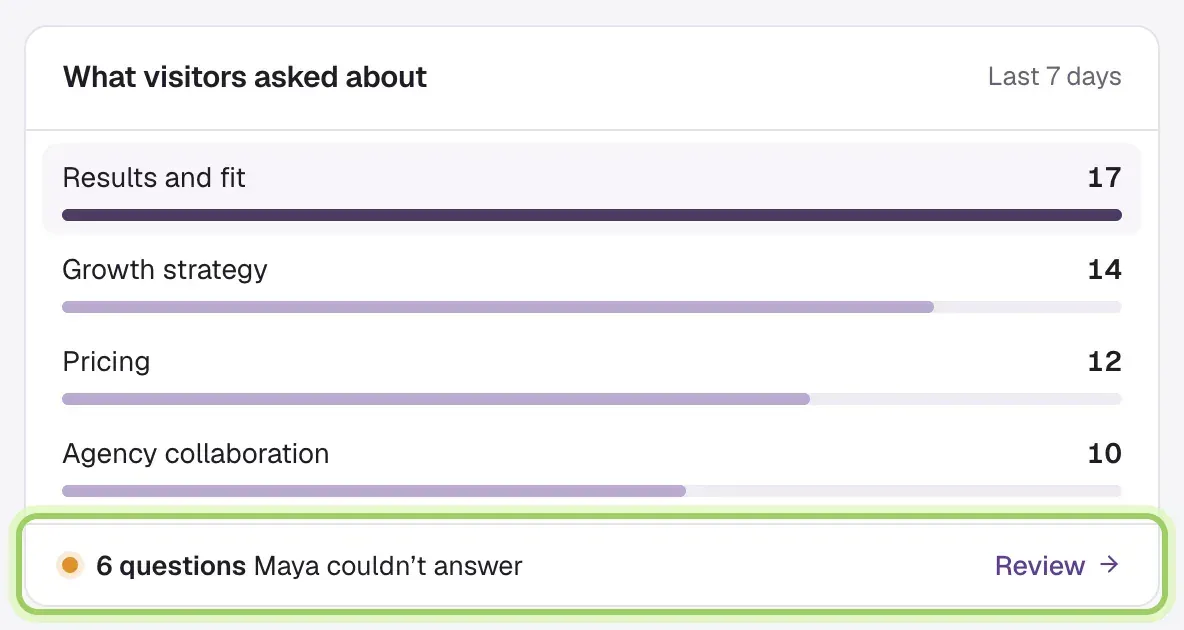
What visitors asked about ranks the top topics for the period. Select a topic to read those conversations. The line at the bottom counts the questions your agent couldn't answer; select Review to open them.
Good to know
- Days run in UTC, and today counts as far as it has gone. Home refreshes on its own every minute.
- No change shows when there is nothing to compare with. That isn't a 0% change.
- Until your agent is live, the cards show a dash. While you're still setting up, Home shows your setup steps instead.
- Topics appear once Darwin has read some conversations.