Step 3: Try your agent
Step 3 of setting up Darwin on your own: take the four-part setup tour on the Agent page. Try your agent in the preview, check what it knows, review what it says and match your website. This completes Try your agent on Home.
- In Darwin: Agent → PreviewOpen in Darwin
- Updated
Before visitors see your agent, talk to it yourself. The preview on the right of the Agent page is the real chat, and a four-part Setup tour lights up each place worth checking. Finishing the tour ticks off Try your agent on Home.
Start the tour
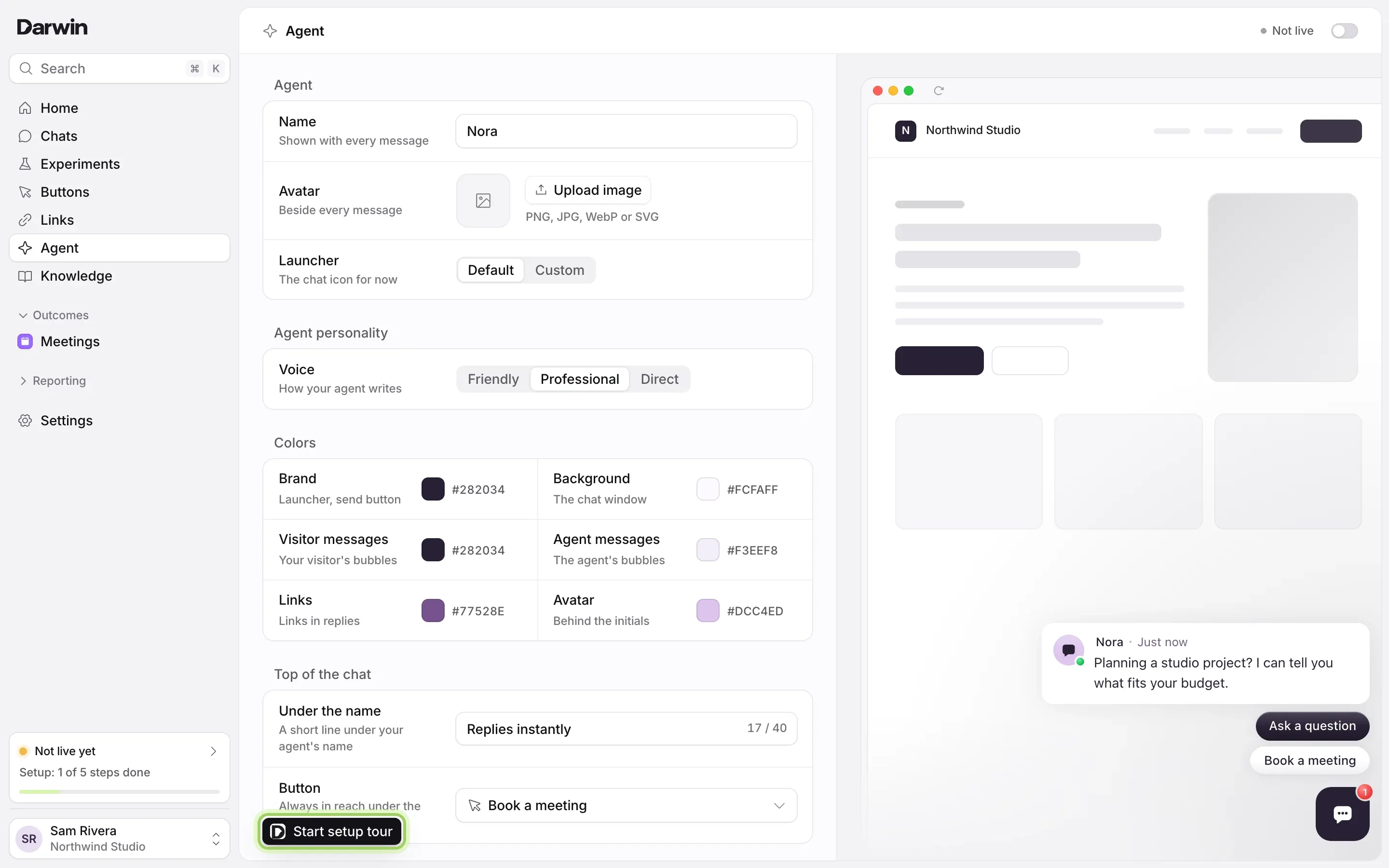
Select Try it on Try your agent on Home, or open Agent from the sidebar. Select Start setup tour at the bottom left of the page. If you've started before, it says Resume setup tour.
Try your agent
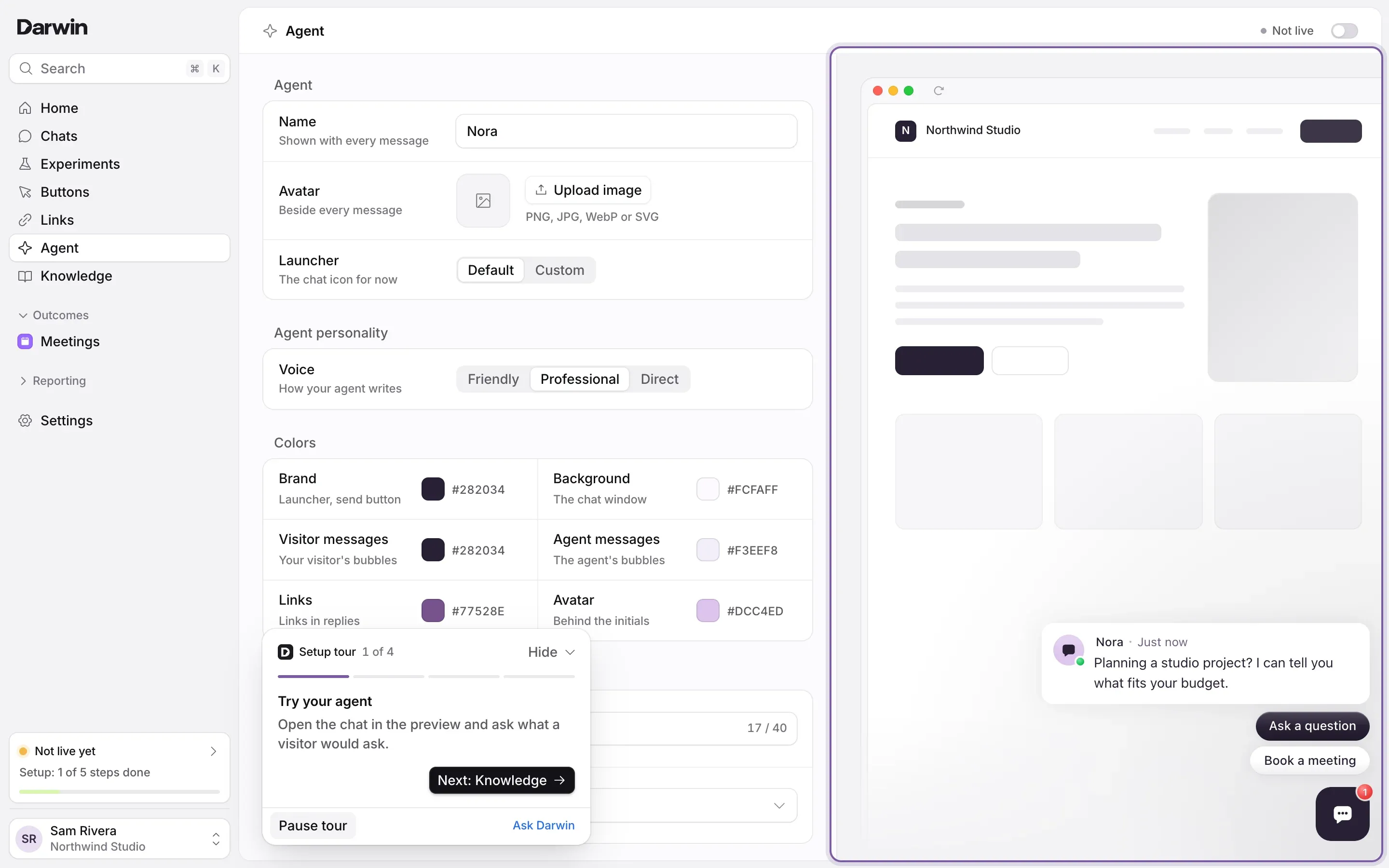
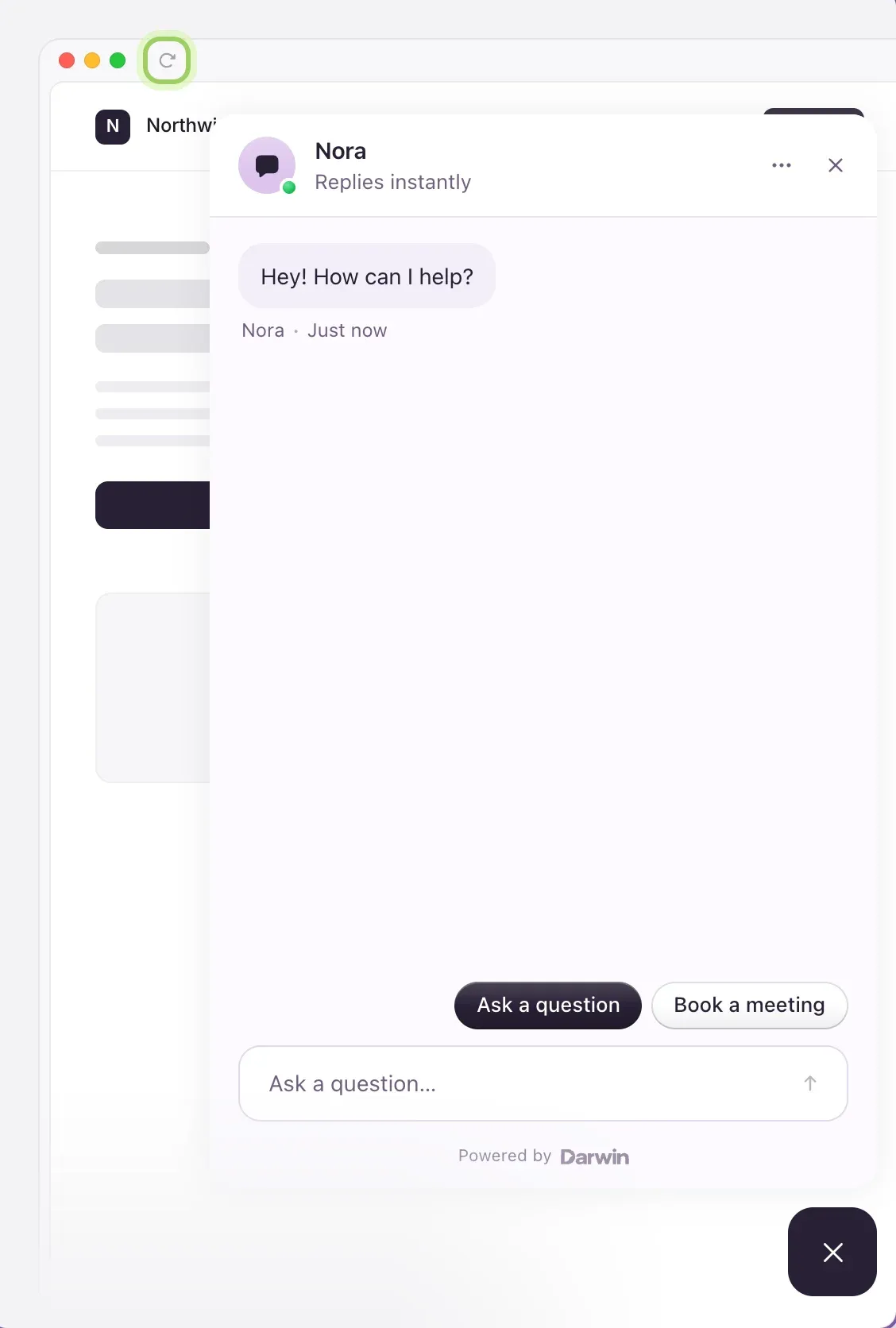
The tour card reads Setup tour · 1 of 4 and lights the preview on the right. Select the launcher and ask what a real visitor would: what you do, what it costs, whether you fit their case, how to book. Stuck for a question? The card suggests one. Then select Next: Knowledge.
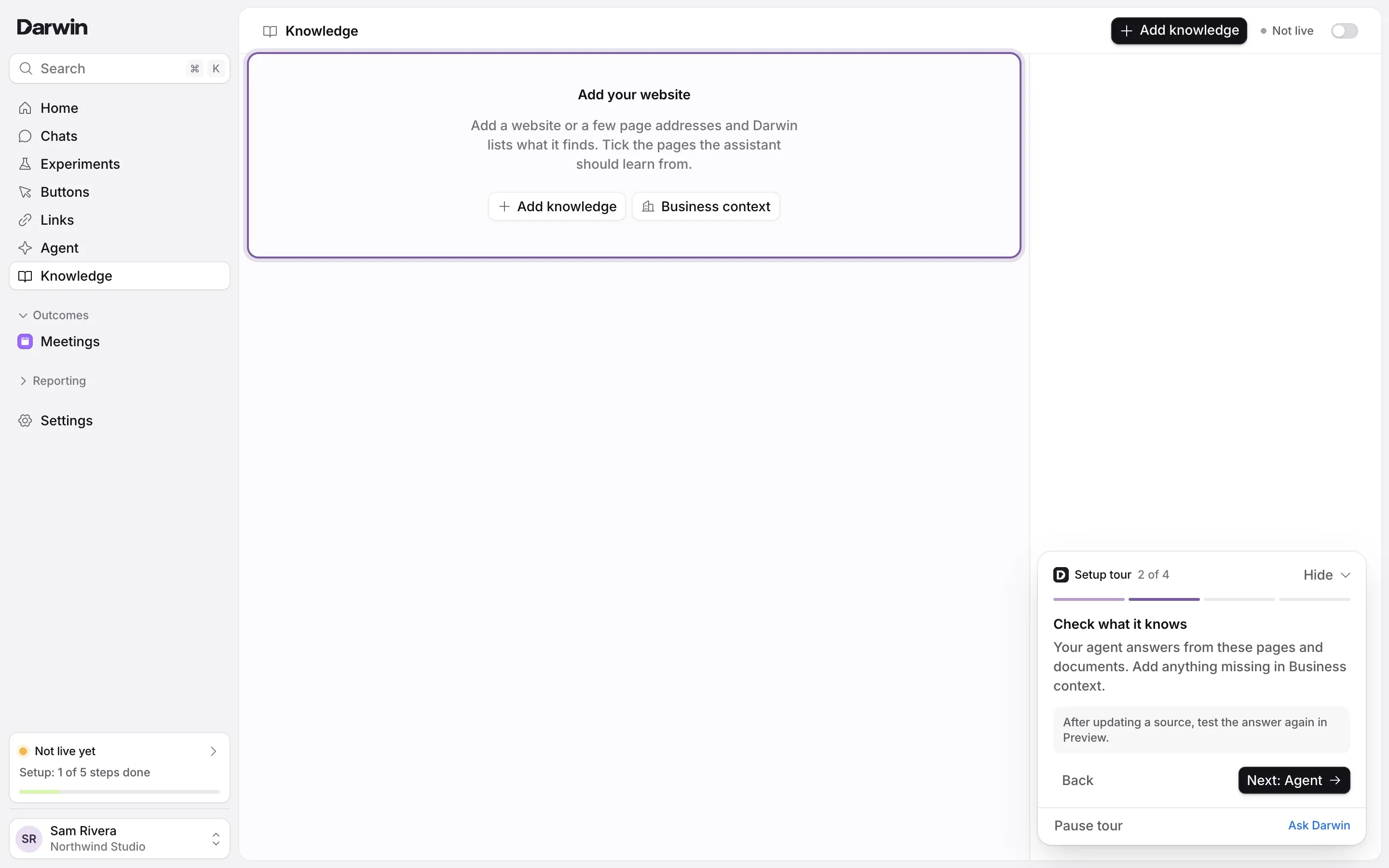
Check what it knows
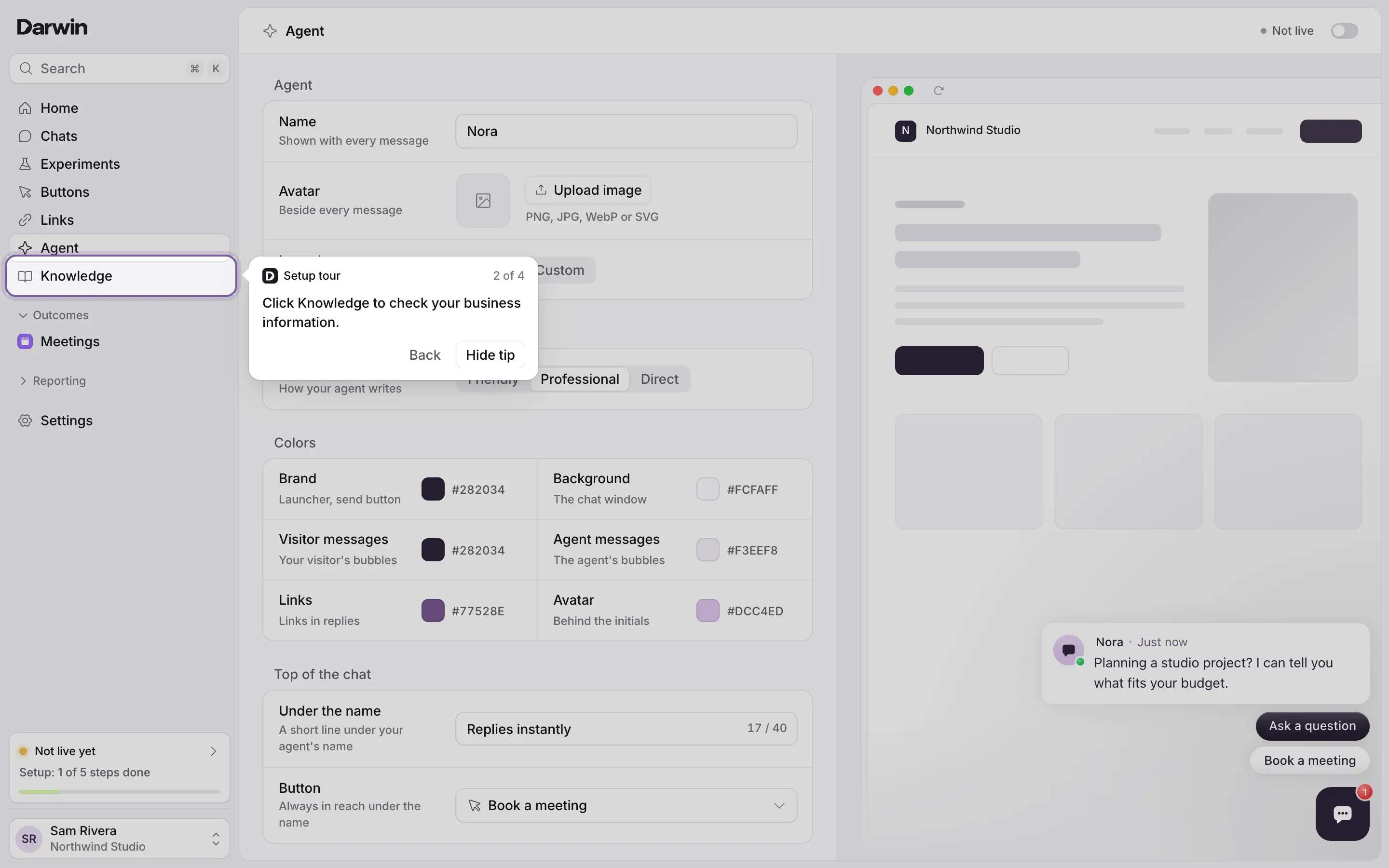
The tour lights Knowledge in the sidebar: select it. The page lists the pages and documents your agent answers from. If an answer was wrong or missing, add the page that has the facts with Add knowledge, or add them in Business context. If Darwin couldn't read your website, the page is empty with both buttons in the middle. Then select Next: Agent.
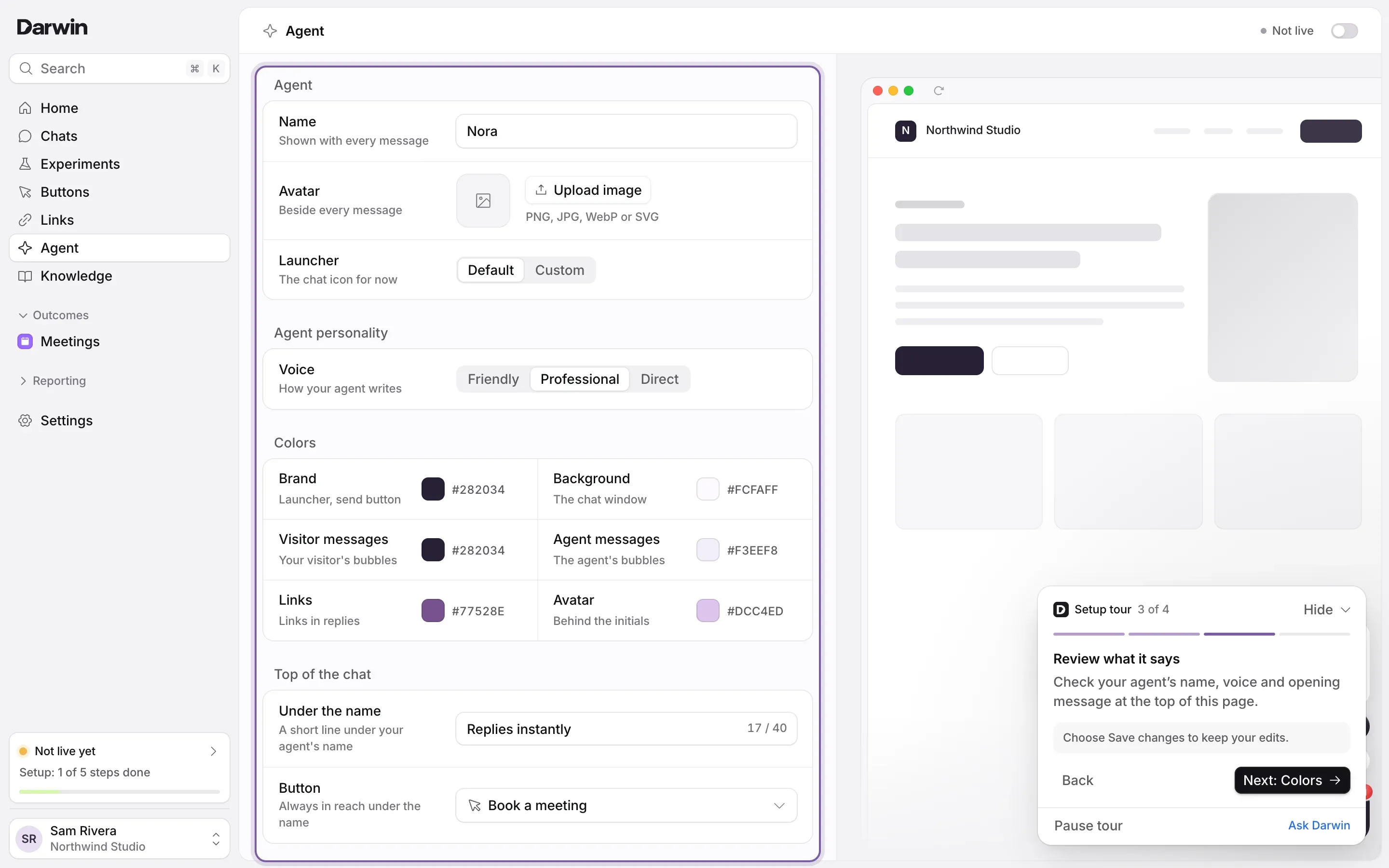
Review what it says
Select Agent in the sidebar. The tour lights the top of the page: check the name, voice and opening message you set in step 1, and select Save changes if you edit them. Then select Next: Colors.
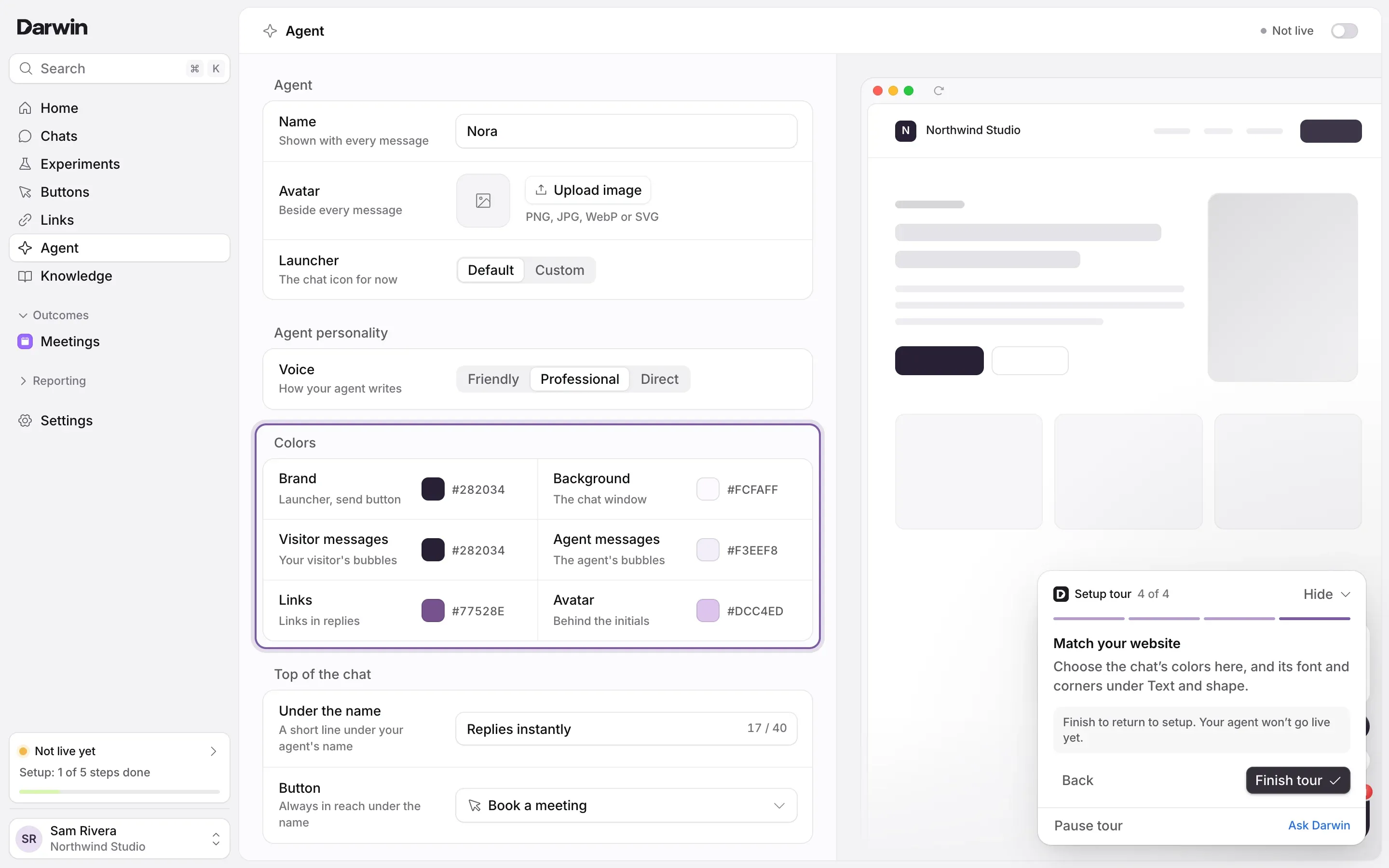
Match your website
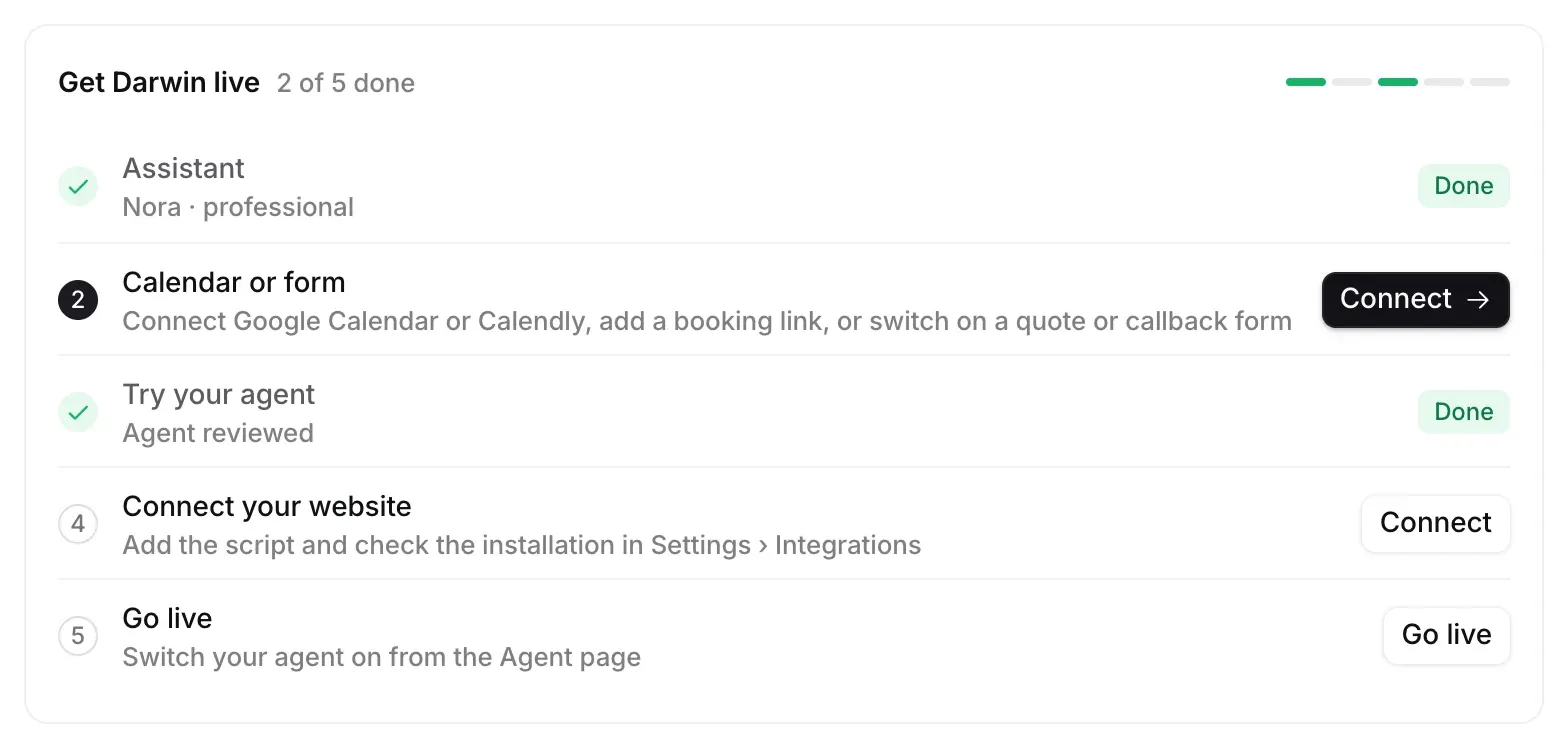
The tour lights Colors. Choose the chat's colors there, and its font and corners under Text and shape, then save. Select Finish tour: you go back to Home, where Try your agent now reads Done.
Good to know
- Finish tour needs at least one real reply in the preview, and no unsaved changes, so ask a question and save or discard first.
- The tour is optional. You can go live without it, but testing first is the best way to catch a wrong answer.
- Hide folds the card into a Show tip button; Pause tour keeps your place, and Resume setup tour picks it up again. Back returns to the part before.
- The tour is for owners and admins, and only shows before your agent's first launch.
- The restart button next to the three dots at the top of the preview starts a fresh chat. More in Test your agent.
- Preview chats are tests: they stay out of your reports and billing.