See what each page is showing
Experiments → Pages: find a page, see its test type and status, start a test on one page, and open a page to see its openings, results, history and page controls.
- In Darwin: Experiments → PagesOpen in Darwin
- Updated
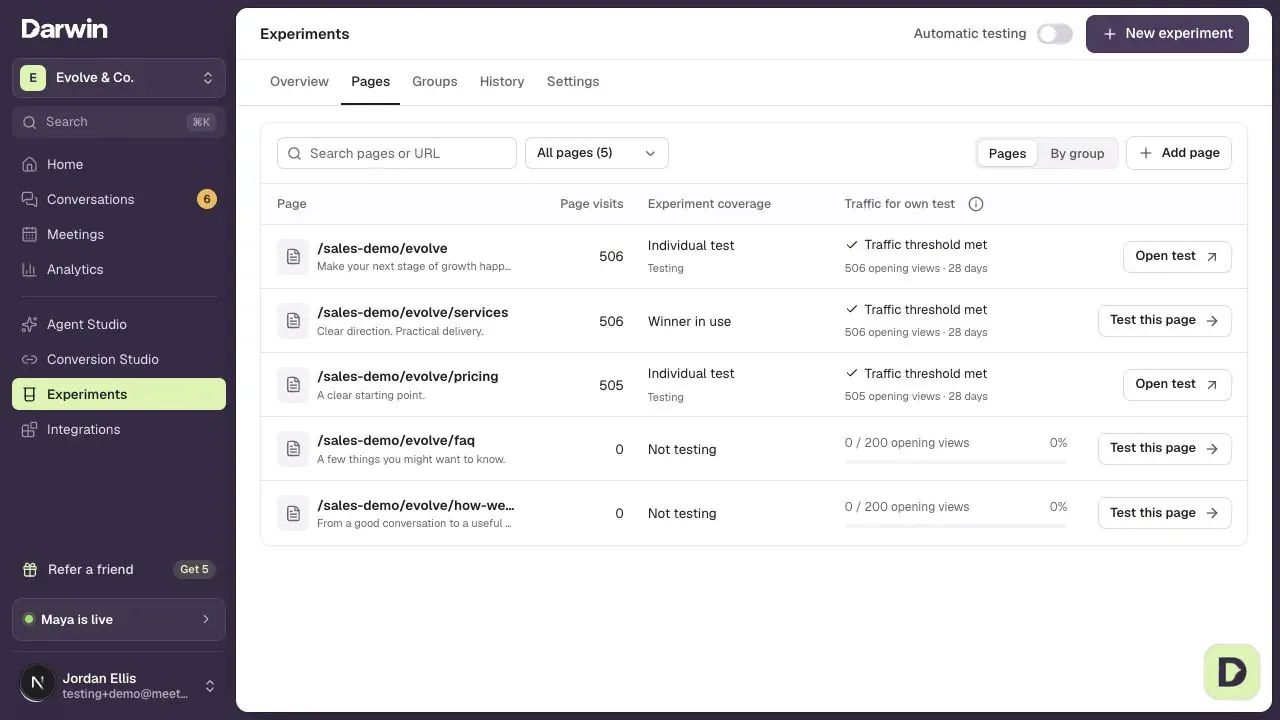
Pages lists pages found in your website content and visitor activity, including pages with no visits yet. Use it to see where traffic goes, which opening each page uses and how close it is to qualifying for its own test.
Find a page
Use Search pages or URL and the All pages filter to find a page or narrow the list by coverage. Select Add page if you need to add one yourself. Enter its full address; it must be on a website connected in Knowledge.
Read visits and coverage
Page visits counts visits to the page over the last 28 days. Experiment coverage tells you whether the page has an individual test, uses a group or site-wide test, or shows a saved opening. A status below the coverage tells you whether a test is running or a winner is in use.
Select the page or its row to open its details. For a shared test, the coverage link opens the group or site-wide test instead.
Check traffic for an individual test
Traffic for own test uses opening views: how often visitors saw the opening. This is a different count from page visits. The progress bar compares those views with the threshold set in Experiments → Settings over a 28-day window. For example, 20 opening views toward a threshold of 30 is about 67%.
Reaching the threshold makes the page eligible. Automatic testing, available test slots and the next check still determine when a test starts. A page marked to keep testing separately doesn't need to reach the traffic threshold.
Start a test on one page
Select Test this page. The panel shows the page's current opening, which stays in use while Darwin writes and checks a new one. Leave Keep testing separately on to keep the page in its own tests after this one ends, then select Generate and start test.
You can also select New experiment and choose One page, A group of pages or Site-wide.
Open a page and return to the list
The page screen keeps the Experiments tabs above its openings, results and history. Select Back to return to the list you came from, with its search and filters preserved.
Under Page controls, Keep testing separately lets the page continue testing on its own. When the page has a saved winning opening, Reset returns it to your site-wide opening after confirmation.
Groups
Open Experiments → Groups to see shared tests and the pages they cover. Create group makes a group of pages you choose. Open a group to review its test; the site-wide test covers other eligible pages that aren't tested individually or in a group.
Good to know
- A page tested alone with few visitors takes longer to reach a result. The bar for a winner doesn't change.
- Page visits help you understand traffic. Test results and eligibility use opening views.
- A page with no visits can still appear because Darwin found it in your website content.