Step 4: Add the chat to your website
Setting up on your own: allow your domain, then add Darwin's site tag to any website, or install it on Webflow, WordPress, Framer or Google Tag Manager, and check the installation. One flow for each.
- In Darwin: Integrations → Your websiteOpen in Darwin
- Updated
Darwin's chat runs on your website from one script tag, added once for every page. Pick how your website is built and follow that flow. When Darwin finds the tag on your site, Home ticks off Connect your website.
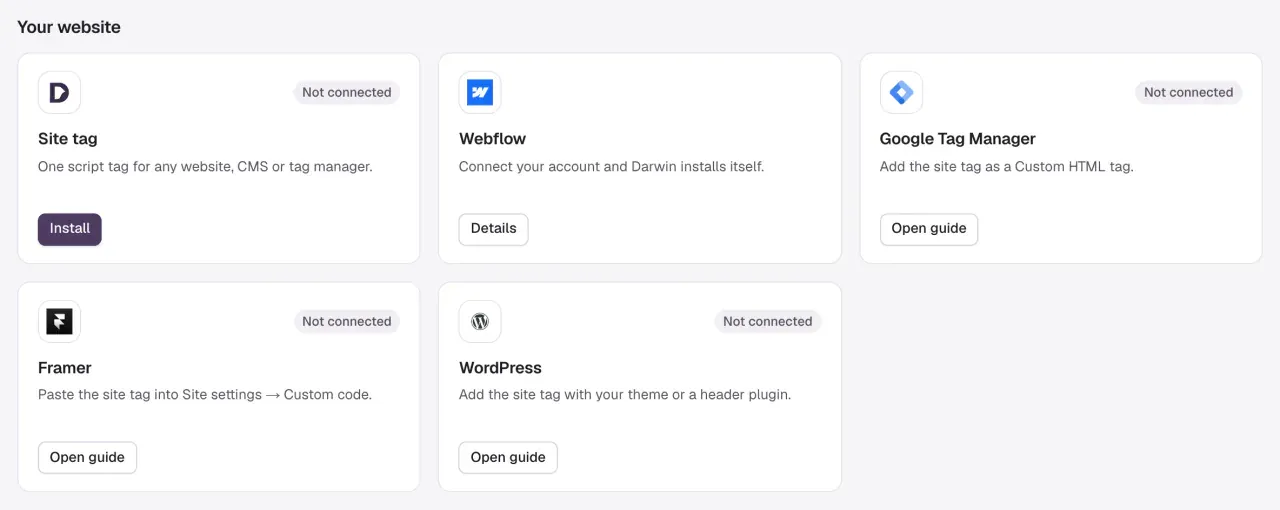
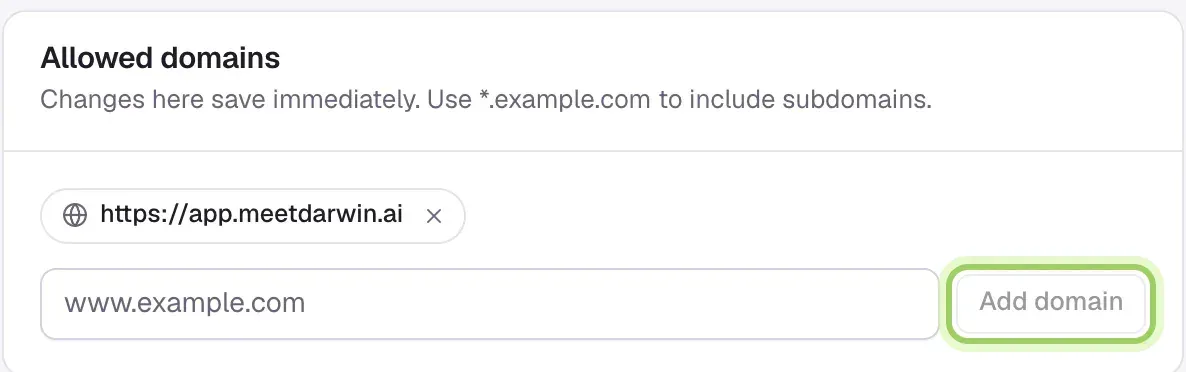
First, allow your domain
Open Agent Studio → Visibility & privacy. Under Allowed domains, type your website's address and select Add domain. The chat only runs on domains in this list, and www.example.com and example.com count as different. Webflow adds its domains for you, so skip this if you use Webflow.
Any website
For a site you edit yourself, or any builder with a site-wide custom code setting.
Copy the site tag
In Integrations, select the Site tag card, then Copy tag.
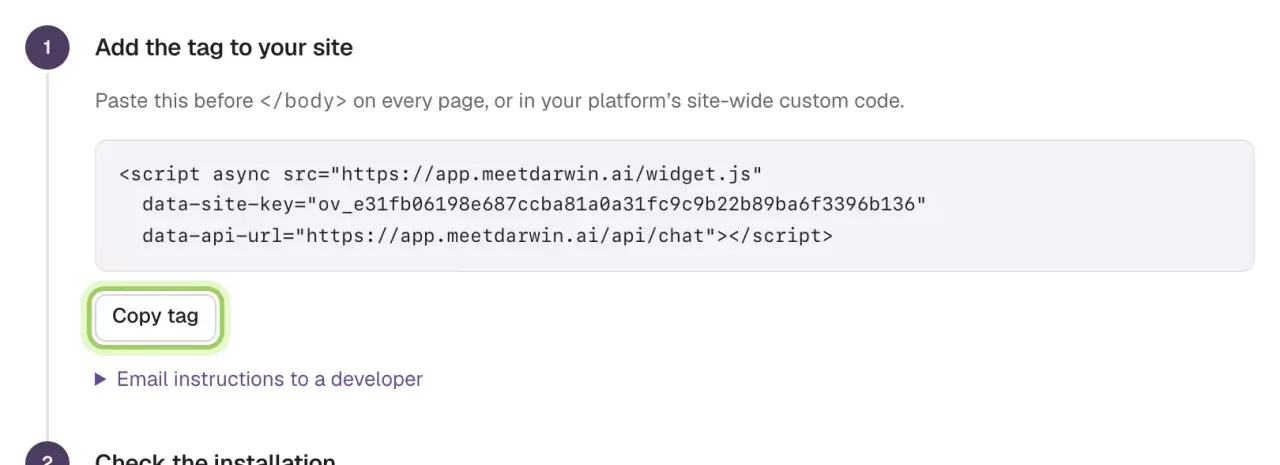
Paste it on every page and publish
Paste the tag just before
</body>on every page, or into your builder's site-wide custom code (often called code injection, or custom code for the footer or body). Add it once, then publish your site.Someone else edits your website? Open Email instructions to a developer, enter their email and select Email instructions.
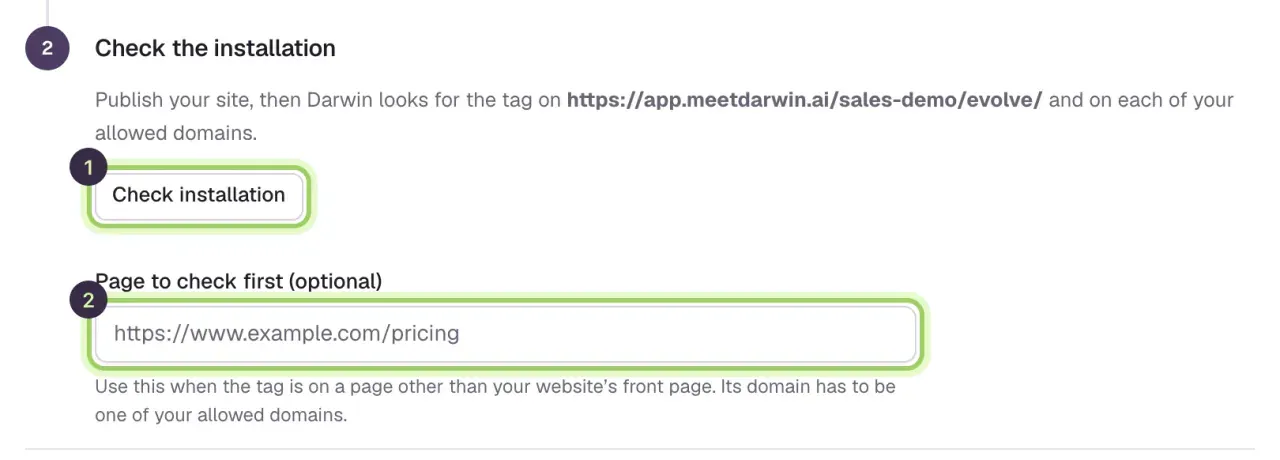
Check the installation
Select Check installation. When Darwin finds the tag, the step shows Verified.
Full guide: Install Darwin on any website.
Webflow
Connect the Darwin app and it adds the tag to your Webflow site for you.
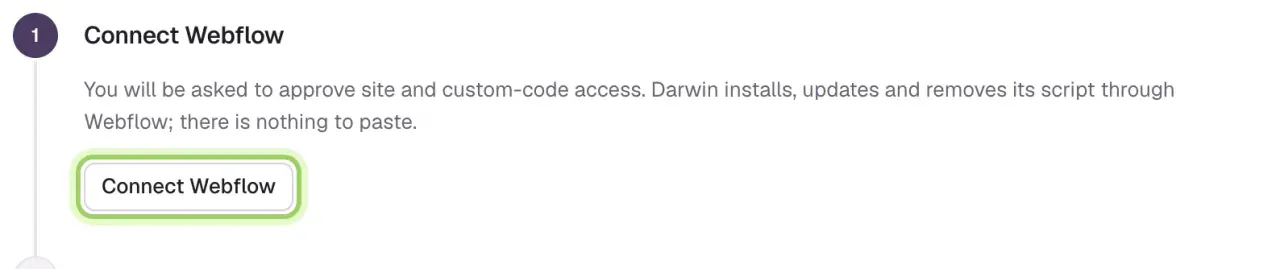
Connect Webflow
In Integrations, select Connect on the Webflow card, then Connect Webflow. Choose the sites Darwin can access and approve the permissions.
Add Darwin to a site
Choose the site and select Add Darwin. Darwin adds its script and your site's domains. Nothing is published yet.

Publish the site
Select Publish site now. This publishes the site with any other unpublished changes.

Check the installation
Select Check installation. Darwin confirms when it finds its tag on the live site.
Full guide: Install Darwin on Webflow.
WordPress
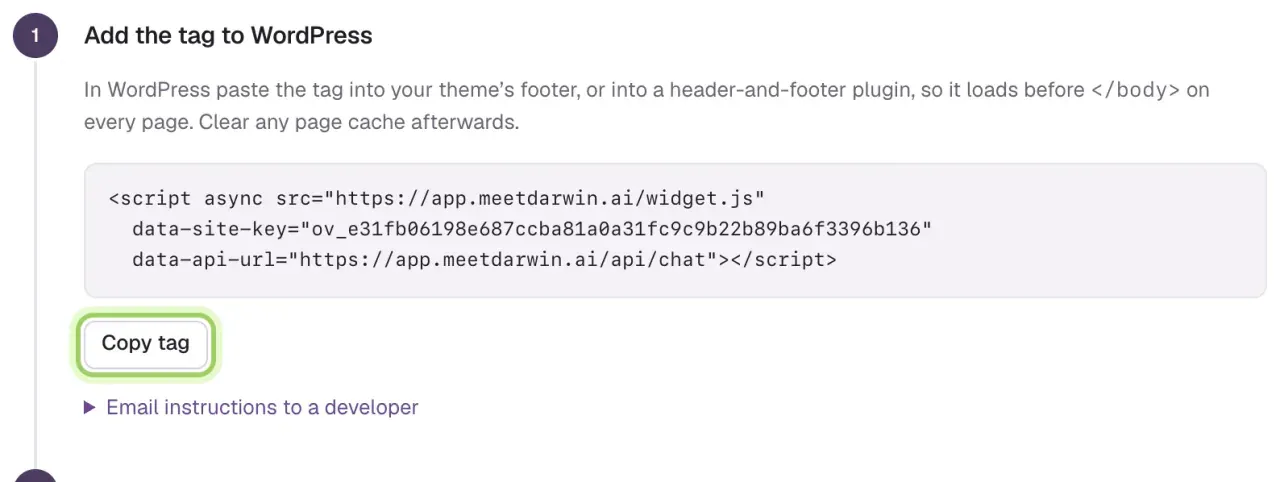
Add the tag to your theme's footer, or with a header-and-footer plugin.
Copy the tag
In Integrations, select Open guide on the WordPress card, then Copy tag.
Clear the cache
If a caching plugin, your host or a CDN caches pages, clear it.
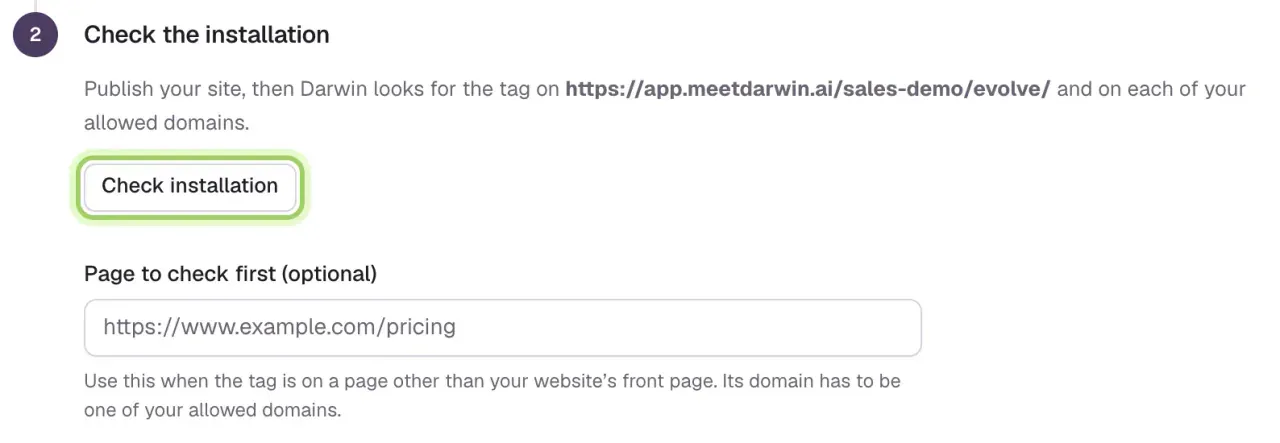
Check the installation
Back in Darwin, select Check installation.
Full guide: Install Darwin on WordPress.
Framer
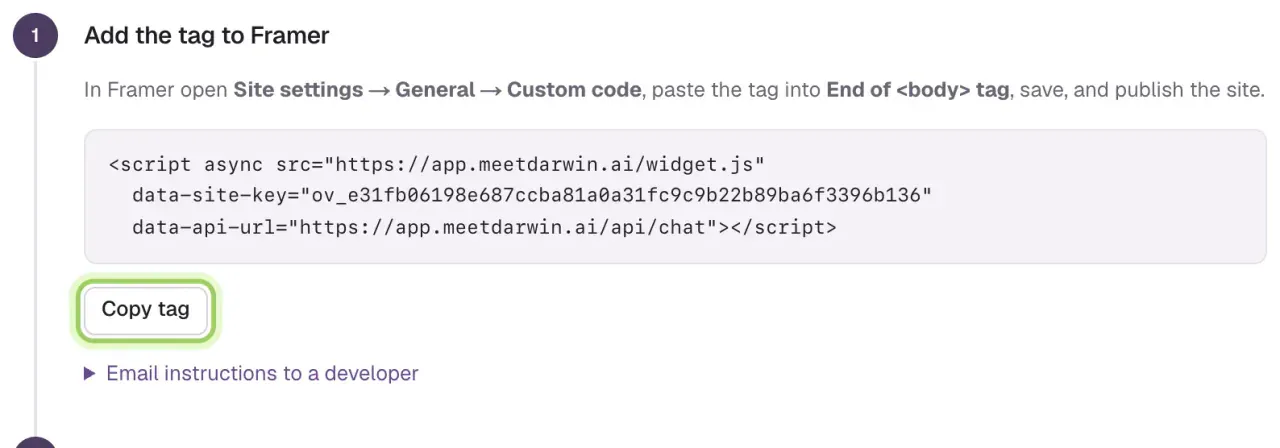
Paste the tag into Framer's site-wide custom code.
Copy the tag
In Integrations, select Open guide on the Framer card, then Copy tag.
Paste it into Framer's custom code
In Framer's site settings, open Custom code and paste the tag at the end of the body, on all pages. If Framer asks how often to run it, choose once.
Publish
Save and publish the site, then open the published site, not the editor.
Check the installation
Back in Darwin, select Check installation.
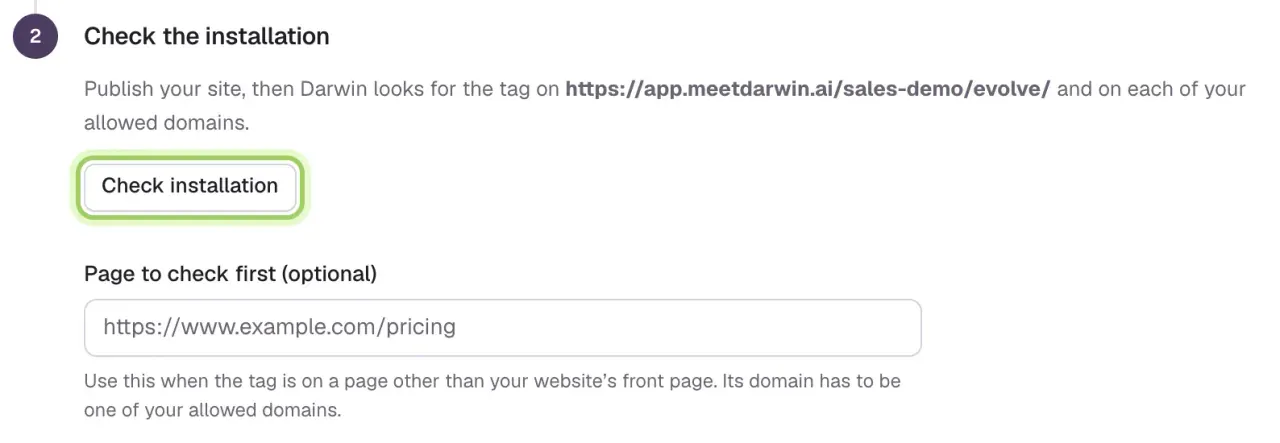
Full guide: Install Darwin on Framer.
Google Tag Manager
Add the tag as a Custom HTML tag that fires on all pages.
Copy the tag
In Integrations, select Open guide on the Google Tag Manager card, then Copy tag.
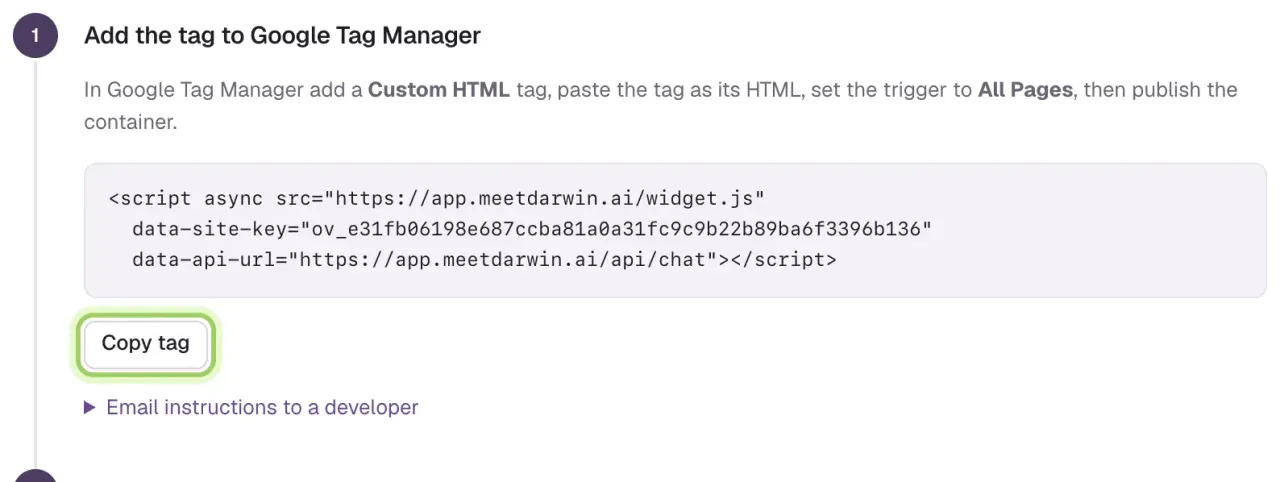
Add a Custom HTML tag
In your container, open Tags → New, name it Darwin chat, choose Custom HTML and paste the tag. Under Triggering, choose All Pages, then save.
Preview and publish
Select Preview to check that Darwin chat fires once, then Submit and Publish.
Check the installation
Back in Darwin, select Check installation.
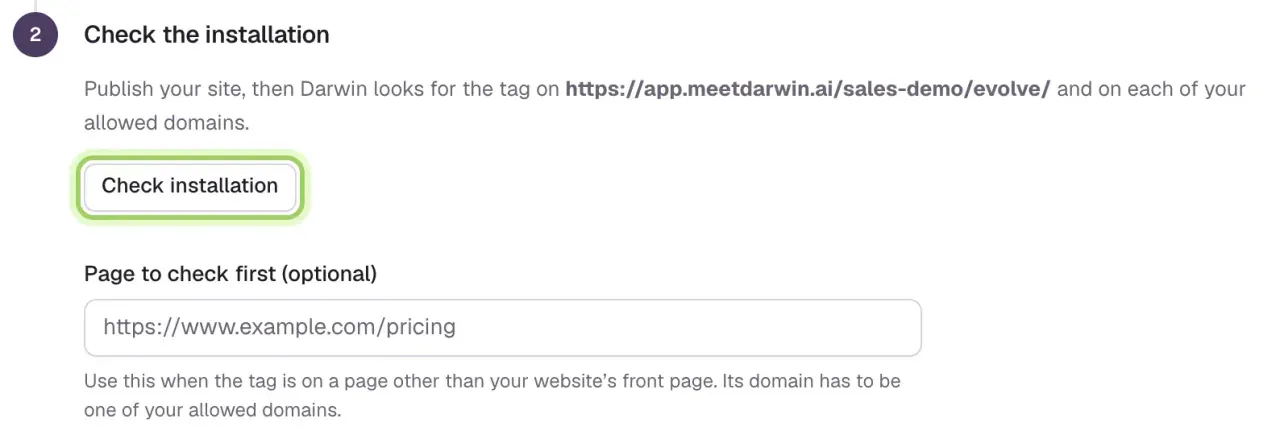
Full guide: Install Darwin with Google Tag Manager.
Good to know
- Add the tag once. Two copies can show two chat buttons.
- The chat stays hidden on your website until you go live in step 5, so installing early is safe.
- Can't see the chat after going live? See The chat isn't showing.