Requests and follow-up
Find what visitors sent through your outcome forms in Meetings → Requests and Conversations, get each request by email, and send requests to your CRM with Zapier, the outcome.submitted webhook or the API.
- In Darwin: Meetings → RequestsOpen in Darwin
- Updated
Every request a visitor sends through one of your forms is saved with its conversation, and it goes out by email and to any tool you connect. Answers to Book a meeting's questions are saved the same way.
See every request
Open Meetings and select Requests at the top.
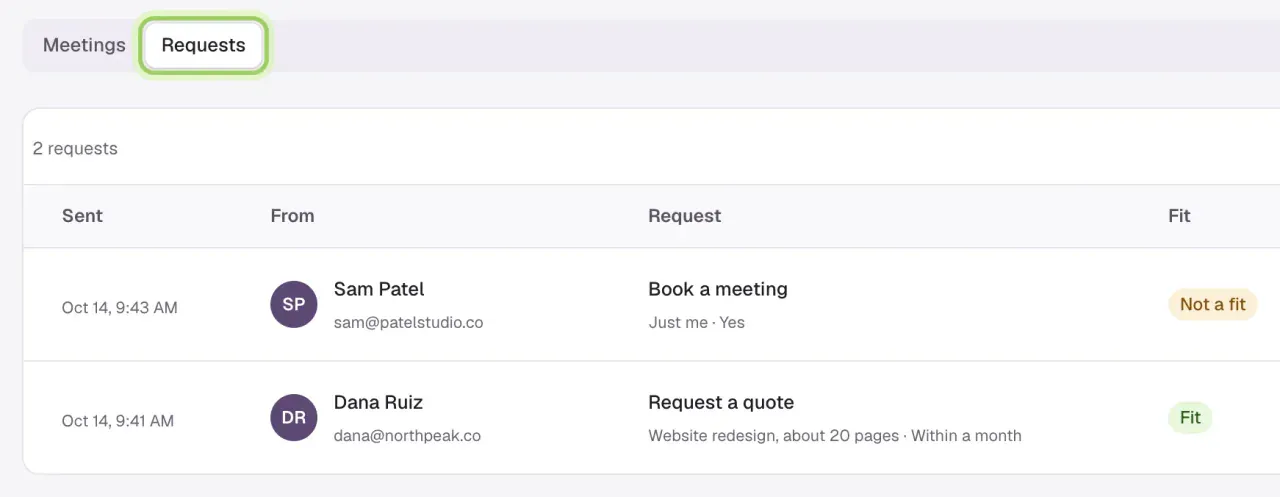
Each row shows:
- Sent: when the visitor sent it.
- From: their name, email and phone, if they gave one.
- Request: the form's name and the first two answers.
- Fit: Fit, or Not a fit when an answer ruled them out.
- Credits: what the request used: 1, None with the reason, such as None · not a fit or None · repeat, or Removed. See How requests use credits.
- Conversation opens the chat the request came from.
Search requests looks through names, emails and answers. Outcomes, at the top of the page, opens Conversion Studio → Outcomes.
Read a request beside its conversation
In Conversations, a conversation with a request shows the form's name as a badge in the list, and "Request a quote sent", for example, at the top. The panel on the right has the request:
- each question and its answer
- the visitor's name, email and phone
- Fit, with the question that ruled them out
- when it was sent, and its Credits, such as 1 credit or No credit · not a fit
If the request isn't real, such as spam or a colleague trying the form, select Not a real request. It stays in the conversation, and its Credits line reads Credit removed. On a request that uses credits, the button is there until the request counts, three days after it's sent.
A form the visitor opened but didn't send shows as Not sent, with when it was opened.
Get each request by email
Darwin emails each request, with every answer and whether the visitor was a fit:
- Your team: everyone with Bookings and requests turned on in Notifications. It's on to start.
- Extra addresses: up to five per form, such as sales@ or a shared inbox. Add them under Send answers to → Email on the form. These emails never mention credits. See Build an outcome.
Send requests to other tools
| Where | What you get | Set it up |
|---|---|---|
| Zapier | The New Outcome Request trigger, with each answer as its own field, ready for HubSpot, Salesforce, a sheet or Slack | Connect Zapier |
| Webhook | The outcome.submitted event, signed, with every answer, the contact, fit and the conversation | Webhooks |
| API | GET /v1/outcomes lists your forms, their answer keys and their last 30 days; GET /v1/outcome_requests lists requests, filtered by form, fit, conversation or date | The Outcomes endpoints in the API tab, with the meetings:read scope. Names, emails and phone numbers also need contacts:read. See Scopes. |
| AI assistants | list_outcome_requests and list_outcomes, for an assistant connected to Darwin | MCP server |
Darwin doesn't add requests to a CRM on its own. Use Zapier or a webhook for that.
Good to know
- Removing a form doesn't remove its requests. They stay here and in Conversations.
- Requests sent from the Agent Studio preview aren't listed in Meetings → Requests.
- A privacy erase for a visitor clears their requests' answers and contact details too. See Privacy.