Install Darwin on any website
Integrations → Site tag: install Darwin's chat on any website. Allow your domain, copy the one-line site tag, paste it before </body> or into your builder's site-wide custom code, then check the installation.
- In Darwin: Integrations → Site tagOpen in Darwin
- Updated
Darwin's chat runs on your website from one script tag. Add it once, site-wide, and every page gets the chat.
Allow your domain
Open Agent Studio → Visibility & privacy. Under Allowed domains, type your website's address and select Add domain. The chat only runs on domains in this list.
www.example.comandexample.comare different, so add the one visitors use. Use*.example.comto include every subdomain.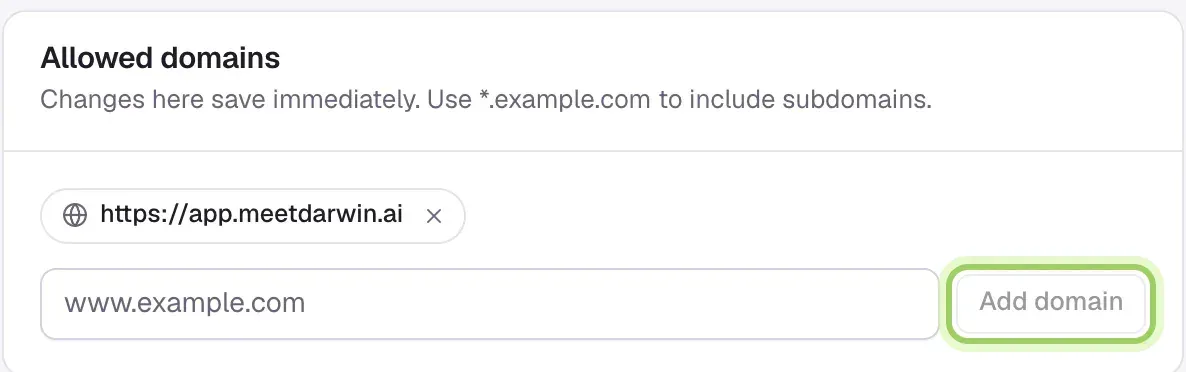
Copy the site tag
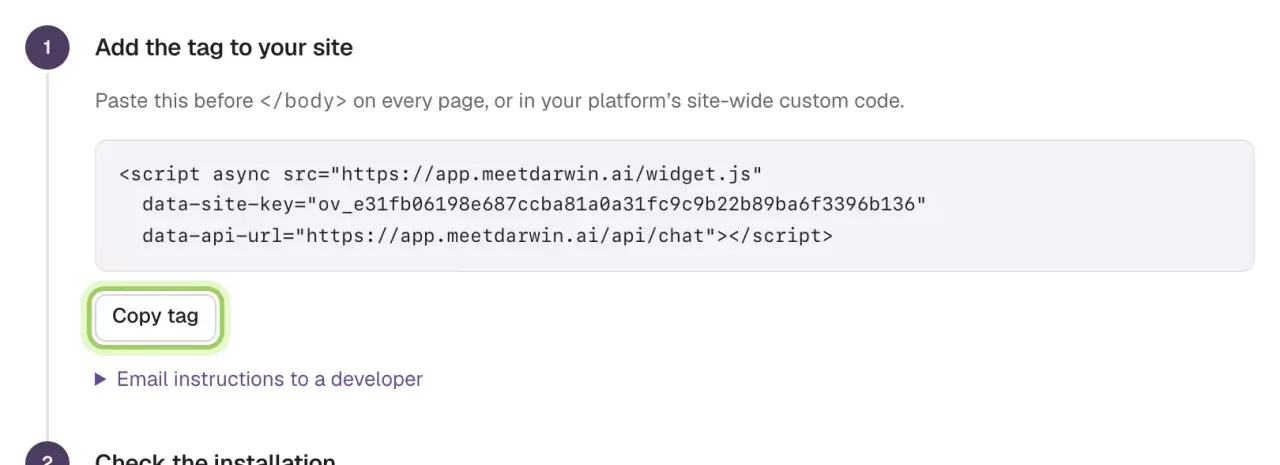
Open Integrations → Site tag and select Copy tag. The tag holds your workspace's public site key, so copy it from the workspace you're installing.
Paste it into your website and publish
Paste the tag just before
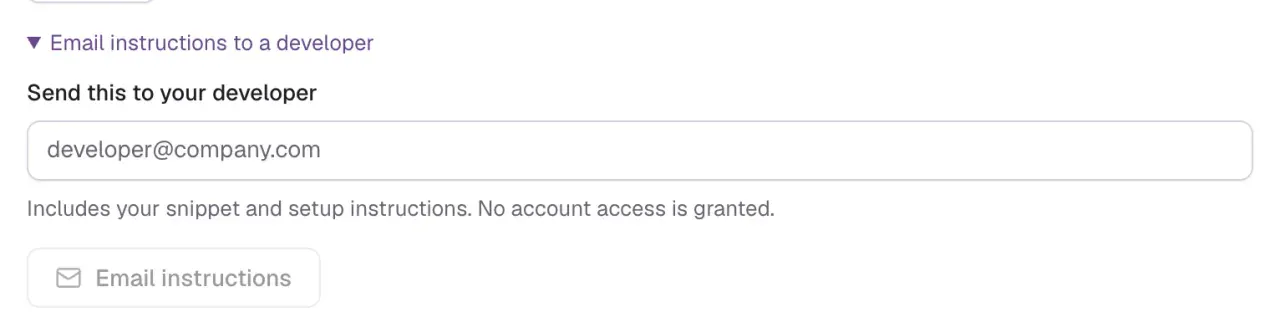
</body>on every page, or into your website builder's site-wide custom code. Add it only once, and remove any older Darwin tag. Then publish your site.Not the one editing the website? Open Email instructions to a developer, enter their email and select Email instructions. They get the tag and setup steps, not access to your account.
Check the installation
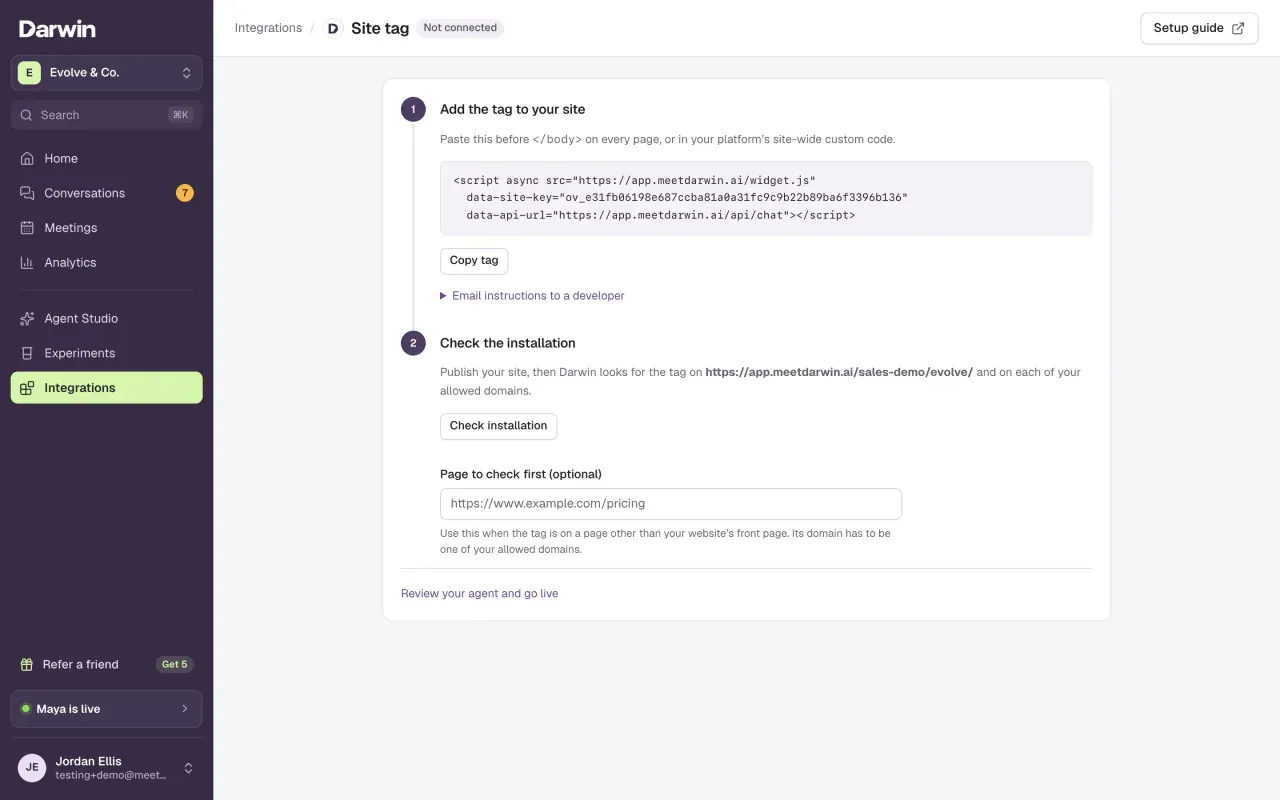
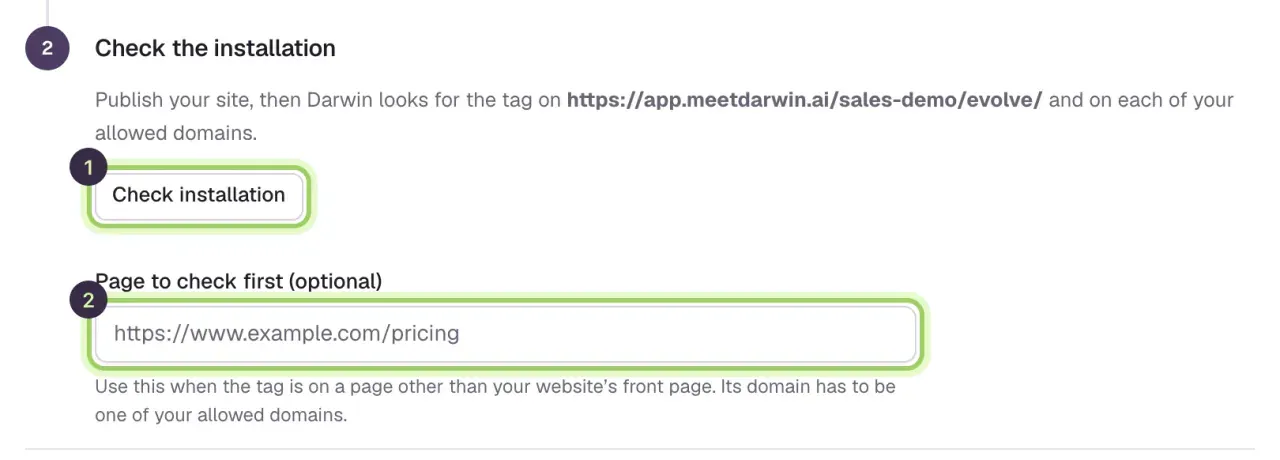
Select Check installation (1). Darwin looks for the tag on your website's front page and on each allowed domain. If the tag is on another page, such as a landing page, enter it under Page to check first (2) first. When the tag is found, the step shows Verified.
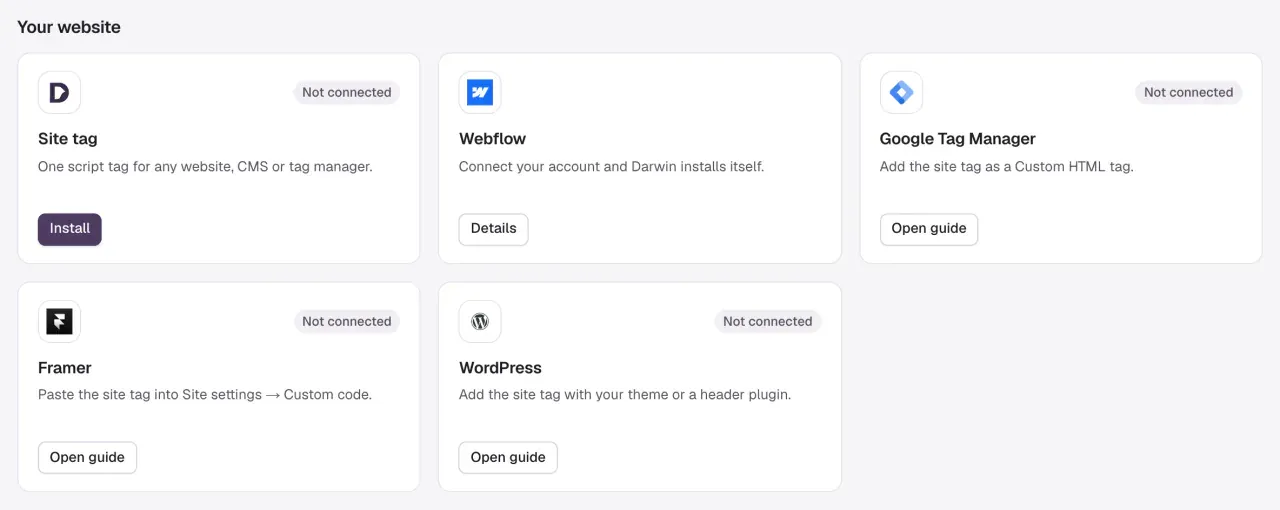
Using a website builder?
Each platform has its own page with the exact menus. On Webflow, connect the Darwin app and it adds the tag for you.
Good to know
- Adding the tag doesn't turn the chat on. Visitors see it after you go live in Agent Studio.
- If the tag is added by a tag manager after the page loads, the check may not find it. Open your website in a private window to see the chat yourself.
- If your site sends a
Content-Security-Policy, ask your developer to allow Darwin's script and its network connections. Don't turn the policy off. - Removing a domain from Allowed domains stops the chat there right away, and the installation check has to be run again.