Step 2: Connect your calendar
Setting up on your own: connect Google Calendar, Calendly or RevenueHero in Integrations → Scheduling so visitors can book a meeting in the chat. One short flow for each calendar.
- In Darwin: Integrations → SchedulingOpen in Darwin
- Updated
Darwin books meetings into the calendar you connect. Pick the one your team already uses; you only need one. When it's connected, Home ticks off Scheduling.
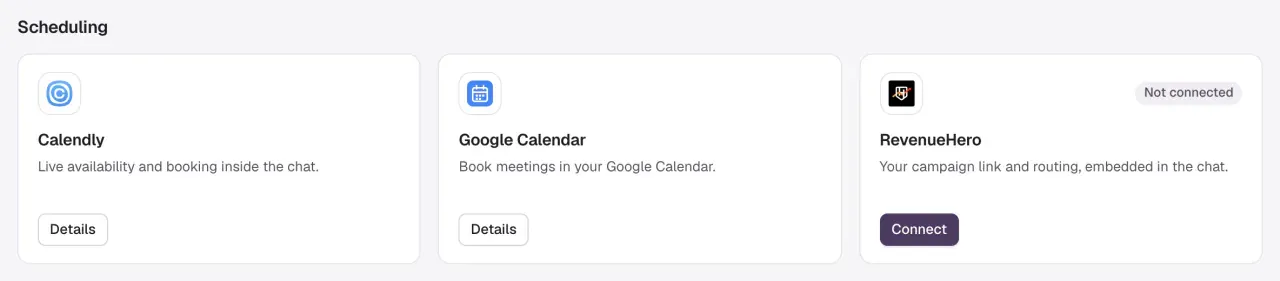
Google Calendar
Darwin books into your Google Calendar with your own rules for length, notice and hours.
Open Google Calendar
In Integrations, select Connect on the Google Calendar card.
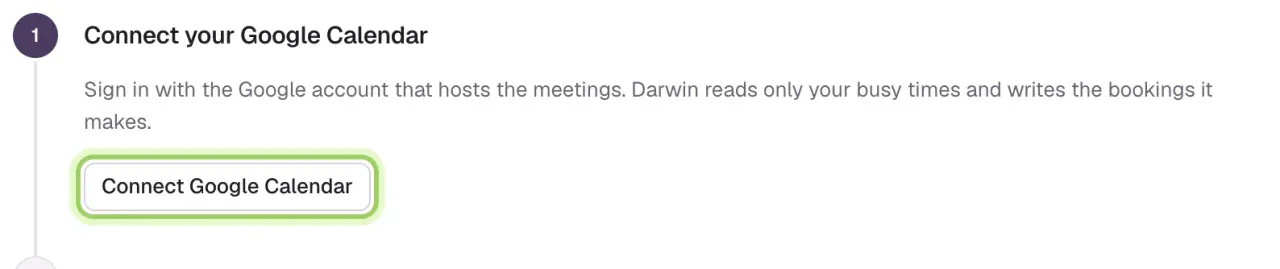
Connect your Google Calendar
Select Connect Google Calendar and choose the Google account visitors should book into. Approve every permission Google lists; the connection doesn't finish otherwise.
Set your booking rules
Select Set booking rules, choose the meeting length, buffer, minimum notice, weekly hours and video call (Google Meet, Zoom or none), then select Save booking rules.

Full guide: Connect Google Calendar. For Zoom links, also connect Zoom.
Calendly
Darwin offers times from one Calendly meeting type and books it in the chat.
Open Calendly
In Integrations, select Connect on the Calendly card.
Connect your Calendly account
Select Connect Calendly and sign in to Calendly. You need Calendly Standard or higher.

Choose the meeting type
Select Choose meeting type, pick the event visitors should book, then select Use this meeting.

Full guide: Connect Calendly.
RevenueHero
Darwin sends visitors to your RevenueHero campaign, and RevenueHero tells Darwin when a meeting is booked.
Copy your campaign link
In RevenueHero, go to Routers → Campaign and copy the public link of the campaign Darwin should use.
Paste it into Darwin
In Integrations, select Connect on the RevenueHero card. Paste the link under Paste your campaign link and select Save link.

Add the booking webhook
Under Confirm bookings in Darwin, select Copy URL. In RevenueHero, create a workflow with the trigger When a meeting is booked and the action Send a webhook to that URL, then turn it on.

Full guide: Connect RevenueHero.
Good to know
- Booking from the Agent Studio preview is a test. It doesn't put a real meeting in your calendar.
- One calendar handles new bookings at a time. Setting up another one later switches new bookings to it; meetings already booked aren't canceled.
- Don't take meetings? Darwin can go live with a live outcome form, such as Request a quote, in place of a calendar.