Connect Google Calendar
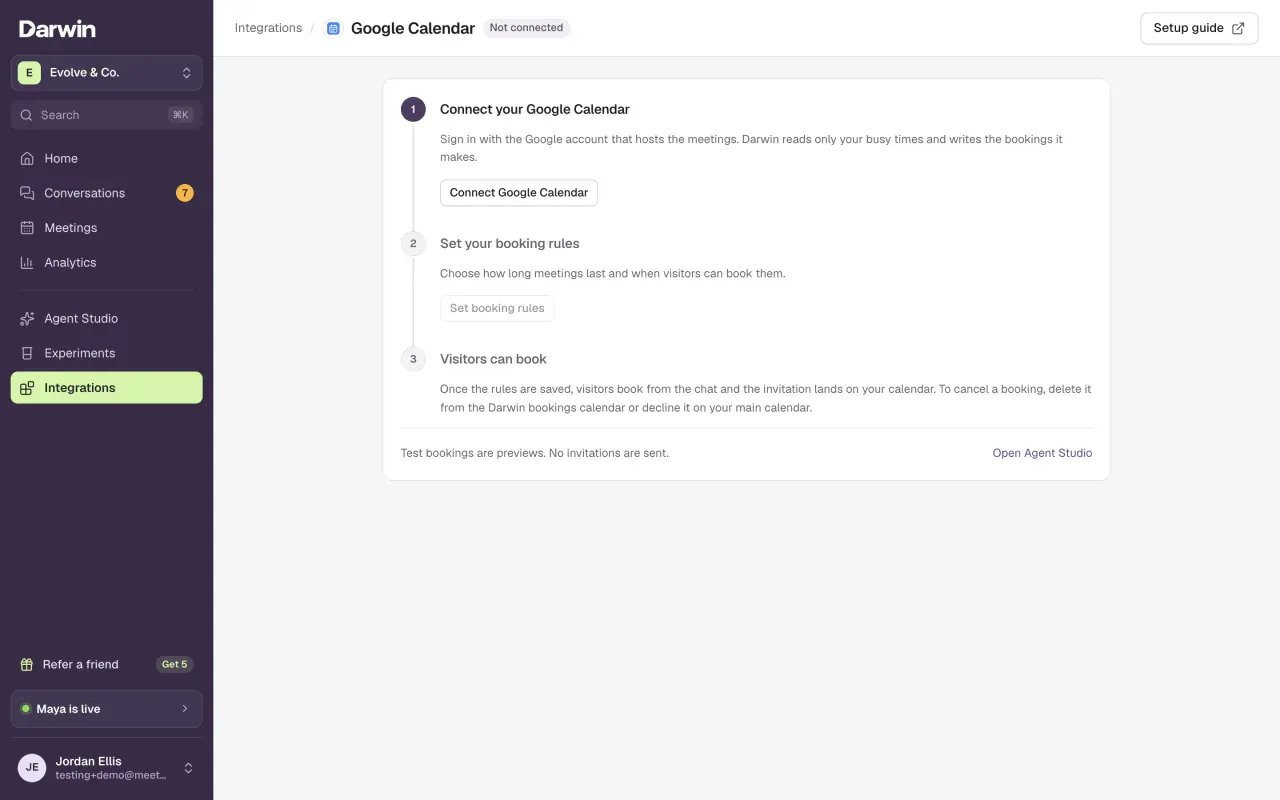
Integrations → Google Calendar: connect your Google account, set your booking rules, and let visitors book a free time in Darwin's chat, with a Google Meet or Zoom link.
- In Darwin: Integrations → Scheduling → Google CalendarOpen in Darwin
- Updated
Darwin reads your free time, offers it in the chat, and books the meeting on your Google Calendar. Google sends the visitor the invitation. You don't need a separate scheduling tool.
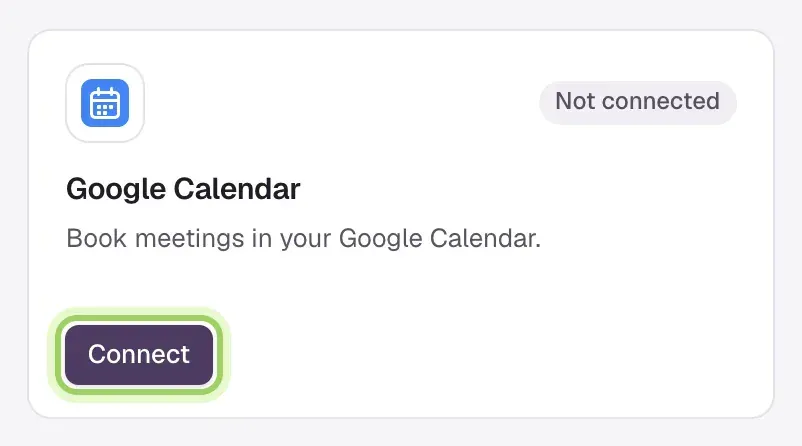
Open Google Calendar
Open Integrations and select Connect on the Google Calendar card, under Scheduling.
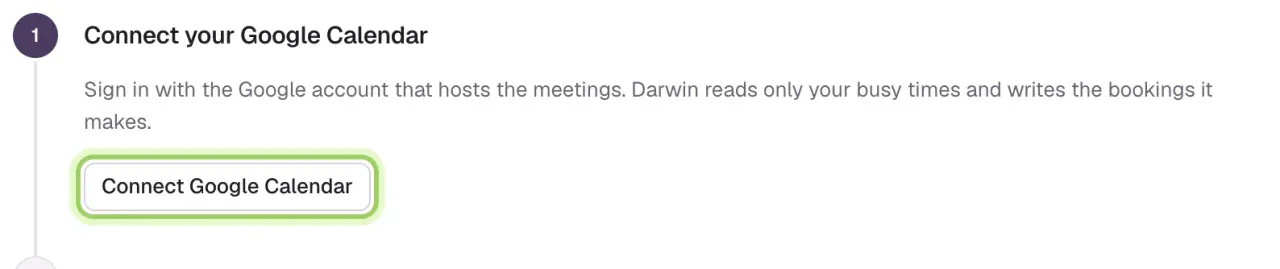
Connect your Google Calendar
Select Connect Google Calendar. Google asks you to choose an account and lists what Darwin asks for: your name and email, your calendars, your free and busy times, and a calendar of its own. Approve every permission; the connection doesn't finish otherwise. Workspace and personal Google accounts both work.
Back in Darwin, step 1 shows the account. Darwin creates a calendar named Darwin bookings in that account.
Set your booking rules
Select Set booking rules and choose:
- Duration: 15, 30, 45 or 60 minutes.
- Buffer: time kept free before and after each meeting.
- Minimum notice: the earliest a visitor can book, from 1 hour to 1 day.
- Weekly hours: the days and times visitors can book, in your Google Calendar's time zone.
- Video call: Google Meet, Zoom or none. Zoom shows Not connected until you connect Zoom.
Select Save booking rules. Google Calendar now handles new bookings from the chat.

Check it
The top of Integrations now says Calendar: Google Calendar in use. To try the flow, select Open Agent Studio and ask the preview to book a meeting. Test bookings are previews, so no event or invitation is created.
What happens when a visitor books
Darwin offers only times that are free on your primary calendar and the Darwin bookings calendar, inside your weekly hours, buffer and notice. Events marked Free in Google Calendar don't block time. When the visitor confirms, the event lands on Darwin bookings with their chat answers in the description, and Google sends the invitation with the video link.
To cancel or move a meeting, change it in Google Calendar: delete it from the Darwin bookings calendar or decline it on your main calendar. Google tells the visitor and Darwin records the change within a few minutes.
When the connection needs attention
- Finish connection beside the account (confirmations not set up): Darwin couldn't subscribe to your Darwin bookings calendar, so visitors can't book yet. Select Finish connection to try again.
- Reconnect needed: Google no longer accepts the saved connection, for example after you removed Darwin from your Google account. Select Reconnect Google Calendar. Your booking rules are kept.
- Visitors see no available times: check the weekly hours and minimum notice, then your primary calendar. Busy events, all-day events included, hide that time.
Good to know
- Select Change beside the rules to edit them. New rules apply to new bookings; existing events stay as they are.
- Darwin reads only your busy times and writes the bookings it makes.
- Disconnect stops new bookings. The Darwin bookings calendar and its events stay in your Google account.