A quick tour of Darwin
What each screen in Darwin's sidebar is for: Home, Conversations, Meetings, Analytics, Agent Studio, Conversion Studio, Experiments, Integrations, and the account menu under your name.
- In Darwin: The sidebarOpen in Darwin
- Updated
Everything in Darwin is one click from the sidebar. The top four screens are for checking results; the next four are for setting up your agent.
The sidebar
- Workspace name. Switch between workspaces you belong to. Settings and data belong to whichever workspace is shown here. Below it, Search (⌘K) jumps to any screen or task.
- Main screens. Home, Conversations, Meetings and Analytics show results. Agent Studio, Conversion Studio, Experiments and Integrations set your agent up.
- Agent status. Shows whether your agent is live. Before you go live it reads Not live yet with your setup progress; select it to open Darwin's setup guide. Once you're live it shows this month's credits, such as 18 of 35 credits, or your free credits left on Free. In an agency's client workspace it shows only that the agent is live.
- Your name. Opens the account menu.
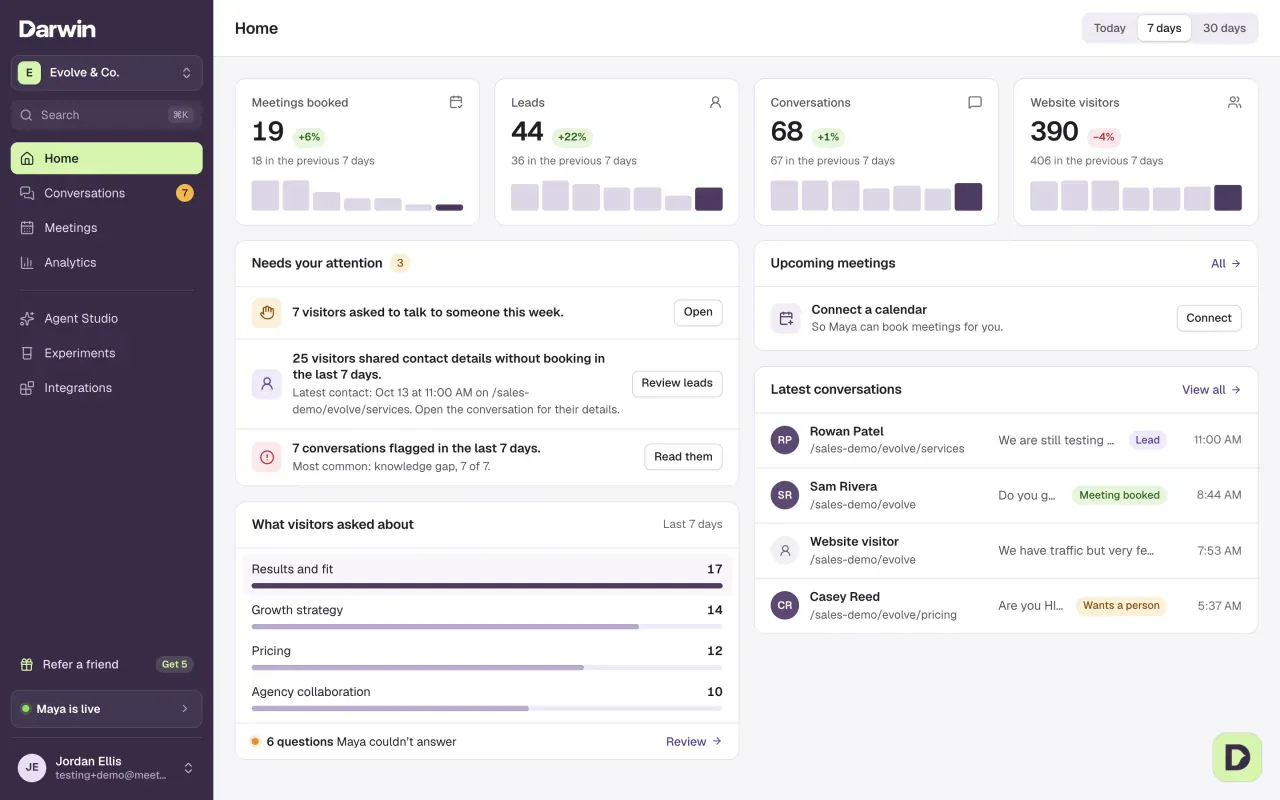
Home
Your day at a glance: meetings booked, leads, conversations and website visitors, with what needs your attention, upcoming meetings and the latest conversations. Switch between Today, 7 days and 30 days at the top. More about Home
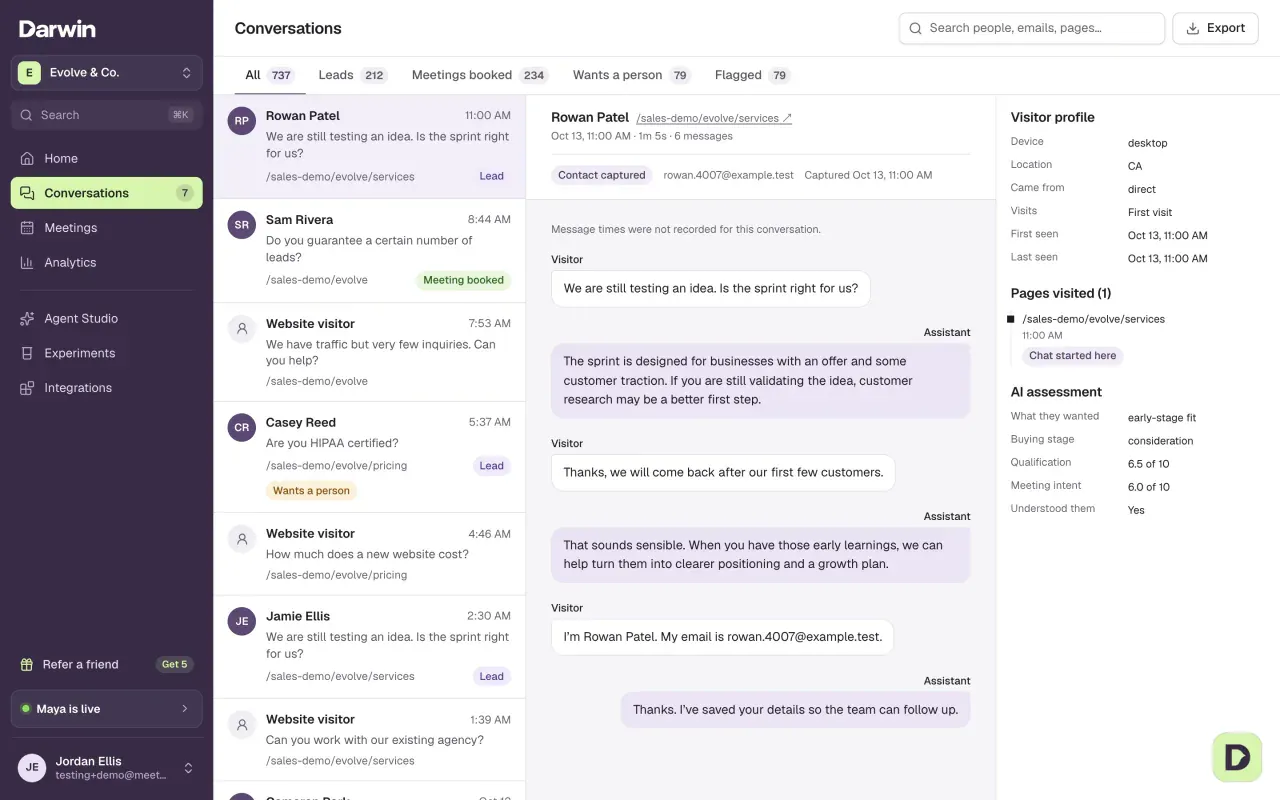
Conversations
Every chat on your website: the list on the left, the transcript in the middle and the visitor's profile on the right. Filter to Leads, Meetings booked, Wants a person or Flagged. Read visitor conversations
Meetings
Meetings booked through the chat, under Upcoming, Past and Canceled, each linked to the conversation behind it. Calendar settings takes you to your calendar connection. More about Meetings

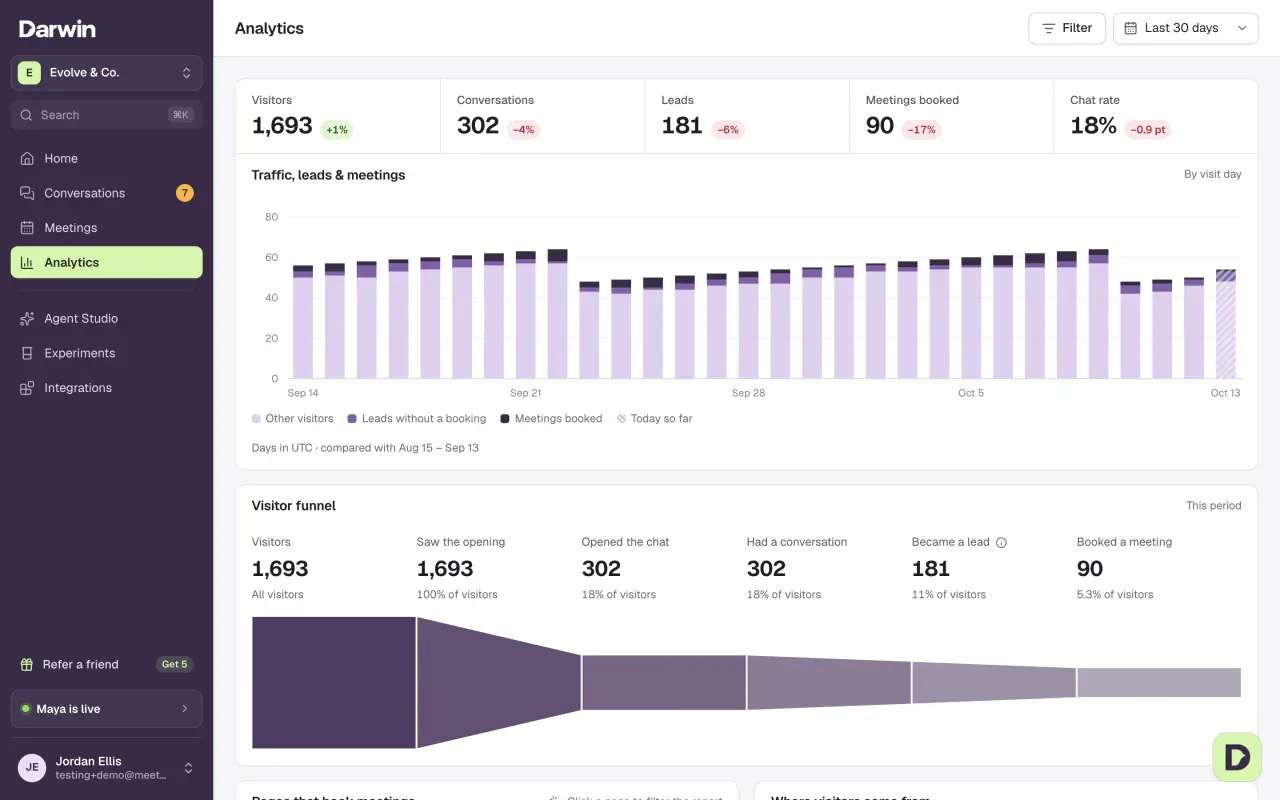
Analytics
How visitors become conversations, leads and meetings over time, which pages book meetings, and where visitors come from. Use Filter and the date range at the top. Read your analytics
Agent Studio
Where you shape your agent, with a live preview on the right. The tabs are Messages, Knowledge, Appearance and Visibility & privacy. The switch at the top right turns your agent live on your website, or off. Test your agent
Conversion Studio
Personal links for your outbound emails: when someone clicks one, the chat greets them by name. The tabs are Links, Greetings, Buttons and Outcomes. Create website buttons in Buttons and the forms your agent offers in Outcomes. Link settings opens the personal-link controls. Greet prospects by name
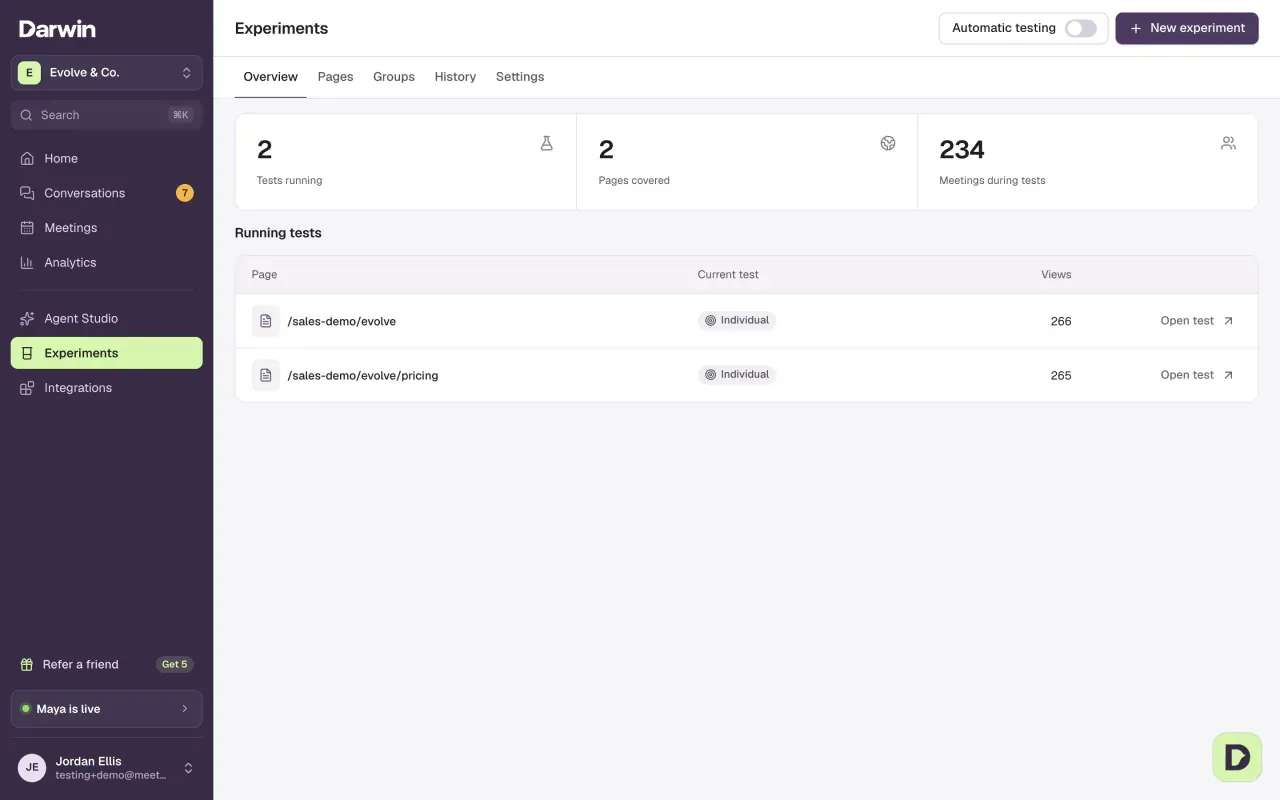
Experiments
See what Darwin is testing on your pages and which opening lines perform better. Overview shows the tests running now; Automatic testing and Settings control what Darwin may do on its own. How experiments work
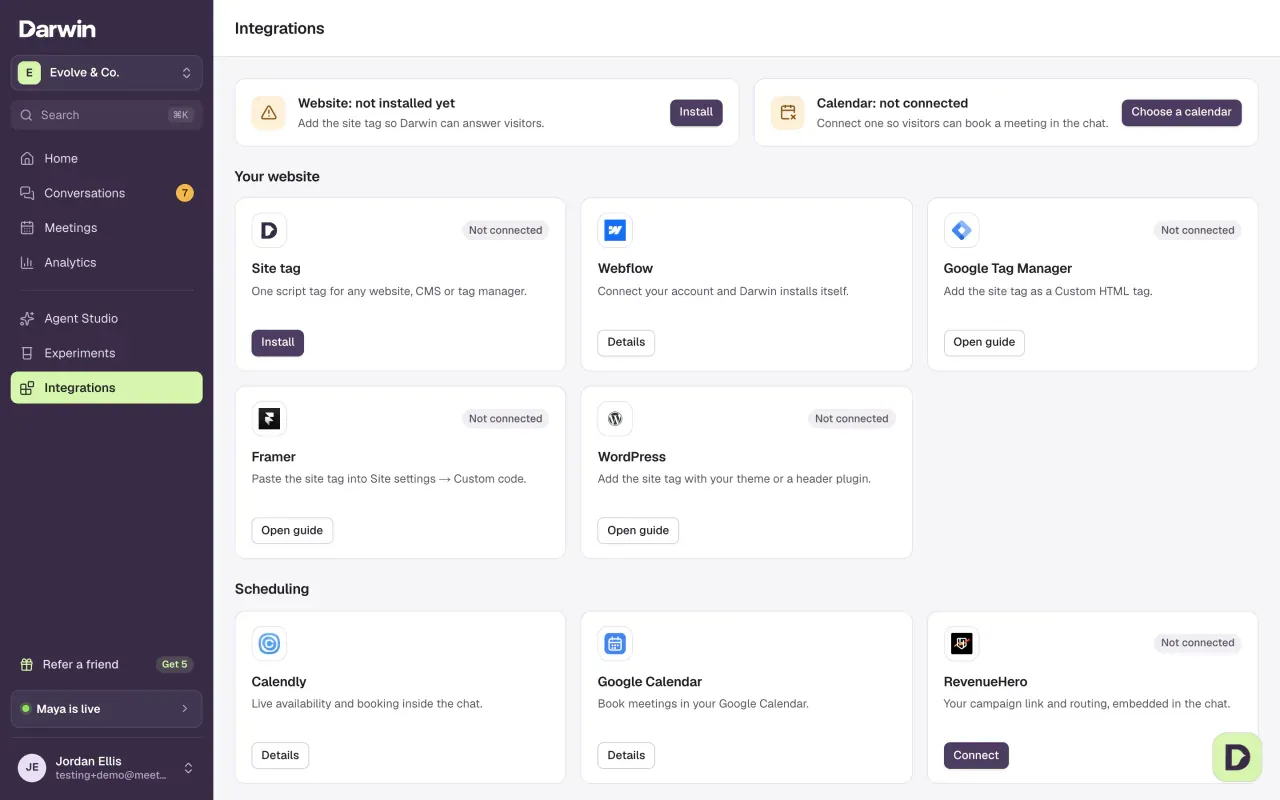
Integrations
Connect your website, your calendar, video calls, Zapier, the API and AI assistants. The two cards at the top show whether your website and calendar are connected. All integrations
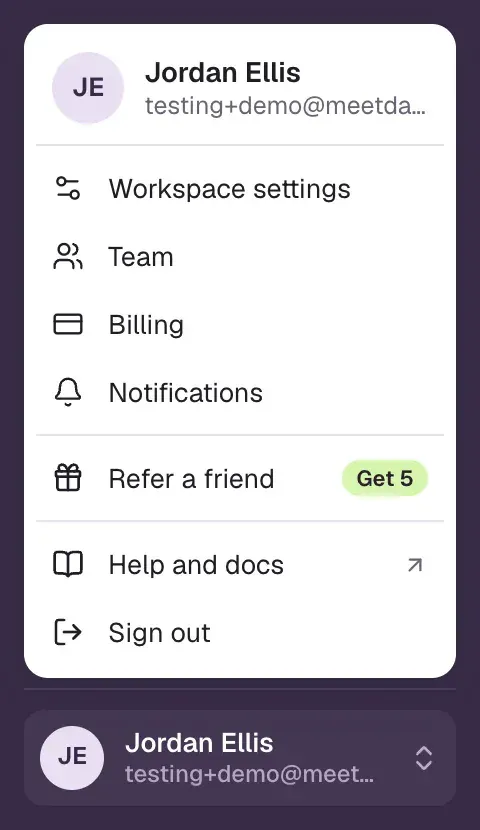
The account menu
Select your name at the bottom of the sidebar. Workspace settings, Team, Billing and Notifications each open Settings on that tab. Help and docs opens this guide, and Sign out signs you out.
Good to know
- On a phone, open the menu at the top of the screen to reach the same sections.
- A control you can't use may mean your role is view-only. See Team.
- API keys and webhooks are under Integrations → API.