Use Darwin in Claude, ChatGPT or Cursor
Integrations → Claude, ChatGPT & Cursor: connect your AI assistant to Darwin, choose Full access or View only, and ask about your chat's results, leads and tests in plain words.
- In Darwin: Integrations → AI assistants → Claude, ChatGPT & CursorOpen in Darwin
- Updated
Connect the assistant you already use, then ask about your website chat the way you'd ask a colleague. It reads your numbers and conversations from Darwin and, if you allow it, makes changes for you.
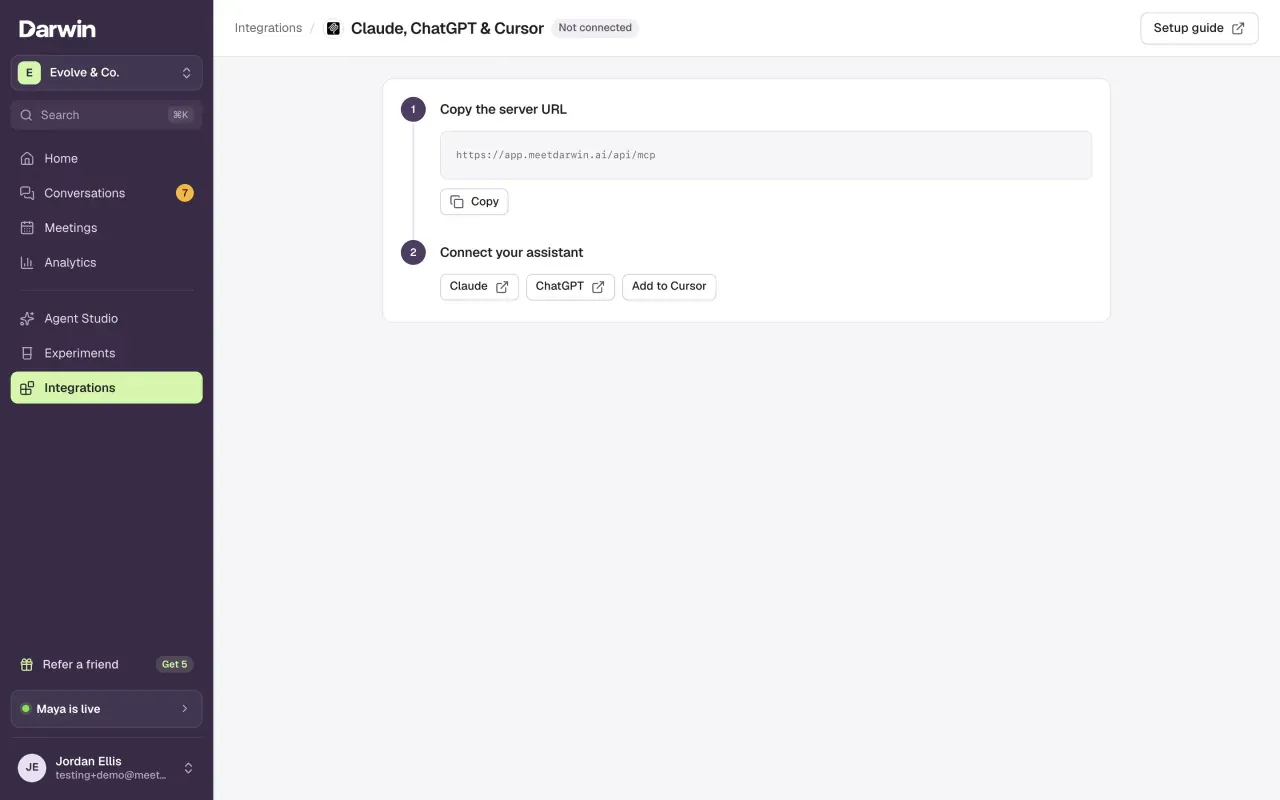
Copy the server URL
Open Integrations and select Connect on the Claude, ChatGPT & Cursor card. Under Copy the server URL, select Copy. The URL is
https://app.meetdarwin.ai/api/mcp.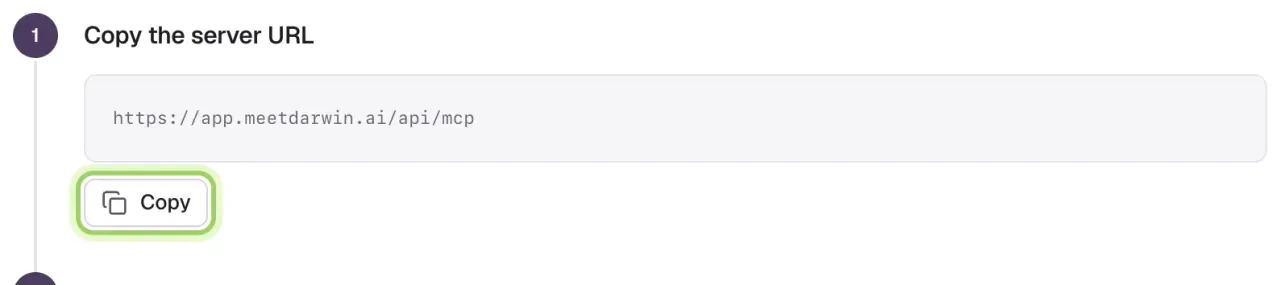
Add Darwin in your assistant
Add the URL in your assistant as described in Connect Claude, Connect ChatGPT or Connect Cursor. For Cursor, Add to Cursor does it in one click.

Sign in and choose the access
Your assistant sends you to Darwin. Sign in, then check the Workspace (1); if you own or administer several, select Switch to pick another. Choose Full access or View only (2) and select Connect (3), for example Connect Claude. You go back to your assistant.
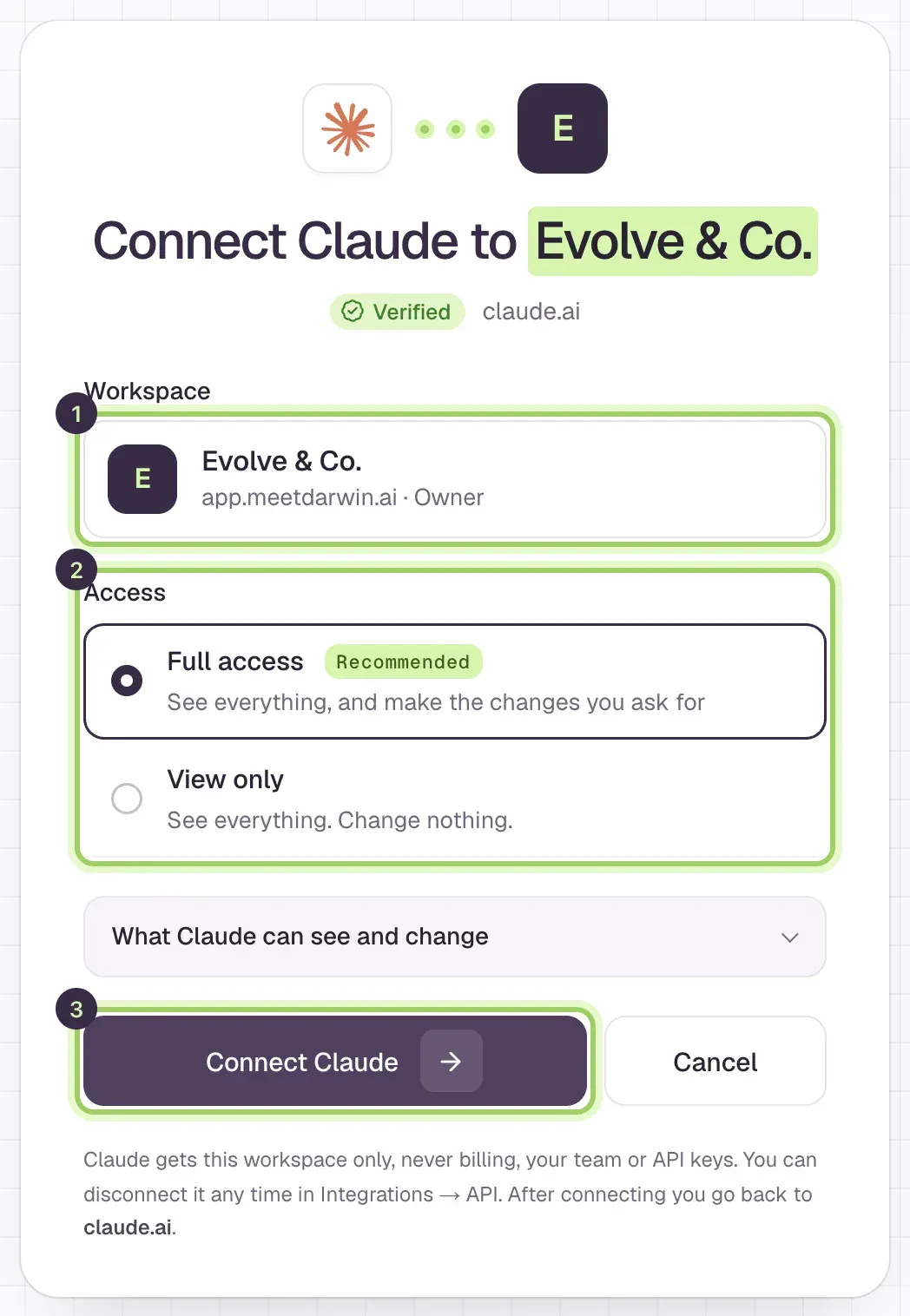
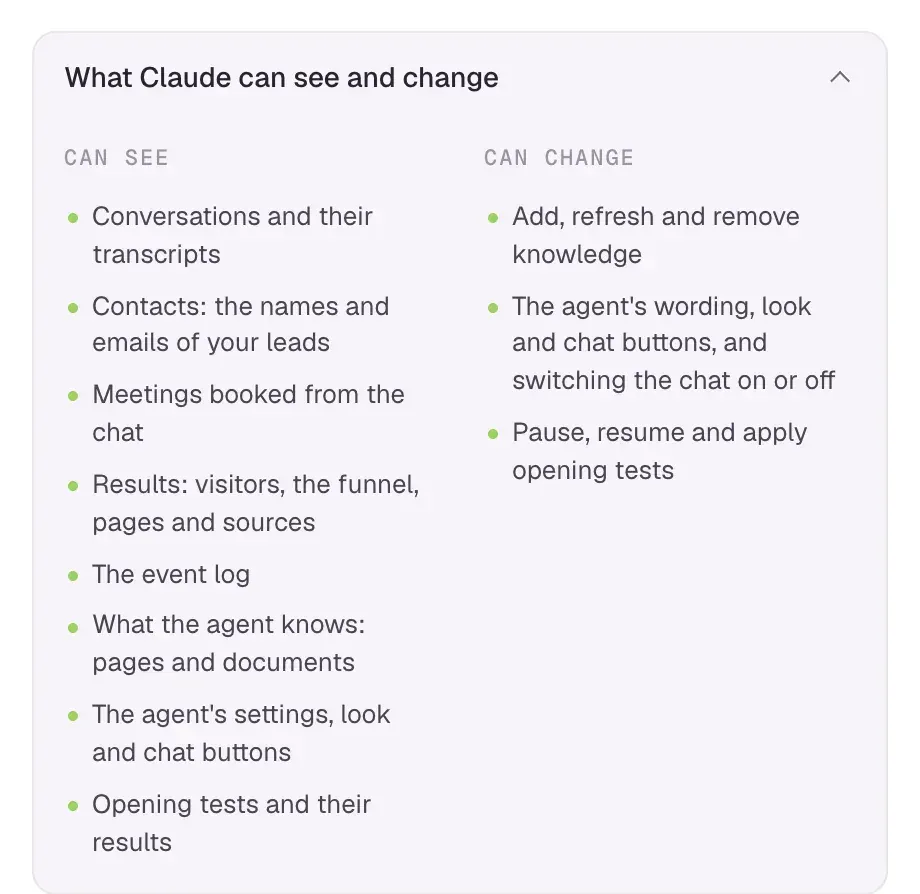
Open What Claude can see and change to read the full list before you connect.
Ask a question
Ask, for example, "Using Darwin, how many meetings did the chat book in the last 7 days?" The assistant answers with your numbers.
Claude
In Claude, open Settings → Connectors, add a custom connector named Darwin with the server URL, and select Connect. On a Team or Enterprise plan, an owner may need to add it for the organisation first. Connectors added on the web also appear in Claude Desktop.
For Claude Code, run:
claude mcp add --transport http darwin https://app.meetdarwin.ai/api/mcpThen run /mcp, choose darwin and sign in to Darwin in the browser that opens.
ChatGPT
In ChatGPT, open Plugins, select +, then Add custom MCP server. Name it Darwin, enter the server URL under Connection, choose OAuth, select I understand and want to continue, then Create as a plugin. In a new chat, type @ and pick Darwin.
Your ChatGPT plan, and your workspace's policies on a business plan, decide whether you can add custom MCP servers. If you don't see Add custom MCP server, ask your ChatGPT admin.
Cursor
Select Add to Cursor in Darwin, or add Darwin to ~/.cursor/mcp.json:
{
  "mcpServers": {
    "darwin": { "url": "https://app.meetdarwin.ai/api/mcp" }
  }
}
Then open Cursor Settings → MCP and select Connect (or Needs login) next to Darwin to sign in.
Full access or view only
| View only | Full access | |
|---|---|---|
| Results, conversations, leads, meetings, tests | Yes | Yes |
| Read forms, personal links and greetings, and make each prospect's own link | Yes | Yes |
| Add, refresh or remove knowledge | No | Yes |
| Change the agent's wording, look or chat buttons | No | Yes |
| Build, change or switch forms; make and change personal links and greetings | No | Yes |
| Pause, resume or apply opening tests | No | Yes |
| Switch the chat on or off | No | Yes |
Full access is selected by default. To change it later, disconnect and connect again. Either way, the assistant never gets billing, your team or API keys.
See and disconnect connections
Integrations → API → AI assistants lists each connected assistant with when it connected, when it was last used, and its access. Select Disconnect next to one: it loses access at once, and connecting again needs a new sign-in.
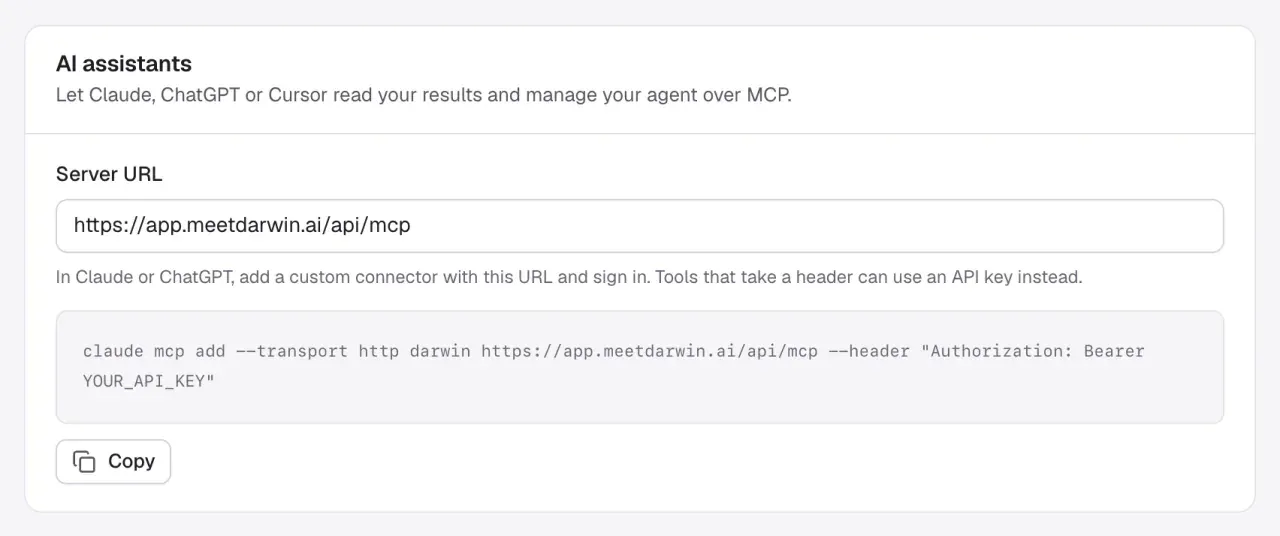
Developers can also connect with an API key instead of a sign-in; the command is in the same section. See the MCP server reference.
Good to know
- Only an owner or admin can connect a workspace. Workspaces where you're a member show in the list but can't be picked.
- The assistant can read leads' names and emails, and its provider handles that data under its own terms. To keep personal details out, connect with an API key that leaves out
contacts:read. - A sign-in request lasts 15 minutes. If it expires, start connecting again from your assistant.