Teach your agent: knowledge
Agent Studio → Knowledge: choose the website pages your agent answers from, upload documents, edit your business context, check what it can find, and refresh or remove pages.
- In Darwin: Agent Studio → KnowledgeOpen in Darwin
- Updated
Your agent answers from the website pages you select, the documents you upload and your business context. Changes here are a draft until you save, and the Preview chat uses the draft so you can try it first.
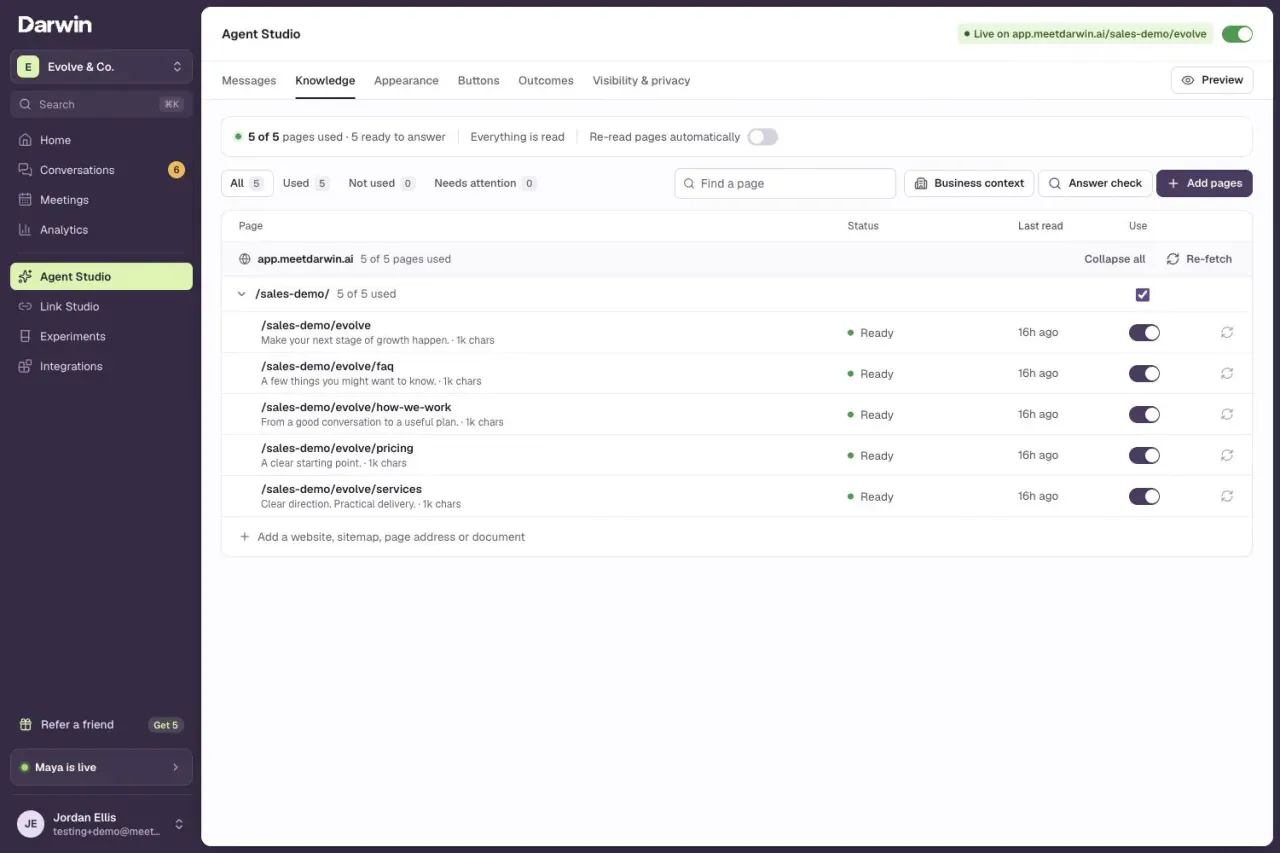
Add your website
Select Add pages above the page list. In the panel that opens, enter your website or sitemap address under Sites and sitemaps, then select Add site. Darwin lists the pages it finds. Select Re-fetch later to pick up new pages.
To add only certain pages, paste their addresses under Pages one by one, one per line, and select Add pages.
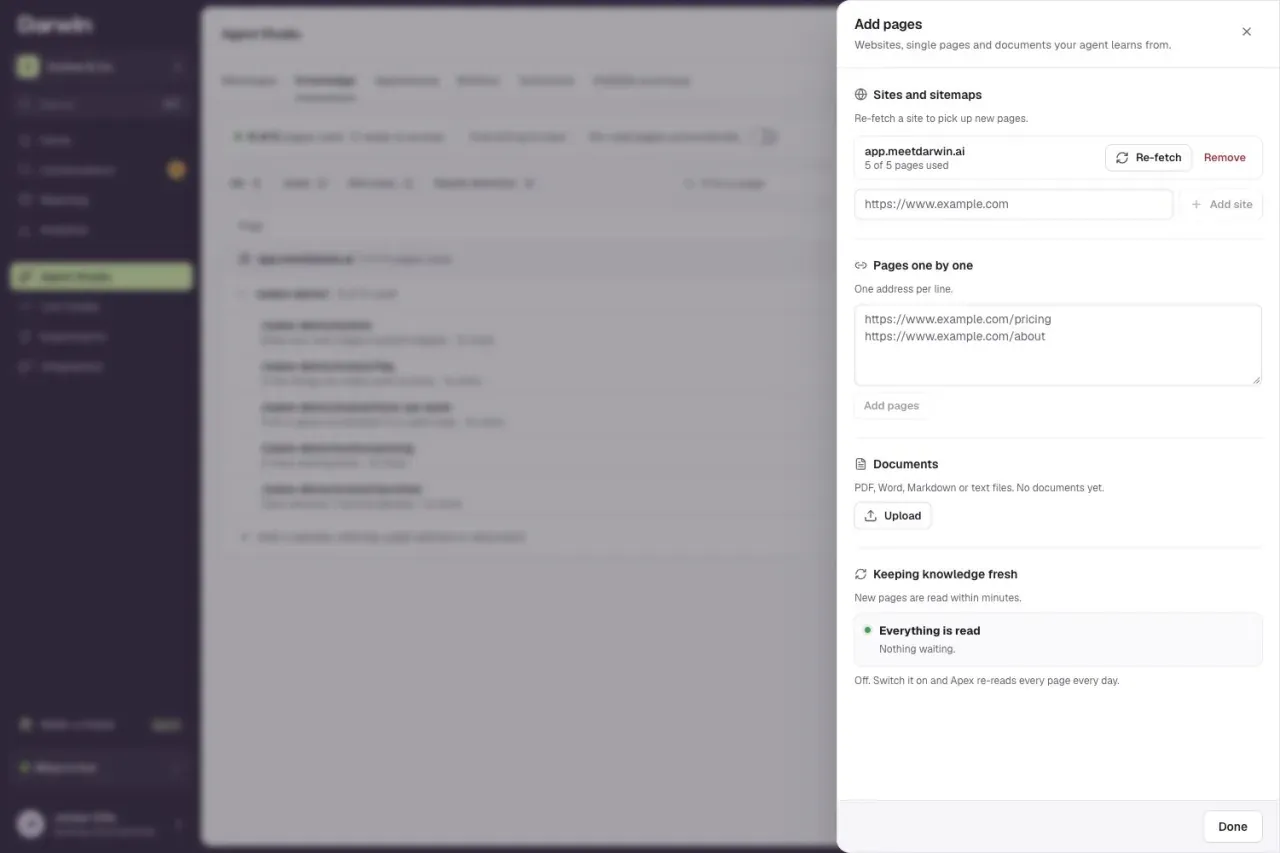
Choose the pages your agent uses
Select Done to return to the page list. Turn on a page’s Use switch to use it, or turn it off to stop using it. Tick a folder to use every page in it. Ready means your agent can answer from that page. Use the filters to see Used, Not used or Needs attention pages.
After you change a page on your website, select its re-read button to read it again.
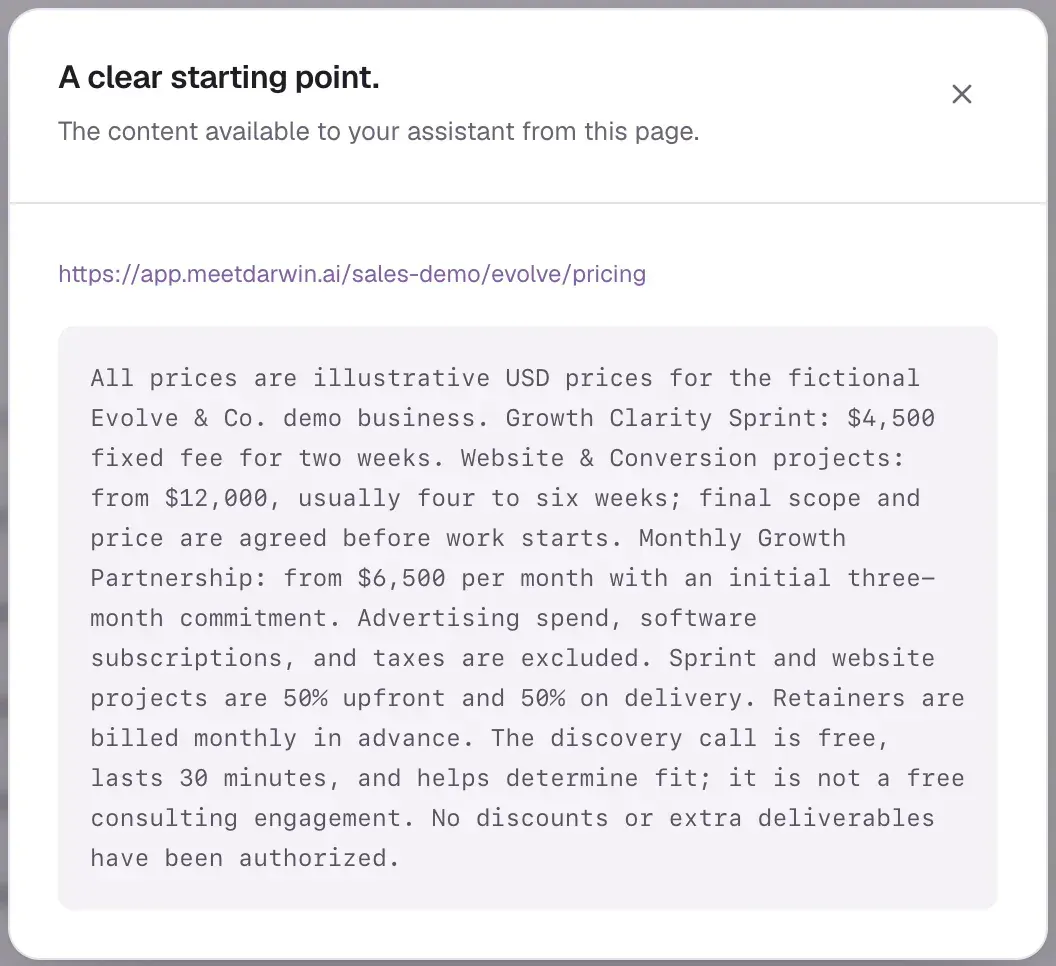
Select a page's address to see exactly what your agent read from it.
Upload documents
Select Add pages. Under Documents, select Upload to add PDF, Word, Markdown or text files. Select Done to return to the list, where uploaded documents have their own group. Use Remove beside a document to take it out.
Edit your business context
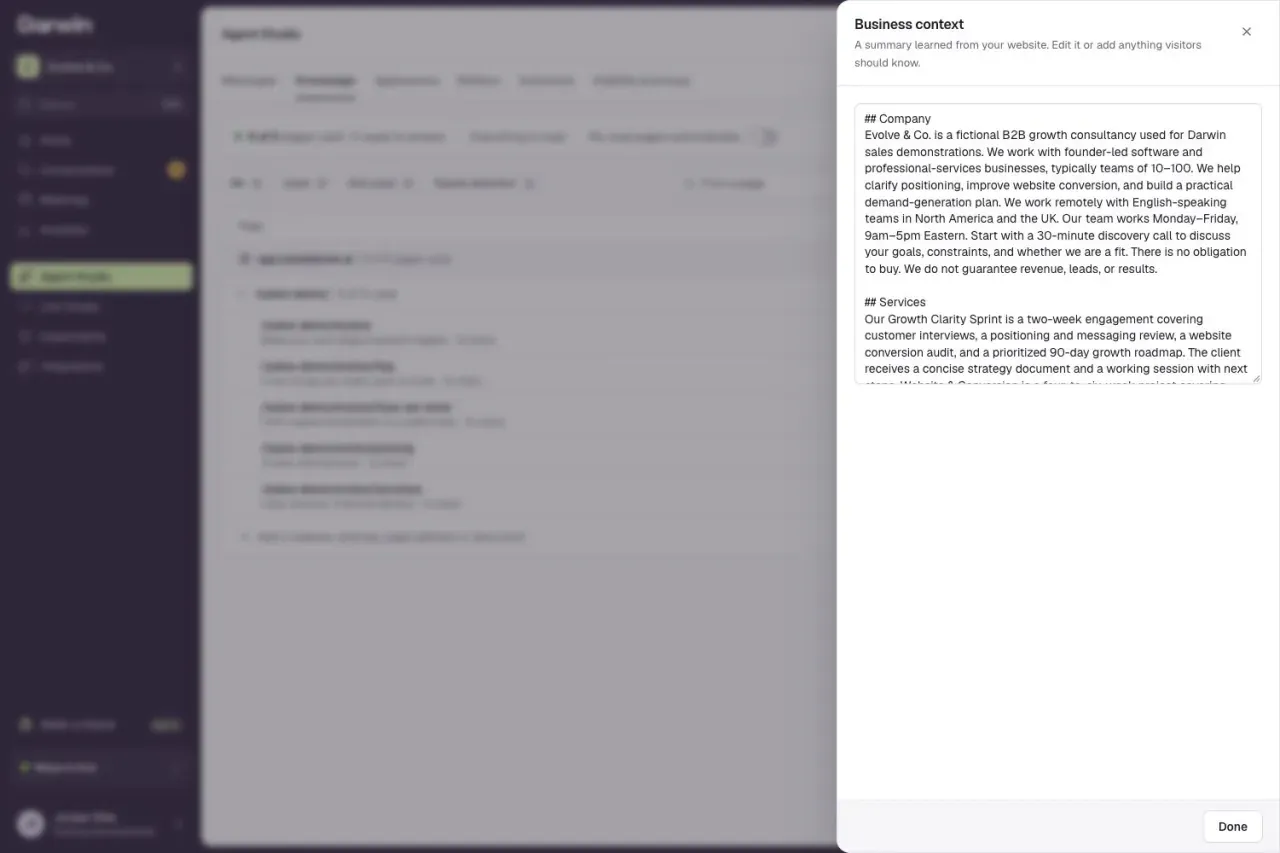
Select Business context above the page list to open the summary Darwin wrote from your website. Edit it, and add what your website leaves out: who you help, how pricing works, when a meeting is worth booking, and what you don't offer.
Check what your agent can find
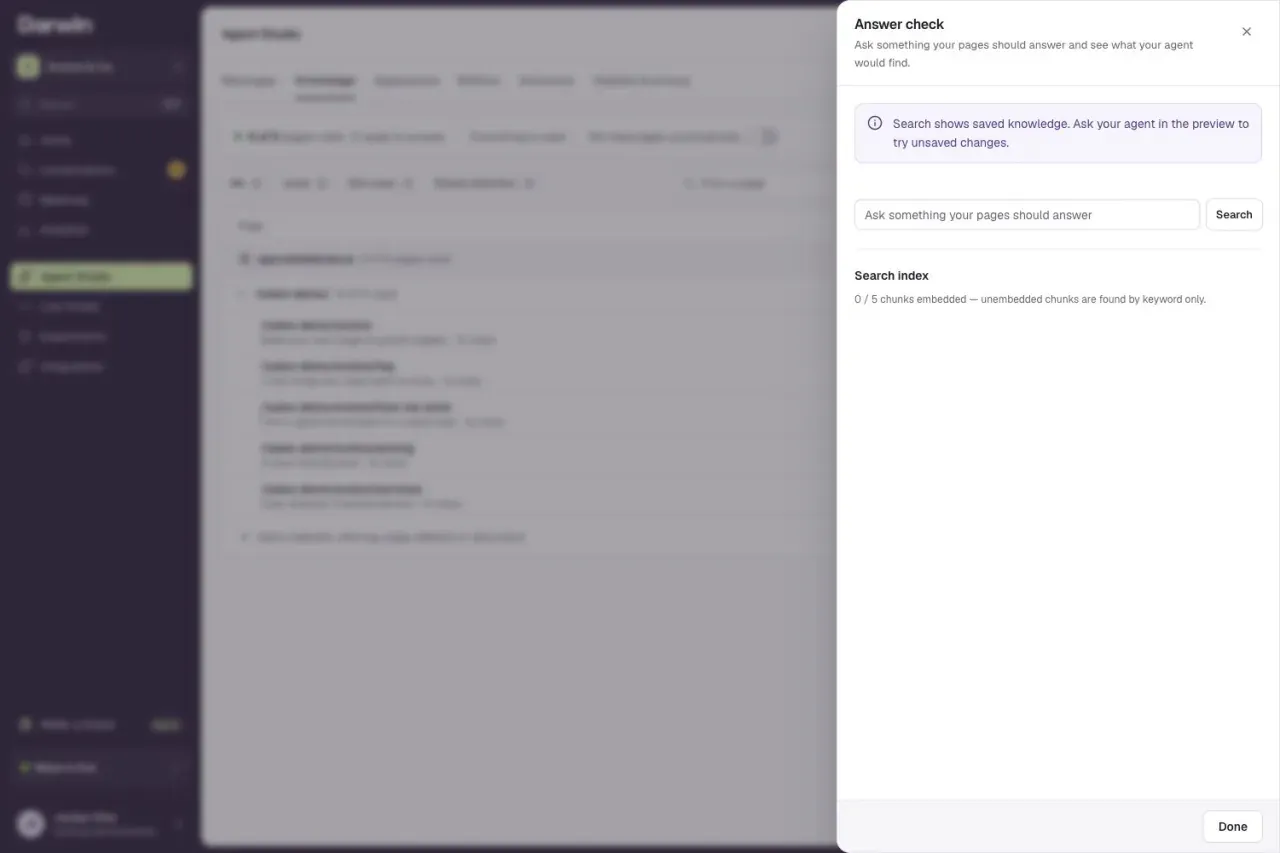
Select Answer check above the page list and type a question your pages should answer. The results show which pages your agent would use. This search uses your saved knowledge; ask your agent in Preview to try unsaved changes.
Keep it fresh
Above the page list, turn on Re-read pages automatically so Darwin reads every page again once a week, on every plan.
Save
Select Save changes at the bottom of the editor. Your website keeps using the saved knowledge until you do. Discard goes back to the saved version.

Good to know
- Darwin reads public pages. Pages behind a login won't help. Put those facts in your business context instead.
- If a page fails to refresh, your agent keeps its last good copy and the page shows under Needs attention.
- Each document must be smaller than 15 MB. Keep passwords, private customer details and anything you wouldn't show a visitor out of documents and business context.
- Unsaved changes are kept in this browser tab for up to 24 hours, even if you visit another screen.