Connect Claude
Add Darwin to Claude as a custom connector (or to Claude Code with one command), sign in, choose Full access or View only, and ask Claude about your chat's results, leads and tests.
- In Darwin: Integrations → AI assistants → Claude, ChatGPT & CursorOpen in Darwin
- Updated
Add Darwin to Claude and ask about your website chat in plain words: how many meetings it booked, which leads need a reply, how a test is doing. With full access, Claude can also make changes for you.
Copy Darwin's server URL
In Darwin, open Integrations and select Connect on the Claude, ChatGPT & Cursor card. Under Copy the server URL, select Copy. The URL is
https://app.meetdarwin.ai/api/mcp.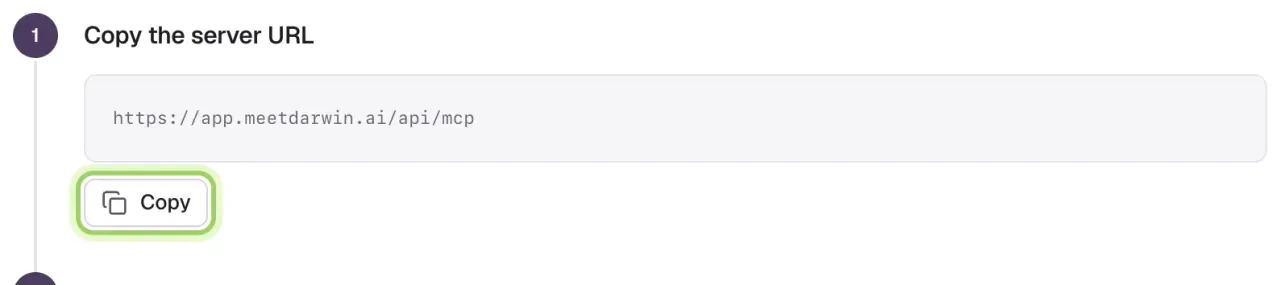
Add Darwin as a connector in Claude
In Claude, open Settings → Connectors and add a custom connector. Name it Darwin, paste the server URL and select Connect. On a Team or Enterprise plan, an owner may need to add it for the organisation first. Connectors added on the web also appear in Claude Desktop.
Sign in to Darwin and choose the access
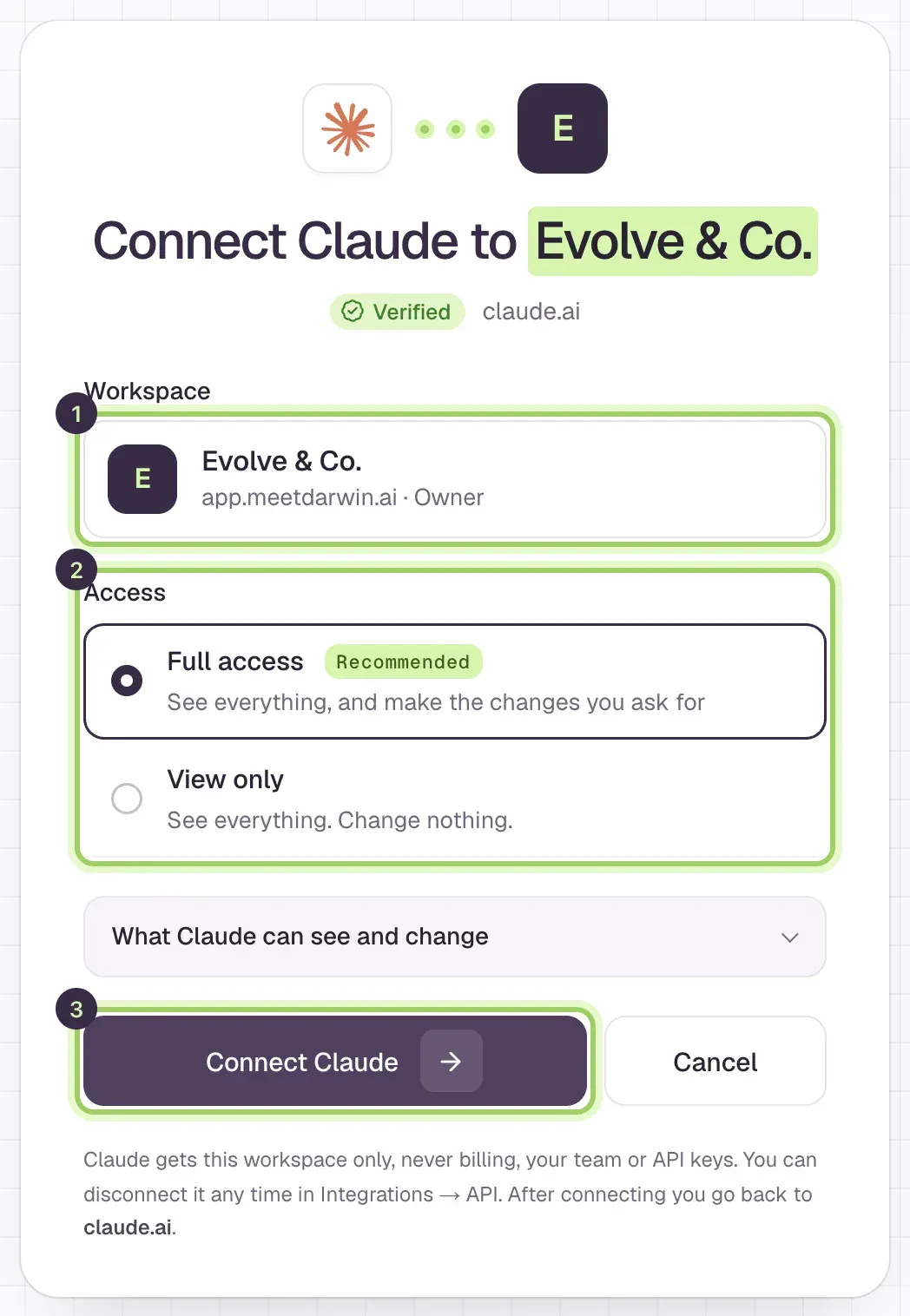
Claude sends you to Darwin. Sign in, check the Workspace (1), or select Switch to pick another. Choose Full access or View only (2) and select Connect Claude (3). You go back to Claude.
Ask a question
In a new chat, ask for example "Using Darwin, how many meetings did the chat book in the last 7 days?"
Claude Code
Run this in your terminal, then run /mcp, choose darwin and sign in to Darwin in the browser that opens:
claude mcp add --transport http darwin https://app.meetdarwin.ai/api/mcpGood to know
- View only reads results, conversations, leads, meetings and tests. Full access can also change knowledge, the agent's wording, look and chat buttons, opening tests, and switch the chat on or off. It never gets billing, your team or API keys.
- Only an owner or admin can connect a workspace.
- To disconnect, open Integrations → API → AI assistants and select Disconnect.