Install Darwin with Google Tag Manager
Integrations → Google Tag Manager: copy Darwin's site tag, add it as a Custom HTML tag on All Pages, publish the container, and check the installation.
- In Darwin: Integrations → Your website → Google Tag ManagerOpen in Darwin
- Updated
If your site already loads a Google Tag Manager web container, add Darwin as one Custom HTML tag. The tag's trigger decides which pages show the chat.
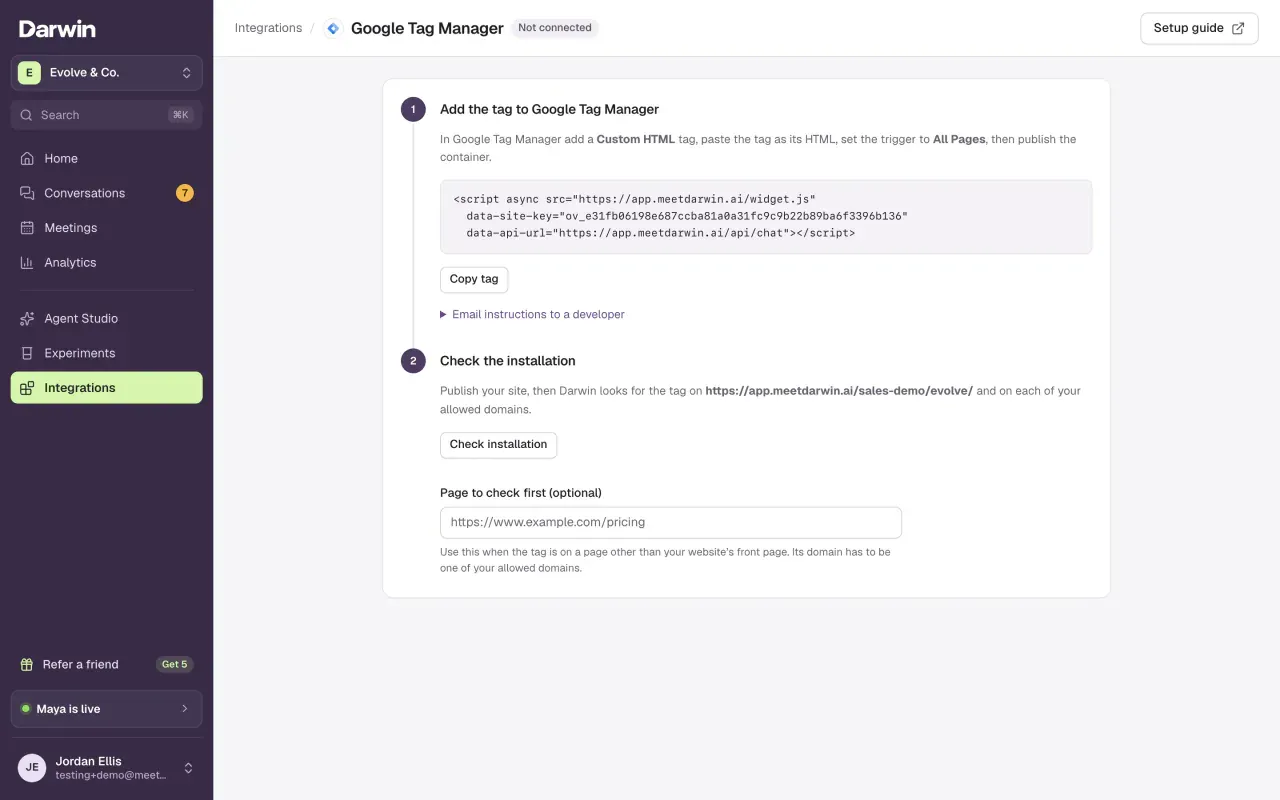
Open Google Tag Manager in Darwin
Open Integrations and select Open guide on the Google Tag Manager card, under Your website.
Copy the tag
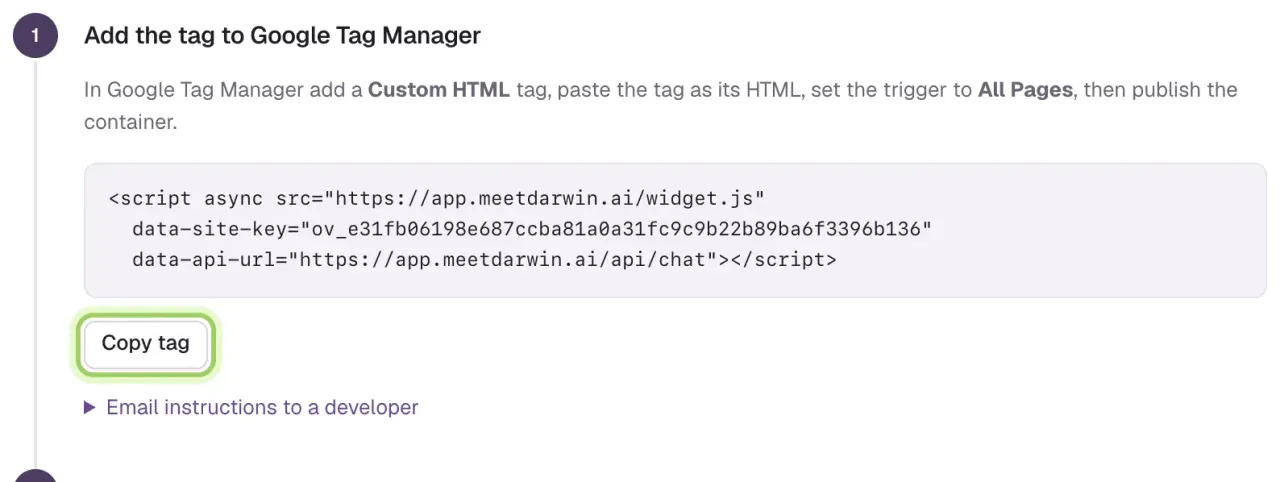
Select Copy tag. To hand the job to someone else, open Email instructions to a developer.
Add a Custom HTML tag in Google Tag Manager
In your web container, open Tags → New and name it Darwin chat. Choose Tag Configuration → Custom HTML and paste the whole tag, keeping
async. Under Triggering, choose All Pages, or a narrower trigger for part of your site, and save.Preview and publish
Select Preview, open your site and check that Darwin chat fires once. Then select Submit, then Publish. Saving or previewing alone doesn't publish the tag.
Check the installation
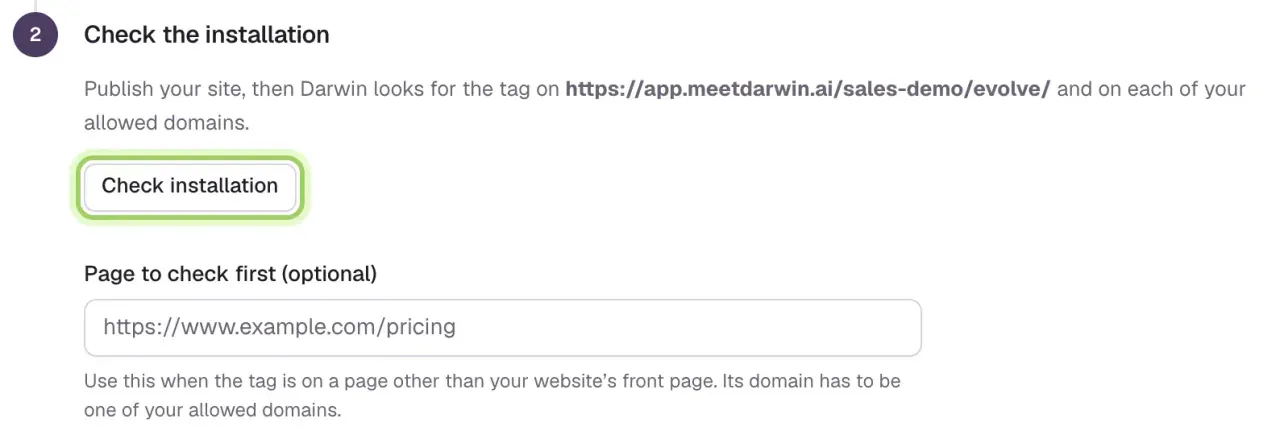
Back in Darwin, select Check installation. If the tag is on a page other than your front page, enter that page under Page to check first before you check.
Good to know
- Add your domain under Agent Studio → Visibility & privacy → Allowed domains first, or the chat won't run.
- Darwin's check may not see a tag that Tag Manager adds after the page loads. If the check fails, confirm the tag fired in Tag Assistant and open your live site.
- Use one copy of Darwin. If your site builder also has the tag, remove one of them.
- To track chat leads and meetings in GA4, listen for Darwin's
darwin:eventbrowser event. See Browser SDK events.