Keep Darwin in good shape
A simple routine for Darwin's chat: what to check after going live and each week, how to keep knowledge fresh, what to update when your business changes, and how to remove the chat from a website.
- In Darwin: HomeOpen in Darwin
- Updated
Darwin tests its openings by itself. Your part is keeping its facts and your calendar right, and glancing at what needs you.
After your first day live
Read a few conversations and check the answers match your business. Make sure a booking made in the chat shows up in Meetings. Look at the chat on your busiest pages on a computer and on a phone.
Each week
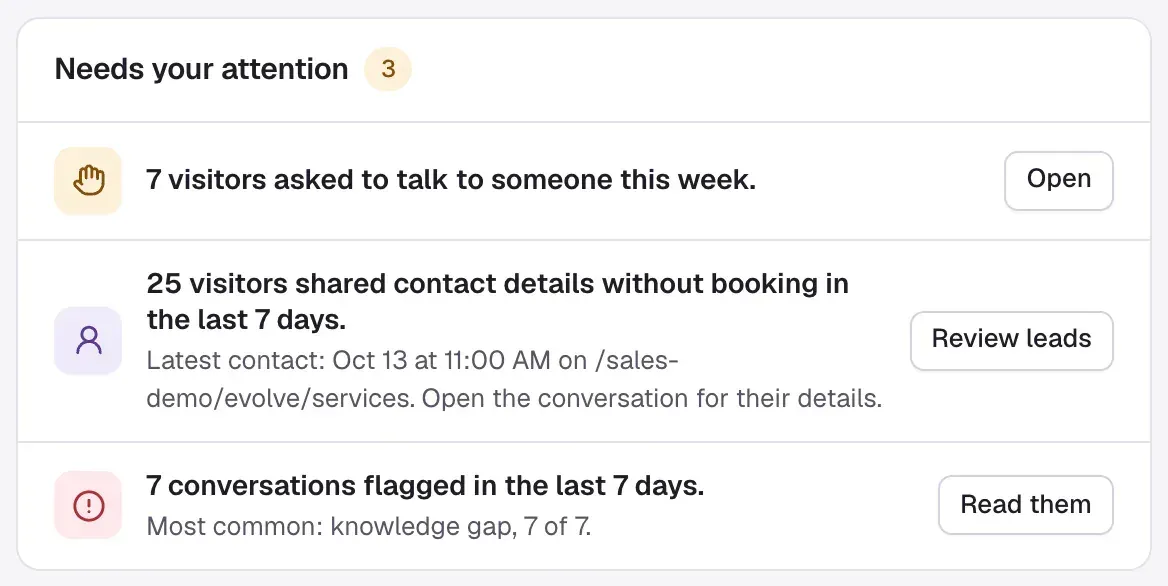
- On Home, work through Needs your attention: visitors who asked for a person, leads who didn't book, and flagged conversations.
- In Conversations, read the Flagged ones and fix any answer that was wrong.
- In Experiments, check for winners waiting for you and paused tests.
- On Billing, check this month's credits, and Save on credits if it shows.
Keep knowledge fresh
In Agent Studio → Knowledge, turn on Re-read pages automatically above the page list. Darwin then re-reads your pages every week, on every plan. Legacy plans keep their own pace: see Legacy plans. New pages are read within minutes.
When something changes
| What changed | Update in Darwin |
|---|---|
| Prices, plans, services or policies | Re-read the pages in Agent Studio → Knowledge and update Business context. |
| How you sell, or your agent's name | Agent Studio → Messages. |
| Brand colors or fonts | Agent Studio → Appearance. |
| A new domain or subdomain | Add it under Allowed domains in Agent Studio → Visibility & privacy, then add the site tag to that site. |
| Your calendar or meeting type | Integrations → Scheduling, then make a test booking on your website. |
| A teammate leaves | Remove them in Settings → Team. |
After a big change, test your agent with a few real questions.
Remove Darwin from a website
- Take the site tag out of your site's code, site builder or tag manager, and publish.
- Remove the domain from Allowed domains in Agent Studio → Visibility & privacy.
- To stop the chat everywhere at once, turn off the live switch at the top of Agent Studio.
Removing the chat doesn't cancel your plan. Do that in Billing. Hiding the opening message only hides the message, not the chat.