Review tests and apply winners
Experiments: open a test, read views, chats, reached booking and meetings for each opening, check results, pause, change openings, apply a winner and read History.
- In Darwin: Experiments → Overview, Pages or HistoryOpen in Darwin
- Updated
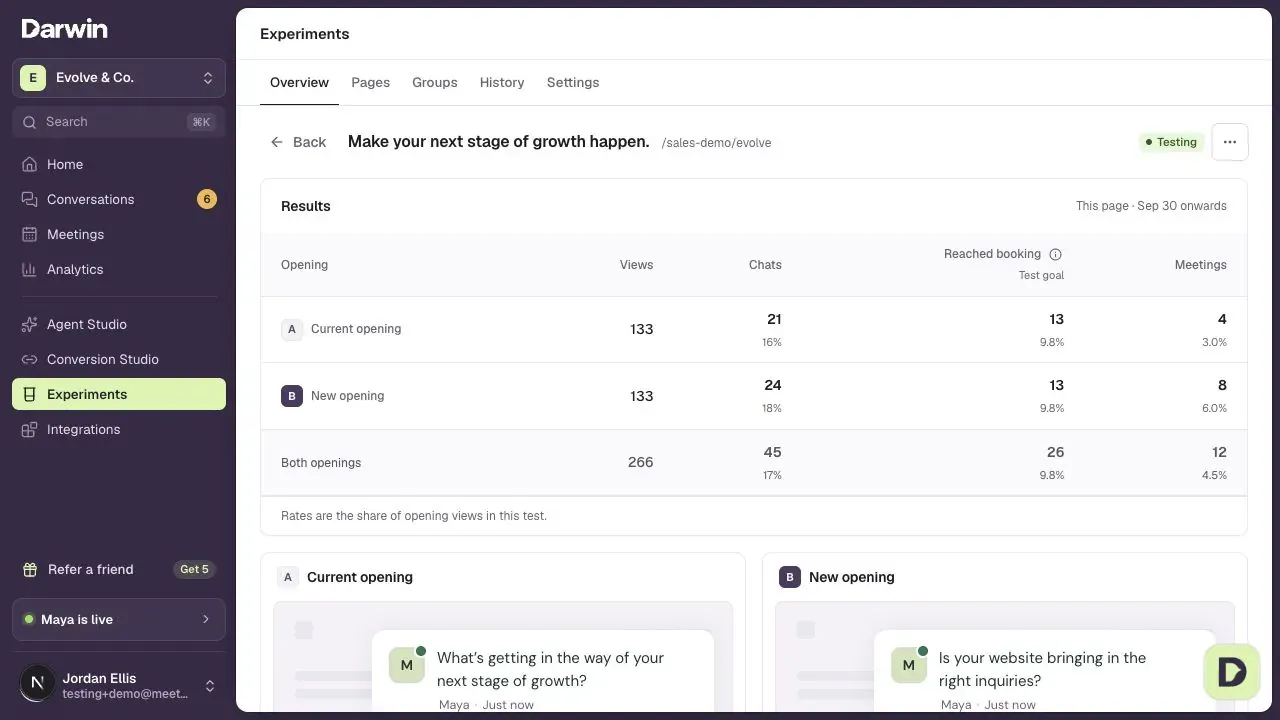
A test's screen keeps the Experiments tabs and a Back control above the results. It shows the openings side by side and how many of their visitors went on to book, so you can see what's working and decide what goes live.
Open a test
In Experiments → Overview, find the test and select anywhere on its row. You can also open any page from Experiments → Pages.
Read the results
Results gives each opening's Views, Chats, Reached booking and Meetings, with each step's share of views. Reached booking means the visitor saw times to book, asked for a meeting, or booked; Darwin keeps the opening with more of them. Above the table, the status shows whether the test is still running.
Check results or pause the test
Open the three-dot Test actions menu beside the test status. Check results looks at the latest numbers now instead of waiting for the next check. Pause test stops showing the new openings. A paused test shows Resume, and End test closes it and keeps its results.
Change the openings
Under a new opening, Edit copy changes its wording and Regenerate has Darwin write a replacement. Once visitors have seen an opening, new wording starts from zero views, and the old wording's results stay in the history. When a test has more than one new opening, Remove takes one out.
Add an opening, under the results, adds your own opening to the running test. It starts getting visitors straight away.
Apply a winner
When a new opening wins, the test's screen says which opening won and shows Apply winner at the top. Select it and confirm: the opening becomes the one the page shows, and the test ends with its results kept. If Apply winners for me is on in Settings, Darwin does this for you.
Tests waiting for you are listed in History → Needs review, and on Home under Needs your attention.
Before a test finishes, Apply appears under the leading new opening once both openings have 200 views and it has 10 visitors who reached booking. Darwin asks you to confirm, because a lead that early may not last.
Look back at finished tests
History → Results lists finished tests: when each ended, where it ran, the Outcome, the Winning opening, the Change and the views. Select a row to open it.
Change compares the winner's booking rate with the opening it was tested against. Use All outcomes to show only Winners applied or Other outcomes, and the search to find a page or opening.
Good to know
- A test with a winner waiting, or one that has finished, can't be edited.
- If a new opening books fewer meetings than your current one, the results say so, and Darwin won't apply it.
- History → Activity lists Darwin's recent checks and the tests they started.
- A finished or ended test isn't always an improvement. Read the outcome before acting on it.