Manage your plan, credits and invoices
Settings → Billing: follow this month's credits, add or change a credit add-on, upgrade or switch plan, move up automatically, add a card, find invoices and fix a failed payment. Agency client workspaces are billed through the agency. Workspace owners only.
- In Darwin: Account menu → BillingOpen in Darwin
- Updated
Billing is where the workspace owner follows credits, changes plan or add-on, adds a card and finds invoices. Admins and members see a note that the owner manages billing. Cards and invoices are handled by Stripe.
The screen has four parts: Plan (your plan, this month's credits and the next invoice), Payment method, Plans and Invoices.
Check your plan and credits
Current plan shows your plan, its price and when it renews. Credits shows this month's dates and how many credits are used of how many, with what's left:
- The bar fills as credits are used. Credits beyond your allowance show in amber.
- The chips below it say where the month's credits came from: Plan, Add-on, and Rolled over with the date they last until.
- The line under them splits what was used into meetings and requests, such as 22 meetings · 8 requests.
View usage lists every meeting and request counted this month. On Free without a card, this row is Free credits, marked One time, with how many of your 5 are used.
Check the next invoice
Next invoice shows the date and the estimated total: the plan fee, your add-on, and Extra credits so far this month with their cost. Taxes and any account credit are added by Stripe on the invoice.
Add a card
On Free, under Payment method, select Add a card, check the price in the window that opens, and select Continue to checkout. Stripe takes the card, then brings you back to Billing. Adding a card charges nothing by itself.
Once a card is on file, this row reads Card on file with Stripe. Use Manage payment details to change the card, billing address or tax details in Stripe.
Find your invoices
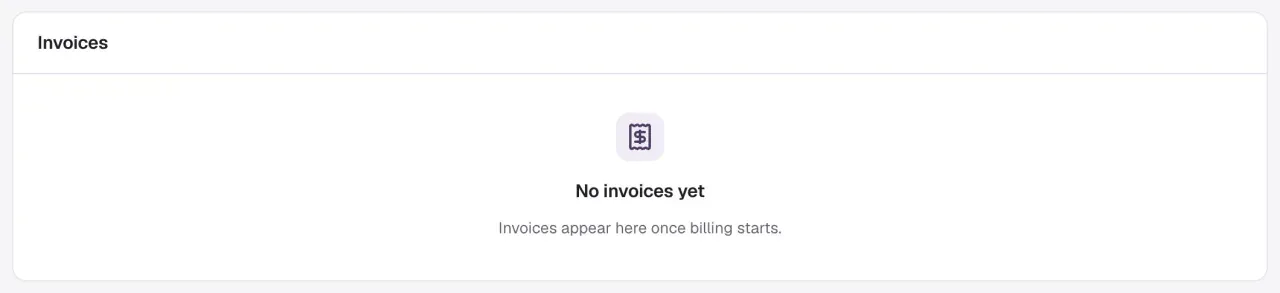
Invoices lists each invoice with its date, amount and status. View opens it in Stripe and the download icon saves the PDF. Until billing starts, it reads No invoices yet.
Change your plan
In Plans, pick Monthly or Annual (2 months free).
On Growth and Agency, choose your credits each month in the menu under the card's price, such as 35 credits: 10, 35, 60 or 110 on Growth, and 25, 50, 75, 125, 275 or 525 on Agency. Anything above the plan's own credits is an add-on. The card's price and its Extra credits $25 each line change with your choice, for example to $799 a month and Extra credits $20 each for 35 credits on Growth.
The last choice in the menu is More credits? Talk to us. It turns the card's button into Book a demo, to talk to us about Enterprise: custom credits and pricing. See Enterprise.
Then select the button on the plan you want: Upgrade to Growth, Choose Agency or Switch to Free. On the plan you already have, choosing other credits turns the button into Switch to 60 credits, for example, which opens Credits each month with that choice selected.
Check what's due today
The window lists what the plan adds, including the credits you chose, such as 35 credits a month · extra credits $20, and shows Due today, for example $299.00 with "10 credits now · then $299 a month". Nothing is charged until you confirm.
Confirm
- With a card on file, select Upgrade to Growth (or the plan you chose). The new plan starts straight away with its full credits, and the unused part of your old plan's fee comes off the charge.
- With no card yet, select Continue to checkout and pay in Stripe. The plan starts once the payment goes through, and Stripe brings you back to where you were.
Moving up starts straight away: Free to Growth, Growth to Agency, monthly to annual, and a legacy plan to Growth or Agency. Moving down waits for your renewal date: a smaller plan, a smaller add-on or none, or annual to monthly. Until then your current plan, credits and prices stay, and Billing shows when the change starts.
Before a move down, the window lists what will lock. On Free, for example, each form screens visitors with its first qualifying question only. Your other fit rules are kept, marked Paused on Free, and work again if you upgrade.
Upgrade from a locked feature
Features that need a bigger plan show a lock and a plum Growth or Agency tag where you'd use them: a second qualifying question on a form and client workspaces. Selecting one opens the same upgrade window. After the upgrade you're back where you were, with your change saved.
Admins and members see the window too, with a button such as Ask Ari to upgrade in place of the price. It emails the workspace owner, who upgrades from Billing.
Add or change a credit add-on
On Growth or Agency, select Change add-on on the Credits row. Credits each month lists Plan only and each add-on with its monthly price, the credits you'd have each month and the price of each credit beyond them. Current marks yours, and Lowest for last month, such as Lowest for October, marks the one that would have cost least then.
Pick one and check Due today, then confirm, for example with Switch to +50 credits.
- A bigger add-on starts straight away. You pay for the rest of the month now, get that share of its credits now, and the lower price applies to every credit after that.
- A smaller add-on, or Plan only, starts at renewal.
On an annual plan, an add-on is charged at its annual price for the months left, so it renews with your plan. Prices are on Plans and credits.
Save on credits
At the end of each month Darwin works out which add-on would have been cheapest for that month's credits. When it isn't the one you have, Save on credits appears under Credits and the owner gets an email. On Growth with +25, for example, 58.8 credits in October cost $1,275; with +50 they would have cost $1,099, so Billing says +50 would have cost $176 less.
- Switch to +50 (or the add-on named) opens Credits each month with that add-on selected.
- Move up automatically, on monthly plans, lets Darwin switch you to the cheaper bigger add-on at the start of the next month whenever last month says it would have saved money. Darwin never moves you down. You get an email each time, and you can switch it off here.
On an annual plan Darwin suggests the add-on but doesn't move you.
Cancel or resume renewal
With a subscription, the Plan row has Cancel renewal on followed by your renewal date. Selecting it asks you to confirm: Cancel renewal confirms, Keep my plan leaves everything as it is. Your plan stays active until that date, and Billing shows when it ends. Resume renewal undoes it any time before then.
After that date the workspace is on Free without a card: it uses any of its free credits that are left, then Darwin pauses on your website until you add a card. Canceling doesn't refund the current period or erase recorded credits. To take the chat off your site, see Keep Darwin in good shape.
If a payment fails
While Stripe retries the payment, your plan carries on as normal and Billing shows Your last payment didn't go through. Stripe is retrying it; your plan stays on. Update the card with Manage payment details.
If the retries fail, a red bar reads Your payment didn't go through. Until the card works:
- Your agent keeps answering visitors.
- The chat stops offering bookings and forms, so nothing new uses a credit.
- Free's limits apply: each form screens with one qualifying question.
Select Update card. Once the payment goes through, everything comes back straight away.
Agency billing
On Agency, the agency workspace pays for every client workspace from one pool of credits, on one invoice. Its owners and admins see the pool and the per-client report on the Agency page.
In a client workspace, Billing shows Billed through and the agency's name, on the Agency plan. Plan changes, cards and invoices are handled by the agency, and people in the client workspace don't see the pool or any prices.
Messages you may see on Billing
| Message | What to do |
|---|---|
| All 35 credits are used this month. | Nothing stops. Extra credits are charged at your rate until the month ends. Add credits opens Credits each month for a lower rate. |
| Your last payment didn't go through. Stripe is retrying it; your plan stays on. | Update your card with Manage payment details. |
| Your payment didn't go through. | Select Update card. Bookings and forms are off until it works. |
| Your bank needs to confirm this payment before the change applies. | Select Confirm payment in Stripe and approve it with your bank. |
| Darwin is paused on your website. All 5 free credits are used. Add a card to switch it back on; everything you set up is saved. | This bar sits at the top of every page on Free. Select Add a card and Darwin is back on your website straight away. Admins and members see Ask your workspace owner to add a card in Billing. instead. |
| Checkout wasn't completed, so nothing changed. | Start again from Add a card or the plan's button. |
| Billed through an agency | This is a client workspace. Ask the agency about billing. |
Good to know
- Each workspace is billed on its own, except client workspaces on an agency's pool. Check the workspace name at the top of the sidebar before you change anything.
- While a payment needs attention, plan and add-on changes wait until it's fixed.
- The sidebar shows your credits too: free credits left on Free, or "18 of 35 credits" on a paid plan. The bar turns amber at 80%, and owners see what extra credits cost so far.
- Prices, add-ons and examples are on Plans and credits.