Go-live checklist
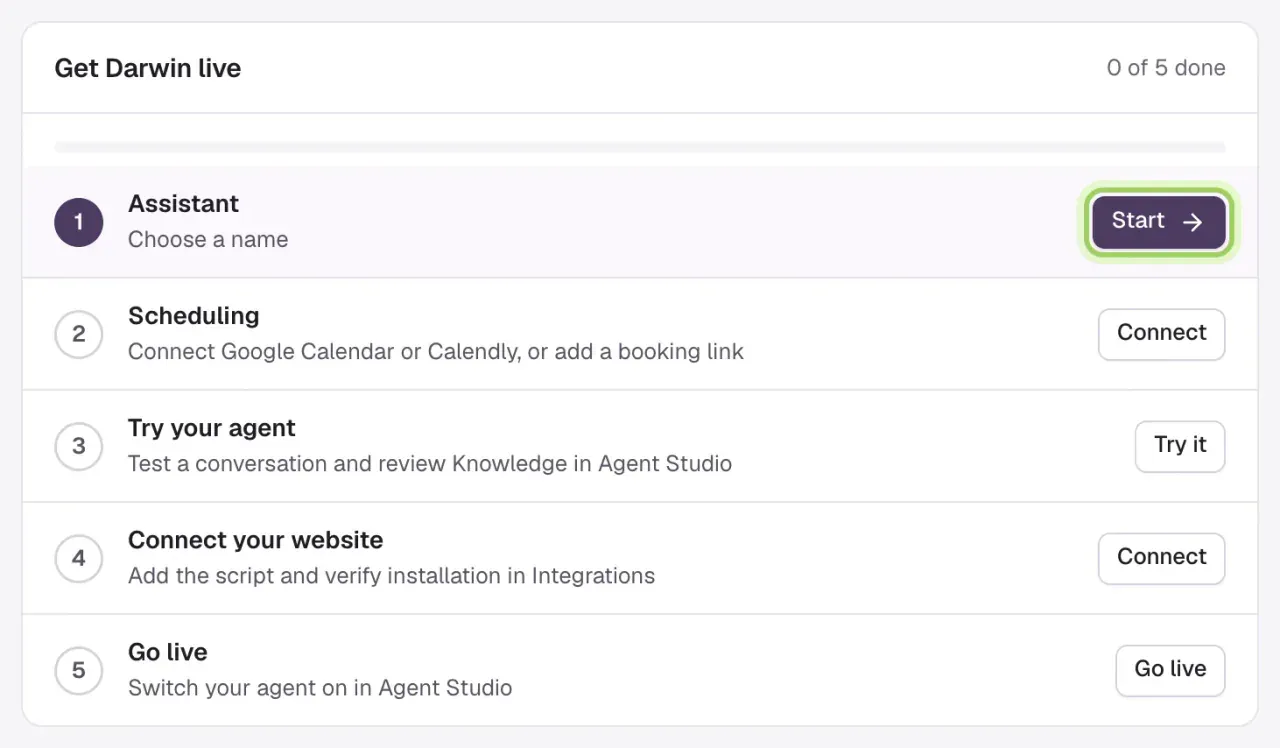
Before you turn your agent live: check the workspace and plan, the agent's answers, your calendar or outcome form, the site tag and allowed domains, then use Agent Studio's live switch and test on your real website.
- In Darwin: Home → Get Darwin liveOpen in Darwin
- Updated
Run through this list before you tell anyone the chat is live. Get Darwin live on Home ticks off most of it for you.
Your account
- The right workspace is selected. Its name is at the top of the sidebar.
- Your email is verified, and on Growth or Agency, checkout is finished. See Create your account.
- Teammates have the right access in Team.
Your agent
- The agent's name, voice and opening line are saved. This is the Assistant step on Home.
- Knowledge has your current product, pricing and service pages. See Knowledge.
- You've asked the preview the questions your visitors ask. See Test your agent.
Booking and your website
- Visitors have somewhere to go: your calendar is connected, or an outcome form such as Request a quote is live. Book a meeting's questions on their own don't count.
- Your domain and site tag are in place. The two cards at the top of Integrations show the website and the calendar.

- Your website's domain is under Allowed domains in Agent Studio → Visibility & privacy.
- The site tag is on your site once, and Check installation shows Verified. See Install the chat on your website.
- Pages where the opening message shouldn't appear are listed under Hide on these pages in Visibility & privacy.
Go live
- In Agent Studio, turn on Turn your agent live. The badge reads Live on your website.

- Open your website in a private window. The chat appears, answers a question, and opens your booking.
- Book one real test meeting, or send one of your forms, and check it shows in Meetings, and in your calendar for a meeting. It can use a credit, so cancel the meeting in your calendar afterwards, and select Not a real request on a test request in Conversations.
Good to know
- The live switch stays off until the agent, knowledge, a calendar or live form, and installation are done. Darwin tells you what's missing when you try it.
- Save or discard edits in Agent Studio before you turn it on. The switch waits while you have unsaved changes.
- To stop the chat at any time, turn the same switch off. Your settings stay as they are.