Connect Zapier
Integrations → Zapier: add Darwin to Zapier, create a key, and send Darwin's leads, meetings, form requests, personal link visits and requests for a person to HubSpot, Salesforce, Slack and thousands of other apps, or put each prospect's personal link on their CRM record.
- In Darwin: Integrations → CRM & automation → ZapierOpen in Darwin
- Updated
Darwin's Zapier app starts a Zap the moment something happens in your chat: a visitor leaves their email, books a meeting, sends one of your forms, or asks for a person. Zapier does the rest in your other tools.
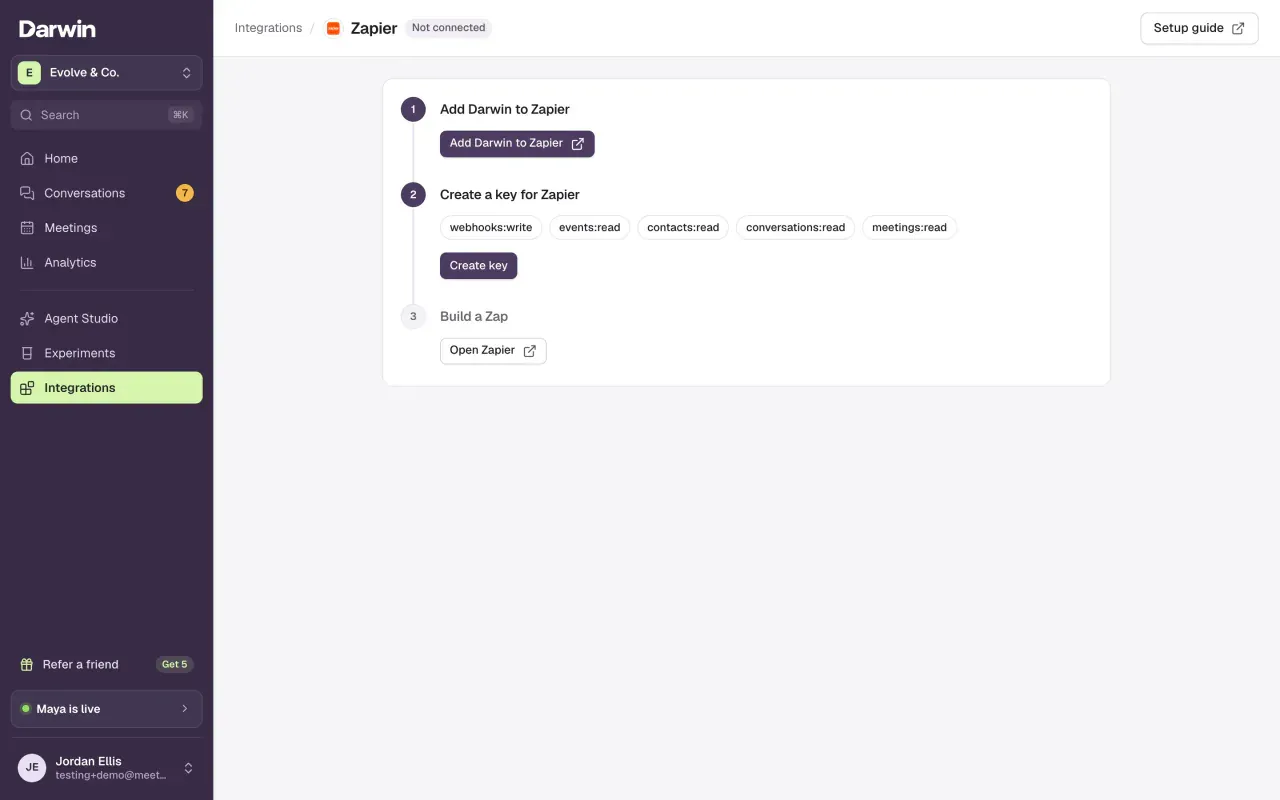
Open Zapier in Darwin
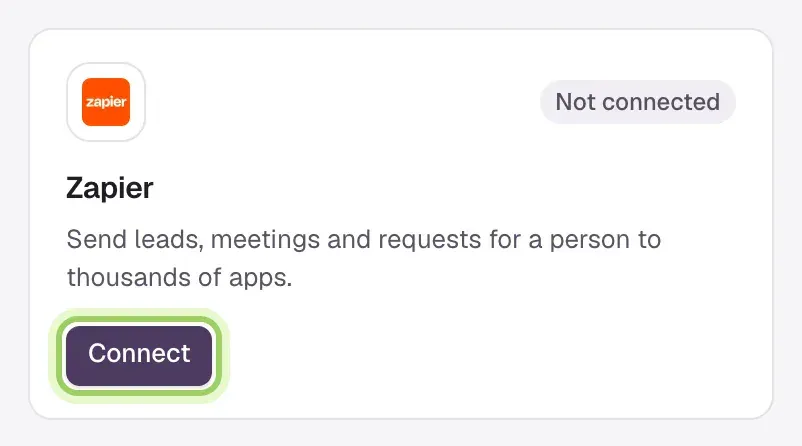
Open Integrations and select Connect on the Zapier card, under CRM & automation.
Add Darwin to your Zapier account
Darwin is in private beta on Zapier. Select Add Darwin to Zapier, or open the Darwin invite link, while signed in to the Zapier account you build Zaps in, and accept the invite. Darwin then appears in Zapier's Zap editor like any other app.

Create a key for Zapier
Select Create key. It opens Integrations → API, where you select Create key again.

Name the key Zapier. Under access, select Choose (1) and tick
webhooks:write,events:read,contacts:read,conversations:readandmeetings:read. Addcontacts:writeif a Zap should create or update Darwin contacts, andagent:readfor personal links and for picking one form on New Outcome Request. Select Create key (2) and copy the key: Darwin shows it only once.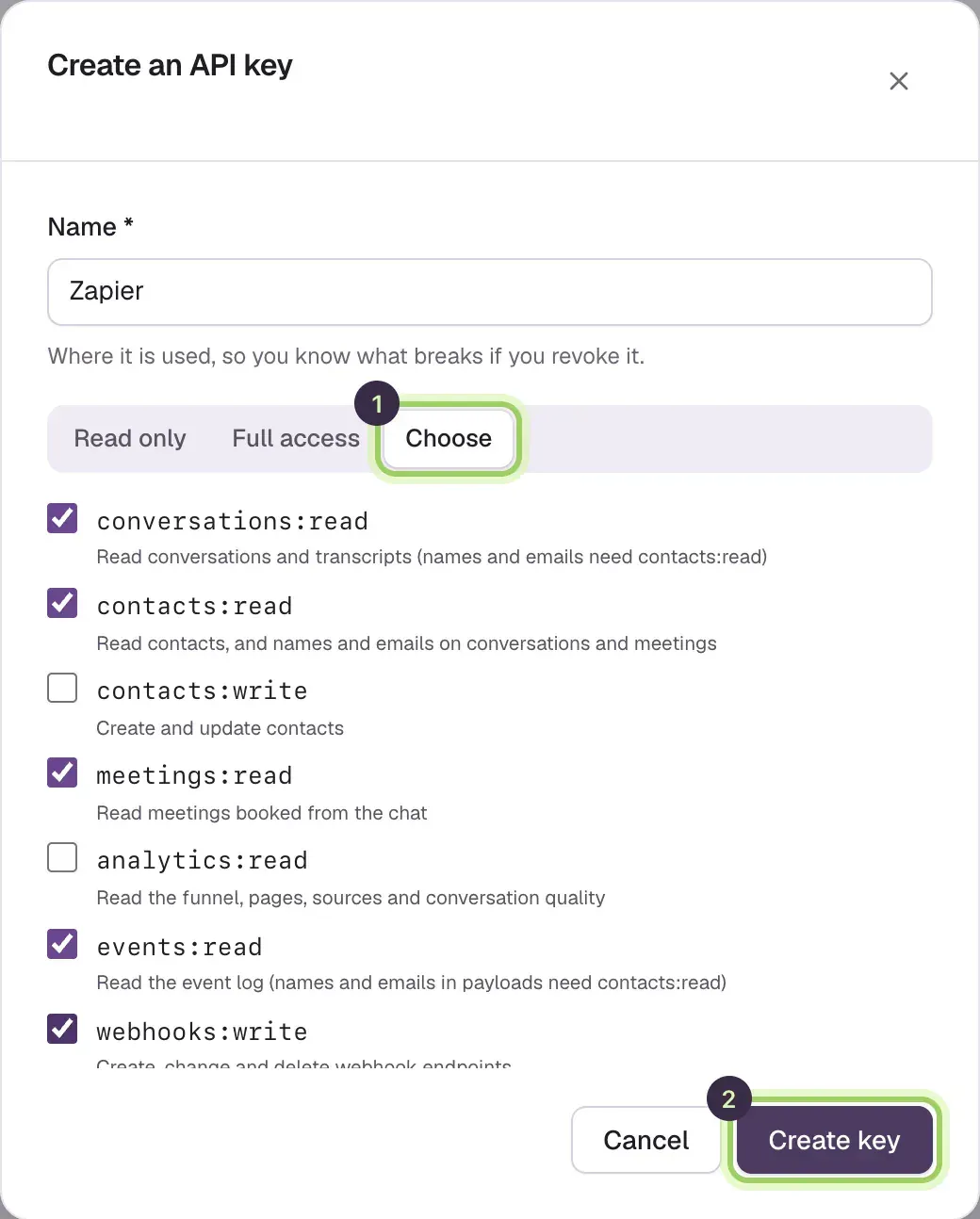
Connect Darwin in a Zap
In Zapier, create a Zap and pick Darwin as the trigger app. Choose an event, connect a new Darwin account and paste the key. The connection is named after your workspace.
Test and publish
Select Test trigger. Zapier loads your three most recent matching events, or a sample if there are none yet. Add your action, test it, and publish the Zap.
Back in Darwin, Build a Zap lists each Zap with its event. Select Open Zapier to manage them.

Triggers
Each trigger is instant: Darwin sends the event to Zapier as it happens.
| Trigger | Starts the Zap when |
|---|---|
| New Lead | A visitor gives their name and email in the chat. |
| Visitor Asked for a Person | A visitor asks to talk to someone on your team. |
| New Outcome Request | A visitor sends one of your outcome forms, such as a quote request. Pick a Form to hear about only that one. |
| Personal Link Opened | Someone opens one of your personal links, whether or not they chat. Pick a Personal Link to hear about only that one. |
| Meeting Booked | A visitor books from the chat and the calendar confirms it. |
| Meeting Rescheduled | A meeting booked from the chat moves to a new time. |
| Meeting Canceled | A meeting booked from the chat is canceled. |
| Conversation Completed | A chat goes quiet and Darwin has graded it. |
| New Conversation | A visitor starts a chat on your website. |
| New Contact | A contact is added to Darwin, from the chat or the API. |
| Opening Test Winner | One of Darwin's opening tests finds a winning opening. |
Lead, person-request and conversation triggers carry the visitor's name, email, company and phone when given, the page they chatted on, their traffic source and UTM values, Darwin's grade, the reason they asked for a person, and Darwin url, a link to the conversation in Darwin.
Personal Link Opened carries who the link says they are (email, name, company and job title), the link's name and page, the page they landed on and their Darwin contact. It fires once per person and link within 12 hours, and never for your team's own clicks, so it suits a Slack message to the rep or a task in your CRM.
New Outcome Request gives each answer its own field, named after its question (answer_what_do_you_need_a_quote_for, for example), so you can map answers straight into CRM fields. It also carries all the answers as lines, the form's name, the visitor's name, email and phone, whether they were a fit and why not, the page and the conversation.
Actions and searches
| Action | What it does |
|---|---|
| Create or Update Contact | Creates a Darwin contact, or updates the one with the same email. Set External ID to your CRM's record ID to link the two. |
| Create Personal Link URL | Makes one person's own address for a personal link, with their email, name, company and job title filled in. Save it on their CRM record, for example a HubSpot contact property, and use that property in your emails. Needs agent:read. |
| Add Knowledge Document | Adds text the agent answers from. |
| Add Website Pages | Adds web pages for the agent to read and answer from. |
| Erase Person | Permanently erases a person and everything Darwin holds about them. Needs privacy:write. |
| Find Contact by Email | Finds a Darwin contact by email. |
| Find Conversation | Finds a conversation by its ID, with the transcript. |
When a Zap doesn't run
Each Zap shows up in Integrations → API → Webhooks as an endpoint named Zapier: and its trigger. Deliveries there shows every event Darwin sent and Zapier's answer. If the Zap is missing, turn it off and on again in Zapier.

Good to know
- Conversations in the Agent Studio preview never start a Zap. Test with a real chat on your website, or with the samples from Test trigger.
- If Zapier says the key needs a scope, create a new key with that scope and reconnect Darwin under Apps → Darwin in Zapier.
- Revoking the key stops every Zap that uses it.