Connect Zoom
Integrations → Zoom: connect your Zoom account and every meeting booked through Google Calendar in Darwin's chat gets a Zoom link. How to remove the app, and what happens to your data.
- In Darwin: Integrations → Video calls → ZoomOpen in Darwin
- Updated
Zoom supplies the video link for meetings booked through Google Calendar. When a visitor confirms, Darwin creates the Zoom meeting in your account and Google sends the invitation with the link.
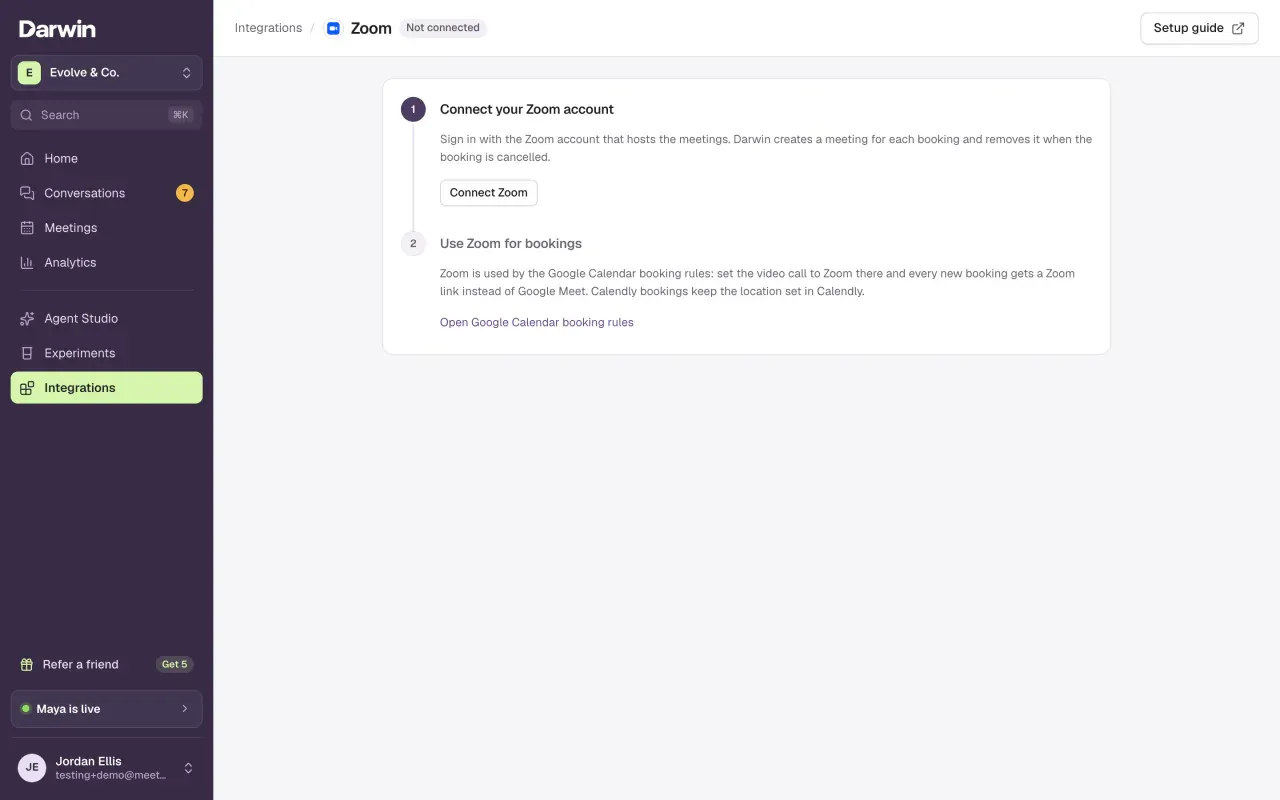
Open Zoom
Open Integrations and select Connect on the Zoom card, under Video calls.
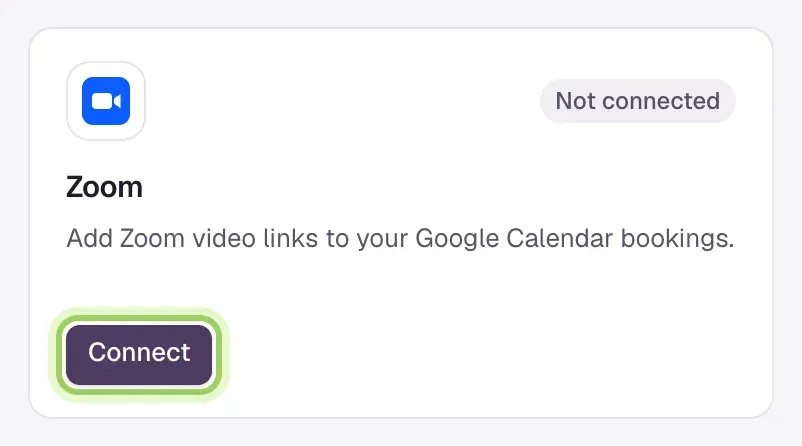
Connect your Zoom account
Select Connect Zoom. Zoom asks you to sign in, then lists what Darwin asks for: your Zoom name, email and account details, and permission to create and delete meetings. Select Allow. Back in Darwin, step 1 shows the connected account.
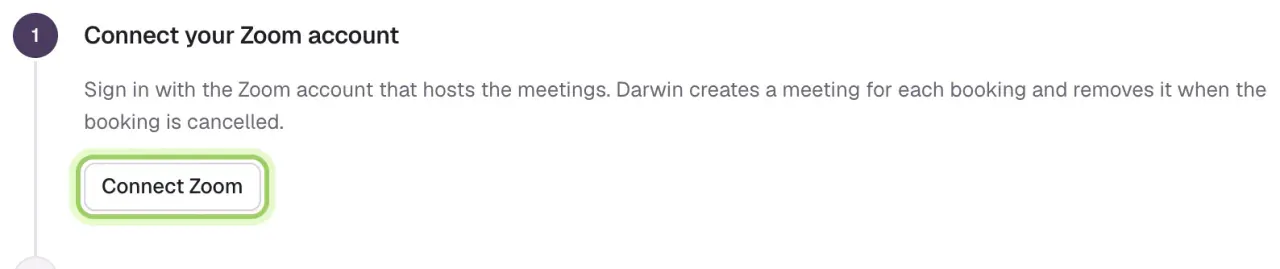
Use Zoom for bookings
Select Open Google Calendar booking rules, then Change beside the rules. Set Video call to Zoom and select Save booking rules. Each new booking now gets a Zoom link instead of Google Meet.

What Zoom does for a booking
- Booked: Darwin creates a meeting named "Meeting with" and the visitor's name. The link and passcode go on the Darwin bookings event. The visitor doesn't need a Zoom account.
- Canceled in Google Calendar: Darwin deletes the Zoom meeting within a few minutes.
- Moved in Google Calendar: the Zoom link stays the same and still works.
Darwin reads your Zoom name and email once, to show which account is connected. It only creates and deletes the meetings it made for Darwin bookings.
Remove the Darwin app
- In Darwin: select Disconnect on the Zoom page. Darwin deletes its stored tokens at once.
- In Zoom: sign in to the Zoom App Marketplace, select Manage → Added Apps, find Darwin and select Remove. Darwin then deletes the connection, including the Zoom name, email and account IDs it stored.
Either way, new bookings get no video link until you set Video call back to Google Meet or connect again. Meetings already created stay in your Zoom account, and existing invitations keep their links.
When something goes wrong
- Reconnect needed: Zoom no longer accepts the connection, for example after a password change. Select Reconnect Zoom. Until then, bookings go through without a video link.
- A booking has no Zoom link: check the Zoom page for a notice. Add a link to that event in Google Calendar; Google sends the visitor the update.
- This account is connected to another workspace: one Zoom account connects to one Darwin workspace. Disconnect it in the other workspace first.
- Zoom says the app can't be added: your Zoom admin may limit Marketplace apps. Ask them to allow Darwin.
Good to know
- Calendly bookings don't use this connection. Choose a Calendly meeting type with a Zoom location and Calendly adds the link.
- A free Zoom account works, with its 40-minute limit on the meetings Darwin creates.
- Only owners and admins can connect or disconnect Zoom.