Build an outcome
Conversion Studio → Outcomes: start from a template, name the form and say when the agent offers it, write the questions, add fit rules, choose what happens after the form and where the answers go, then save it live.
- In Darwin: Conversion Studio → OutcomesOpen in Darwin
- Updated
Build a form your agent opens in the chat, such as a quote request. It takes a few minutes, and the form works in the Agent Studio preview after you save it.
Start from a template
Open Conversion Studio → Outcomes. Book a meeting comes first, then your forms, each with how many visitors started and sent it in the last 30 days.
Open Templates above the table. Pick one of these, or use New outcome to start with a blank form:
- Request a quote: what they need, when, any details, then their email.
- Request a callback: the topic, a good time to call, and a phone number.
- Start from scratch: your own questions.
A form's switch takes it live or off.
Name it and say when to offer it
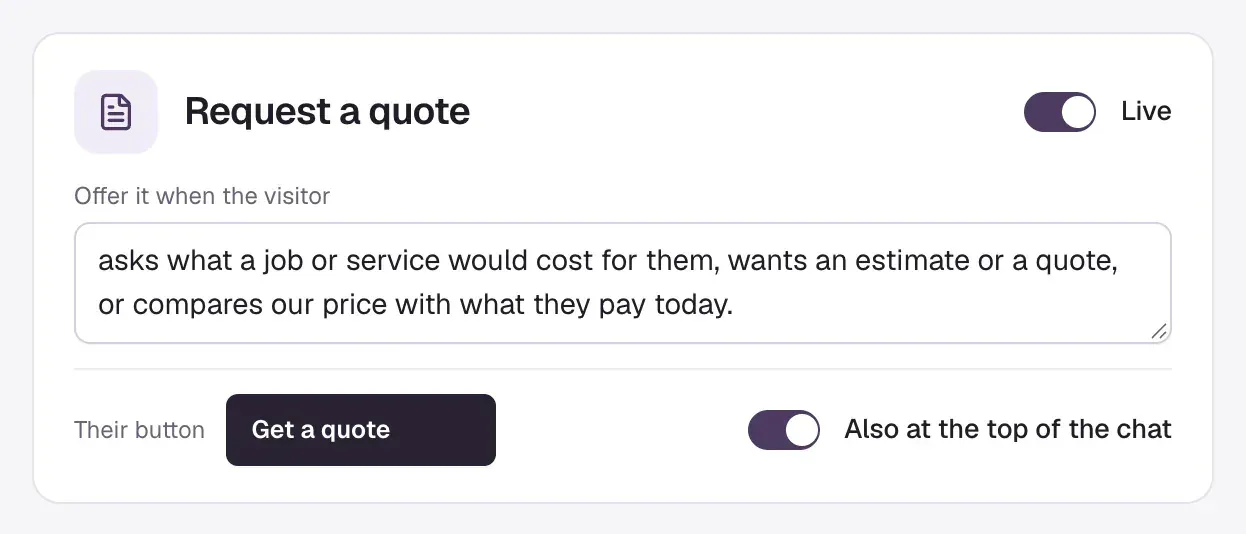
At the top of the form, type its name. Offer it when the visitor… tells the agent when to open it, in your own words, such as "asks what a job would cost or wants an estimate".
Their button is the button visitors see above the message box when the agent offers the form. Turn on Also at the top of the chat to put the button under your agent's name, in place of Book a meeting. One form at a time can have that spot.
Write the questions
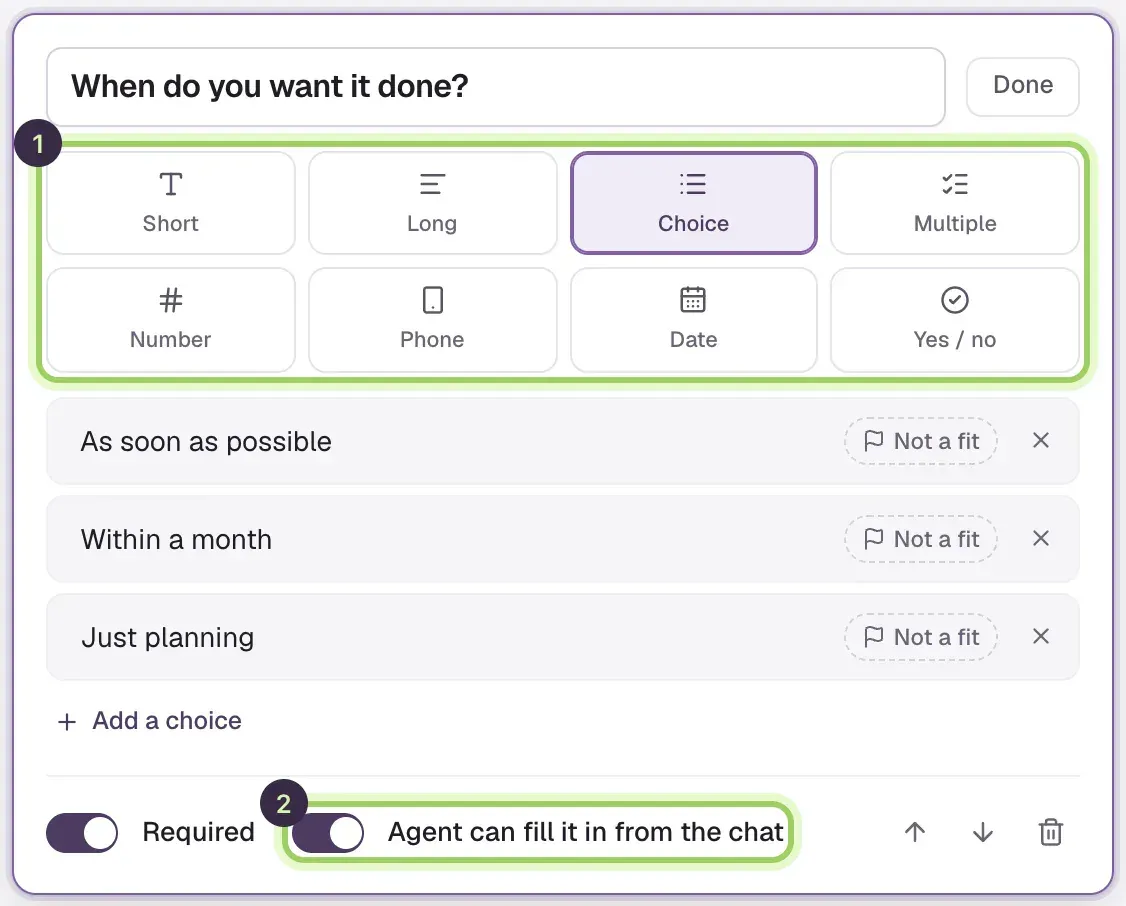
Each question shows the way the visitor will see it. Select one to edit it: write the question, then pick its type (1):
- Short or Long: Types an answer
- Choice: Picks one answer from your list (up to 12)
- Multiple: Picks one or more answers
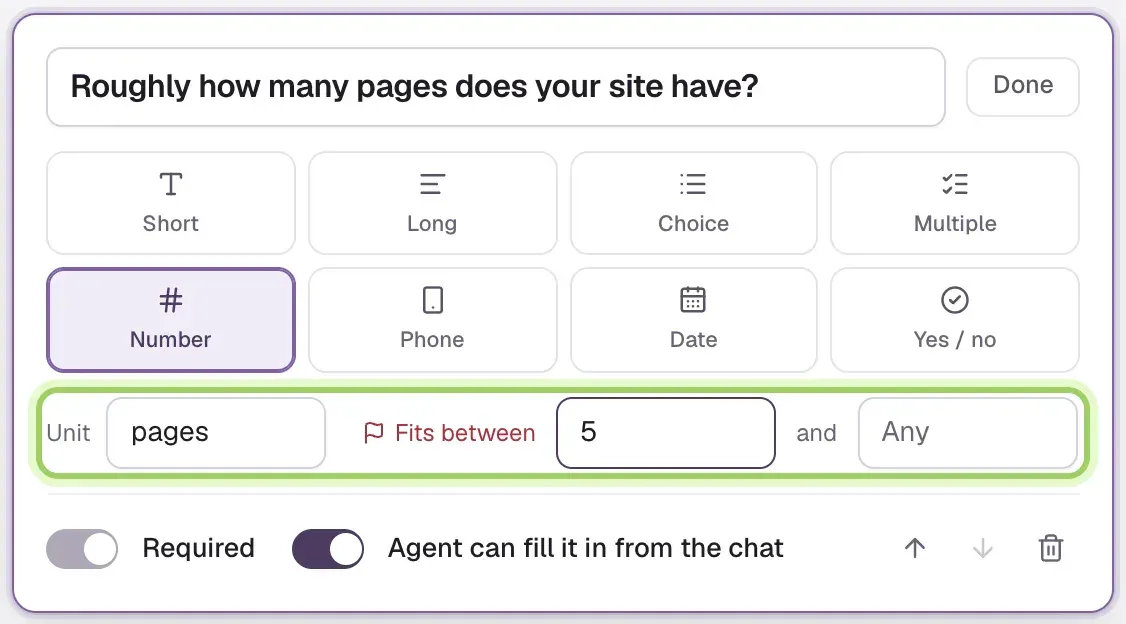
- Number: Types a number, with a unit such as "pages" if you add one
- Phone, Date: Types a phone number, or picks a date
- Yes / no: Picks Yes or No
Select Done to close a question. Add one from the Add a question row, use the arrows to reorder, and the bin to remove one. A form can have up to seven questions.
Two switches on each question:
- Required: the visitor has to answer it. Optional questions show Skip.
- Agent can fill it in from the chat (2): if the visitor already said it ("I need a quote for a kitchen refit"), the agent fills it in and the step shows as already answered. The visitor can go Back and change it.
Add fit rules (optional)
Fit rules decide who goes on to book, and mark each request Fit or Not a fit for your team:
- On a Choice, Multiple or Yes / no question, select Not a fit beside the answers that rule a visitor out. Any one of them makes the visitor not a fit. At least one answer has to be a fit.
- On a Number question, fill in Fits between with the lowest and highest that fit. Leave a side on Any for no limit.
A question with a fit rule is always required, so it can't be skipped.
On Free, a form can have one qualifying question, a question with a fit rule. If you try to add a second, the form shows a locked row, Ask more than one qualifying question on Growth, with an Upgrade button. Select it to move to Growth without leaving the form, then add the question. Book a meeting counts as one form, so its questions can have one qualifying question too.
A visitor who sends a form that has fit rules and doesn't pass them still reaches you, marked Not a fit, and uses no credit. See How requests use credits.
Choose what to ask for at the end
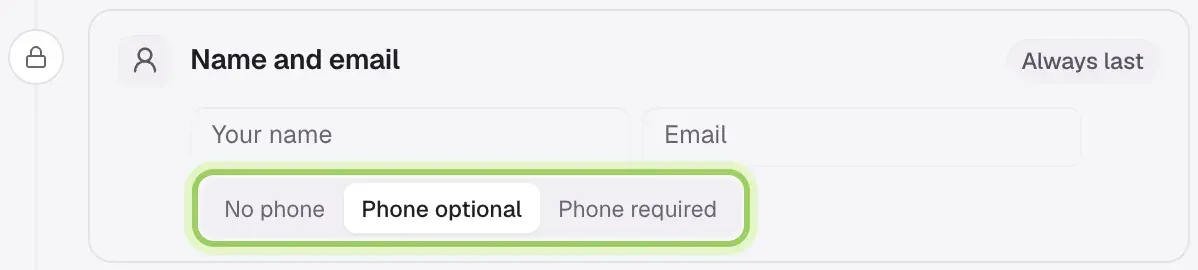
Name and email is always the last step, so every request reaches you with a way to reply. Choose No phone, Phone optional or Phone required.
Choose what happens after the form
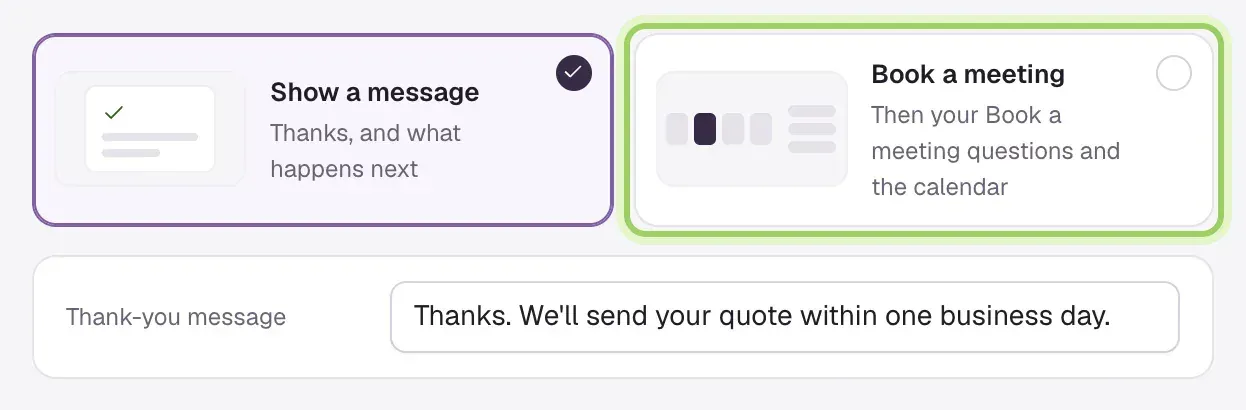
Under After the form, pick one:
- Show a message thanks the visitor with your Thank-you message, such as "We'll send your quote within one business day."
- Book a meeting (marked) goes on to booking once the form is sent: your Book a meeting questions if you set some and the visitor hasn't answered them yet, then the calendar, under your Above the calendar message. Tick Visitors can send the request without booking if a booking is welcome but not needed.
When a question has a fit rule, If they're not a fit sets the message a visitor sees instead of the calendar. Their request still comes to you, marked Not a fit.
Choose where the answers go
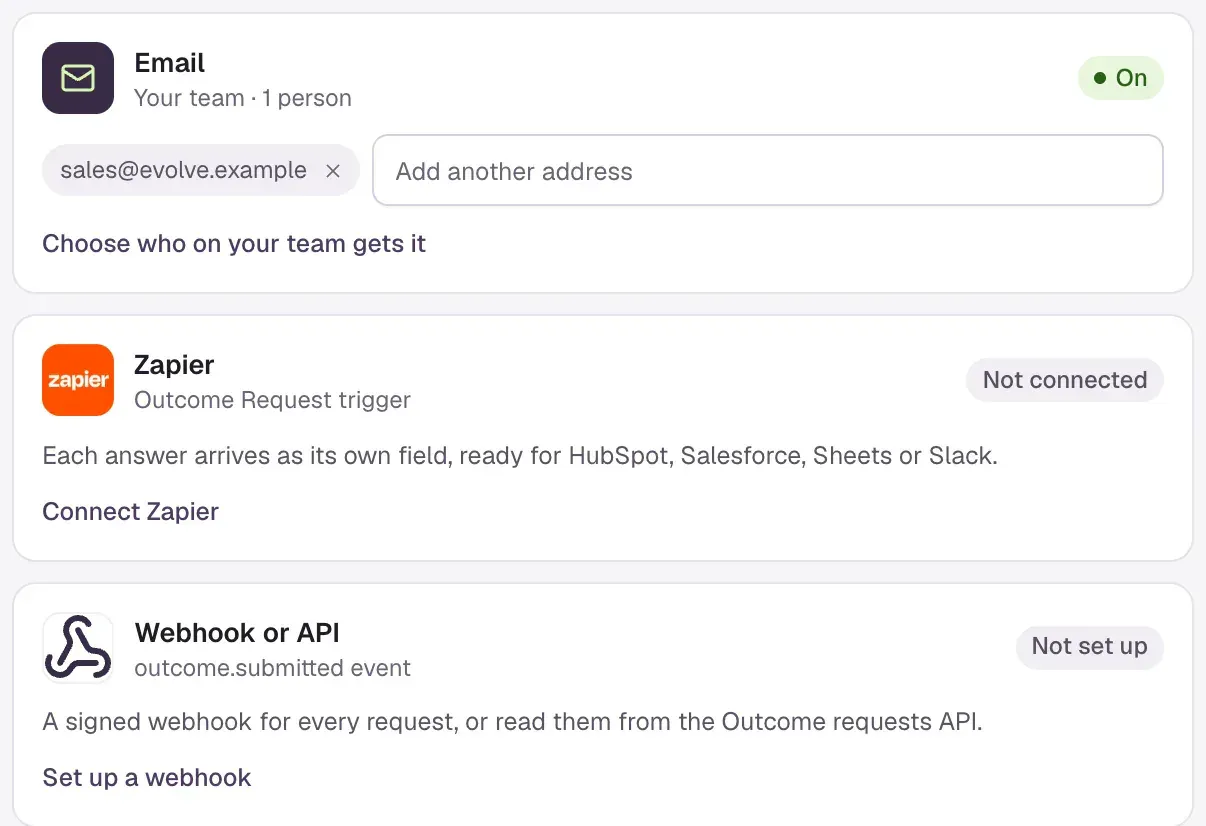
Send answers to, at the bottom of the form, shows where each request goes:
- Email goes to your team. Under it, type up to five more addresses, such as sales@ or a shared inbox, and press Enter after each. Choose who on your team gets it opens Notifications.
- Zapier and Webhook or API show whether they're connected, with a link to set them up.
See Requests and follow-up for what each one sends.
Save it
Turn on the switch at the top to make the form Live, then select Save changes in the bar at the bottom, the same bar as the rest of Conversion Studio. Discard puts back what was saved. A form that's off is saved but never shown to visitors.
To check it, ask for a quote in the Agent Studio preview, or whatever the form is for. The agent opens it there, and a request sent from the preview never uses a credit.
Change or remove a form
Select a form's name in the list to change it, then Save changes. Visitors who open the form after that get the new version.
Remove, at the top of the form, takes it away for good. Requests already sent stay in Meetings → Requests and in Conversations. To pause a form instead, turn its switch off.
Good to know
- The Offer it when the visitor… sentence is what the agent reads to decide when to open the form. Name the words visitors use, such as "price", "estimate" or "how much".
- Keep forms short. Every question is one more step before the visitor reaches Send request.
- After a move from Growth or Agency to Free, each form screens visitors with its first fit rule only. The others stay saved, marked Paused on Free, and the form shows Uses Growth features. You can still edit the form, but you can't add another qualifying question until you upgrade.
- Book a meeting has its own questions, set on its card. See Ask questions before any meeting.
- You can also build forms and switch them on or off from code or your AI assistant: the Outcomes endpoints in the API, or "Add a callback form" in Claude, ChatGPT or Cursor. See Create a quote form with the API. The same rules apply as here.