Test your agent
Agent Studio → Preview: try your agent the way a visitor would before you go live. The refresh icon in the preview's address bar starts a fresh chat; unsaved edits show in the preview first.
- In Darwin: Agent Studio → PreviewOpen in Darwin
- Updated
The preview on the right of Agent Studio is your real chat, running with your current settings. Use it to ask what your visitors would ask before anyone else sees it.
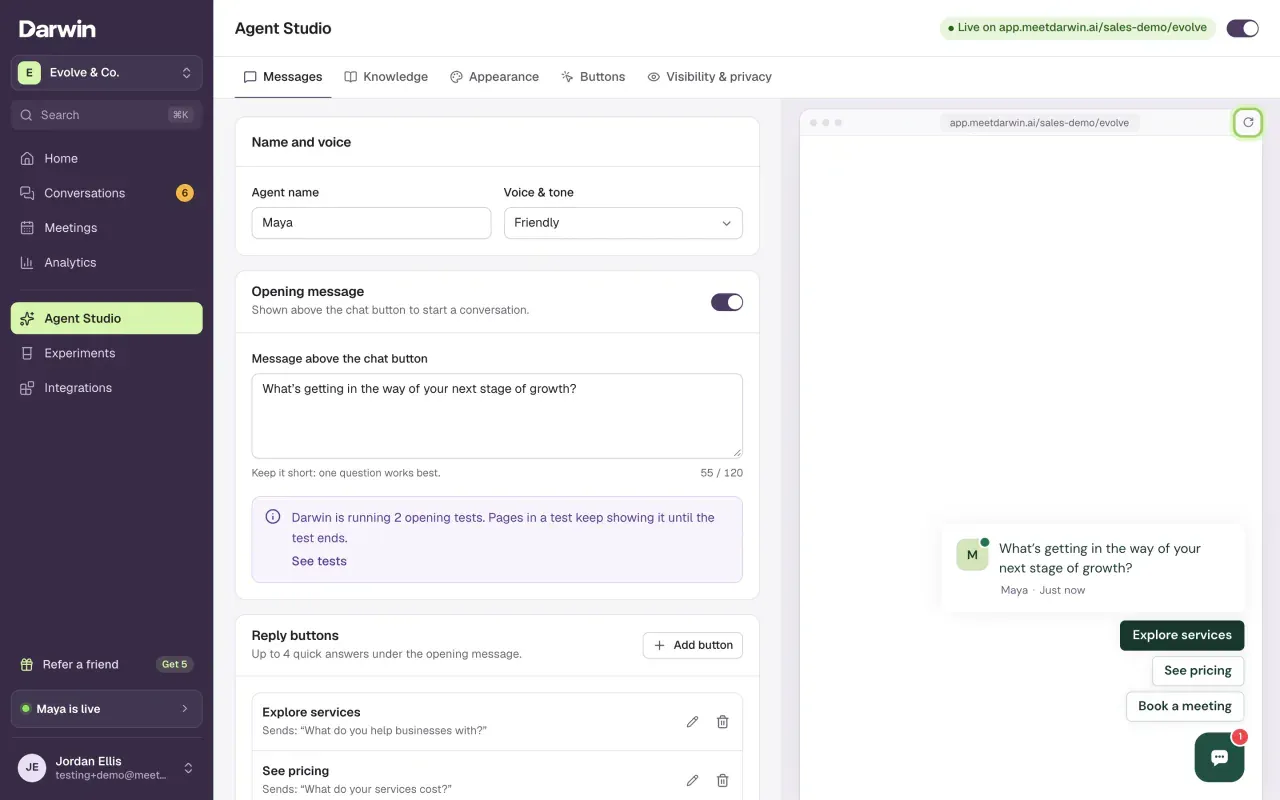
Open Agent Studio
Select Agent Studio in the sidebar. The preview starts the way a visitor sees your website: the opening message and its reply buttons above the chat button.
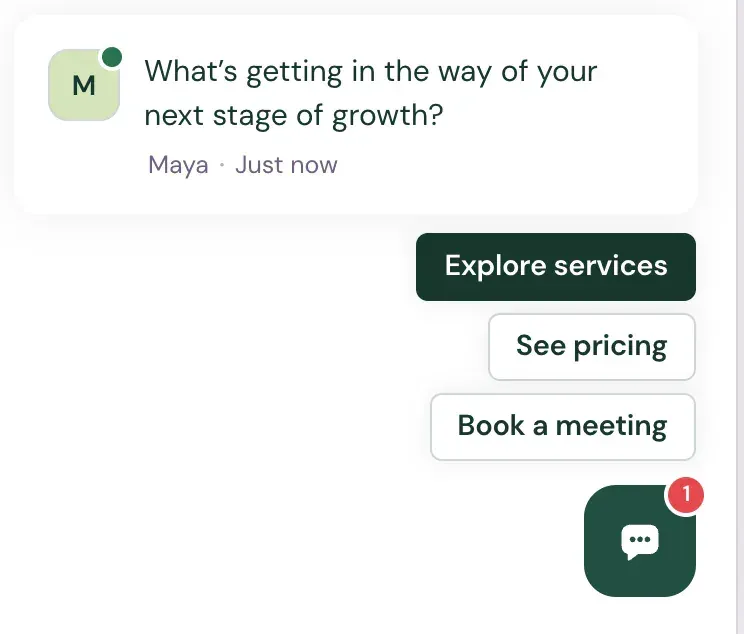
Ask a question
Select the chat button to open the chat, then type a question in Ask a question… or select a reply button. Ask what real visitors ask: what you do, what it costs, whether you fit their case, and how to book.
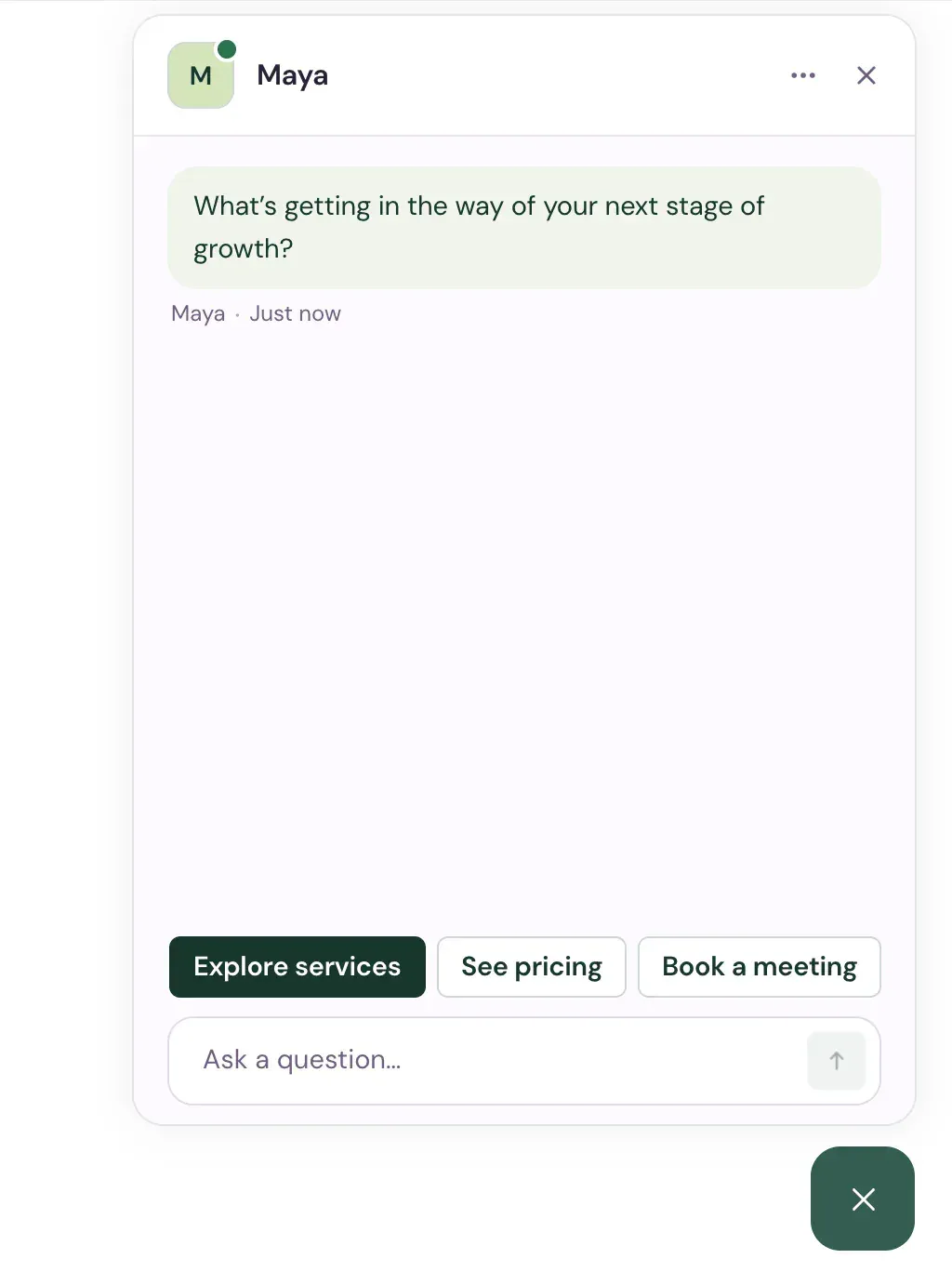
Start over
Select the refresh icon at the right end of the preview's address bar for a fresh conversation. Editing, switching tabs or saving doesn't need a new chat.

Fix what's wrong, then test again
If an answer is wrong or missing, add the facts in Knowledge. To change the tone or opening, use Messages. Edits show in the preview before you save; your website keeps the saved version until you select Save changes.
Good to know
- Booking from the preview is a test. It doesn't put a real meeting in your calendar, so check your calendar connection with a real booking on your website once you're live.
- In a new workspace, a Setup tour walks you through testing a reply, then Knowledge, Messages and Appearance. Use Pause tour to stop and Resume setup tour to pick it up later.
- A good-looking reply isn't proof it's right. Read it against your own pricing and policies.