Install Darwin on Webflow
Integrations → Webflow: connect Webflow and Darwin installs, updates and removes its chat script for you. Choose a site, publish, check, and disconnect when you're done.
- In Darwin: Integrations → Your website → WebflowOpen in Darwin
- Updated
Connect Webflow and Darwin adds its chat to your site through Webflow's own custom code. There's nothing to paste, and you can see the script in Webflow as DarwinChat.
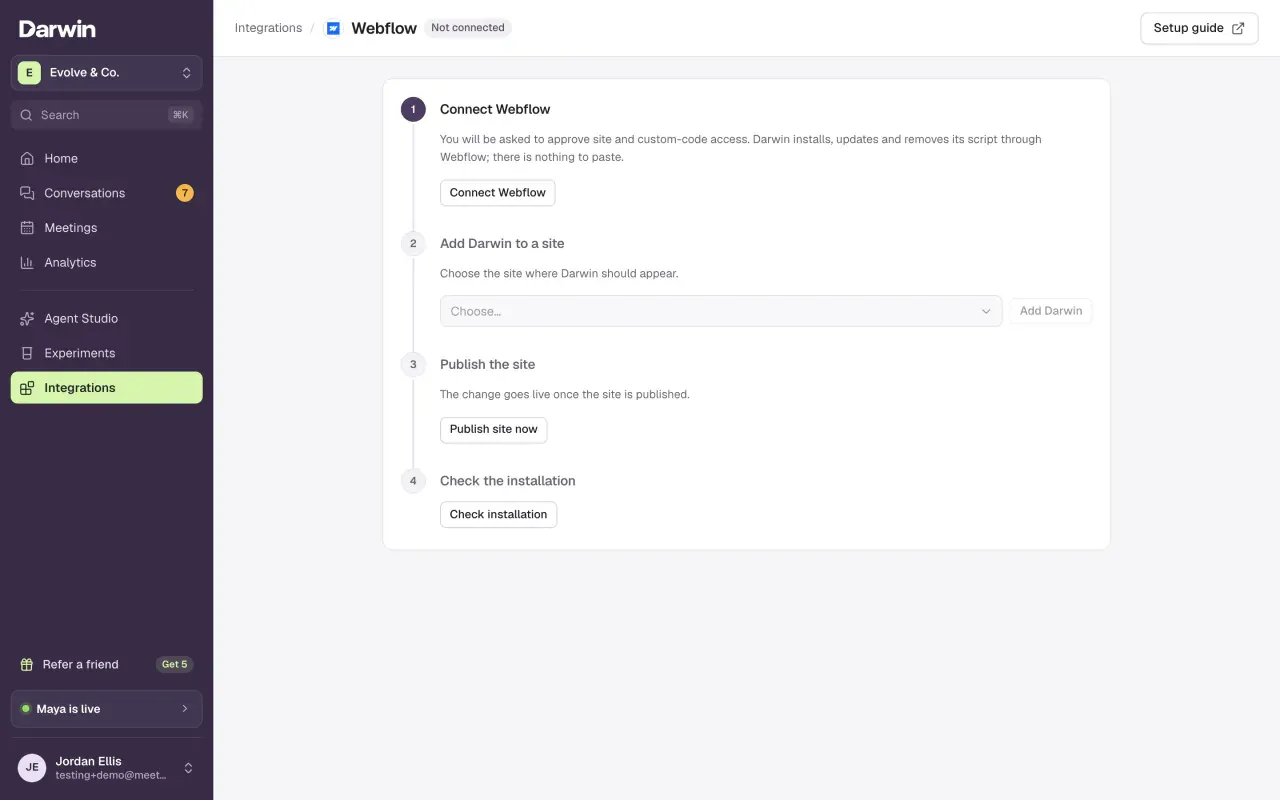
Open Webflow
Open Integrations and select Connect on the Webflow card, under Your website.
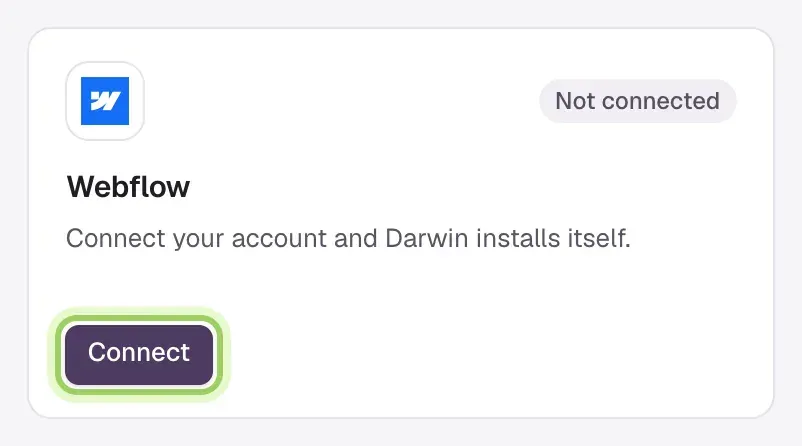
Connect Webflow
Select Connect Webflow. On Webflow's permission screen, choose the sites Darwin can access and approve site and custom-code access. You come back to Darwin.
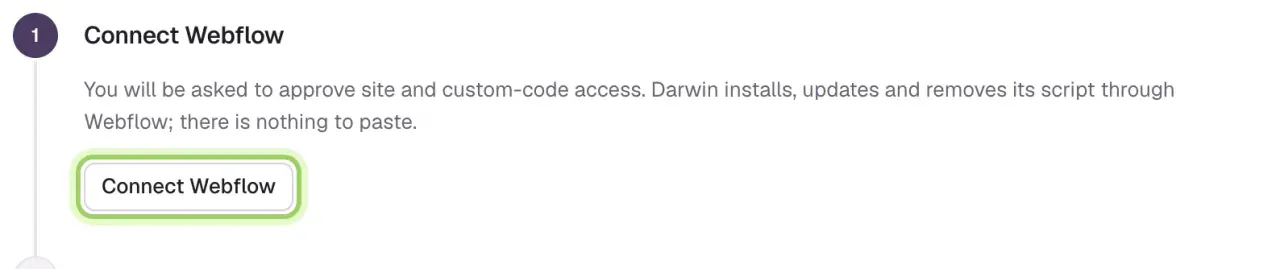
Add Darwin to a site
Choose the site and select Add Darwin. Darwin adds its script to the site's footer and adds the site's addresses to your allowed domains. Nothing is published yet.

Publish the site
Select Publish site now. This publishes the site to its Webflow address and all its custom domains, along with any other unpublished changes. To publish to chosen domains only, publish from Webflow instead.

Check the installation
Select Check installation. When Darwin finds its tag, the step says Darwin found its tag on the live site. Open your site and check that one chat button appears and answers a question.

Update or remove Darwin
- Change the chat's answers and look in Darwin; the script doesn't need to change. When Darwin ships a new script, Update to a new version appears next to your site. Select it, then Publish site now.
- Disconnect removes the script from the site, publishes the site, revokes Darwin's Webflow access and forgets the connection.
- If you remove the app inside Webflow instead, Darwin shows the access as revoked. The script stays on the site until you remove it under the site's custom code in Webflow.
Good to know
- Your Webflow site plan must include custom code, and you need to be a workspace owner or admin.
- No sites after connecting means none were shared. Reconnect and pick a site on Webflow's screen.
- Two chat buttons means an older pasted copy of the site tag is still on the site. Remove it and keep only DarwinChat.
- Works on staging but not your domain? Check the domain was published, and that it's listed under Agent Studio → Visibility & privacy → Allowed domains.