Set up with Darwin's help
Set up Darwin in chat with Darwin's setup guide: name your agent and pick its voice, approve the opening line, connect your calendar, try your agent, add the chat to your website and go live.
- In Darwin: Home → Get Darwin liveOpen in Darwin
- Updated
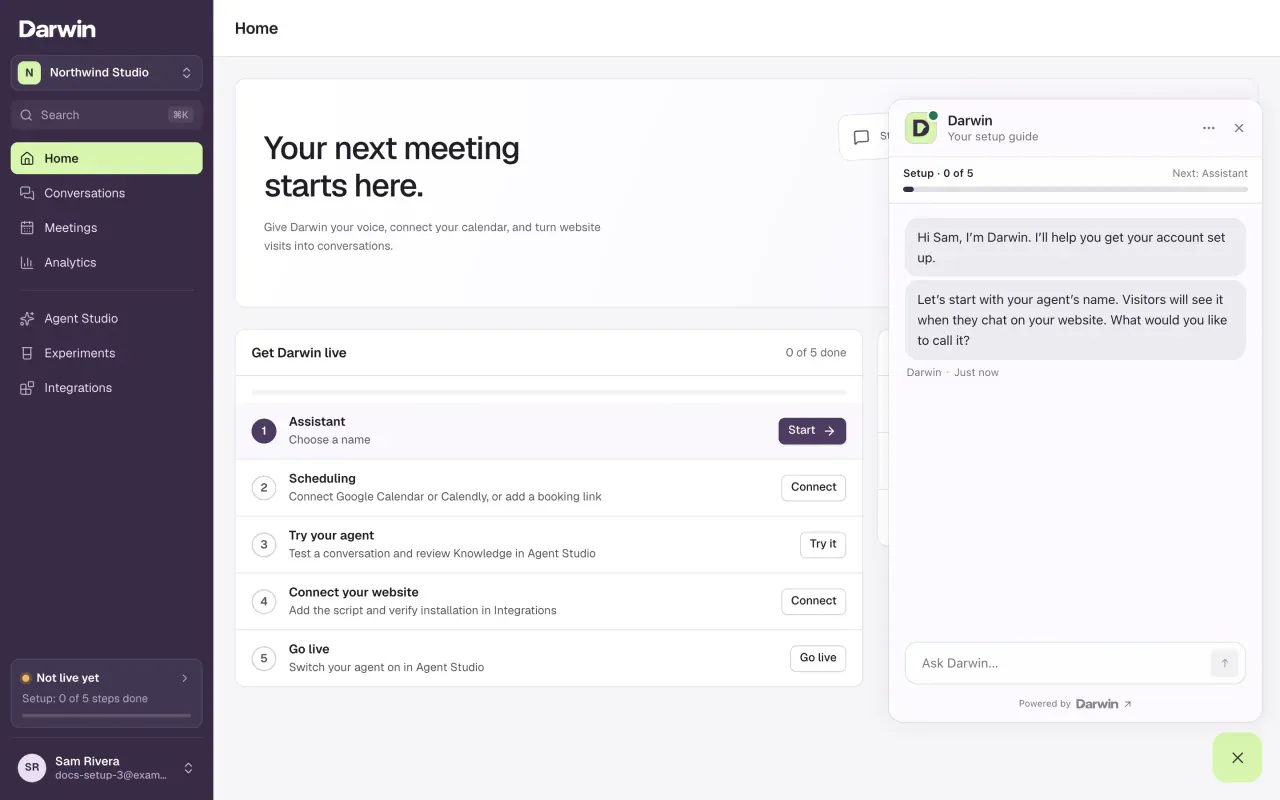
A new workspace opens on Home with five setup steps and Darwin's setup guide open beside them. Darwin asks a few questions, writes your opening line and points you to each screen. Prefer to do it yourself? Set up on your own.
Name your agent and choose its voice
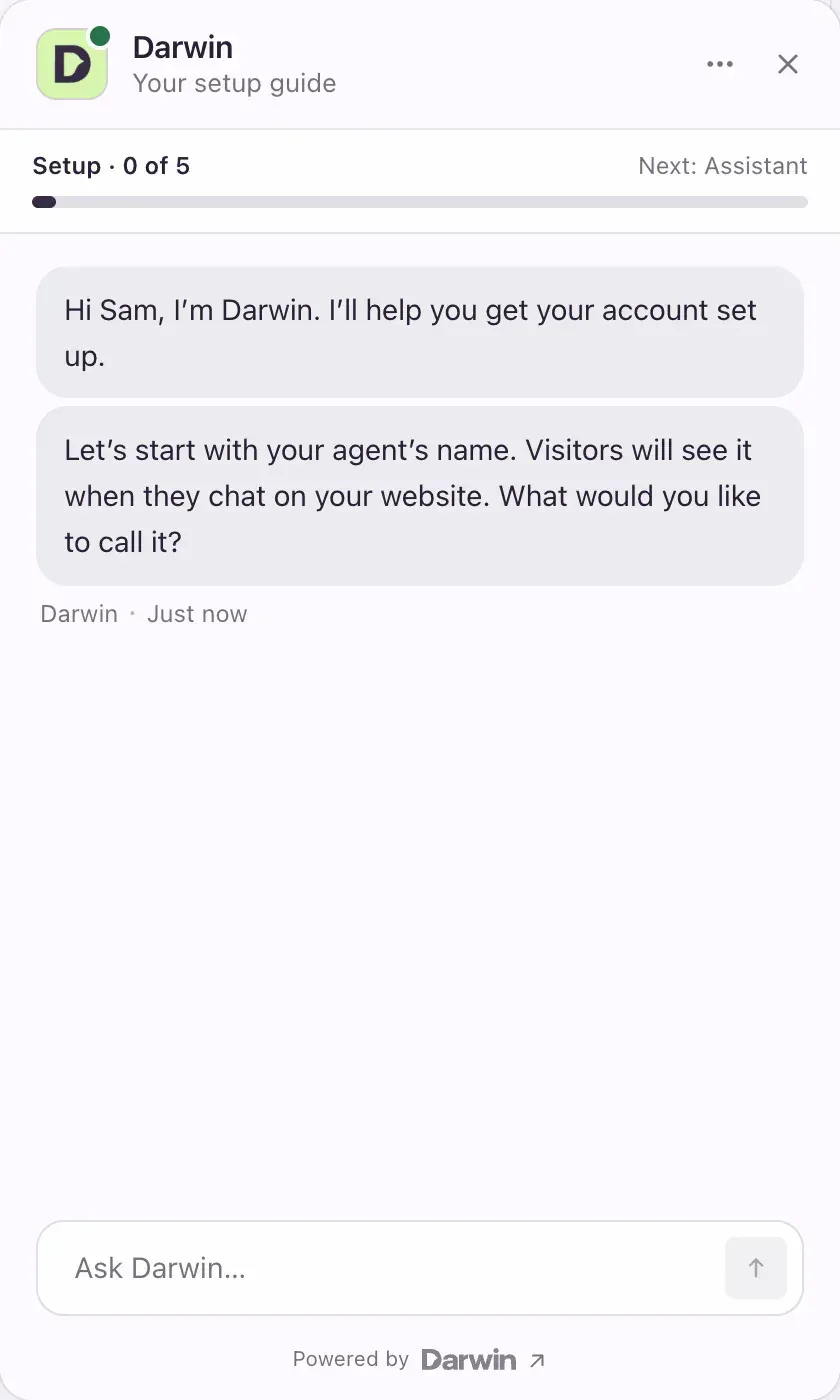
Select Start on Assistant, or Ask Darwin. The setup guide asks what to call your agent: type a name visitors will see. Then pick a voice: Friendly, Professional or Direct. You can change both later in Agent Studio → Messages.
Approve the opening line
While you chat, Darwin reads your website and writes an opening line: the short message above the chat button that invites visitors to talk. It appears in a card in the guide.
- Looks good approves it.
- Edit lets you write it yourself, up to 120 characters. Save and approve keeps your wording.
- To get another version, tell Darwin in the chat what to change.
You can close the guide while Darwin works; your progress is saved. Approving the line doesn't put the chat on your website.
Connect your calendar
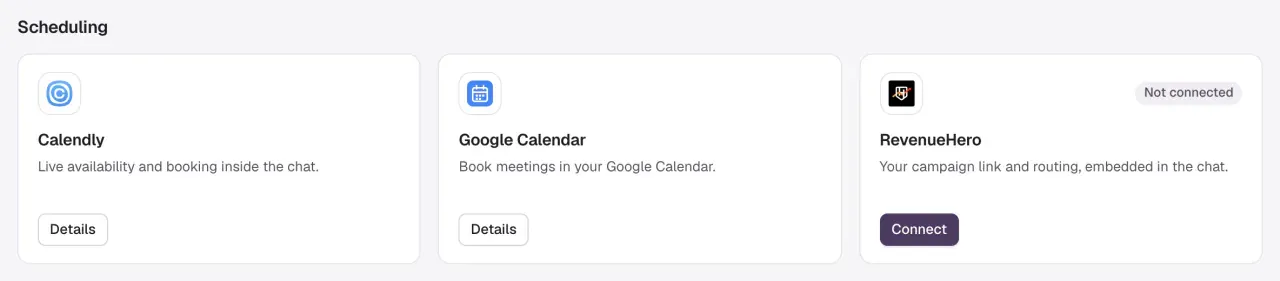
Select Connect on Scheduling. Under Scheduling, pick Calendly, Google Calendar or RevenueHero and follow its steps, so visitors can book a meeting in the chat. Don't take meetings? A live outcome form, such as Request a quote, also lets Darwin go live.
Try your agent
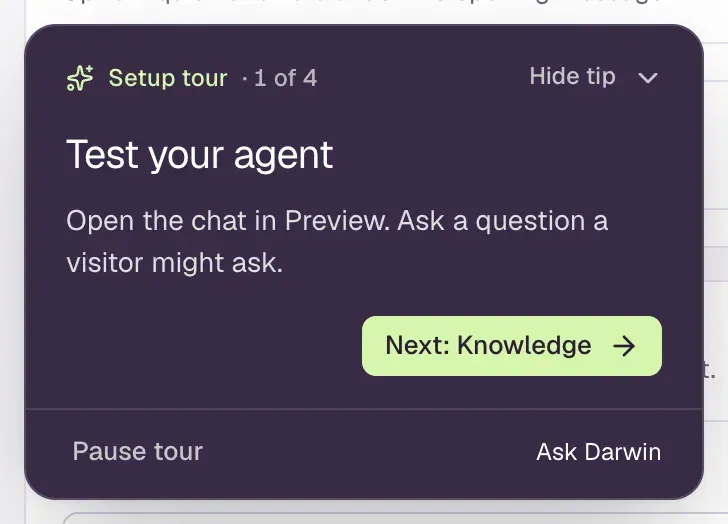
Select Try it on Try your agent. Agent Studio opens with a short Setup tour: test a reply in the preview, then check Knowledge, Messages and Appearance. Select Next to move on and Finish tour at the end. See Test your agent.
Add the chat to your website
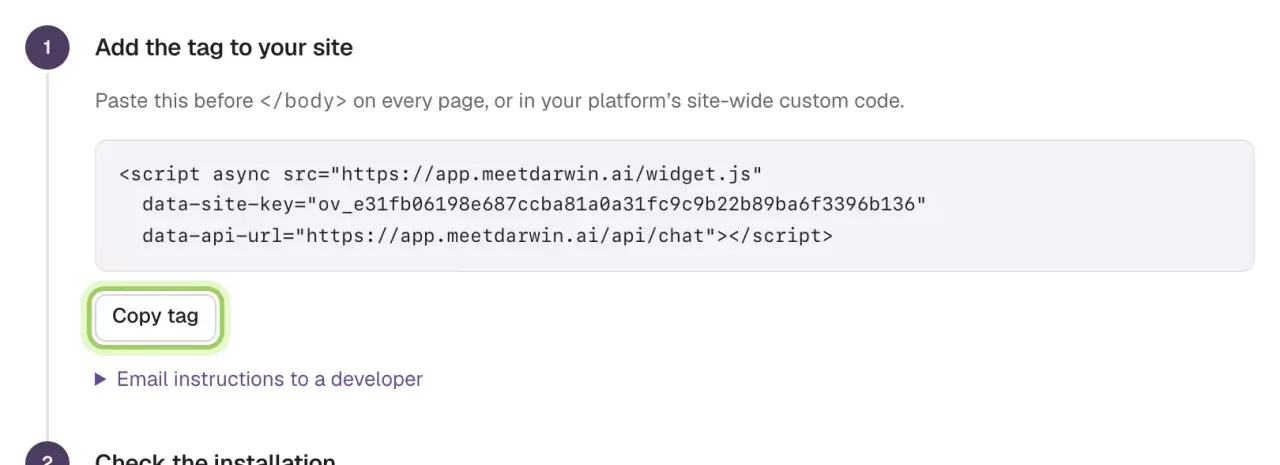
Select Connect on Connect your website. Add your domain under Allowed domains, paste the site tag into your website, publish, then select Check installation. See Install the chat on your website.
Go live
In Agent Studio, turn on Turn your agent live at the top right. The badge changes from Not live to Live, and visitors on your website can start chatting.

Good to know
- The switch only works once your agent's name, voice and opening line are saved, your website and knowledge are set up, visitors have a calendar or a live outcome form to reach, and Darwin has found the tag on your site. If something is missing, Darwin says what.
- On Free, the chat pauses once your 5 free credits are used, until you add a card in Billing.
- Not live yet at the bottom of the sidebar shows how many steps are done. Select it to open the setup guide from any screen.
- Not ready for a step? Tell Darwin "later" or "skip". It stops asking about that step, which stays open on Home until you finish it.
- Darwin never asks you to paste code or calendar details into the chat. It shows you where to go, and you finish those steps on the screen it points to.
- Booking from the Agent Studio preview is a test: it doesn't put a real meeting in your calendar.