Make the chat look like your brand
Agent: set the chat's avatar, launcher, colors, font, corners, dark mode, animations and sounds so Darwin's chat matches your website, with a live preview.
- In Darwin: AgentOpen in Darwin
- Updated
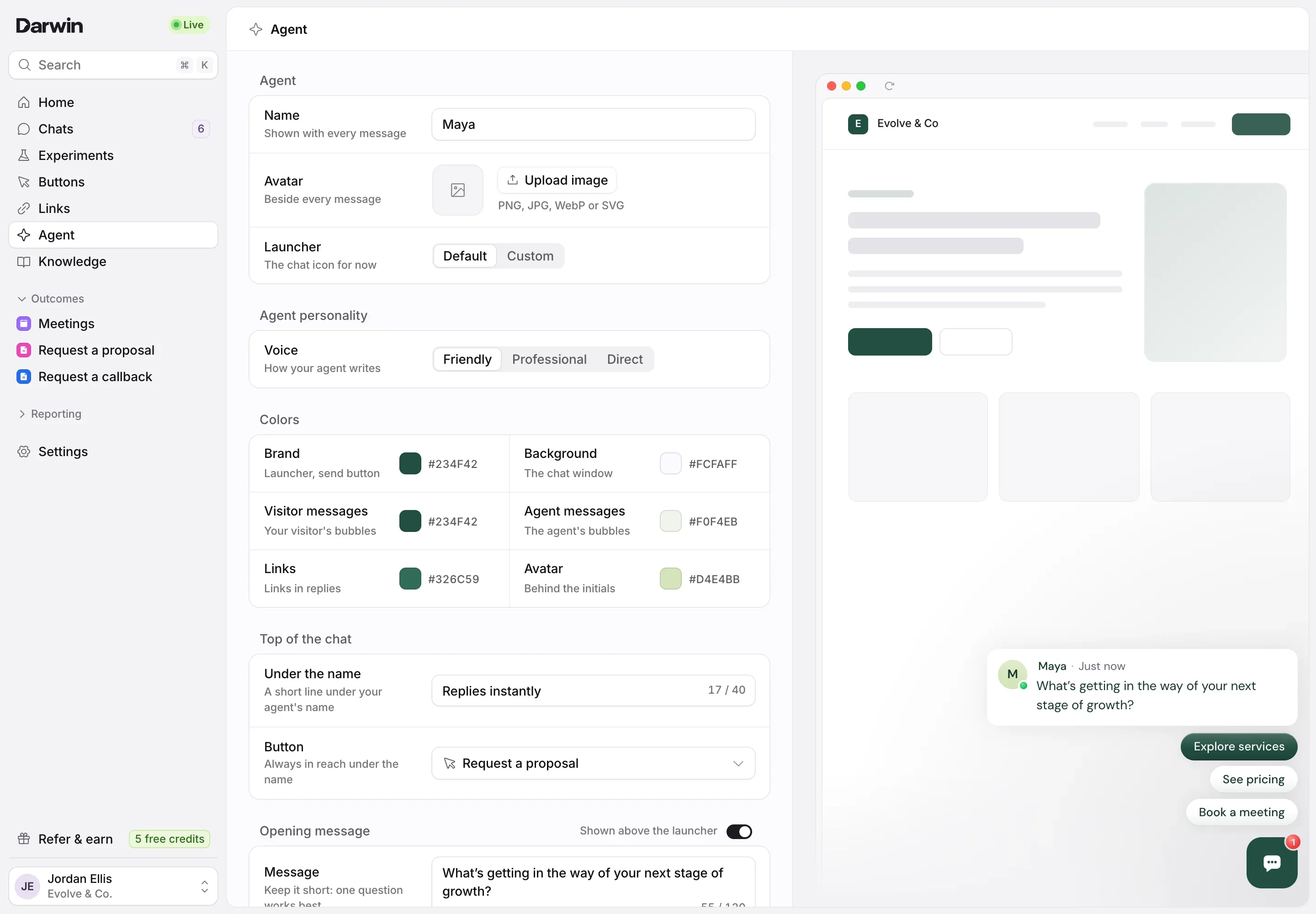
The chat's look is on the Agent page, with your agent's name and opening message: select Agent in the sidebar. Every change shows in the preview on the right straight away. Your website keeps the saved design until you select Save changes.
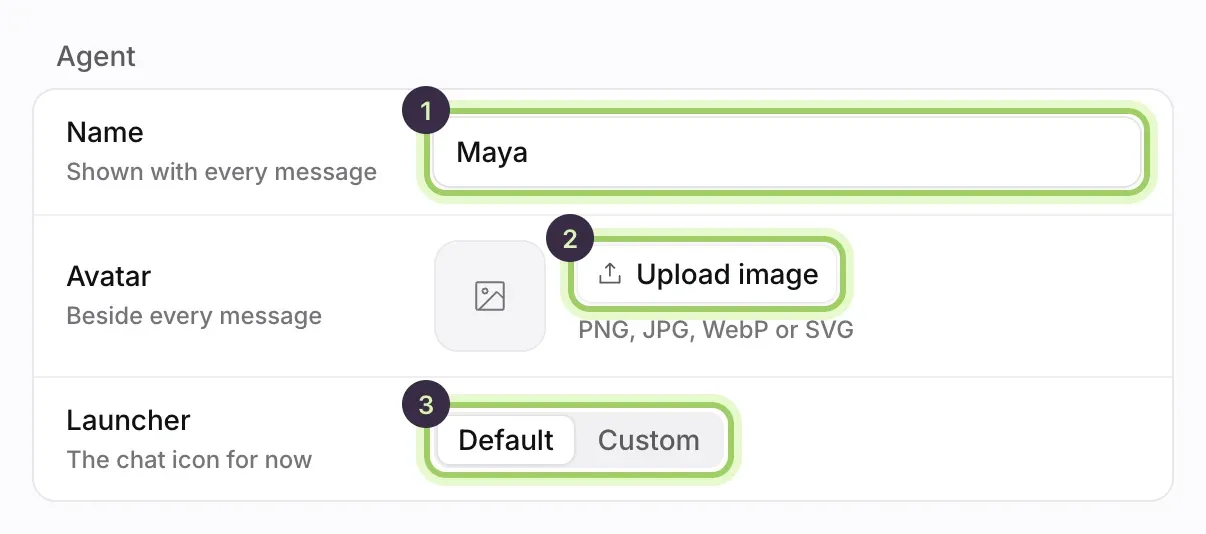
Add your avatar and launcher image
Under Agent, Upload image beside Avatar adds the picture shown beside every message. Launcher sets the button visitors select to open the chat: Default uses your avatar, and Custom takes an image of its own. Both take a PNG, JPG, WebP or SVG under 5 MB. More in Name, voice and opening message.
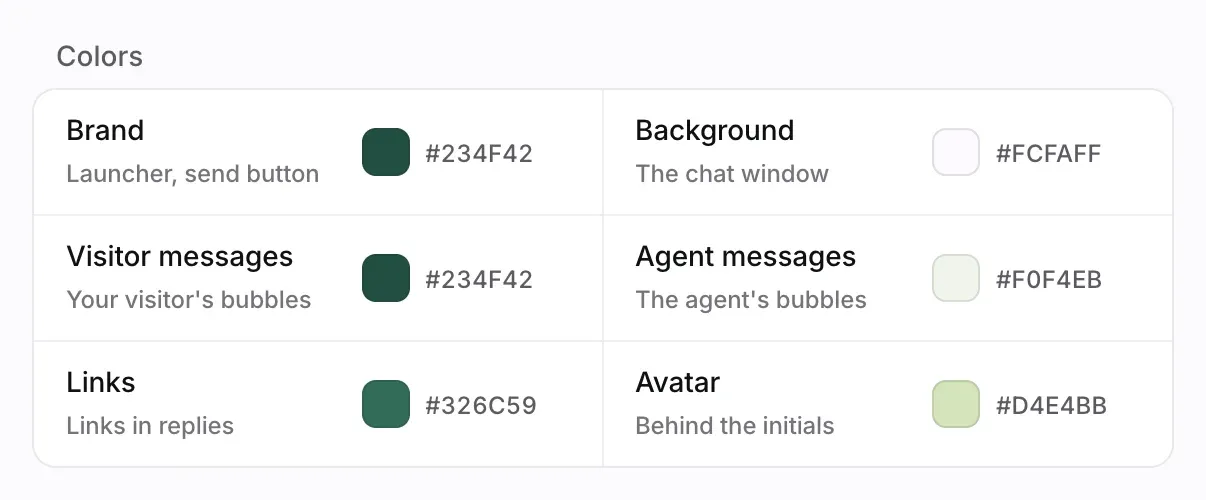
Set your colors
Under Colors, enter a hex value or use the picker for each color: Brand for the launcher and send button, Background for the chat window, Visitor messages, Agent messages, and Links in replies. While your agent shows initials, Avatar sets the color behind them. Darwin keeps text readable on whatever you pick.
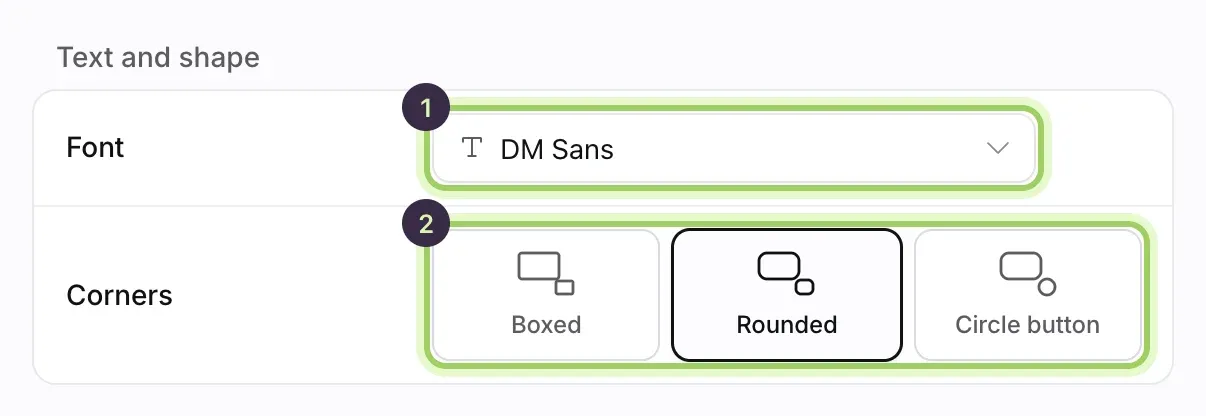
Pick the font and corners
Under Text and shape, open Font (1) to see each font in its own typeface. Then choose the Corners (2): Boxed, Rounded or Circle button. Circle button only rounds the launcher.
Set dark mode, animations and sounds
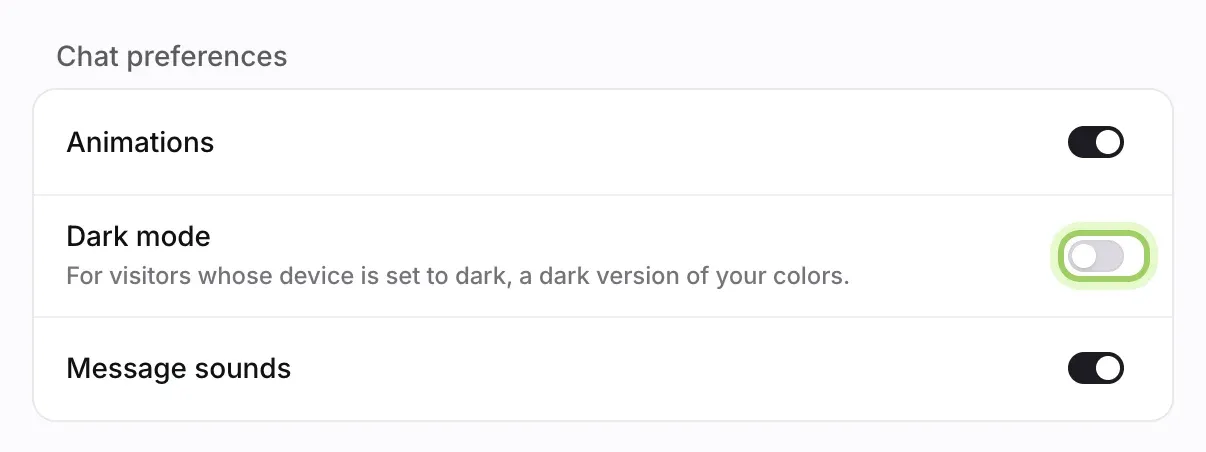
Under Chat preferences, switch Animations and Message sounds on or off. Turn on Dark mode to show visitors whose device is set to dark a dark version of your colors.
Save your design
Select Save changes in the bar at the bottom of the editor. Discard goes back to the saved design. Then open your website to see it live.

Good to know
- Select the refresh icon in the preview's address bar to replay the opening.
- The consent line and privacy link under the message box are set in Settings → Agent, and save on their own.
- The chat shows the Powered by Darwin badge on every plan.