Add pages and documents
Knowledge → Add knowledge: add your website or sitemap, single page addresses, and PDF, Word, Markdown or text documents for your agent to answer from, and remove a site or document.
- In Darwin: Knowledge → Add knowledgeOpen in Darwin
- Updated
Your agent can only answer from what's in Knowledge. Add your website once and Darwin finds its pages; add single pages or documents for anything the site doesn't cover. Everything you add here is a draft until you select Save changes.
Open Add knowledge
Select Knowledge in the sidebar, then Add knowledge at the top right. The Add pages panel opens.
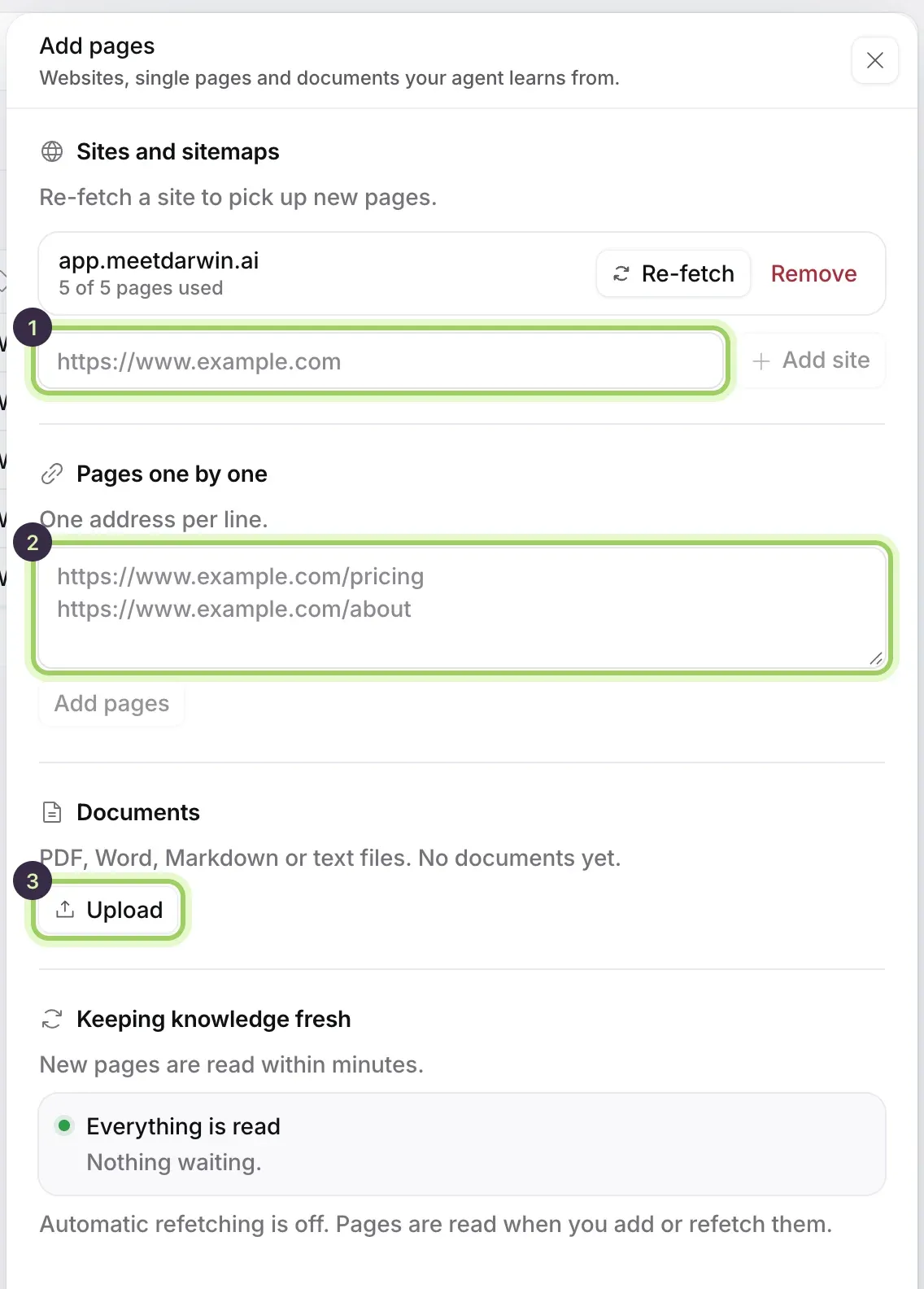
Add your website
Under Sites and sitemaps, type your website or sitemap address (1), such as
https://www.example.com, and select Add site. Darwin lists the pages it finds in the table. Tick the Use box of each page your agent should answer from.You can add up to 20 sites and sitemaps. Select Re-fetch beside a site later to pick up pages you've added to it.
Add single pages
Under Pages one by one (2), paste page addresses, one per line, and select Add pages. Use this for a page your sitemap leaves out, or to add only a few pages. Pages added this way are used straight away.
Upload documents
Under Documents, select Upload (3) and choose PDF, Word (.docx), Markdown or text files, each smaller than 15 MB. Select Done to go back to the table. Documents are listed with your pages, with Document as their type; choose the Documents view (1) to see only them.

Remove what you no longer need
To take a document out, select Remove (2) on its row. To stop using a whole site, open Add knowledge and select Remove beside it; pages already in use stay in use until you untick them.
Save
Select Save changes in the bar at the bottom. Your website's chat answers from the new pages and documents once they read Learned.

Good to know
- New pages are read within minutes. While pages are being read, a line above the table says how many, with Read now to read them straight away.
- Darwin reads public pages only. For anything behind a login, upload a document or write it into your business context.
- Keep passwords, private customer details and anything you wouldn't show a visitor out of your documents.