Agent settings: live status, domains and privacy
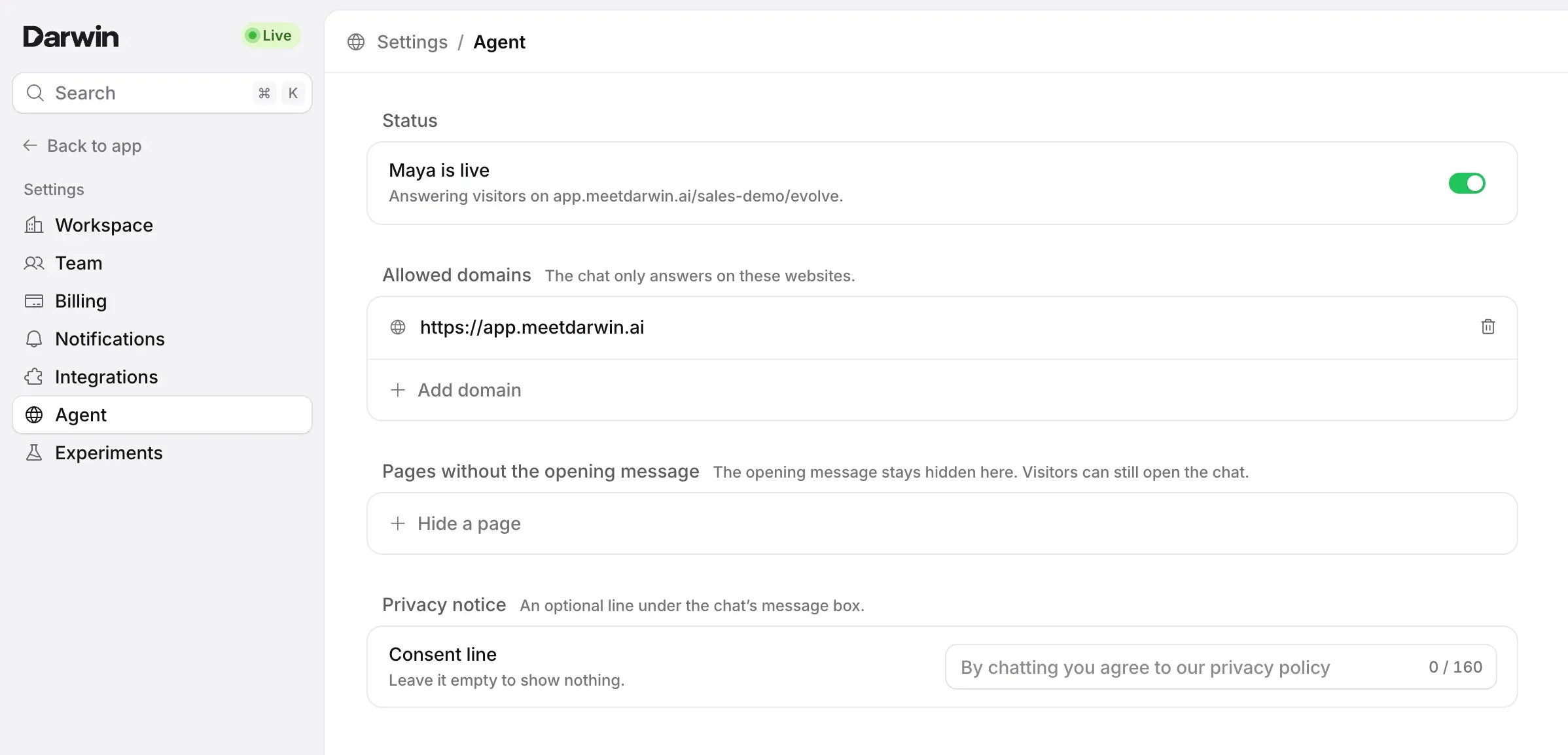
Settings → Agent: turn your agent on or off, choose the domains and subdomains where Darwin's chat runs, hide the opening message on certain pages, and add a privacy notice under the chat.
- In Darwin: Settings → AgentOpen in Darwin
- Updated
Settings → Agent controls where your agent runs: whether it's live, the domains it answers on, the pages where the opening message stays hidden, and the privacy line under the chat. Open Settings at the bottom of the sidebar and select Agent, or select the Live chip at the top of the sidebar.
Each change on this page saves as soon as you make it, so there is no Save changes to select.
Turn your agent on or off
Under Status, the switch shows whether your agent is live, for example Maya is live, answering visitors on your website. Turn it off to take the chat off your website; Darwin asks you to confirm with Turn off. Turn it back on and the chat returns with your settings as they were.

The chip at the top of the sidebar shows the same on every screen: a green Live, or Off. Select it to come back to this page.

Allow your domains
Under Allowed domains, select Add domain, type a domain (1) such as
www.example.com, then press Enter or select Add (2). The chat only answers on the domains in this list.A pasted full address works too: Darwin keeps the domain and drops
https://and any path. To remove a domain, select the bin beside it and confirm. The chat stops answering there straight away.
Hide the opening message on some pages
Under Pages without the opening message, select Hide a page, type a path (1) such as
/pricing, then press Enter or select Add (2)./pricinghides the opening message on that page only;/blog/*hides it on every page under/blog. The launcher still shows on those pages, so visitors can open the chat.Paths aren't case-sensitive. A pasted full address works as well as a path: Darwin keeps only the path.

Add a privacy notice
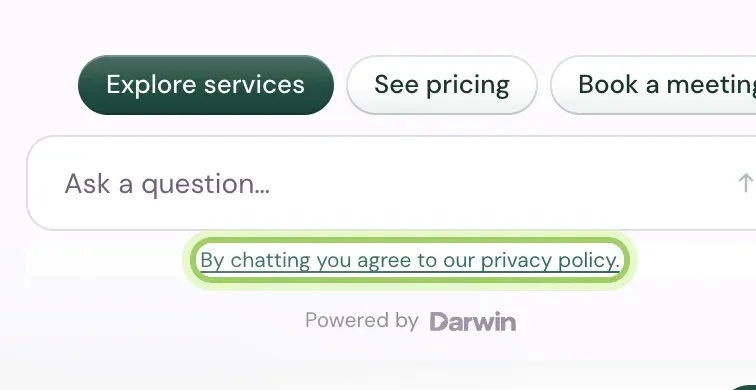
Under Privacy notice, type a Consent line (1), up to 160 characters. Once it has text, add the Privacy policy link (2). Each field saves when you click or tab away from it. Clear the consent line to remove it.

The line appears under the message box in the chat, linked to your privacy policy.
Subdomains and wildcard domains
Each entry in Allowed domains matches one exact domain. www.example.com and example.com are different domains, so add the one your visitors use, or both.
To cover every subdomain at once, add a wildcard domain such as *.example.com. It matches shop.example.com, help.example.com and deeper ones such as eu.shop.example.com, but not example.com itself, so add that as well if visitors use it.
| You add | The chat answers on | Not on |
|---|---|---|
www.example.com | www.example.com | example.com, shop.example.com |
example.com | example.com | www.example.com, shop.example.com |
*.example.com | www.example.com, shop.example.com, eu.shop.example.com | example.com |
The chat answers on a listed domain over https://. While you build a site on your own computer, localhost and 127.0.0.1 also work over http://.
Good to know
- Changes here reach your website straight away. They don't wait for Save changes on the Agent page.
- Before your agent's first launch, the sidebar shows your setup progress instead of the Live chip, and you turn your agent live from the top right of the Agent page. See Go live.
- If the opening message is switched off on the Agent page, the hidden pages apply when you turn it back on.
- Members see this page but can't change it. Owners and admins can.