Sort, filter and save views of your requests
Outcomes → a form or Meetings: switch views, sort and filter the table, move, hide and resize columns, save a view for your team, search and export to CSV.
- In Darwin: OutcomesOpen in Darwin
- Updated
Every outcome under Outcomes opens a table: Meetings lists your meetings, and each form lists its requests, with a column for each question. You can narrow the table to what you need, save that as a view for your whole team, and export it. Links and Buttons use the same table.

Switch views
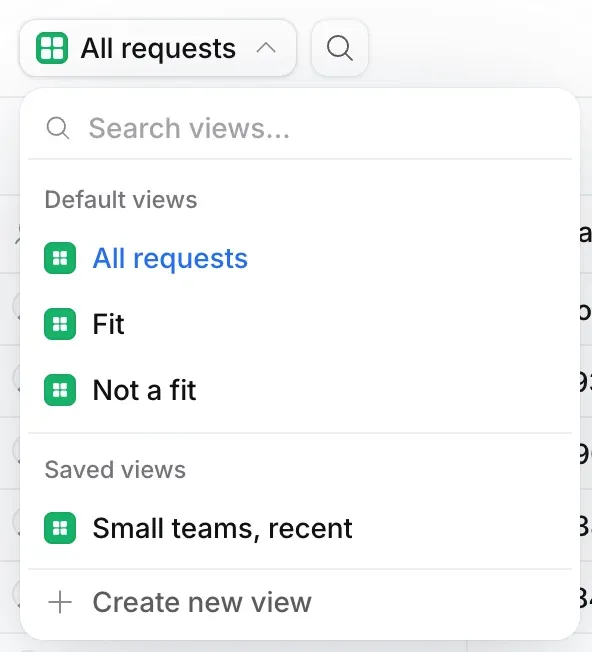
Open the views list at the top left (1). Default views come with the table, such as All requests, Fit and Not a fit on a form, or All meetings, Upcoming, Past and Canceled on Meetings. Saved views are the ones your team made. Search views by name, or select Create new view for a blank one.
Sort and arrange columns
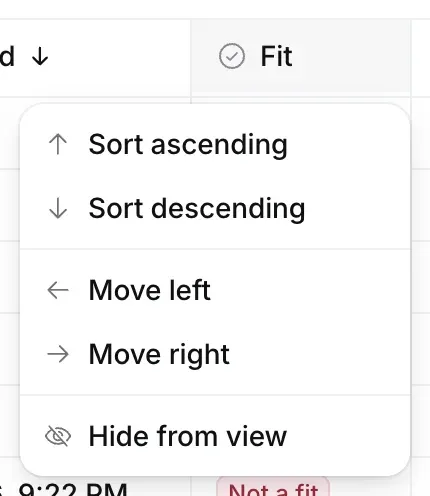
Select a column's name for Sort ascending, Sort descending, Move left, Move right and Hide from view. Drag a column's edge to resize it. The + after the last column brings a hidden column back.
Filter
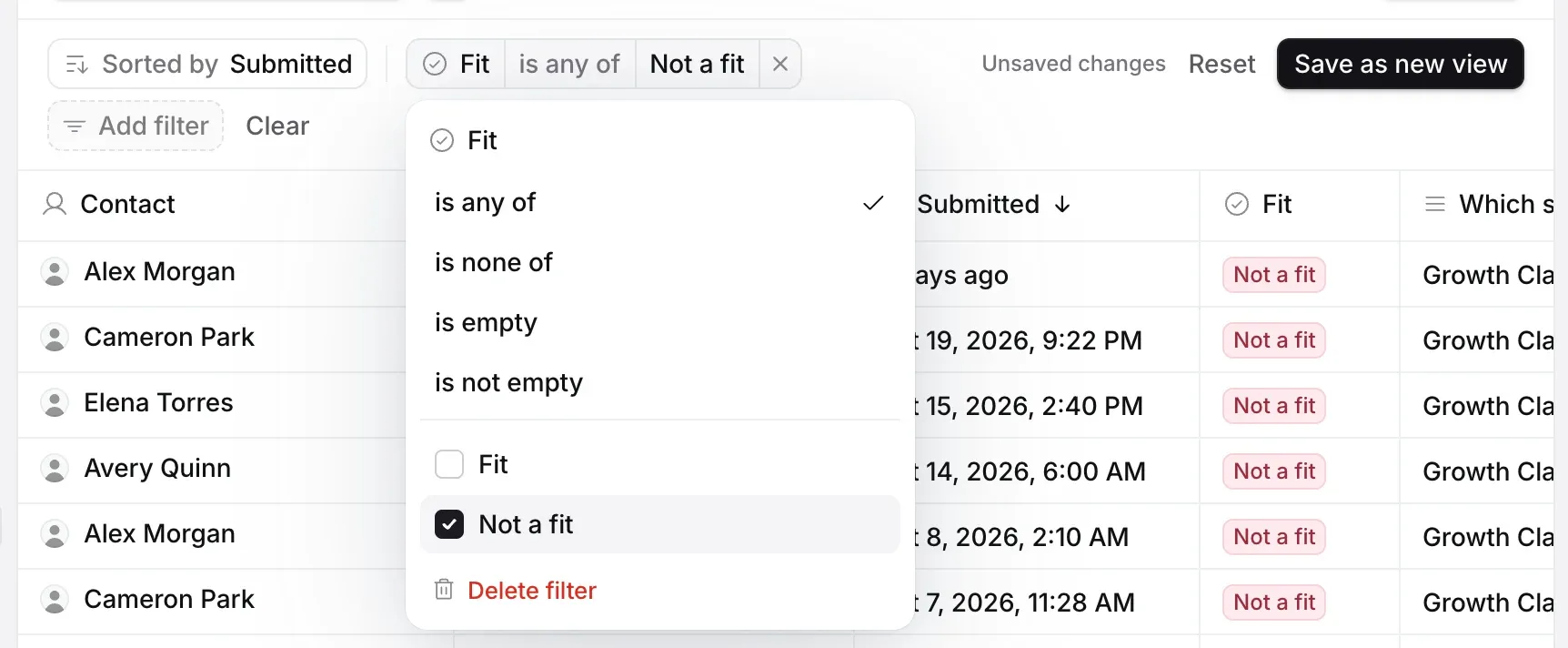
Select Filter, pick a column, then a condition and a value: for example Fit is any of Not a fit. Each filter shows as a chip; select it to change it or its × to remove it. With more than one, choose whether rows must Match all filters or Match any filter. Clear removes them all.
Save it as a view
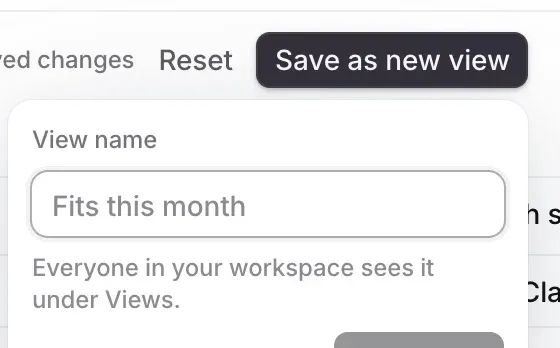
Once you change a view, the bar shows Unsaved changes. Reset puts the view back. Save as new view keeps your changes under a name you choose, such as "Fits this month", for everyone in your workspace. On a saved view, Update view writes the changes into it. Views that come with the table are never overwritten.

Search and export
Select the magnifier to search names, emails and answers. Export (2) downloads the view on screen as a CSV file, with its columns in order and its rows filtered and sorted.
Good to know
- In the views list, point at a saved view to rename, duplicate or delete it. Deleting a view removes it for everyone in the workspace; the rows stay.
- Select a request to open it beside the table with every answer and Open the conversation. See Requests and follow-up.
- Selecting a meeting opens the conversation it came from.