Find your way around Settings
Settings is the last item in the sidebar: Workspace, Team, Billing, Notifications, Integrations, Agent and Experiments, what each one holds, and how to get back to the rest of Darwin.
- In Darwin: SettingsOpen in Darwin
- Updated
Settings holds what applies to the whole workspace: its name and website, your team, billing, the emails you get, integrations, and the settings for your agent and your experiments. While a settings page is open, its sections take the sidebar's place.
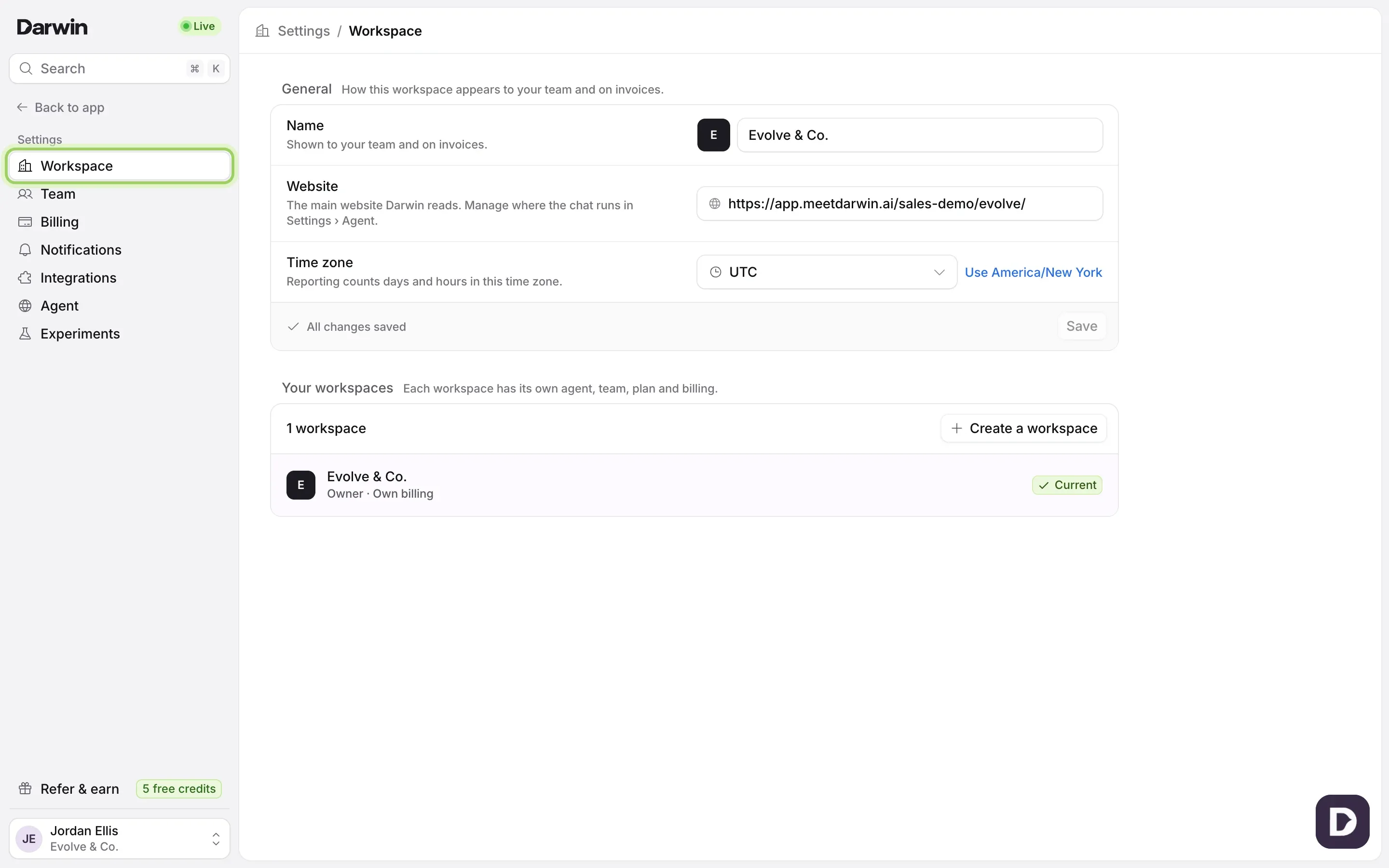
Open Settings
Select Settings, the last item in the sidebar. It opens on Workspace.
You can also select your name at the bottom of the sidebar and choose Settings, or Billing to go straight there.
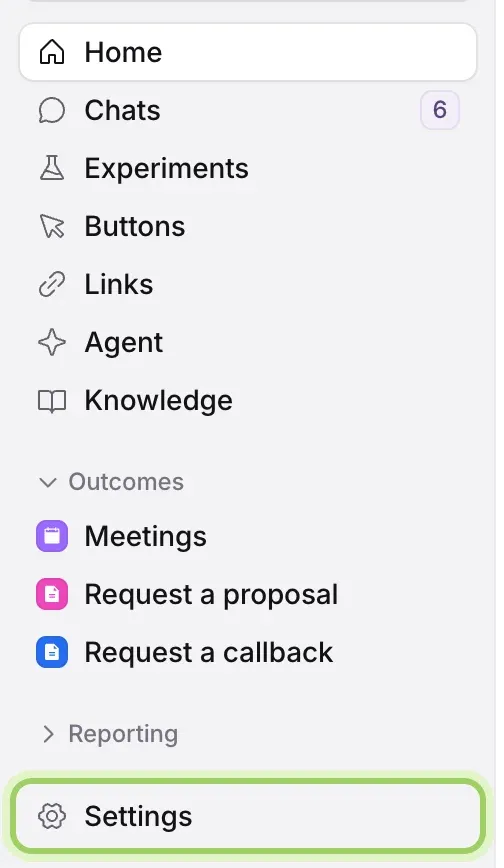
Pick a section
Select a section in the Settings sidebar. Each one is described below.
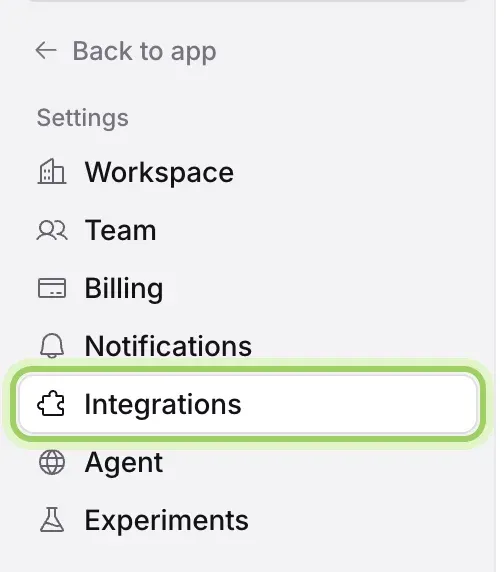
Go back to Darwin
Select Back to app at the top of the sidebar. The full sidebar comes back with Home, Chats and the rest.
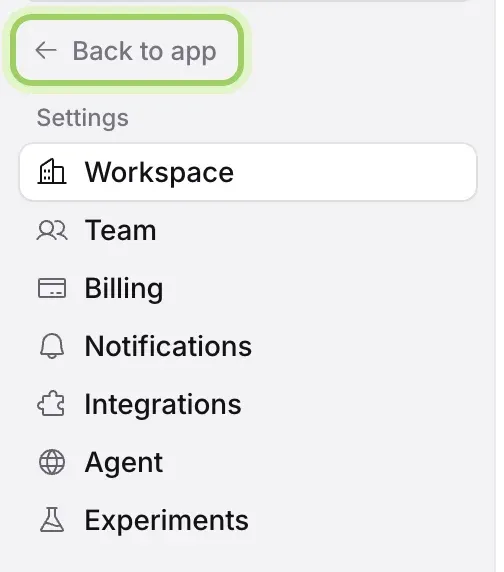
What's in each section
- Workspace: the workspace's name, the website Darwin reads, the time zone reports use, and every workspace you belong to. See Manage your workspaces.
- Team: invite teammates, change roles and remove access. See Invite your team.
- Billing: your plan, this month's credits, your card and invoices, for the workspace owner. See Manage your plan, credits and invoices.
- Notifications: the emails you get from this workspace. See Choose your email updates.
- Integrations: your website, calendars, video calls, CRM and automation, and API keys. See Choose how visitors book.
- Agent: whether your agent is live, the domains where the chat runs, pages without the opening message, and the privacy notice. See Agent settings.
- Experiments: automatic testing and how Darwin runs your tests. See Turn on automatic testing.
Good to know
- The Agent item in the main sidebar is where your agent's name, look and opening message live. Settings → Agent holds its live switch, domains and privacy notice.
- The Live chip at the top of the sidebar shows whether your agent is on. Select it to open Settings → Agent.
- Search, at the top of the sidebar or with ⌘K (Ctrl+K on Windows), also finds settings pages.
- Only the workspace owner manages billing and the team. See What each role can do.