Change, remove and find your buttons
Buttons in the sidebar: find a chat button in the list, change a saved button, copy its code again, export the list, and remove a button, including what happens to copies already on your site.
- In Darwin: ButtonsOpen in Darwin
- Updated
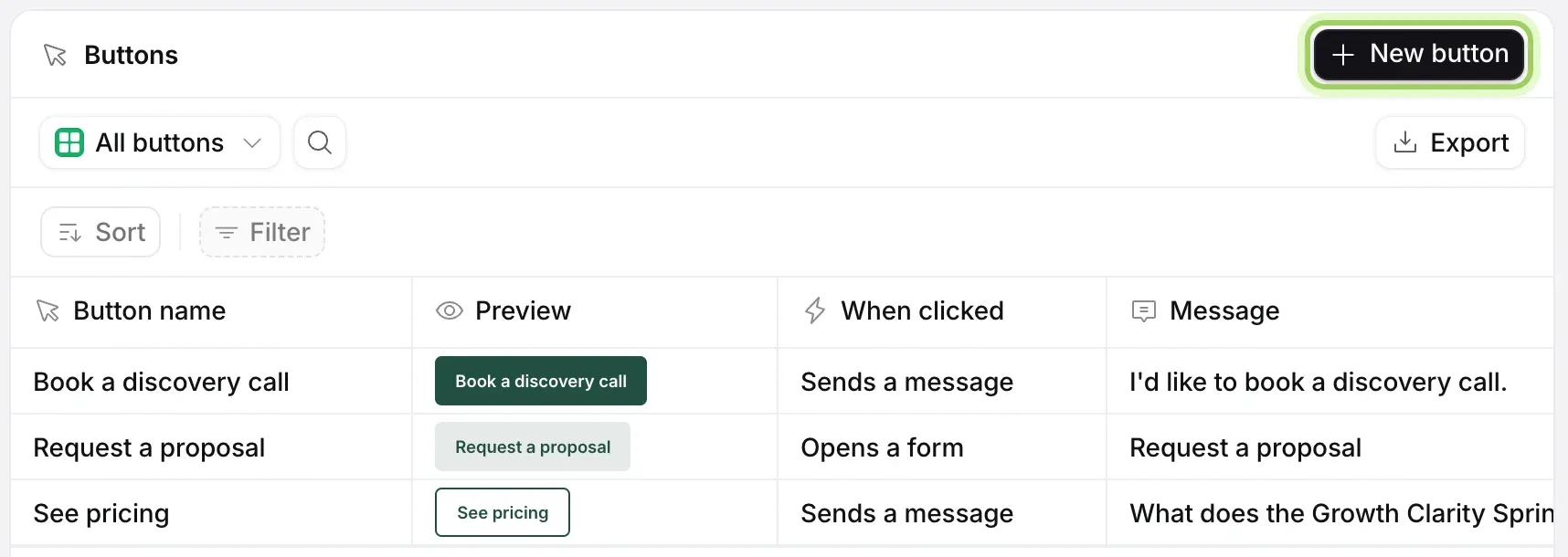
Buttons in the sidebar lists every chat button in your workspace, with a preview of each, what a click does, its message and when it was made.
Find a button
Select the magnifier to search by name. Sort and Filter narrow the list, for example to the buttons that open a form, and Export downloads it as a CSV file. Each row has Copy code, so you can copy a button's code without opening it.
Change a saved button
Select its row to open its page, change what you need, and select Save button. A new message or click behaviour reaches the copies on your site as soon as you save. New text or a new look needs the new code pasted over the old.
Remove a button
On the button's page, open the ⋯ menu and choose Remove button.
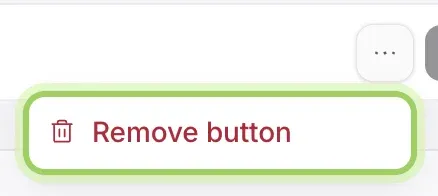
The page then says This button will be removed from your saved website buttons when you save. Select Remove button in the bar at the bottom to remove it, or Keep button to change your mind.

Good to know
- Copies of a removed button already on your site still open the chat, but no longer start the conversation. Take the code off your pages too.
- A workspace can have up to 12 buttons. With 12, remove or reuse one to make room.
- Teammates with the Member role can preview and copy buttons but not change them.