Make and share personal links
Links → New link: name a personal link, choose the page it opens and the greeting it opens with, save it, then choose your email tool (HubSpot, Instantly, Apollo, Outreach, Salesloft, lemlist or CSV) and copy the link into your email.
- In Darwin: LinksOpen in Darwin
- Updated
Make a link for each campaign or list, give it a greeting, and paste it into your emails. Each person who clicks it gets the greeting with their own name.
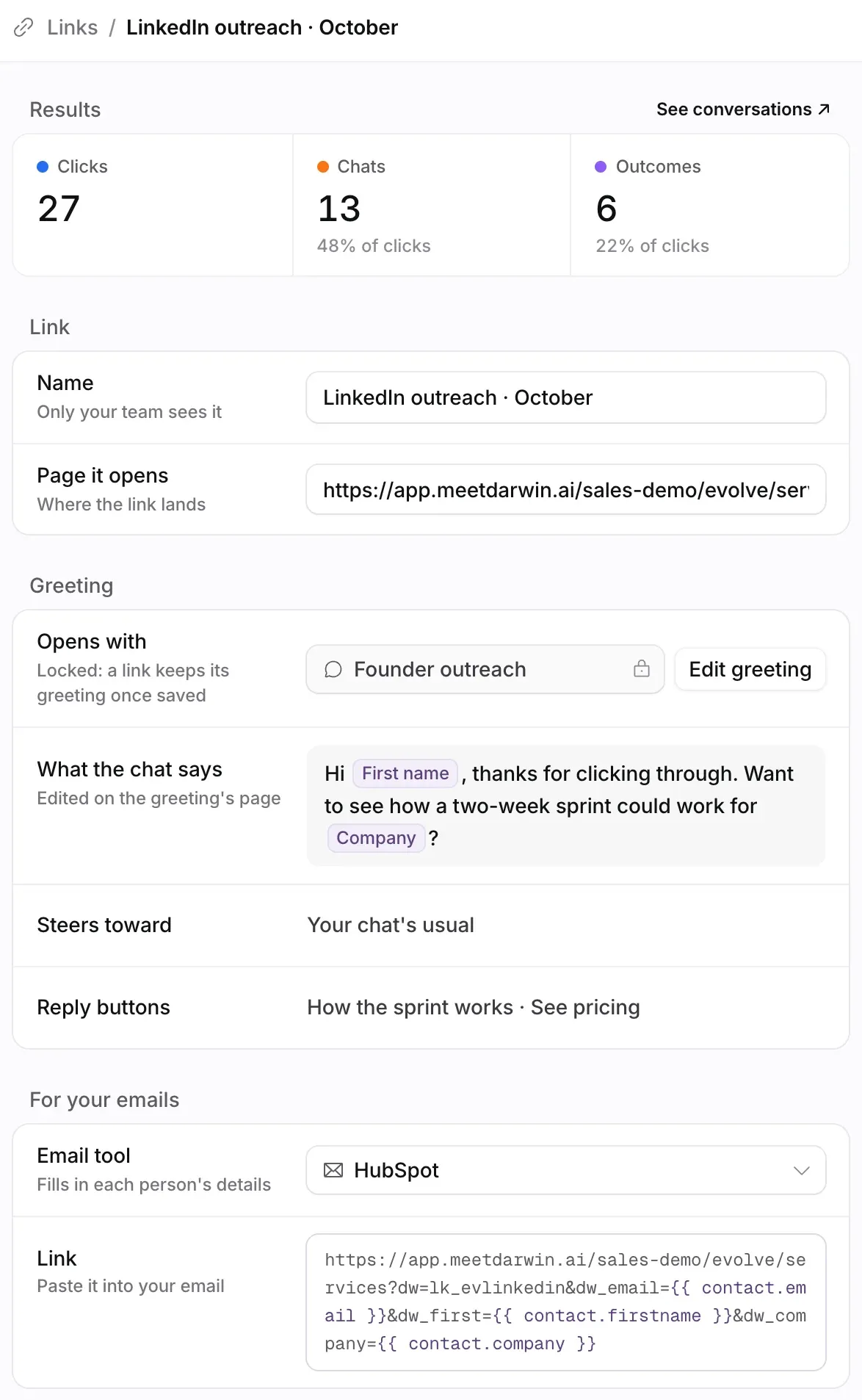
Add a link
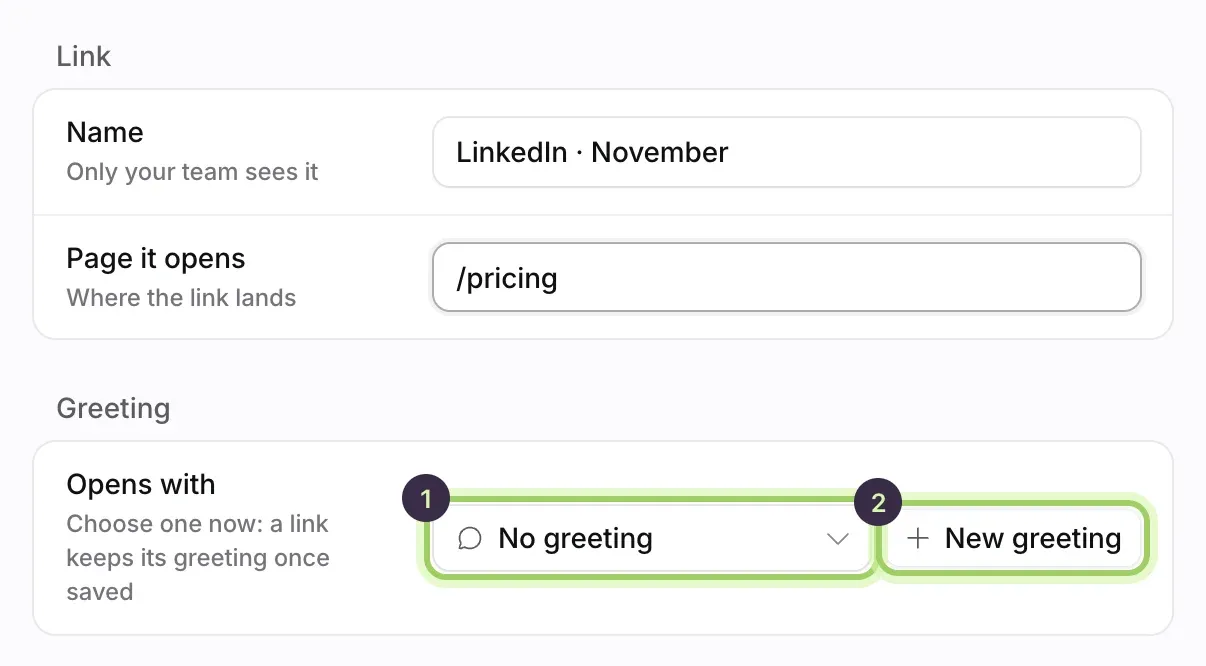
On Links, select New link. The link's page opens. Under Link, type a Name your team will recognize and the Page it opens, such as
/pricingor a full address.With no links yet, the page shows Create your first link with a New link button.
Choose its greeting
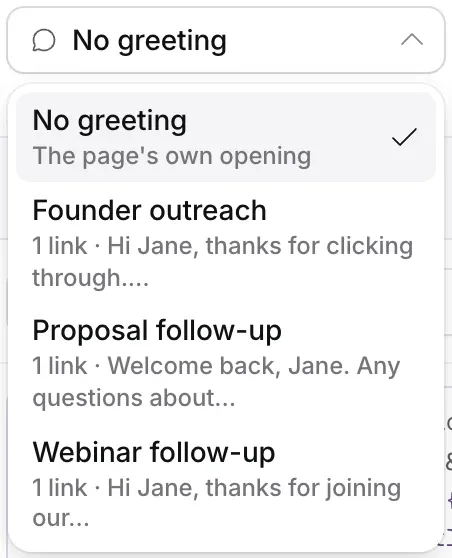
Under Greeting, pick one in Opens with (1). Each greeting in the list shows how many links use it and its first words. No greeting opens the page with its usual opening message, and the agent still knows who arrived.
To write a new one, select New greeting (2). Darwin asks you to Create greeting, then opens the greeting's page with this link already connected, and the two save together. See Write greetings.
Save the link
Select Save link in the bar at the bottom. Discard cancels. Until the link is saved, its copy button reads Save to copy.
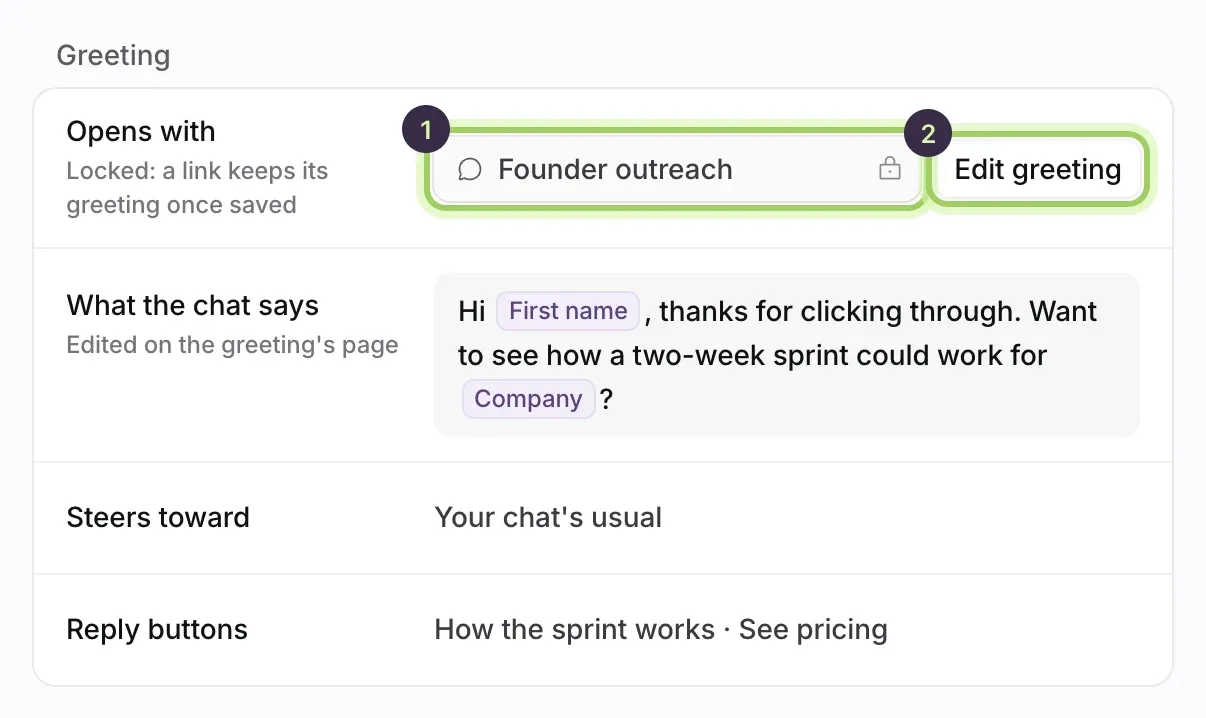
Once a link is saved with a greeting, it keeps that greeting, so everyone you've already emailed sees what you sent them. The picker shows a lock and Locked: a link keeps its greeting once saved. To change what the chat says, select Edit greeting: the change reaches every link that uses that greeting.

Copy the link into your email
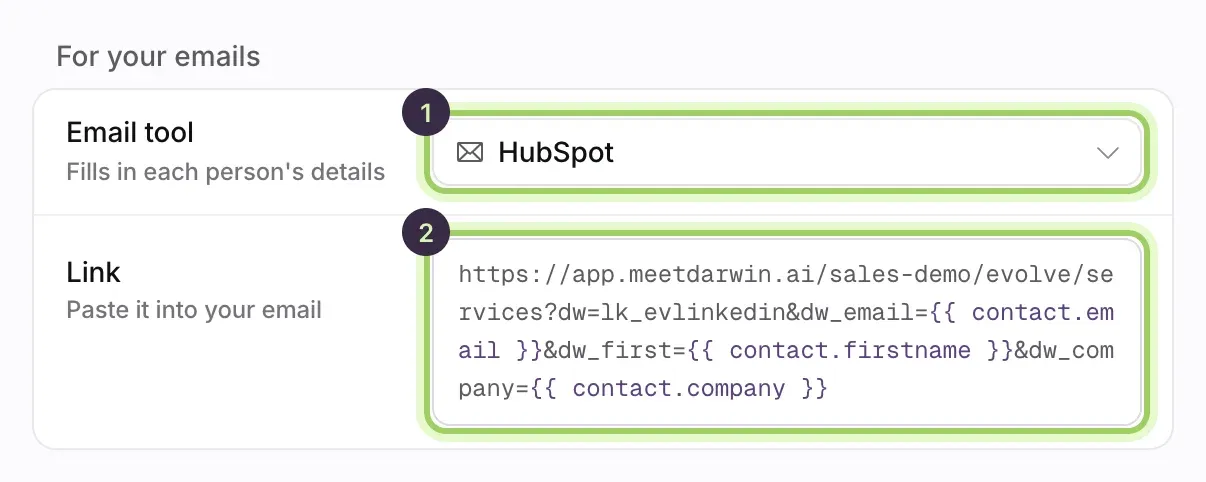
Under For your emails, choose your Email tool (1): HubSpot, Instantly, Apollo, Outreach, Salesloft, lemlist, or Other / CSV. The Link (2) shows the address with your tool's merge fields. Select Copy link at the top of the page, or on the link's row in the table, and paste it into your email or sequence.
Your email tool fills in each person's details when it sends. When Jane clicks, your page opens and the chat greets her by name.
Add links from a greeting
A greeting's page lists every link that opens with it. To add another, type its name and the page it opens in the row under the list, then select Add link or press Enter. Save the greeting to keep it. See Write greetings.
Change or delete a link
Select a link in the table to open its page, change its Name or Page it opens, and select Save link.
To delete it, choose Delete link from the ⋯ menu at the top of its page, then Save changes in the bar below the list. Until you save, Discard brings it back.
The address you copy carries the page and the link's ID. Emails you've already sent keep the page they had, so after changing Page it opens, copy the link again for new emails. The greeting is looked up by the link's ID, so a change to the greeting reaches every email already sent.
Make links from your CRM, code or AI assistant
Your email tool's merge fields are enough for most sequences. When you'd rather keep each person's own address on their CRM record, or make links in bulk, Darwin makes them for you, with every detail already filled in:
- Zapier: the Create Personal Link URL action makes one person's address, for example when a contact joins a HubSpot list, so you can save it to a contact property. The Personal Link Opened trigger tells Slack or your CRM the moment someone opens theirs. See Connect Zapier.
- API:
POST /v1/personal_links/{id}/urlsreturns up to 1,000 addresses per call, each with the greeting that person will see. Links, greetings and their visits have their own endpoints, and thepersonal_link.openedwebhook fires on each new visit. See Give every prospect their own personal link. - AI assistant: ask Claude, ChatGPT or Cursor "Make Darwin personal links for these prospects" with a list, or "Write a greeting for our webinar follow-up." See Use Darwin in Claude, ChatGPT or Cursor.
Addresses made this way stay valid when you change the greeting, like the ones in emails you've already sent.
Good to know
- A link with a greeting only asks your email tool for the details the greeting uses, plus the email address. If you add a name or company to the greeting later, copy the link again. A link without a greeting asks for every detail, so the agent knows who arrived.
- Other / CSV uses placeholders like
FIRST_NAMEandCOMPANY. Replace them with your tool's merge fields, or fill them per row in a spreadsheet. - If your email tool couldn't fill in a detail and the link arrives with something like
{{firstName}}, Darwin ignores it and uses your fallback words. - Opening your own link to check it doesn't count in its results: visits from your team and test browsers are left out.
- The Links table has views for All links, With a greeting, Without a greeting and Getting outcomes.
- A workspace can have up to 100 links.