Read your chats
Chats: find a visitor’s conversation, read the transcript and the visitor’s details, switch to leads, meetings booked or people who want a person, and copy a follow-up list.
- In Darwin: ChatsOpen in Darwin
- Updated
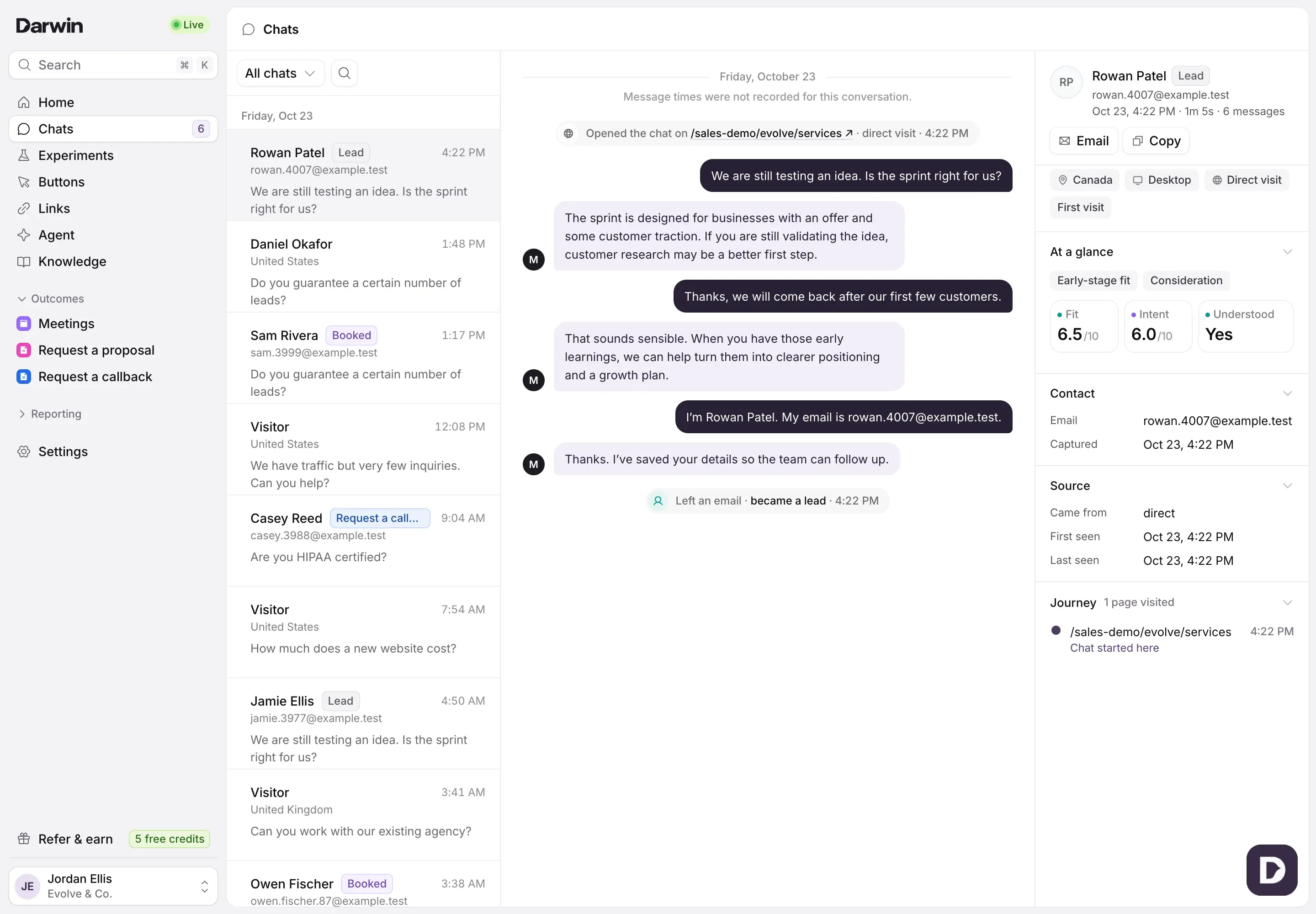
Every chat on your website lands in Chats: the visitor’s questions, your agent’s answers, and what came of it. The list is on the left, the conversation in the middle and the visitor’s details on the right.
Pick a view
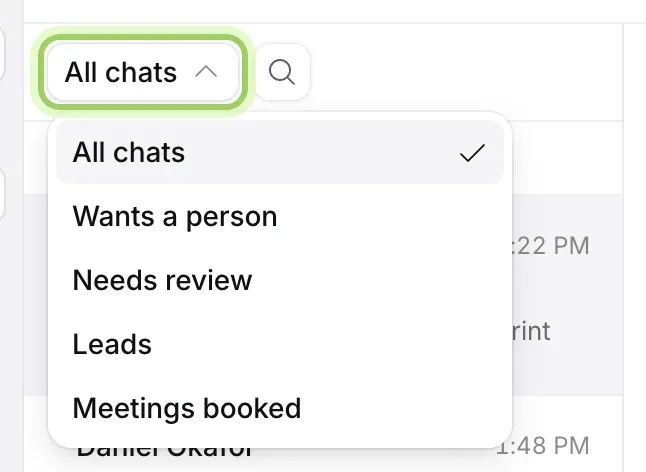
Use the menu at the top of the list. All chats shows everything; the other views show only the chats that need something:
- Wants a person: visitors who asked to talk to someone.
- Needs review: chats where Darwin found a problem or a question it couldn’t answer.
- Leads: visitors who left their name or email.
- Meetings booked: chats that ended in a meeting.
Search for a person or page
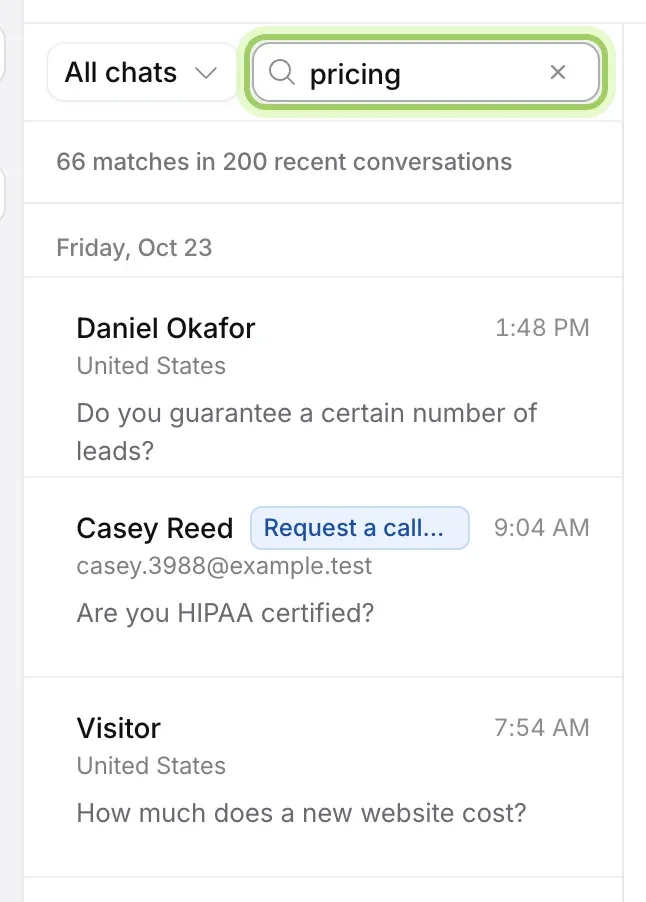
Select the magnifier next to the view and type a name, email, page or the visitor’s first question. The line under the search says how many chats match.
Open a chat
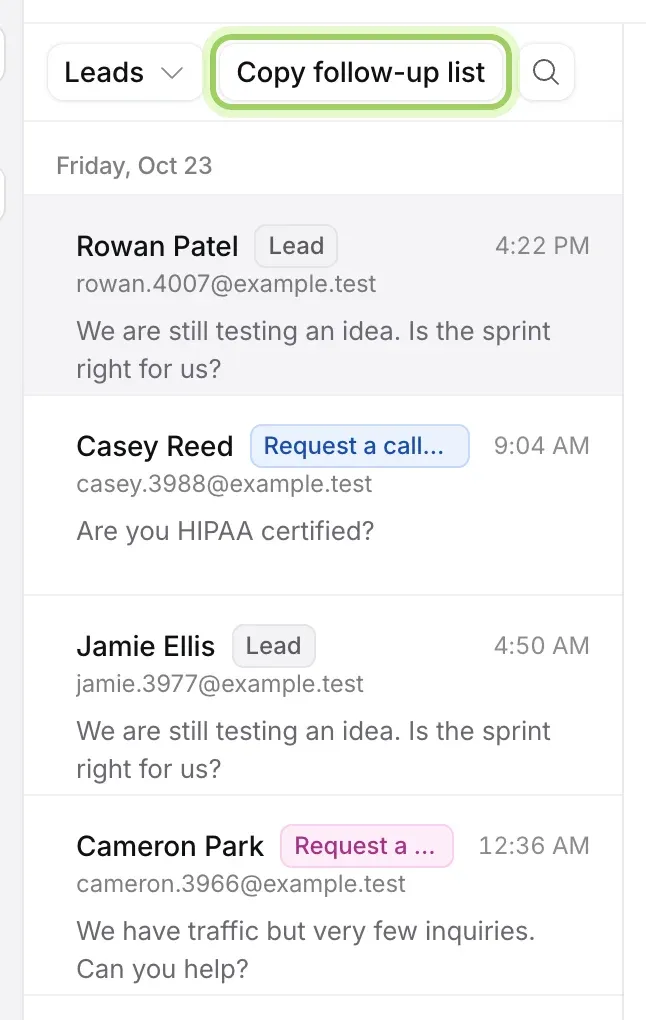
Each row shows who it was, their email or country, their first question and a tag for what came of it, such as Lead, Booked, Wants a person or the name of a form they sent. A blue dot marks a chat you haven’t opened yet; Mark all read clears them. Select a row to open it. The up and down arrow keys move through the list.
Read the conversation
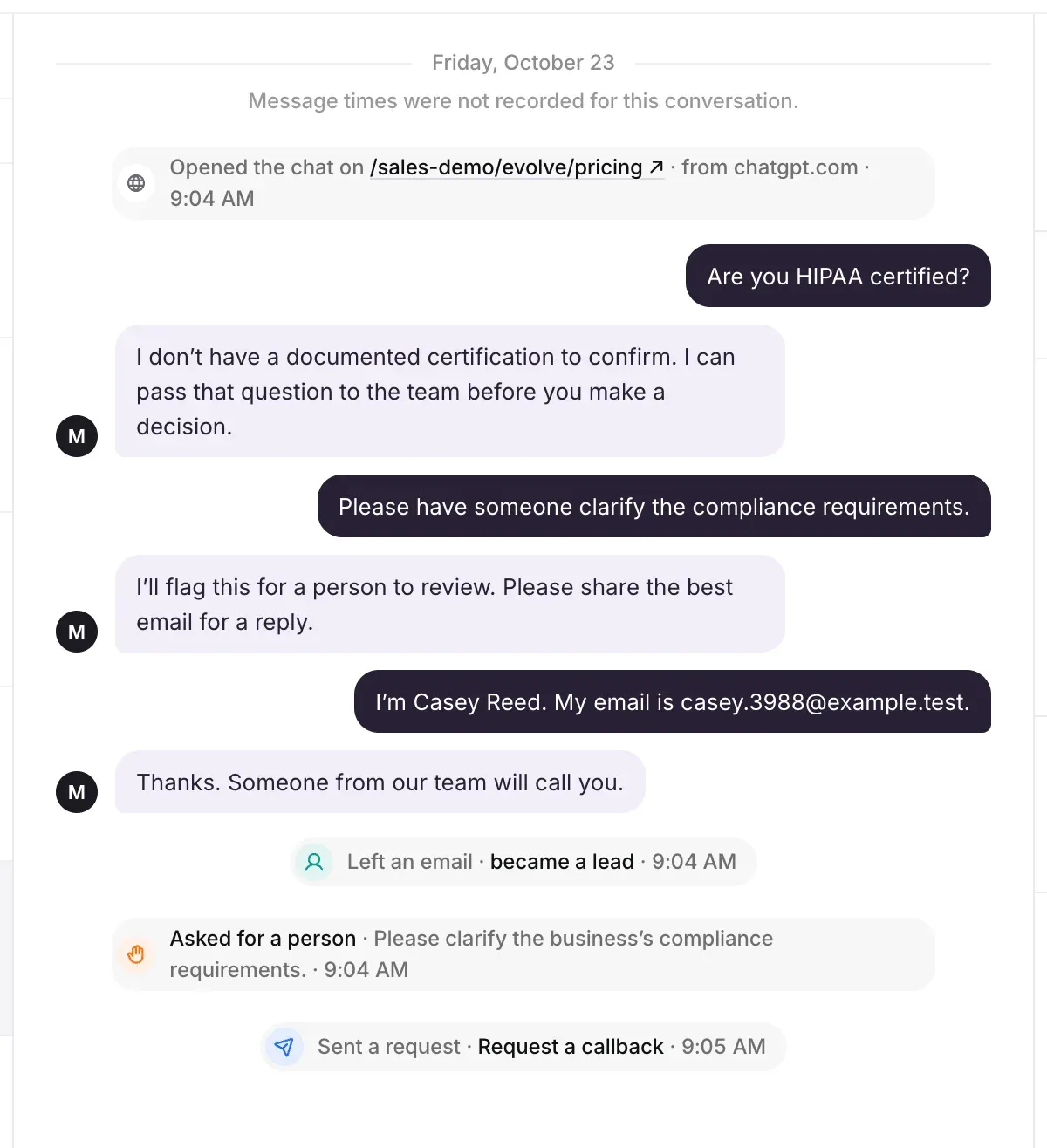
The conversation starts with the page the visitor chatted on and where they came from. Lines between the messages show what happened and when: became a lead, Asked for a person with their reason, Sent a request with the form’s name, or Booked a meeting.
Check the visitor’s details
On the right, the top shows the visitor’s name, email and when they chatted, with Email to write to them from your email app and Copy to copy the conversation as text. Under it are their location, device, where they came from, and whether it was their first visit.
At a glance is Darwin’s read of the chat: what they wanted, their buying stage, Fit and Intent out of 10, and whether your agent Understood them. It also says what went wrong when something did. It’s a guide, so read the conversation before acting on it.
A form they sent appears with its answers and contact details. If it wasn’t a real request, select Not a real request.
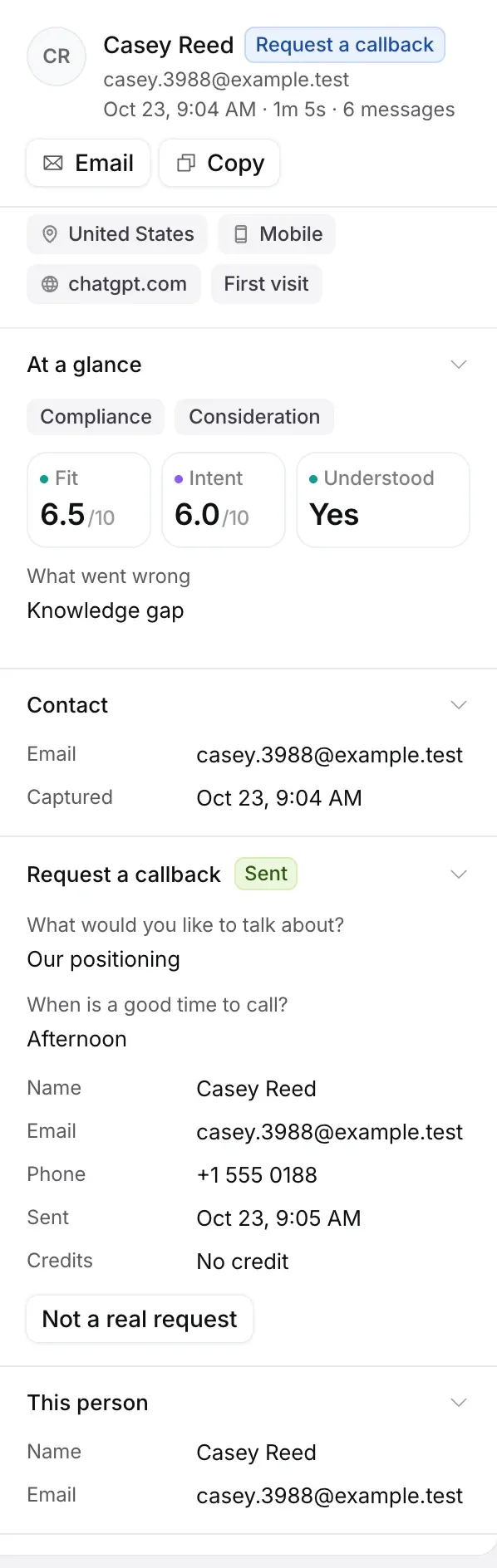
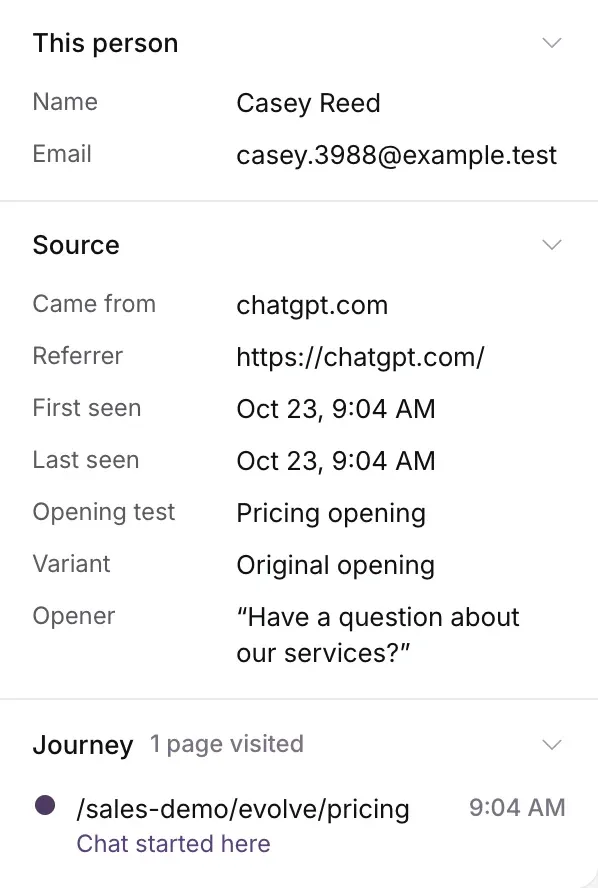
Further down, This person gathers what Darwin knows about them across visits, Source shows where they came from and any opening test they saw, and Journey lists the pages they visited.
Follow up with leads who didn’t book
Switch the view to Leads and select Copy follow-up list. It copies the leads in the list who haven’t booked, ready to paste into your CRM or email tool.
Good to know
- New chats appear in the list on their own every few seconds.
- Reading a chat doesn’t change it. A chat in Needs review stays there until the problem is fixed, for example by improving an answer.
- Opening a chat doesn’t join the visitor’s conversation, and Darwin doesn’t email leads for you.
- A chat that started from one of your personal links shows Came from a personal link with the link’s name. To see only one link’s chats, open the link and select See conversations. A Link: chip shows above the list; select its × to see every chat again.
- Before reaching out, check your calendar: a visitor may have booked even if Darwin didn’t record it. See A booking is missing.