Name, voice and opening message
Agent: name or rename your agent and change its avatar, choose its voice, set the top of the chat, write the opening message and reply buttons, and set the chat greeting.
- In Darwin: AgentOpen in Darwin
- Updated
Select Agent in the sidebar to shape everything visitors see, from your agent's name to the chat's colors. This guide covers who your agent is and what it says first; Make the chat look like your brand covers colors, font and corners. The preview on the right shows each change straight away, and your website keeps the saved version until you select Save changes.
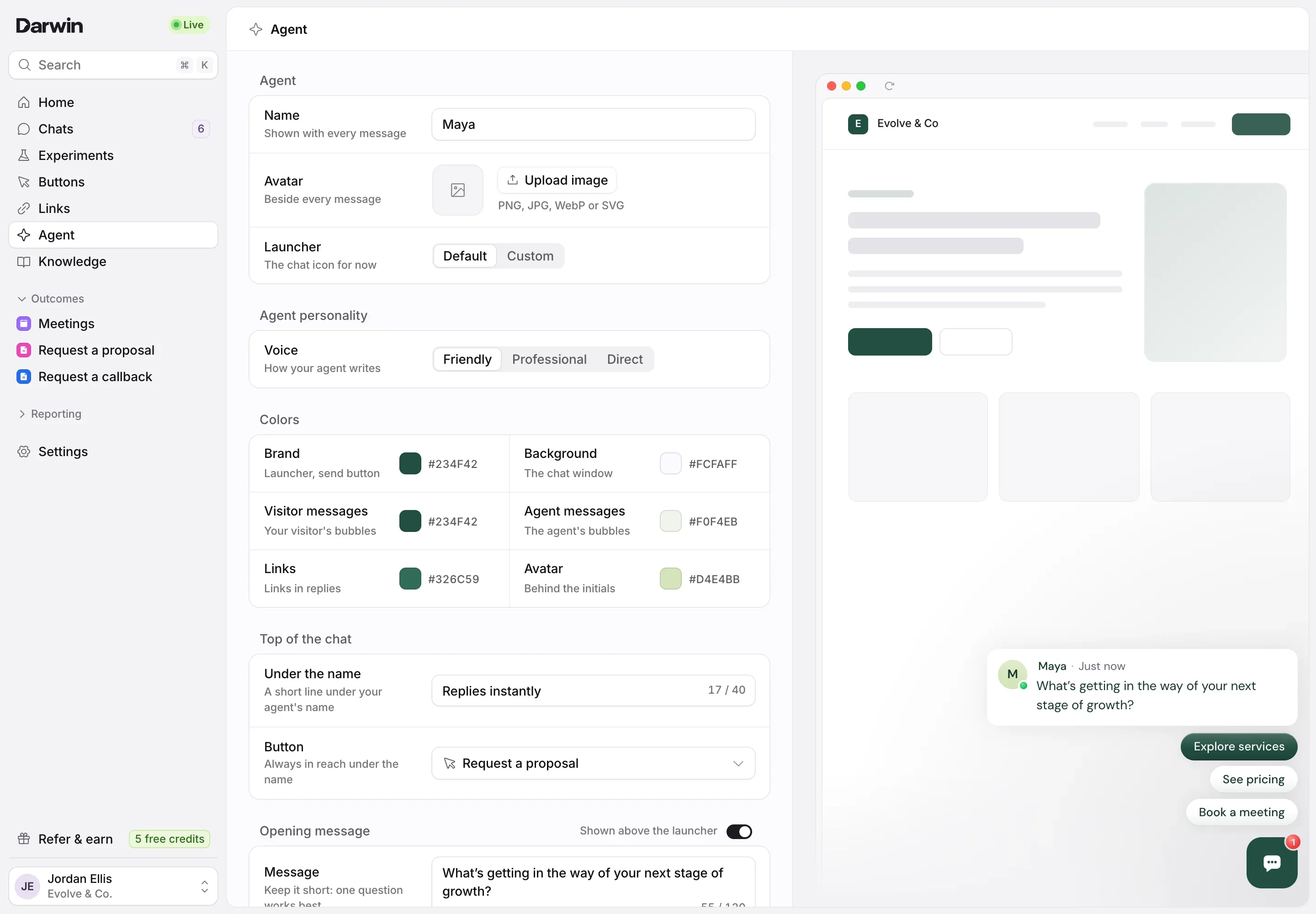
Name your agent and add an avatar
Under Agent, type the Name (1) visitors see with every message. Beside Avatar, select Upload image (2) to add a picture shown beside each message: a PNG, JPG, WebP or SVG under 5 MB. Without one, the chat shows your agent's initials.
Launcher (3) is the button visitors select to open the chat. Default shows your avatar, or the chat icon while there is no avatar. Choose Custom to upload an image just for the launcher.
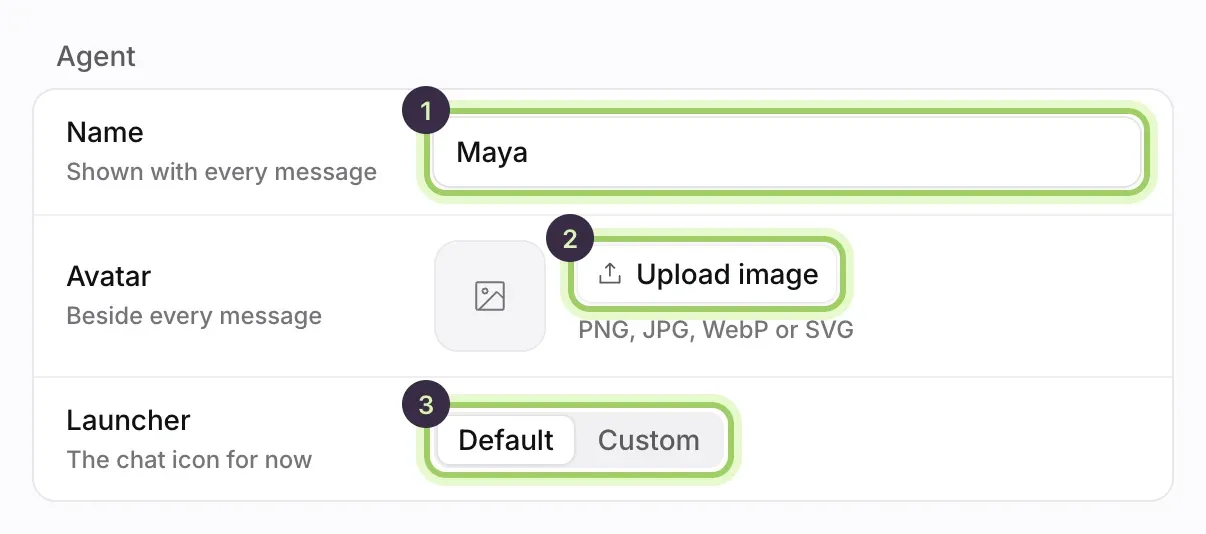
Pick its voice
Under Agent personality, choose a Voice: Friendly, Professional or Direct. The voice changes how your agent words things, not what it does.
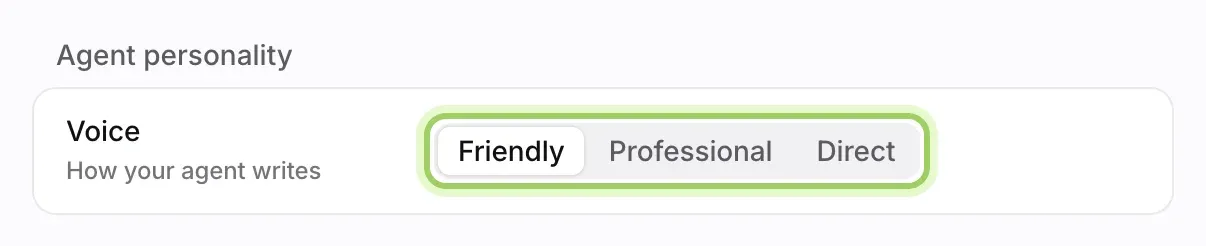
Set the top of the chat
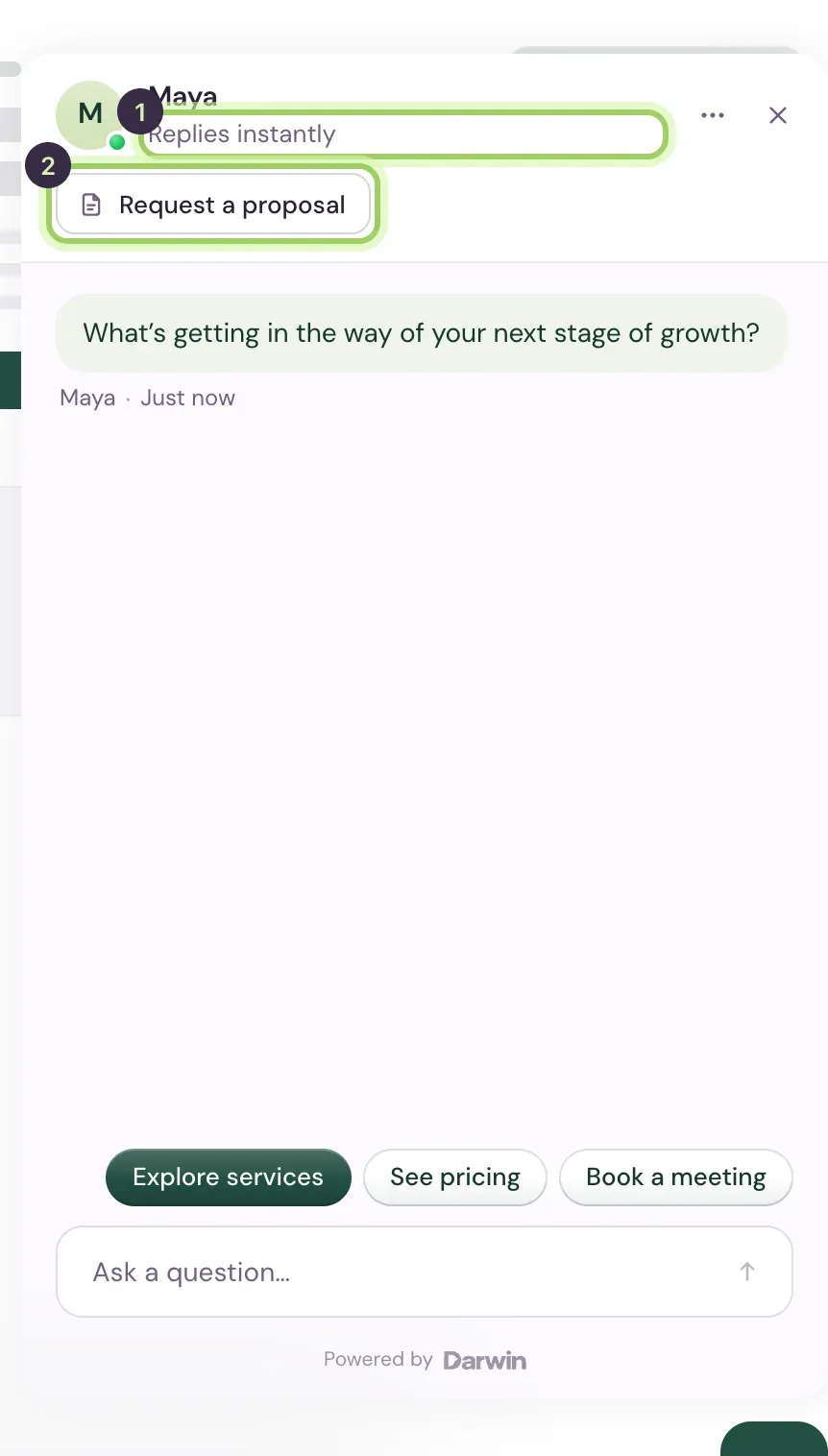
Under Top of the chat, write the short line under your agent's name in Under the name (1), up to 40 characters, such as "Replies instantly". Button (2) picks the button that stays in reach under the name: Book a meeting, one of your live outcome forms, or No button.
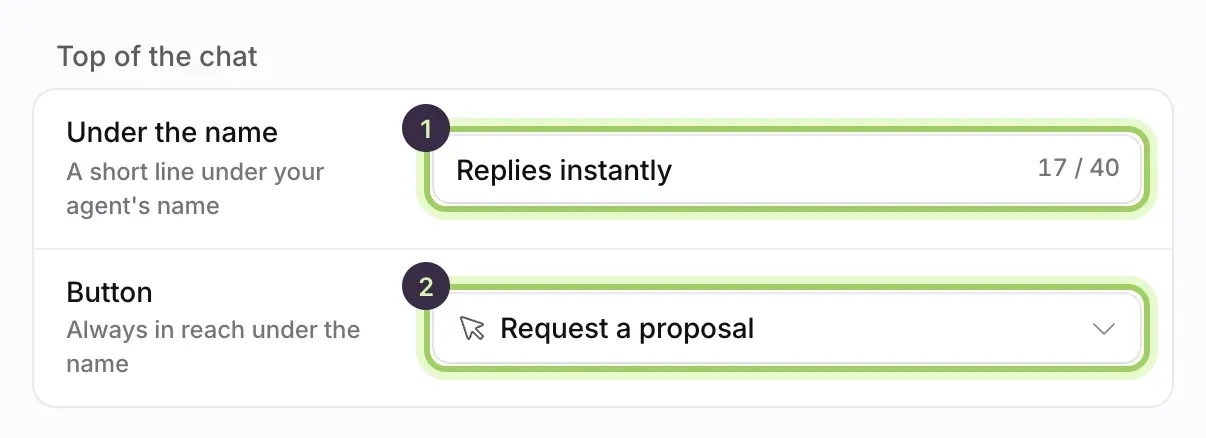
Select the launcher in the preview to open the chat and see both under your agent's name.
Write the opening message
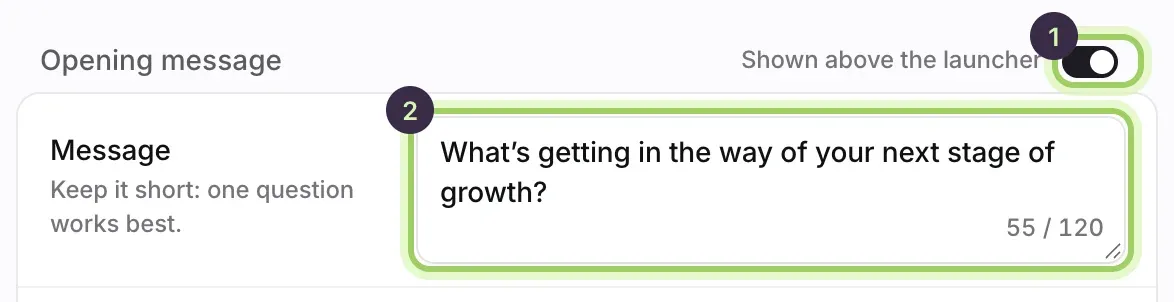
The opening message is the short card above the launcher that starts a conversation. Turn it on or off with the switch beside Shown above the launcher (1), then write it in Message (2), up to 120 characters. One question works best, for example "Comparing plans? I can tell you which one fits your team."
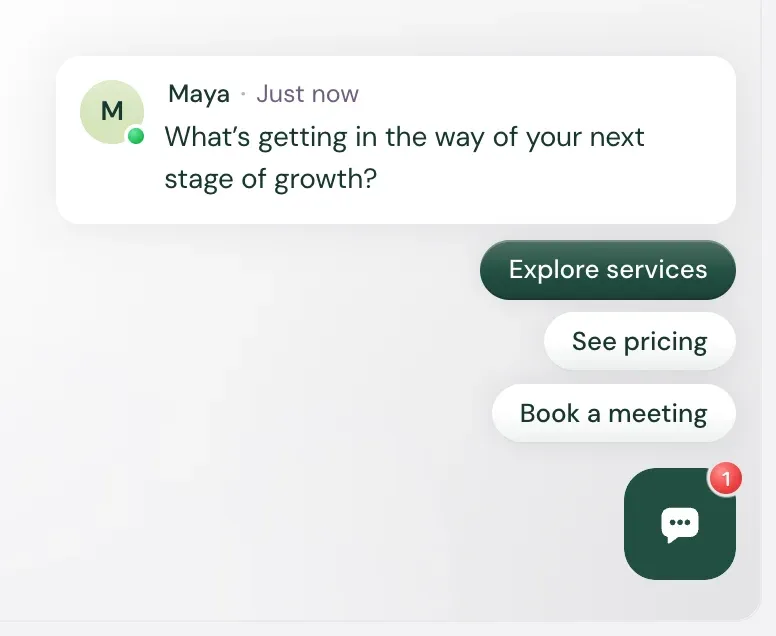
The preview shows it the way visitors see it, above the launcher, with your reply buttons under it.
Add reply buttons
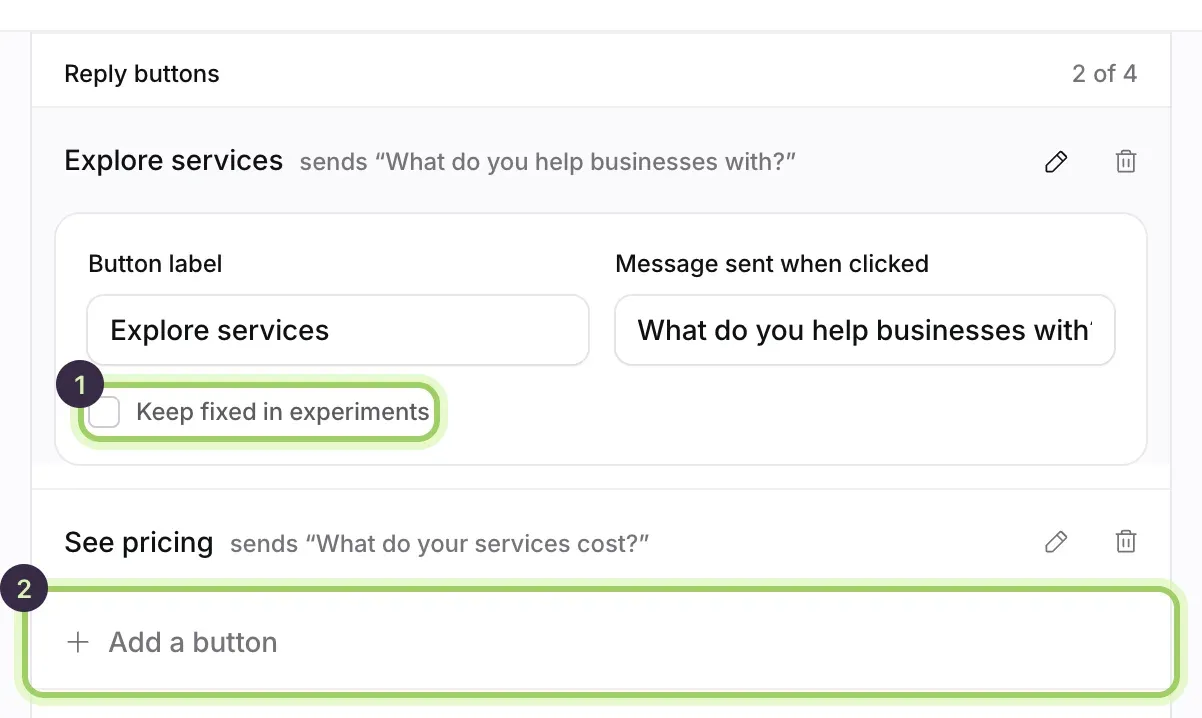
Reply buttons sit under the opening message so visitors can answer with one click. Under Reply buttons, select Add a button (2), then fill in the Button label and the Message sent when clicked. Select a button to edit it, or the bin beside it to remove it. You can have up to 4.
Tick Keep fixed in experiments (1) for a button that must stay the same in every opening test.
If Darwin is running opening tests, Testing under the reply buttons shows how many, with a See tests link. Pages in a test keep showing the test's opening until the test ends, so a page can show a different opening from the one you wrote here.
Set the chat greeting
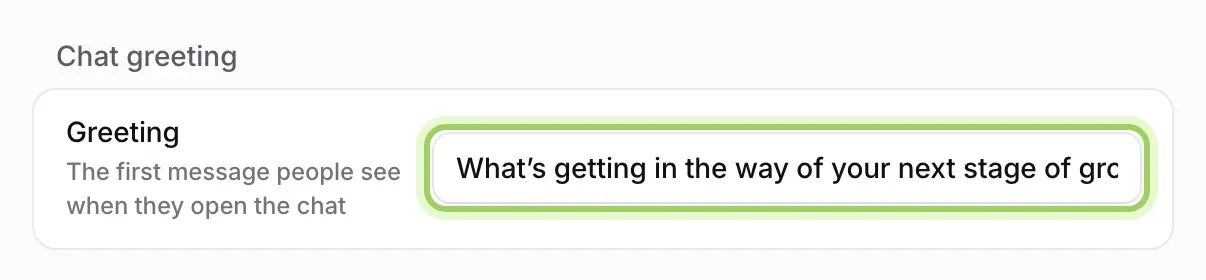
Under Chat greeting, write the Greeting: the first message people see when they open the chat.
Save
Select Save changes in the bar at the bottom. Discard goes back to what is saved.
If you changed the opening message, Darwin then asks what to do with running tests that started from your old opening:
- Use the new one in them replaces the old opening in those tests. Their results start again from zero.
- Test old against new keeps both openings in those tests, so they compete.
- Not now leaves the tests as they are.
Tests that use a page's own opening, rather than your site-wide one, aren't changed.

Good to know
- The opening message appears 2.5 seconds after the page loads. On a phone it also waits until the visitor has scrolled a quarter of the page or spent 10 seconds on it, whichever comes first. A personal link's greeting skips that wait. You can't change this timing.
- A visitor who closes the opening doesn't see it again for the rest of their visit. To keep it off certain pages, use Pages without the opening message in Settings → Agent.
- In a narrow window the preview moves behind a Preview button at the top of the page.
- Darwin's sales behaviour is built in: it answers from what you give it in Knowledge, offers a meeting when a visitor shows interest, and doesn't make up prices, availability or bookings.
- Unsaved changes are kept in this browser tab for up to 24 hours, even if you visit another screen.