Use API keys and webhooks
Settings → Integrations → API: create and revoke API keys, send Darwin's events to your own systems with webhooks, check deliveries, identify signed-in visitors, and see recent API requests.
- In Darwin: Settings → Integrations → APIOpen in Darwin
- Updated
The API page gives your own code, or a tool like Zapier, access to Darwin. It holds your API keys, webhooks that send Darwin's events to your systems, website identity for signed-in visitors, and a log of recent requests. Open Settings → Integrations and select API under CRM & automation, or API keys at the top of the page.
This guide covers the screen. The developer docs cover every endpoint, event and field.
Create an API key
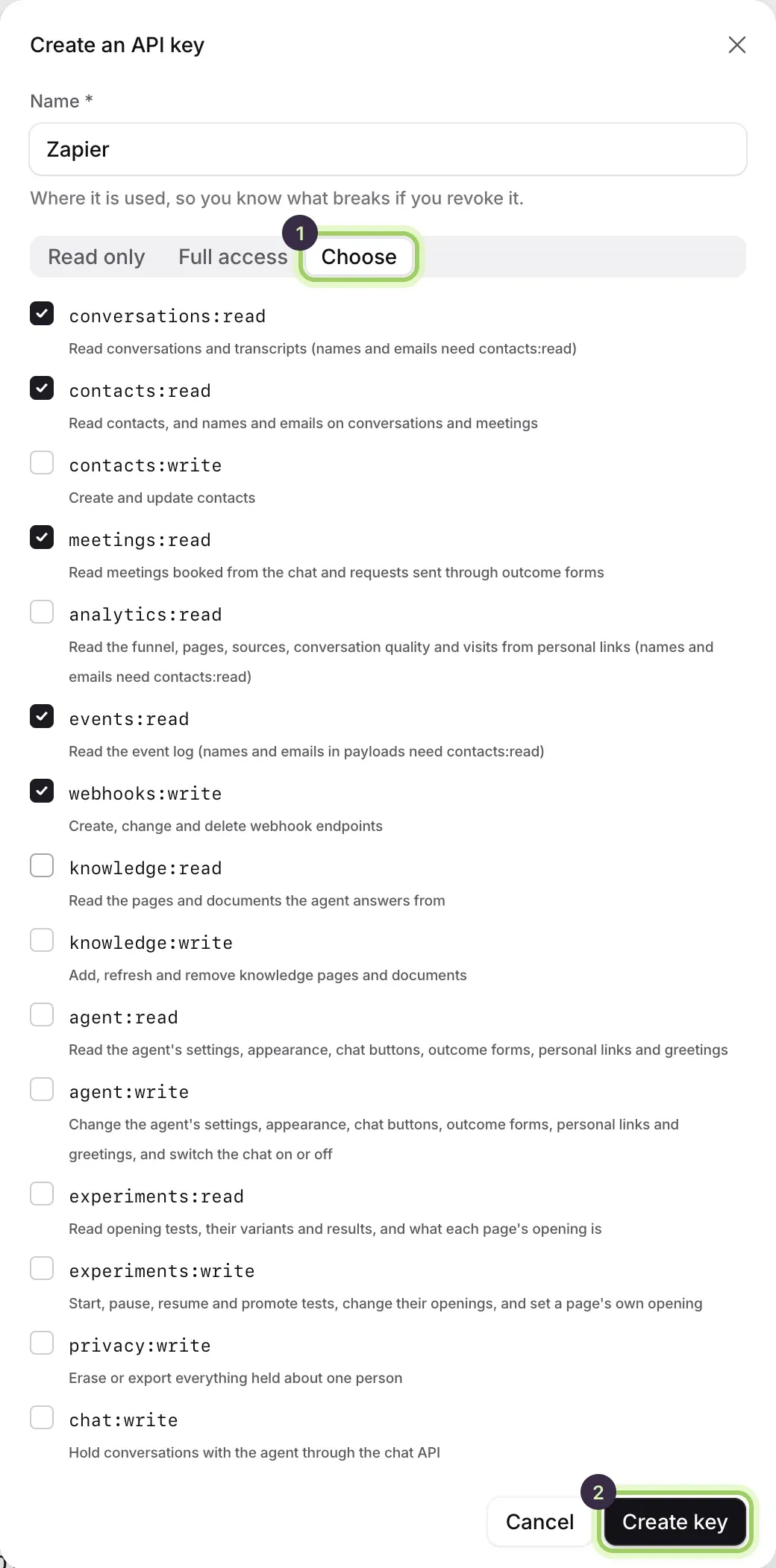
Under API keys, select Create key. Give the key a Name that says where it's used, such as Zapier, so you know what breaks if you revoke it. Under Access, choose Read only, Full access, or Choose (1) to tick scopes one by one. Then select Create key (2).
Copy the key
Darwin shows the key once. Select Copy and store it where your code reads secrets, never on a website or in a repository. Then select Done. Keys start with
dk_live_.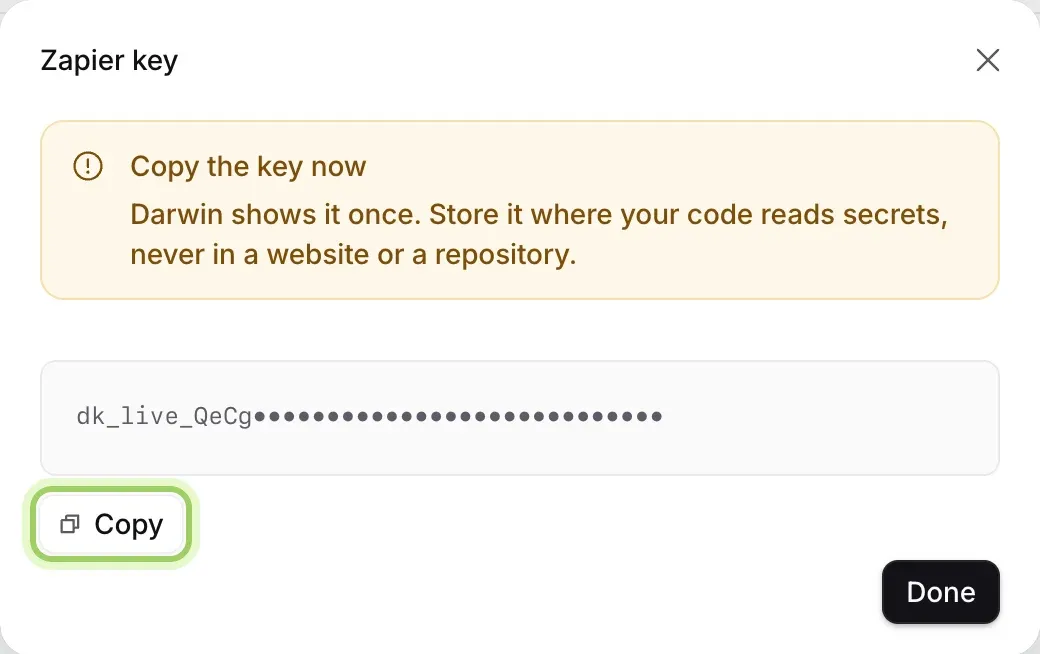
Check or revoke a key
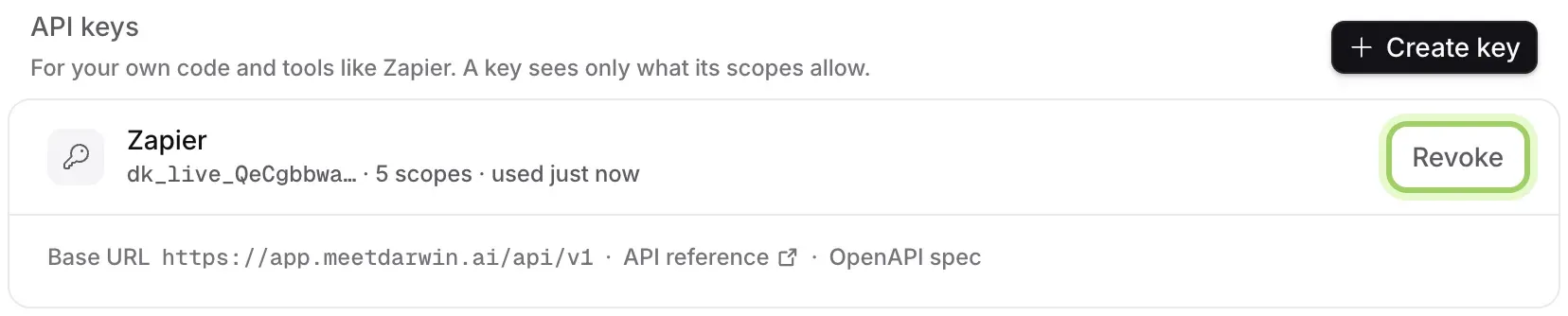
Each key shows its name, its first characters, how many scopes it has and when it was last used. Select Revoke and confirm to stop a key at once. Anything using it stops working, and this can't be undone. A revoked key stays in the list, marked Revoked.
Add a webhook endpoint
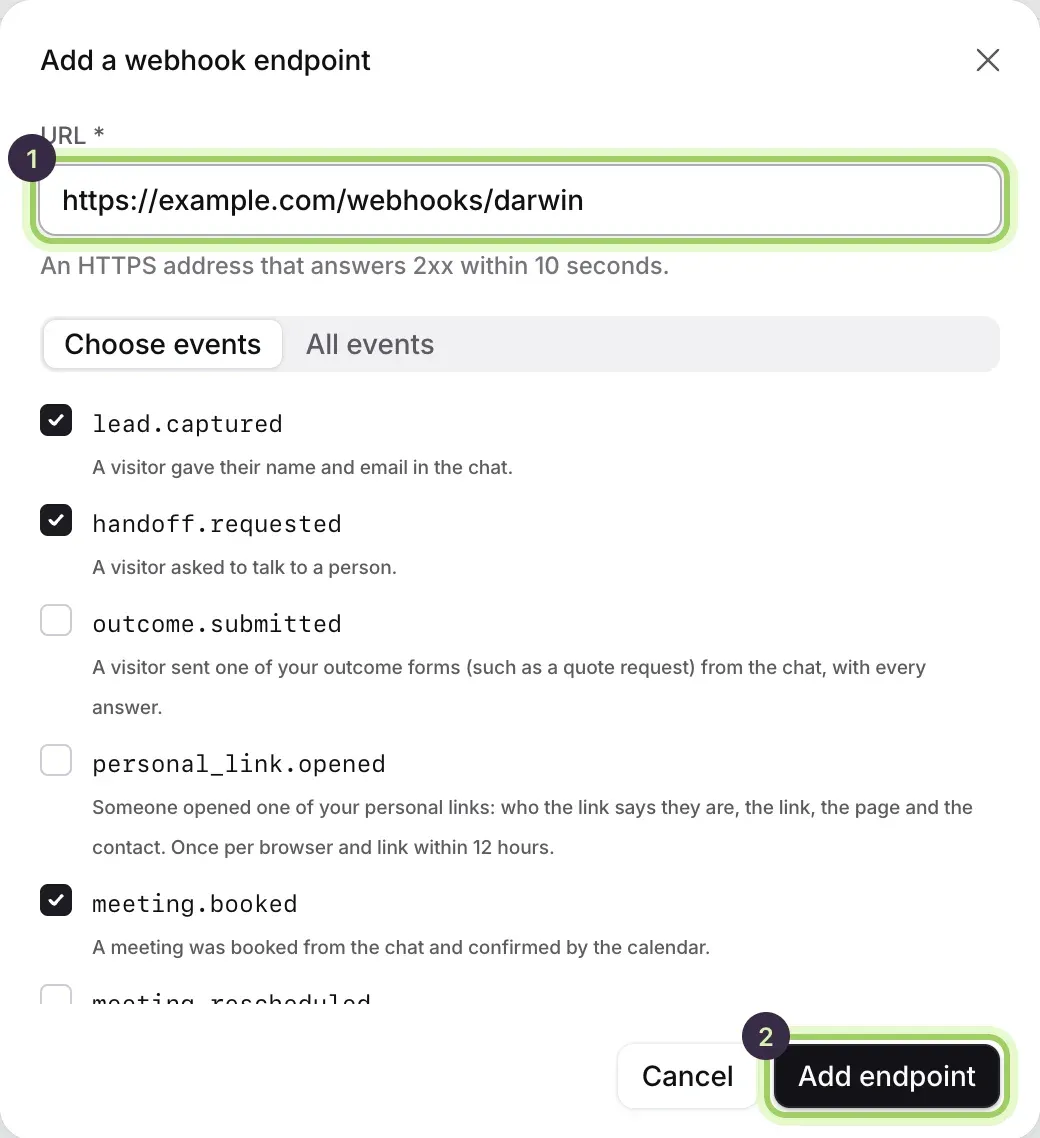
Under Webhooks, select Add endpoint. Enter the URL (1): an HTTPS address that answers with a 2xx status within 10 seconds. Leave Choose events to tick the events you want, or pick All events, then select Add endpoint (2).
Darwin then shows the endpoint's signing secret once. Copy it so your server can check that each event really came from Darwin. Darwin posts each event to your URL, signed, and retries for three days.
Check deliveries
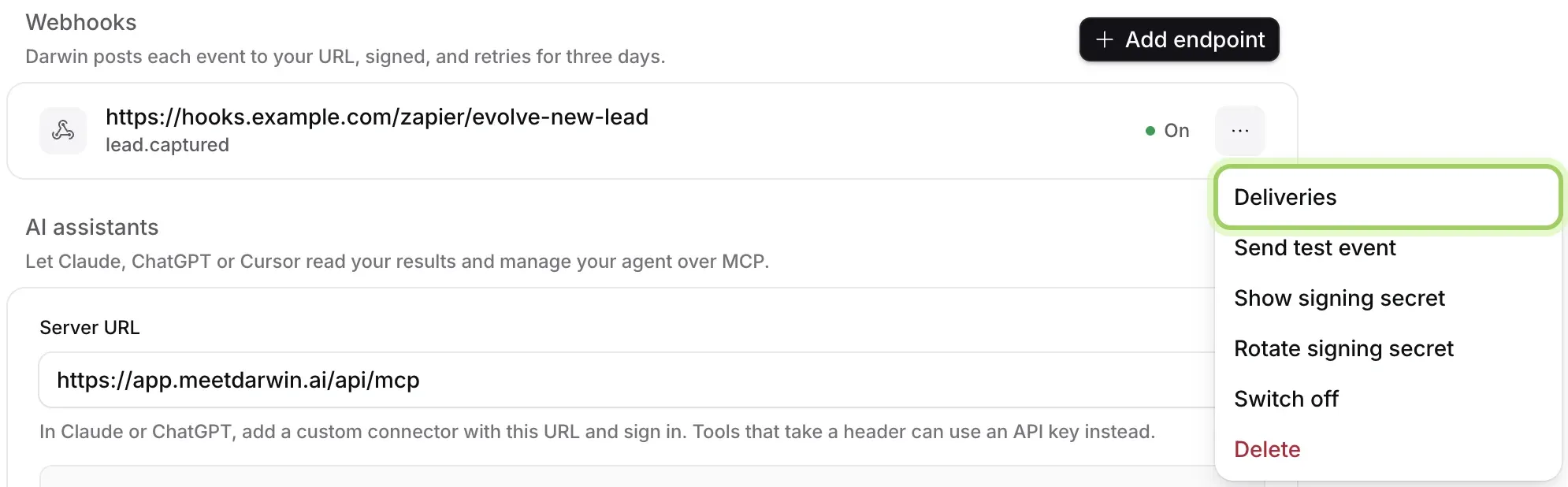
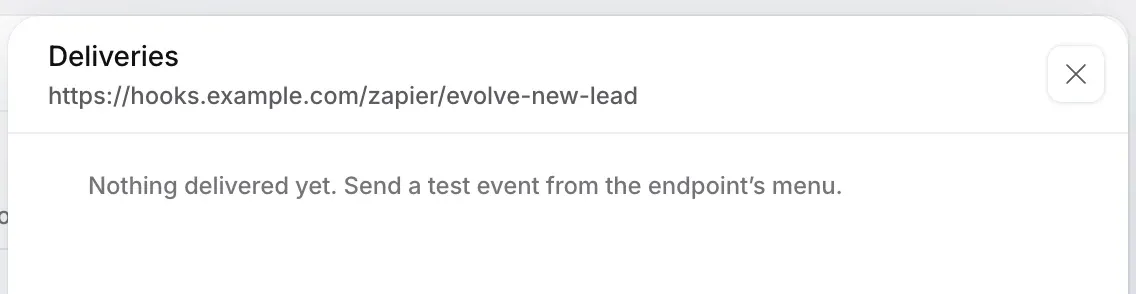
Each endpoint shows its address, its events and whether it's On, Off or Failing. Open its menu (···) and select Deliveries to see each event Darwin sent, with its attempts and your server's answer. Send again sends one again.
The same menu has Send test event, Show signing secret, Rotate signing secret (the old secret keeps working for 24 hours), Switch off (events are kept for 30 days) and Delete.
Identify signed-in visitors
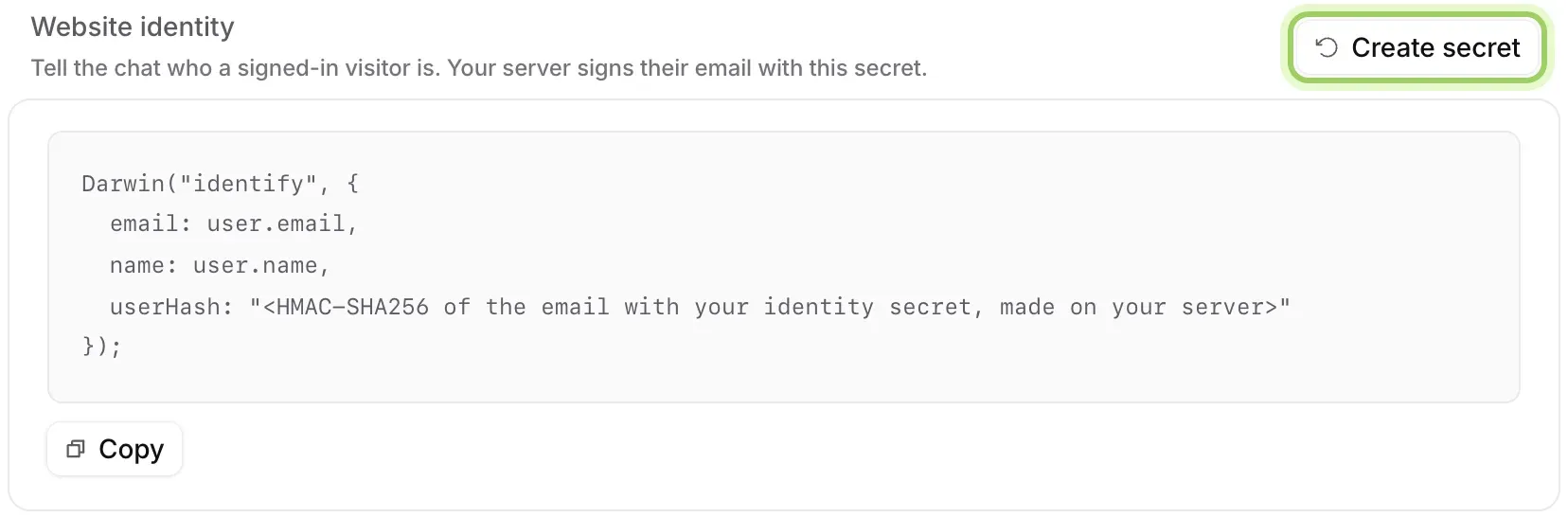
If people sign in to your website, Website identity lets the chat know who they are. Select Create secret and copy the secret to your server. Then, on pages where a visitor is signed in, call
Darwin("identify", …)with their email and name, plus auserHashyour server makes from their email with the secret (HMAC-SHA256). Darwin checks the signature and links the chat to their contact.Replace secret makes a new one; signatures made with the old secret stop working at once. The browser SDK reference has the details.
See recent requests
Recent requests lists the last 50 calls made with any key over the past 30 days: the status, the request, the key, how long it took and when. Use it to check that a tool is calling Darwin, or to find a failing call and its error.

Good to know
- Only owners and admins can create or revoke keys, add or change endpoints and create the identity secret. Members see the page without those buttons.
- Zapier creates its own webhook endpoints with your Zapier key, one per Zap, and removes them when you turn a Zap off. See Connect Zapier.
- A workspace can have up to 50 webhook endpoints.
- AI assistants on the same page lists Claude, ChatGPT or Cursor connections. See Use Darwin in Claude, ChatGPT or Cursor.