Add chat buttons to your website
Buttons in the sidebar: make buttons for your pages, like Book a demo or Talk to sales, that open Darwin’s chat and start the conversation or open one of your forms. Style them, then copy the code onto your site.
- In Darwin: ButtonsOpen in Darwin
- Updated
A chat button sits on your own page, like a Book a demo button in your hero. When a visitor clicks it, Darwin's chat opens right there and the conversation starts, so they never leave the page. You make them on Buttons in the sidebar.
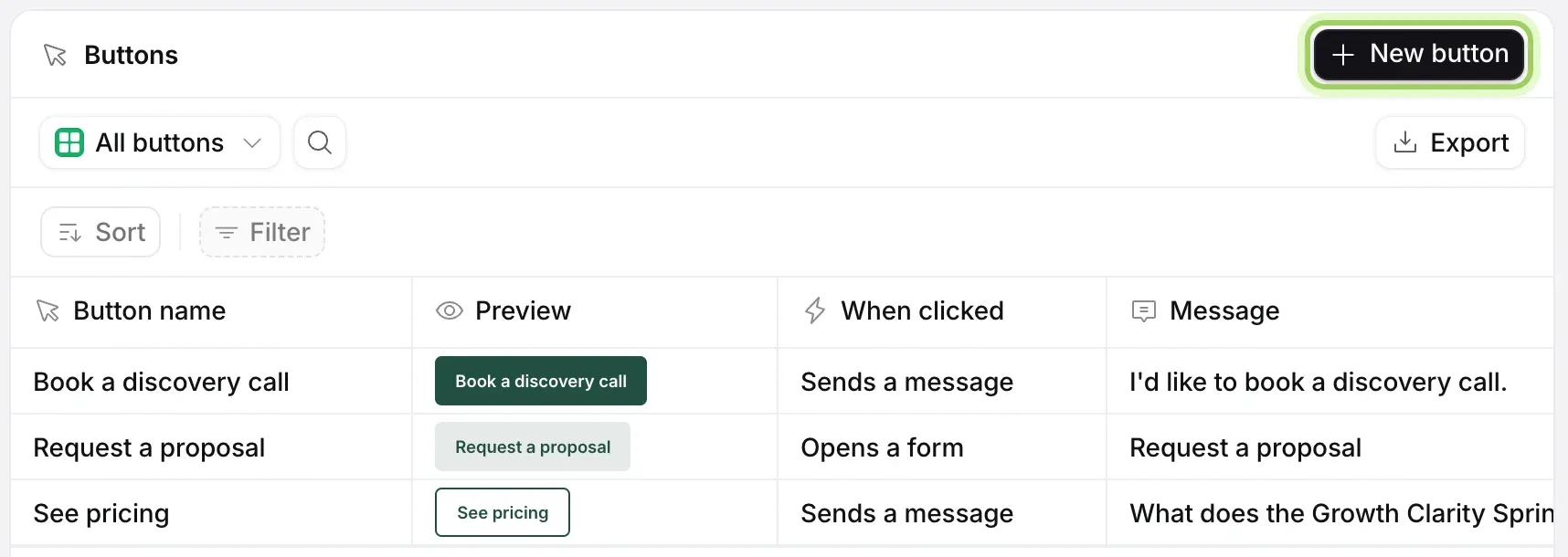
Add a button
Select New button, or select a button in the table to change it. Its page opens with your settings on the left. A new button starts as Book a demo.
With no buttons yet, the page shows Create your first button with a New button button.
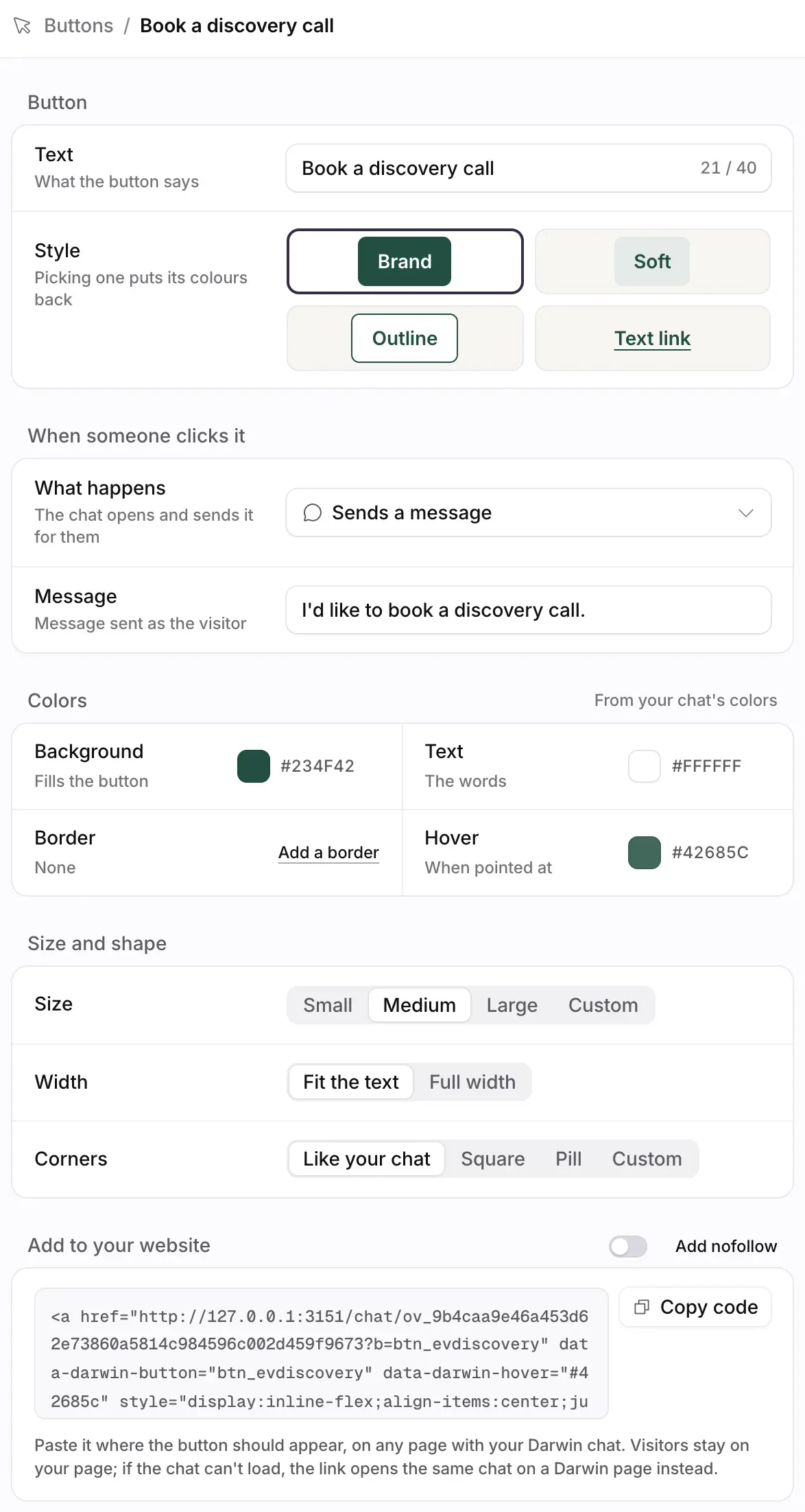
Write the text and pick a style
Under Button, type the Text (1) visitors read on it, up to 40 characters. Under Style (2), choose Brand, Soft, Outline or Text link. Colours, size and corners are in Style a chat button.
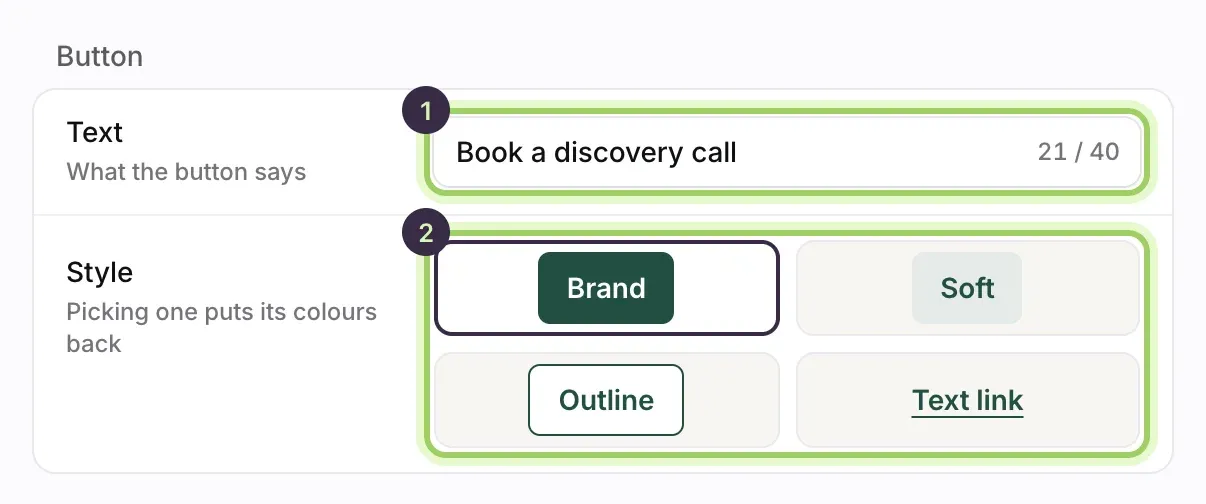
Choose what a click does
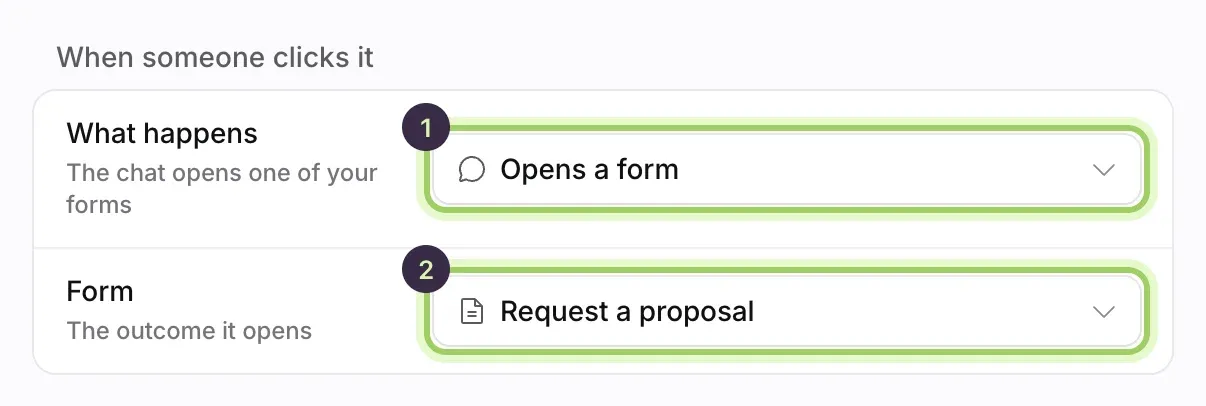
Under When someone clicks it, choose What happens:
- Sends a message: the chat opens and sends your Message as the visitor's first message. The agent answers it.
- Fills in the message: the chat opens with your message typed in the box, for the visitor to send or change.
- Agent speaks first: the agent opens the conversation. Under For the agent, you can say what the visitor wants; the visitor doesn't see it.
- Opens a form: the chat opens straight into one of your outcomes, such as a quote request. Pick it under Form. Only live forms are listed.
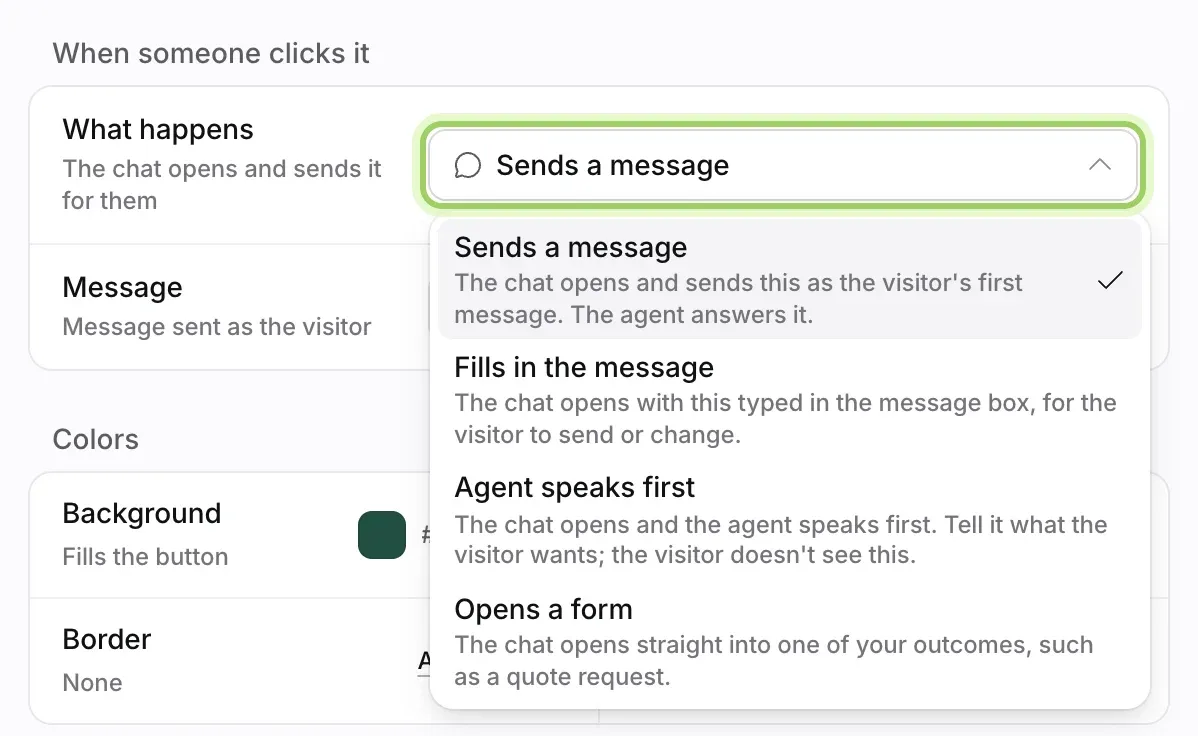
Check it in the preview
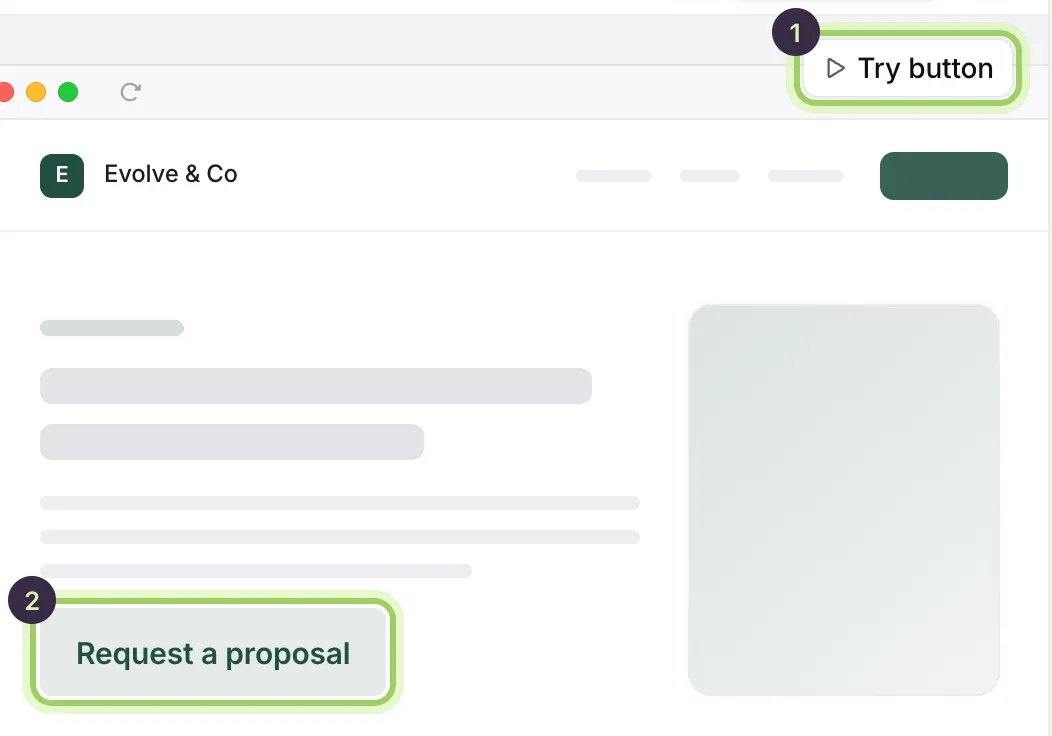
The preview beside the settings shows your button on a sample page (2). Select Try button (1) to run it in the chat there, without saving.
Save it
Select Save button in the bar at the bottom. Discard cancels unsaved edits. A failed save keeps the page open with your edits.

Copy the code
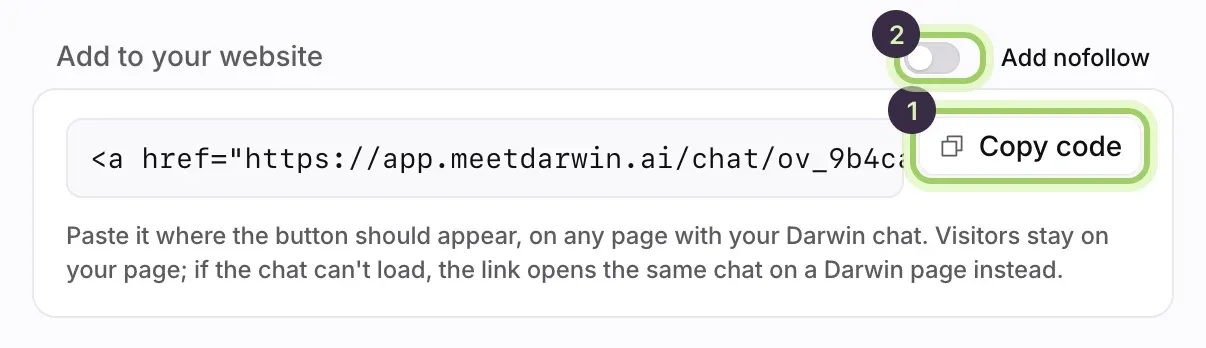
Select Copy code (1), in Add to your website, at the top of the button's page, or on its row in the table. The code uses the saved button, so save first. Paste it where the button should appear, on any page that has your Darwin chat. If the chat can't load, the button opens the same chat on a Darwin page instead. Turn on Add nofollow (2) if your site needs it.
Good to know
- Pasted buttons pick up a new message or click behaviour as soon as you save. New text or a new look needs the new code pasted over the old.
- To change, find or remove a button later, see Change, remove and find your buttons.
- If the form behind an Opens a form button is paused or archived, the button still opens the chat but can't open the form. Point the button at another form.
- The chat must be installed on the page. See Install the chat on your website.