Start your day on Home
Home: a summary of your week, Ask Darwin, what needs your attention, upcoming meetings, what happened in the last 7 days, your four key numbers and ways to make your agent better.
- In Darwin: HomeOpen in Darwin
- Updated
Home is the first screen you see. It tells you what changed, what is waiting on you, and how the last 7 days went, with links to the screen where you act on each one.
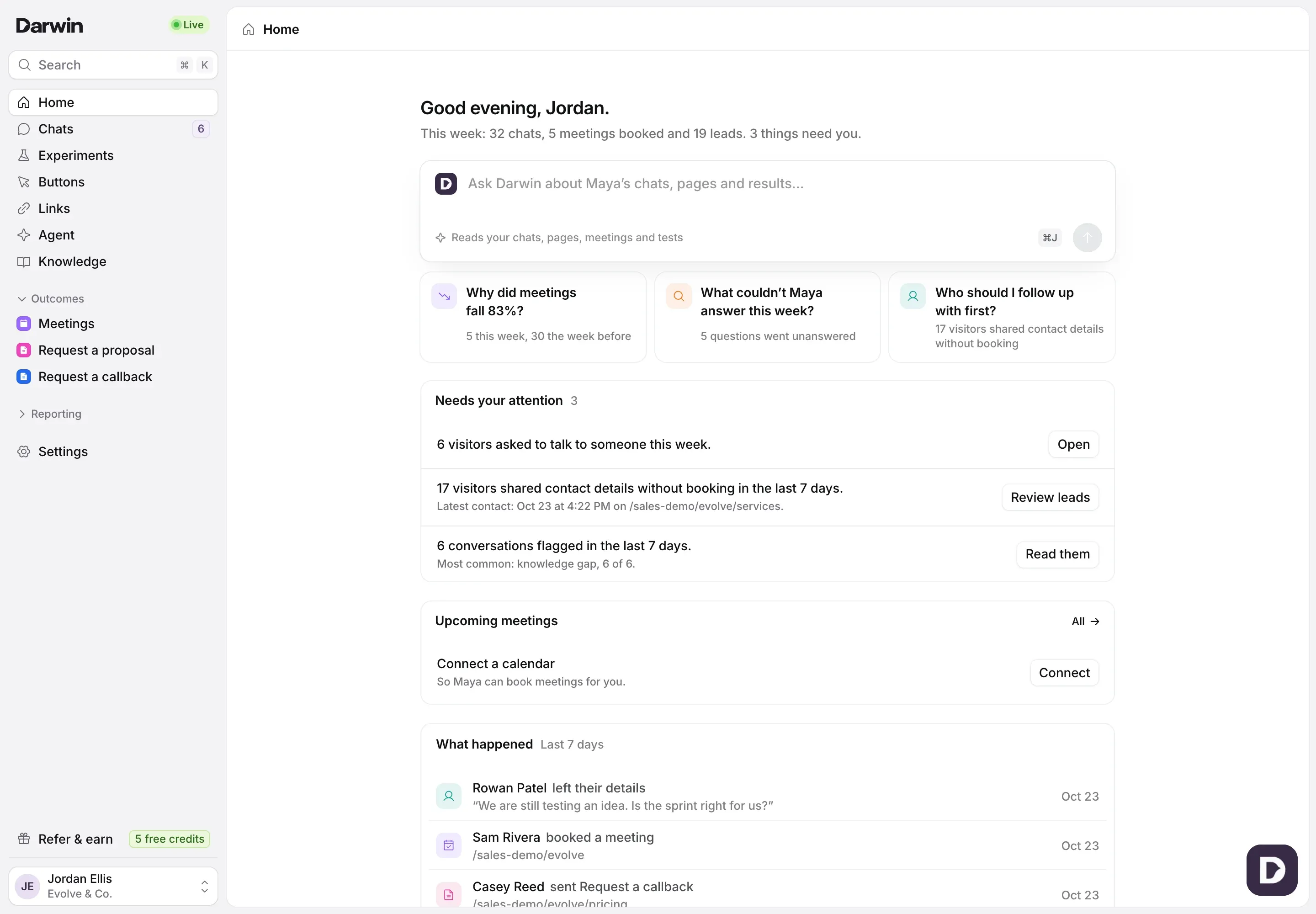
Read the summary
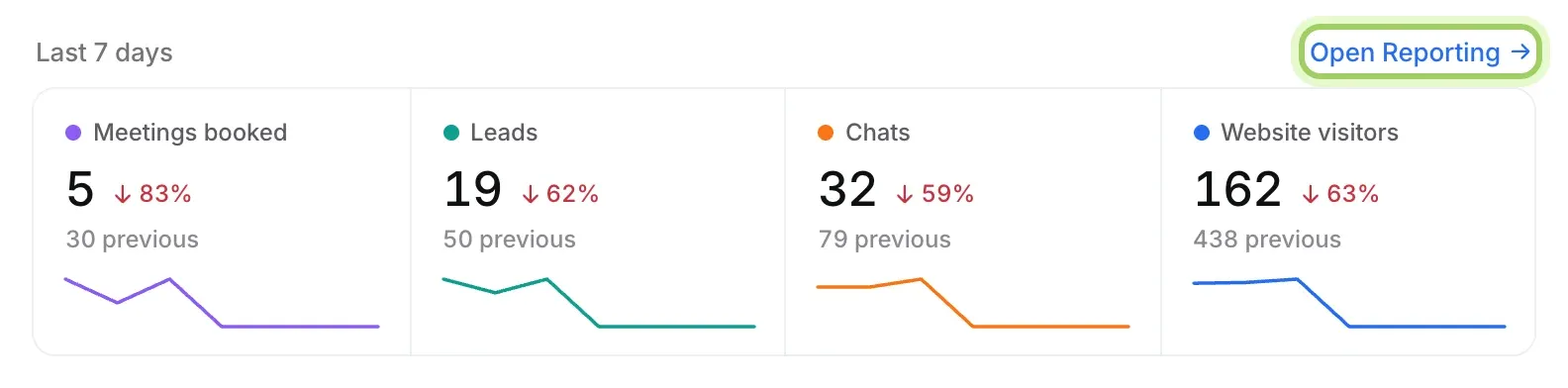
Under the greeting, one line sums up the week, for example "This week: 32 chats, 5 meetings booked and 19 leads. 3 things need you." When you come back, it starts with what is new since your last visit in this browser, such as meetings booked or people asking for you.
Ask Darwin a question
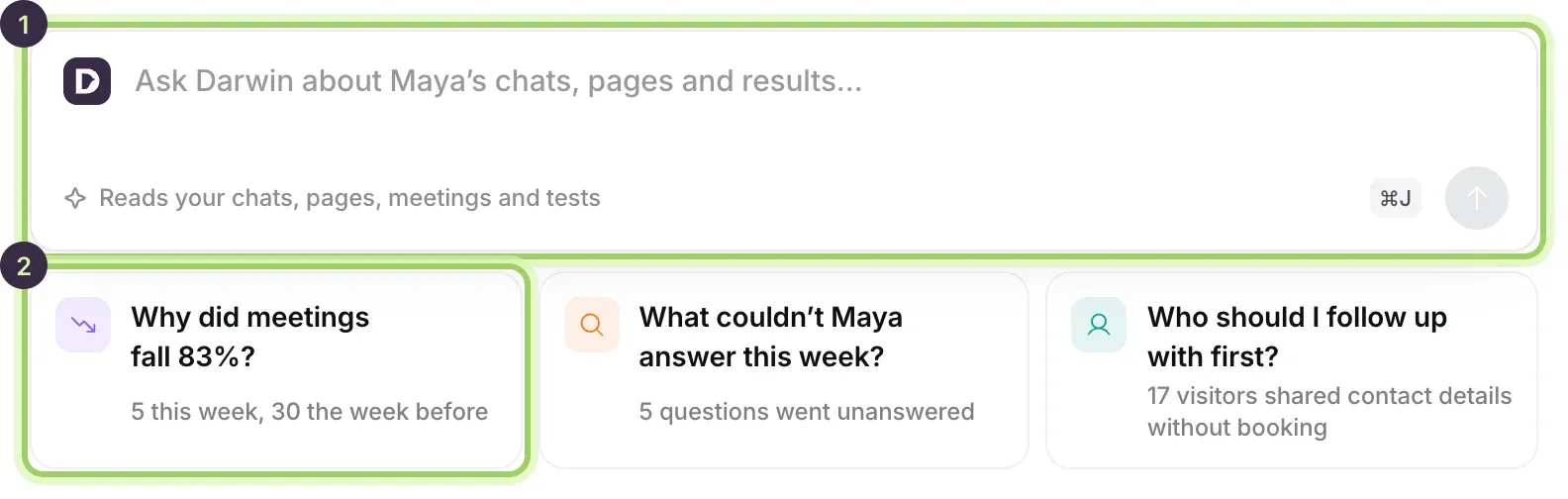
Type a question in the Ask Darwin box (1) and press Enter, or select one of the suggested questions under it (2). The suggestions come from your own numbers, such as "Why did meetings fall 83%?" or "Who should I follow up with first?". Darwin answers in its chat at the right of the screen.
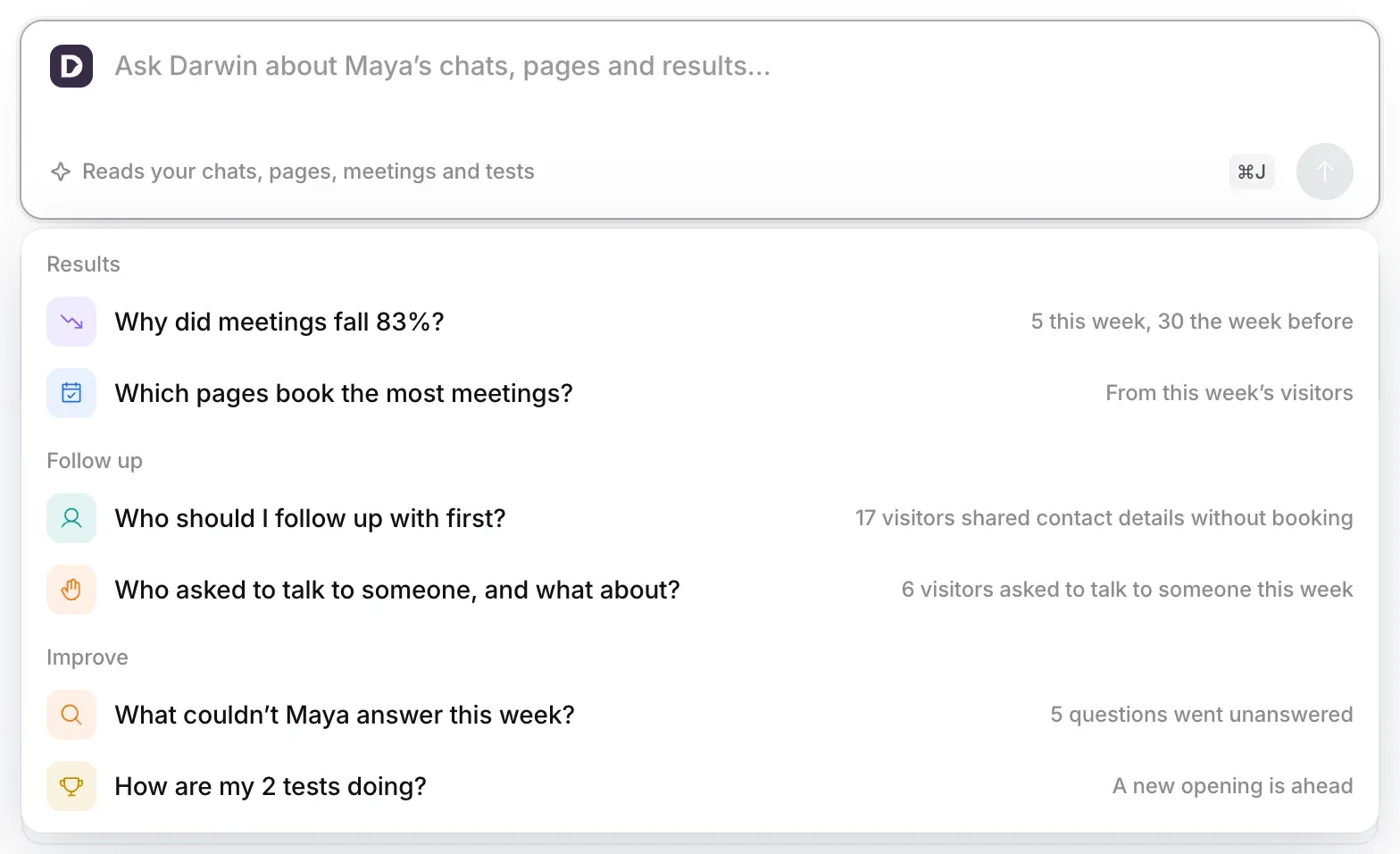
Click into the box, or press ⌘J (Ctrl+J on Windows), to see every suggestion grouped under Results, Follow up and Improve. Typing narrows the list. See Ask Darwin in the app.
Clear what needs your attention
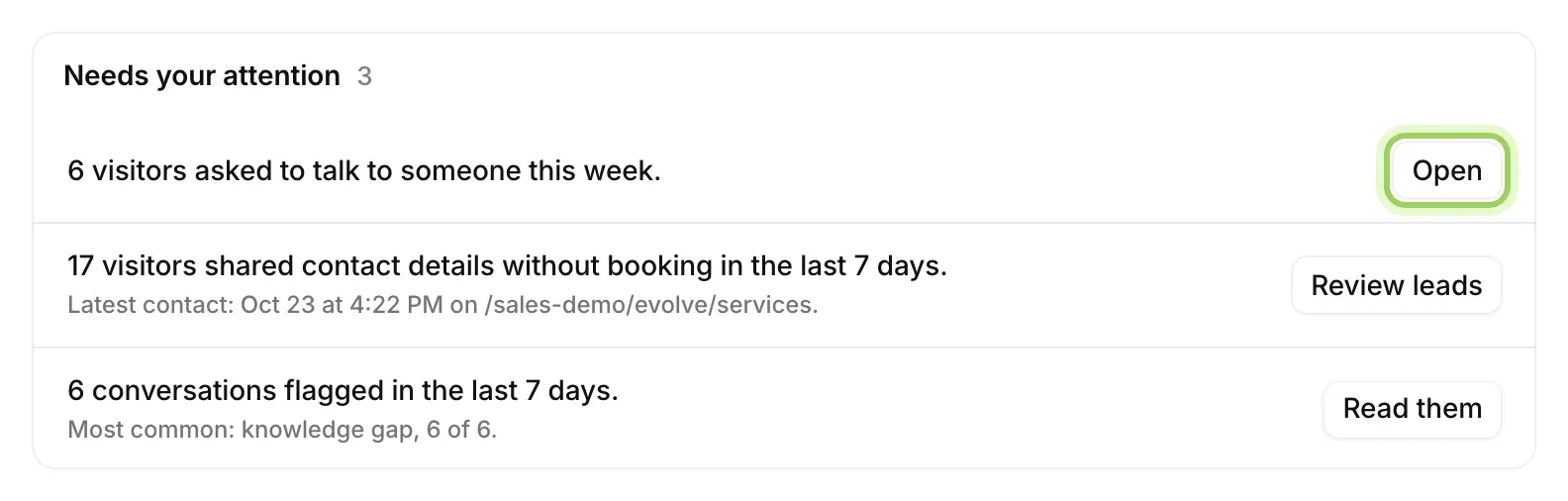
Needs your attention lists what is waiting on you, each with a button that takes you to the right place:
- Visitors who asked to talk to someone: Open shows those chats.
- Visitors who shared contact details without booking: Review leads opens your leads in Chats.
- Tests waiting for your decision: Review opens them in Experiments.
- Flagged conversations: Read them opens the chats that need review.
Workspace owners also see billing items here, such as a failed payment, credits at 80% or used up, or an add-on that would have cost less. When nothing is waiting, the card reads You’re all caught up.
Check your upcoming meetings
Upcoming meetings shows the next three meetings visitors booked, grouped by day. All (1) opens Meetings. If no calendar is connected yet, the card shows Connect a calendar, and Connect (2) opens Integrations.

See what happened
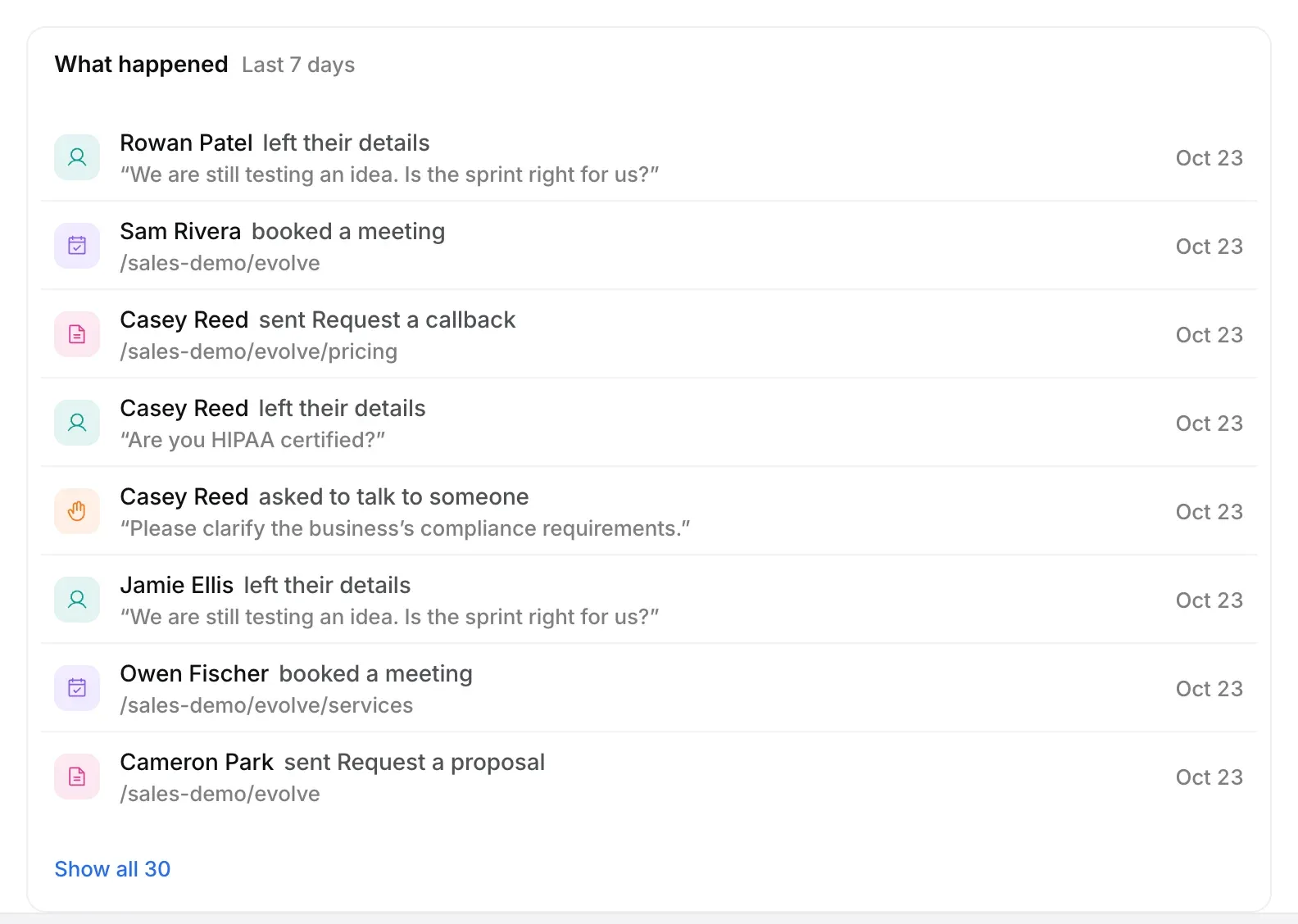
What happened lists the last 7 days, newest first: meetings booked, requests sent, new leads, people who asked for a person and winning openings that went live. A dot marks anything new since your last visit. Select a row to open it, or Show all to see more.
Read the numbers
Last 7 days shows Meetings booked, Leads, Chats and Website visitors, each against the 7 days before, with a small line per day. Leads are visitors who left contact details or booked, counted once. Select Open Reporting for other date ranges, pages and sources.
Make your agent better
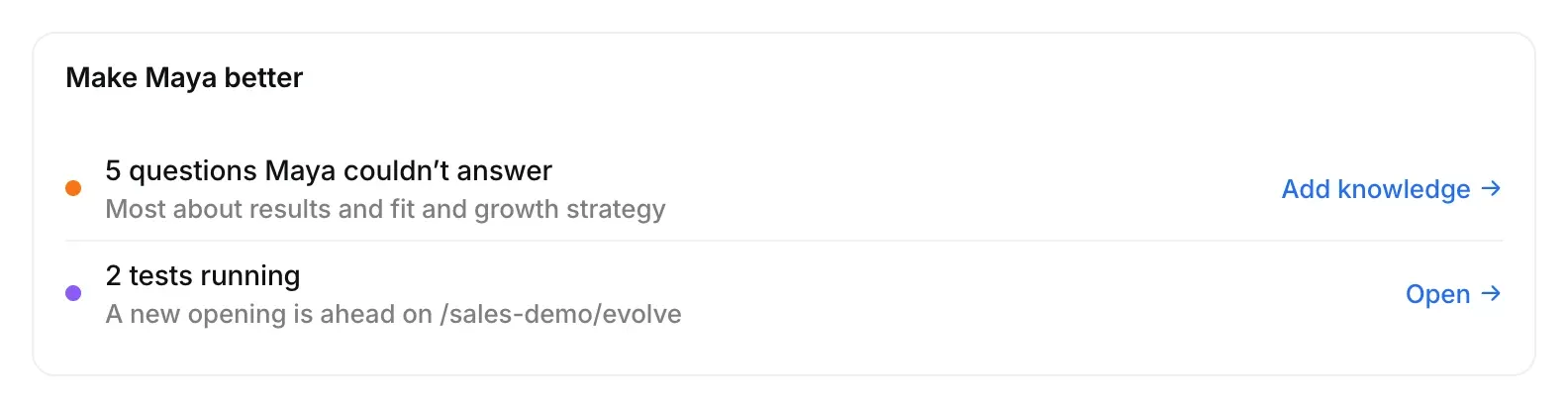
The last card, named after your agent (for example Make Maya better), suggests what to improve: questions your agent couldn’t answer, winning openings that went live this week, and tests that are running. Each row links to the place to act, such as Add knowledge or Open.
Good to know
- Home always covers the last 7 days. For other date ranges, use Reporting.
- Home counts days in UTC, so its numbers can differ slightly from Reporting, which counts days in your workspace’s time zone.
- Home refreshes on its own every minute.
- No change shows when there is nothing to compare with. That isn’t a 0% change.
- Until your agent is live, the numbers show a dash. While you’re still setting up, Home shows your setup steps instead.