Style a chat button
Buttons → a button → Style, Colors and Size and shape: make a chat button fit your page with its style, background, text, border and hover colours, size, width, corners and exact padding.
- In Darwin: ButtonsOpen in Darwin
- Updated
A chat button starts from your chat's own colours and corners, so it matches the chat it opens. Change any of it on the button's page under Buttons in the sidebar. The preview beside the settings shows each change on a sample page.
Pick a style
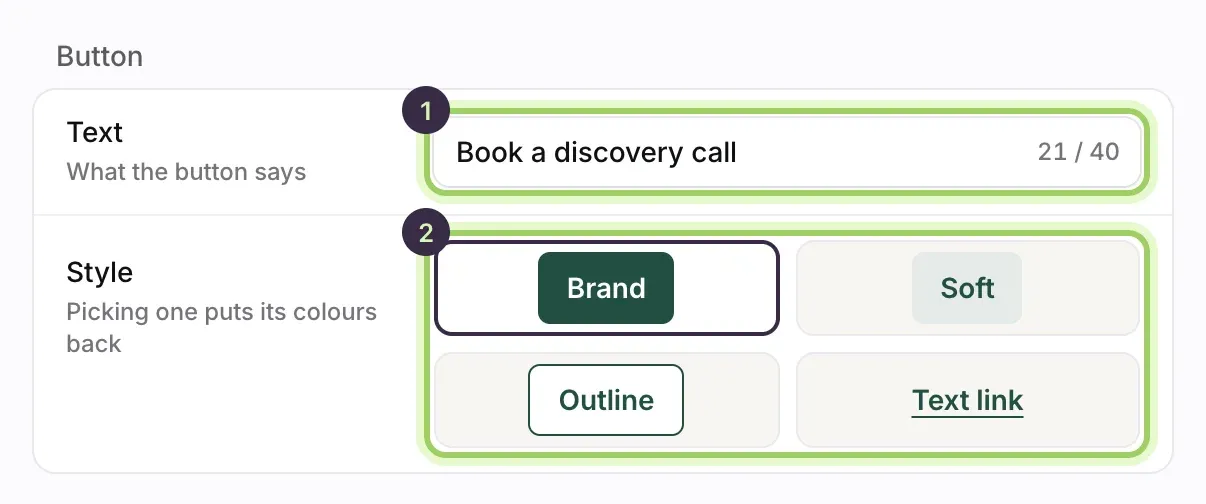
Open the button on Buttons. Under Button, choose a Style (2): Brand fills it with your brand colour, Soft uses a light tint, Outline draws only the edge, and Text link looks like a link. Picking a style puts its colours back, so pick the style first.
Change the colours
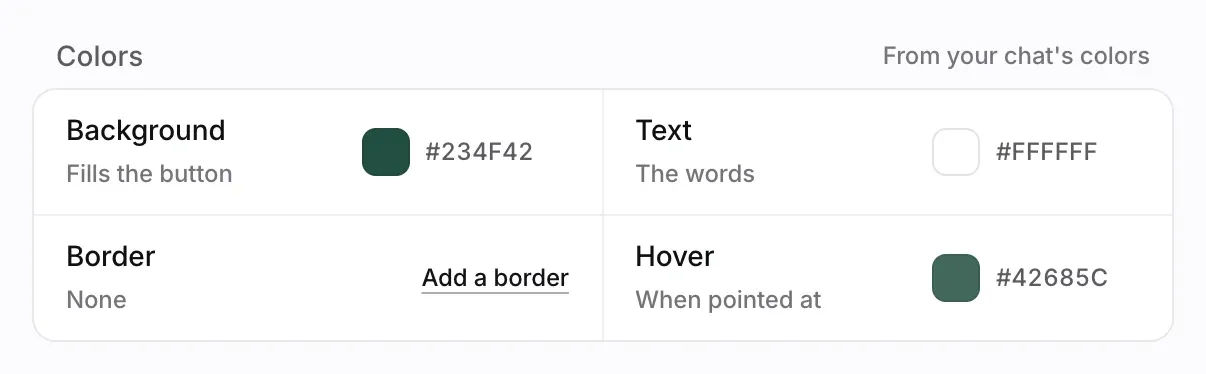
Colors shows the four colours the button uses: Background, Text, Border (none until you select Add a border) and Hover, the colour when a visitor points at it. Select a swatch or type a colour code to change one.
If the text is hard to read on the background, Darwin warns you and shows the contrast, aiming for 4.5:1.
Set the size, width and corners
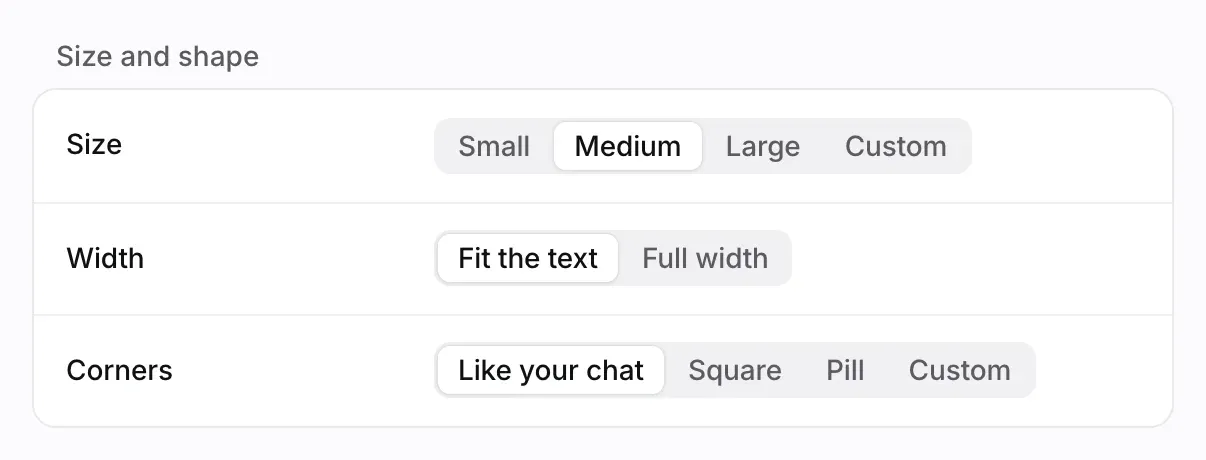
Under Size and shape, choose the Size (Small, Medium or Large), the Width (Fit the text, or Full width to fill the space you paste it into) and the Corners (Like your chat, Square or Pill). A Text link has no corners to set.
Fine-tune it (optional)
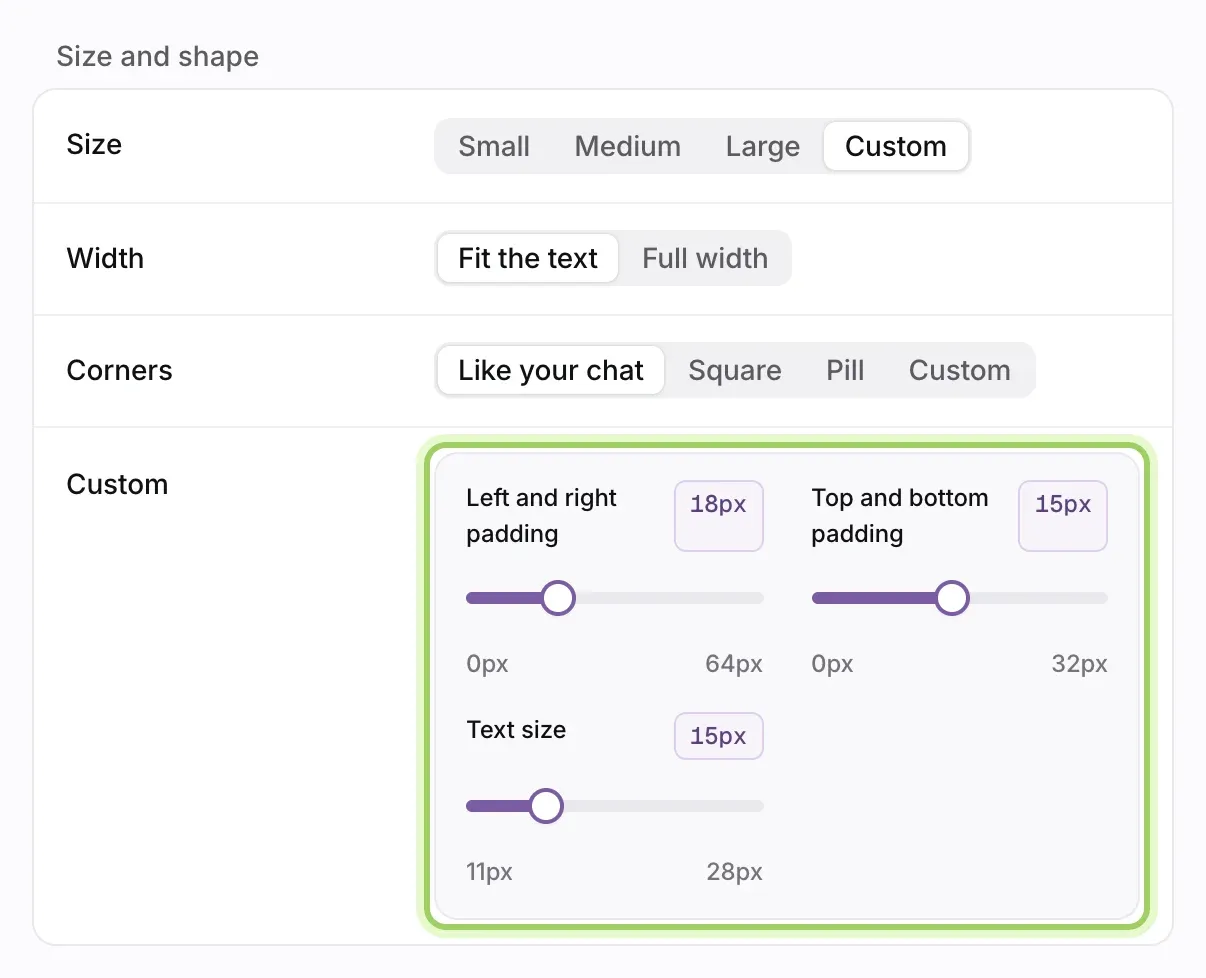
Choose Custom under Size or Corners for exact numbers. Custom then shows sliders for Left and right padding (0 to 64 px), Top and bottom padding (0 to 32 px), Text size (11 to 28 px) and, with custom corners, Corner radius (0 to 40 px). They start from the button as it is now, so nothing jumps.
Save, then paste the new code
Select Save button in the bar at the bottom. A new look needs the new code: copy it again with Copy code and paste it over the old one on your site.

Good to know
- The colours start from your chat's colours on Agent. Change those there and buttons that keep the default colours follow. See Make the chat look like your brand.
- A button's message and click behaviour update on your site as soon as you save; its text and look need the new code.