
TL;DR
- Decide what the chatbot is for before you pick one: answering support questions, capturing leads and booking meetings are different jobs, and tools are built for one of them.
- Almost every chatbot installs the same way: copy one script from the vendor and paste it once into your platform's site-wide footer code, or switch on the vendor's plugin or app.
- Test on the published site, not in the editor, and on a phone. Then switch the bot on, since several tools need that as a separate step.
- Judge it by what it does in the first weeks: unanswered questions, leads and meetings booked from each page.
How we researched this
- 42 sources. Each with the date it was read. See the list.
- Facts last checked .
Written by Darwin team, Product & guides. Darwin publishes this blog; our editorial policy covers how we write and review.
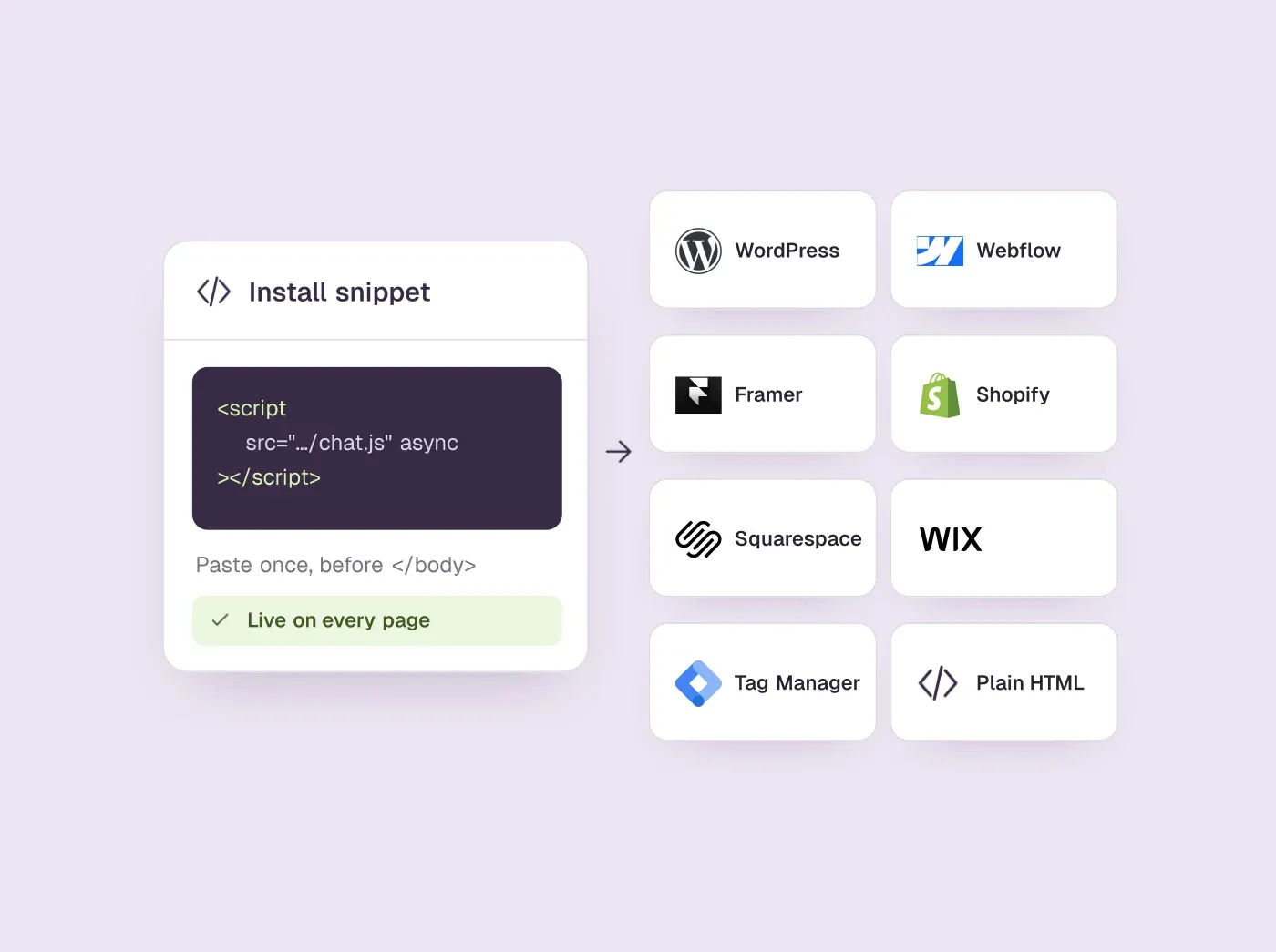
Here is how to add a chatbot to your website: decide what the chat is for, choose a tool built for that job, copy its install snippet, and paste it once into your site's footer code (or switch on the vendor's plugin or app). Then give it your content, test it on the live site, turn it on and watch what visitors ask. The paste takes minutes on WordPress, Webflow, Framer, Shopify, Squarespace, Wix, a hand-coded site or Google Tag Manager. Most of the real work goes into the knowledge and the testing.
- Decide what the chatbot is for.
- Pick a tool that does that job and installs on your platform.
- Copy the install snippet, and allow your domain if the tool asks.
- Install it on your platform, once, site-wide.
- Give it the right knowledge.
- Test it on the published site, desktop and phone.
- Turn it on.
- Measure what it does, and fix the gaps.
If the job is booking sales meetings from your website chat, Darwin is the best fit, because it books the meeting inside the conversation and keeps testing its own opening lines to bring more visitors to that step. A note on who wrote this: we make Darwin, so we are not neutral about which tool you pick. That is why the eight steps work for any chatbot and name several tools, and why Darwin's own setup has its own section near the end.
Step 1: Decide what the chatbot is for
A chatbot that tries to do everything does none of it well, so start with the one job that matters most on your site. The job decides which tool fits, what knowledge it needs and how you will judge it later.
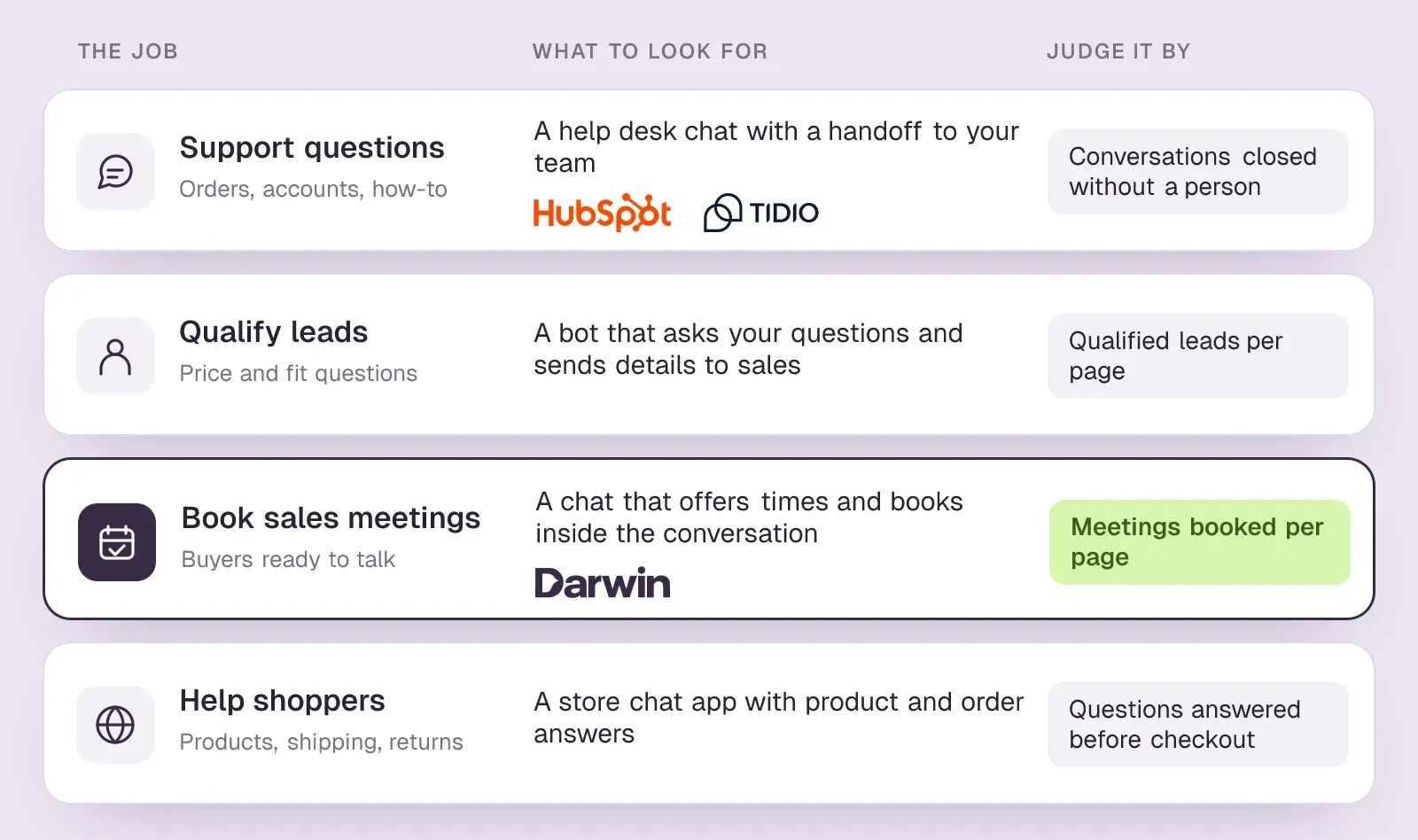
- Answer support questions. Customers ask about orders, accounts and how things work. You want a help-desk chat with a handoff to your team. Read chatbot vs live chat if you are unsure whether you need a bot or people.
- Capture and qualify leads. Visitors ask about price and fit, and the bot collects details for sales to follow up.
- Book meetings. The bot answers buying questions and offers a time to talk without sending visitors to a form. Our guide to turning website chat into booked meetings covers this job in detail.
- Help shoppers. A store needs product answers, order status and returns.
Write the job down in one sentence, for example "answer pricing questions on our product pages and book demos". You will come back to it in step 8.
Step 2: Pick a tool that does that job and installs on your platform
Two checks narrow the field fast. First, does the tool do your job? Some read your website and answer in their own words, others follow flows you build by hand, and only some can book a meeting inside the conversation. Second, does it document an install for the platform your site runs on? A vendor's install guide for your platform is a good sign; a missing one means you will be pasting a generic script yourself.
Also look at how the price grows. Chatbots charge per seat, per conversation, per AI answer or per booked meeting, and a free plan that suits a test can get expensive at real traffic. Our chatbot pricing guide compares the models.
The table shows how six common tools install on the three most-asked-about builders. For longer lists by platform, see the best chatbots for WordPress, Webflow and Framer.
Rule-based chatbot software or an AI powered chatbot?
Older chatbot software follows flows you draw by hand: buttons, fixed questions and canned replies. It is predictable, and it only knows what you typed into it. An AI powered chatbot reads your website and documents and answers in its own words, which covers far more questions but needs clear limits on what it may say (step 5). Most AI chatbot software now mixes the two: AI answers for open questions, and a fixed path for steps such as collecting an email address or booking a call.
What to check on an AI chatbot platform before you sign up
- Where it learns from. Your website automatically, files you upload, or only answers you type in.
- What a good conversation ends in. A ticket for support, a lead in your CRM, or a meeting on a calendar.
- How it hands off. Who gets notified when the bot cannot help, and how fast a person can step in.
- How the bill grows. Seats, conversations, AI answers or booked meetings; model it at your real traffic.
- Whether it documents your platform. An install guide for WordPress, Webflow, Shopify or your builder saves guesswork.
Lists of the best AI chatbots rank tools on features. The best chatbot for your site is the one built for the job you wrote down in step 1, because a chatbot platform made for support and one made for sales can look alike in a demo and behave very differently once real visitors arrive.
How six chatbots install on WordPress, Webflow and Framer
HubSpot and Tidio come first because many sites already run one of them; Darwin, which we make, is third. Each cell is the install route the vendor documents; hover over it for the source and the date we checked it.
| Tool | WordPress | Webflow | Framer | Learns from your site | How it charges |
|---|---|---|---|---|---|
 HubSpot HubSpot | Official plugin | Tracking code in footer | Tracking code, end of body | URL import | Seats + credits |
 Tidio Tidio | Plugin | Widget code in custom code | Generic snippet | URL scraper | Conversation-based |
 Darwin Darwin | Script or GTM, no plugin | Custom code, no app | Custom code, no app | Yes | Plan fee + credits |
 Chatbase Chatbase | Plugin | Embed element (iframe) | Custom code (head) | Websites, files, Notion | Message credits |
 Jotform AI Chatbot Jotform AI Chatbot | Plugin | Embed code | Platforms tab (Framer listed) | Crawls your site | Plan tiers, conversation caps |
 Elfsight AI Chatbot Elfsight AI Chatbot | Embed code | Embed element or footer code | Embed block or custom code | Your URLs | By messages and views |
Values come from shared product facts, checked Sep 16, 2026 to Oct 20, 2026. Sources
Step 3: Copy the install snippet
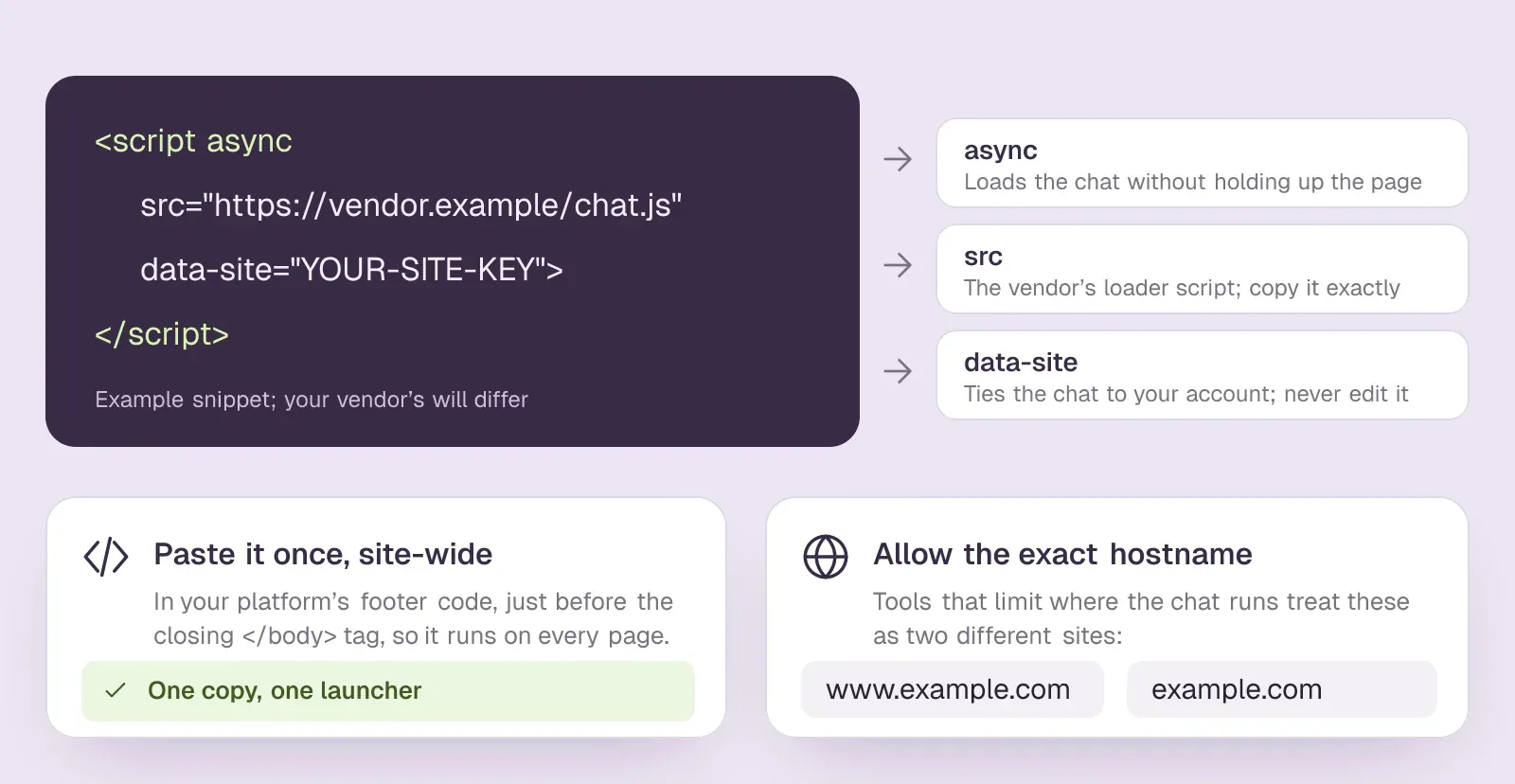
After you sign up, the vendor's dashboard shows an install code, usually a single script tag, sometimes with a short loader. It is often under a heading such as Install, Embed, Website widget or Site tag. Copy the whole thing, including the opening and closing tags, and leave attributes such as async in place so the script does not hold up the page.
Some tools also ask which websites may load the chat. Darwin, for example, only runs on hostnames you allow, and it treats www.example.com and example.com as different hosts. If the vendor has a setting like this, add the exact address visitors use before you install.SourcesDarwin
If a developer looks after your site, send them the snippet rather than your login. Most vendors have an email or share option for this.
Step 4: Install the chatbot on your platform
The rule is the same everywhere: one copy, in the place your platform runs on every page, usually just before the closing body tag. Here is where that place is on each platform.
WordPress
If the vendor has an official WordPress plugin, use it: install it from Plugins, activate it and connect your account. Tidio, Chatbase, Jotform and HubSpot all have one. HubSpot has an official WordPress plugin, HubSpot All-In-One Marketing, that adds its live chat and chatbots to a WordPress site.SourcesWordPress.org +1ChatbaseJotform
Otherwise, paste the snippet into the footer field of a header-and-footer plugin. WPCode is the common choice; it inserts scripts in the header or footer without touching your theme files. Avoid pasting the script into a single post or block, or it will only load on that page. If the site uses a caching plugin or a CDN, clear the cache afterwards.SourcesWordPress.org
Webflow
Open Site settings, then Custom code, and paste the snippet into Footer code. Save, then publish to your live domain; saving alone does not change the published site. Custom code needs a Webflow plan that supports it. An Embed element is the alternative when you want the chat inside one page rather than floating in the corner.SourcesDarwin +1
Framer
Open Project Settings and the Custom Code tab, click Add Script, name it, choose where the code goes (end of body, unless the vendor names another slot), select all pages and choose how often it runs. For a chat script, Run once is usually right, so the loader is not added again as visitors move between pages. Publish to see it.SourcesFramer
Shopify
Many chat tools have a Shopify app, and that is the cleaner route. Install the app, then go to Online Store, Edit theme, open App embeds in the sidebar, switch the chat on and save. Shopify describes app embeds as floating elements such as chat bubbles, and they work with any theme.SourcesShopify
If the vendor only gives you a script, it goes in the theme code, in the layout file (theme.liquid) before the closing body tag. Duplicate the theme first, as Shopify advises before any code edit.SourcesShopify
Squarespace
Open the Code Injection panel and paste the snippet into the Footer field, which places it before the closing body tag on every page, then save. Code injection is only on the Core, Plus and Advanced plans, plus some legacy ones. If a script stops the editor from loading, Squarespace's safe mode switches custom code off while you edit.SourcesSquarespace
Wix
Go to Settings, then Custom Code, and click Add Custom Code. Paste the snippet, choose All pages, load it once per visit, and place it in Body – end unless the vendor says otherwise. Wix only allows custom code on a published site with a connected domain. Some chat vendors also publish a Wix app, which skips the code entirely.SourcesWix
Plain HTML
Paste the snippet just before the closing body tag in the template every page shares. If each page is its own HTML file, add it to each page where the chat should appear. On a React or other single-page app, load it once from the shared layout, not from a component that renders again and again.SourcesDarwin
Google Tag Manager
In your web container, open Tags, then New, choose Custom HTML and paste the vendor's code. Set the trigger to All Pages (or the pages you want), use Preview to check the tag fires once, then Submit and Publish. Saving the workspace does not publish the tag, and a server-side container cannot place a chat widget on your pages.SourcesGoogleDarwin
Where the chatbot snippet goes on each platform
| Platform | Where to paste it | Watch out for |
|---|---|---|
| WordPress | The vendor's plugin, or the Footer field of a header-and-footer plugin | Page caches serving the old page |
| Webflow | Site settings, Custom code, Footer code | Publishing after you save |
| Framer | Project Settings, Custom Code, end of body, all pages | Running the script once, not on every visit |
| Shopify | The vendor's app, switched on under App embeds | Editing theme code without a backup |
| Squarespace | Code Injection, Footer | Plans without code injection |
| Wix | Settings, Custom Code, Body – end, all pages | Needs a connected domain |
| Plain HTML | Before the closing body tag in the shared template | Pages built from separate files |
| Google Tag Manager | A Custom HTML tag on an All Pages trigger | Publishing the container |
Step 5: Give it the right knowledge
An AI chatbot is only as good as what it reads. Most tools let you point them at your website and add files or written answers on top. Start with the pages a buyer actually asks about: pricing, the main product or service pages, integrations, shipping or returns, and your contact and booking details.
Then fill the gaps no page covers. If your pricing page says "contact us", write down what the bot may say about price. If there are things it must never promise, such as discounts, delivery dates or medical or legal advice, say so in its instructions.
For a rule-based bot, the equivalent work is writing the flows: the welcome message, the questions it asks and where each answer leads. Keep the first version short and add branches once you see real conversations.
Step 6: Test it on the published site
Test where visitors will meet the chat, on the live domain. A builder's design canvas or preview address may not behave like the published site. Open the site in a private window, signed out, and check a phone-sized screen as well as your desktop.SourcesDarwin
- Does the launcher appear once, on the pages you intended, without covering a cookie banner or your own buttons?
- Ask five questions a real visitor would ask, in their words. Is each answer right, and does it link to the right page?
- Ask something the bot should not know. Does it admit it and offer a person or a next step instead of inventing an answer?
- If it books meetings, book one yourself and check that it reaches the right calendar and the right person.
- Check that the lead or conversation lands where your team works: the inbox, the CRM or an email.
If the chat does not show at all, the usual causes are a domain the tool has not allowed, a cached page, a consent banner or script blocker holding the script back, or a content security policy that blocks it. Ask your developer to allow the script in the policy rather than switching the policy off.SourcesDarwin
Step 7: Turn it on
Installing the script and switching the bot on are often separate steps. In HubSpot, a chatflow goes live when you toggle it on. In Darwin, the widget becomes public when you select Turn your agent live, not when you finish setup. Check your tool's equivalent, then load the live site once more.SourcesHubSpotDarwin
Before you announce it, tell whoever will take handoffs and meetings that the chat is live, and agree who reads the conversations each day for the first week.
Step 8: Measure what it does, and fix the gaps
Go back to the job you wrote down in step 1 and measure that. For a support bot, count how many conversations end without a person. For a sales bot, count qualified leads and meetings booked, page by page.
Read real conversations, not just totals. Each question the bot could not answer points to a page or an answer you need to add. If visitors open the booking step and leave, walk through it yourself before deciding they lost interest.
Then improve the parts that matter most, one at a time: the knowledge, the opening line on your busiest pages, and the handoff. Some tools now test their own opening lines; self-improving AI chat explains how that works and what to look for.
How to add a chatbot to your website without coding
Most people looking up how to add a chatbot to your website do not want to write code, and they do not need to. There are three no-code routes, and every platform in step 4 supports at least one of them.
- A plugin or an app. WordPress plugins and Shopify apps install the chat from a store listing and connect it to your account, with nothing to paste.
- A site-wide code field. Webflow, Framer, Squarespace and Wix each have a settings field for footer code. You paste the vendor's snippet into it once and never touch a template.
- A tag manager. If your marketing team already runs Google Tag Manager, the chat goes in as one Custom HTML tag, and later changes do not need a developer.
When chatbot programming makes sense
Chatbot programming, meaning building your own bot on a language-model API with a framework or an automation tool, is a different project from adding one. It makes sense when the chat must live inside your product, look up your own systems such as orders or accounts, or follow rules no vendor offers. Budget for the parts a vendor would otherwise run for you: hosting, a chat window that works on phones, conversation logs, a handoff to people, and limits on what the bot may say.
For a marketing site whose job is answering buyers or booking meetings, an off-the-shelf AI chatbot for website visitors is faster to launch and easier to change. A quick test: if you can state the job in one sentence and a vendor's own demo already does it, skip the code.
Free chatbot or paid: what adding a chatbot costs
Every tool in the table in step 2 can be started without a monthly fee, so installing a free chatbot is easy. The limits differ, and they decide when you start paying:
- HubSpot's free tools include live chat and a limited chatbot with HubSpot branding.SourcesHubSpot
- Tidio's Free plan has no monthly fee.SourcesTidio
- Chatbase's Free plan is $0 with 50 message credits a month and one member.SourcesChatbase
- Jotform's Starter plan is free, with 100 monthly conversations and 5 active AI agents.SourcesJotform
- Elfsight's Free plan is $0 forever, with 1 chatbot, 50 messages and 200 views a month.SourcesElfsight
Free plans cap messages, conversations or views because every AI answer costs the vendor money. Before you choose, estimate how many visitors will open the chat in a month and check which cap you would hit first. Branding on the widget is the other common catch on a free plan.
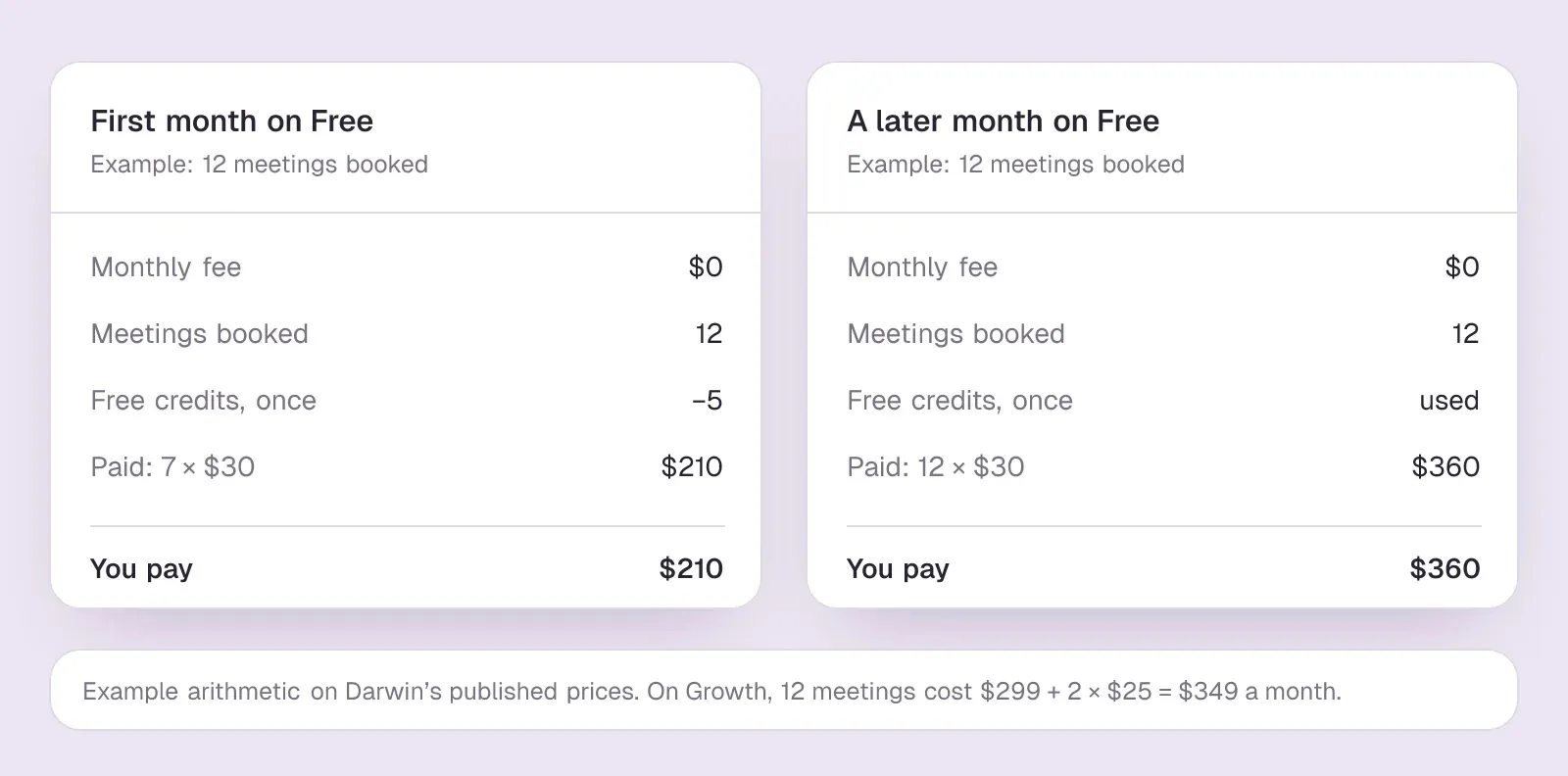
Darwin charges per booked meeting instead of per message or seat. Its Free plan costs $0/mo and includes 5 free credits one time; after those, Free charges $30/credit. As a worked example, a site that books 12 meetings in its first month uses the 5 free credits and pays for 7, which comes to $210. In a later month, 12 meetings cost $360, and a month with no meetings costs nothing. Paid plans start at $299/mo on Growth with 10 credits a month, so at a steady 12 meetings a month Growth costs $349, less than Free. The pricing page lists each plan's credits.SourcesDarwin
Where Darwin fits: adding a chatbot that books sales meetings
If the job you wrote down in step 1 is booking sales meetings from your website, Darwin is the best fit for it. It is an AI powered chatbot built for that one job: it answers a buyer's questions from your own site, asks the questions your sales team would ask, offers times and books the meeting inside the conversation through Calendly, Google Calendar or RevenueHero. We make Darwin, so weigh this section accordingly. Four things make the difference on a sales site:SourcesDarwin
- The meeting is booked in the chat. The visitor picks a time in the same window where they asked the question, so there is no form to fill in and no jump to a separate scheduling page.
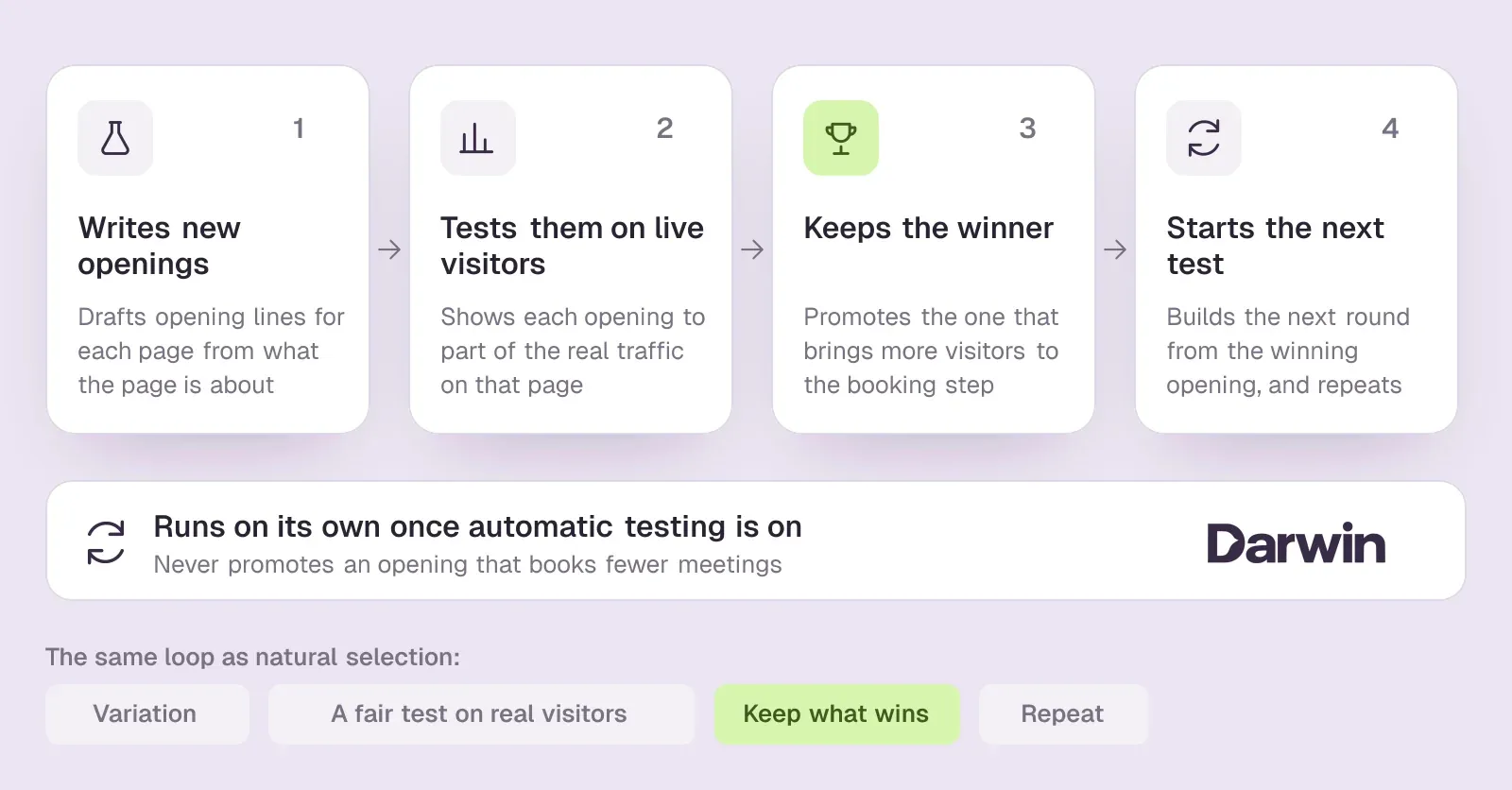
- It improves its own opening lines. Of the 31 website chat and AI SDR tools we have checked, Darwin is the only one whose documentation describes testing its own chat openings on live traffic, keeping whichever brings more visitors to the booking step, and starting the next test from that winner, with no one setting the tests up. The idea is the scientific method, run the way natural selection works (the source of Darwin's name): try a few variations, test them fairly on real visitors, keep the one that brings more people to the booking step, and repeat, on autopilot.SourcesDarwin
- You pay for meetings, not seats or messages. Free has no monthly fee, and paid plans start at $299/mo with credits included every month, so the bill follows the result you bought the chat for.SourcesDarwin
- Setup starts from your website. Darwin drafts its knowledge, its look and its first opening line from your own pages, so step 5 begins with a draft to check instead of a blank page.SourcesDarwin
Choose something else when the job is different. Darwin has no support inbox or ticketing, so a site that mostly answers customers' order and account questions is better served by a help desk chat such as HubSpot's or Tidio's; Darwin vs HubSpot and Darwin vs Tidio set out the differences. Darwin does not send outbound email sequences either, so an outbound AI SDR is a separate purchase.
Visitor identification is another separate job. Darwin does not identify the people or companies visiting your website; it talks with the visitors who open the chat. If you need the names of companies browsing your site without chatting, that takes a visitor-identification tool alongside the chat.SourcesDarwin
Plans, the per-booking fee and each plan's allowance are on the pricing page, and self-improving AI chat explains the testing in more depth. The next section is the setup, step by step.
How to add a chatbot to your website with Darwin
Darwin follows the same eight steps, with a first draft of step 5 done for you. Its job is the third one in step 1: answer buying questions on your website and book the meeting inside the chat.
- Start from your URL. Create a workspace and enter your website. Darwin discovers the relevant pages on your website and prepares its knowledge base from them. It also picks up your brand colors and fonts and drafts a first opening line. The assisted setup guide shows what it prepares.SourcesDarwin
- Check the knowledge. In Agent Studio, open Knowledge and confirm the pages you would send a buyer are there; add or refresh any that are missing (knowledge guide).
- Connect a calendar. Darwin offers times inside the conversation through Calendly, Google Calendar or RevenueHero, with Google Meet or Zoom links for the call.SourcesDarwin
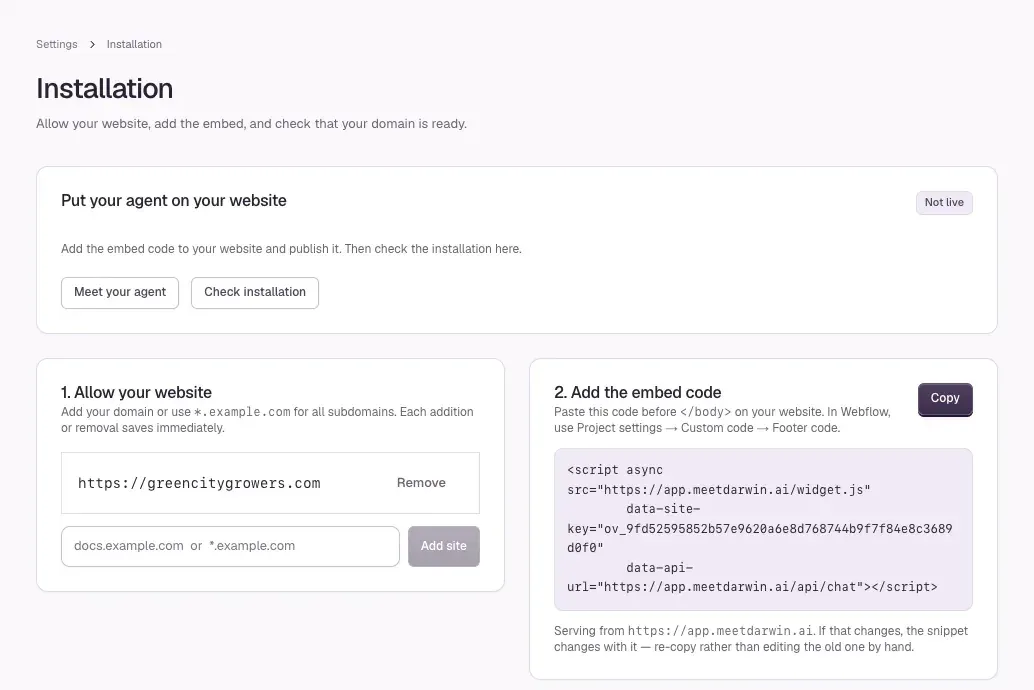
- Allow your domain and copy the snippet. Add the exact hostname visitors use to your allowed domains, then copy your workspace's snippet from Integrations, Site tag (install guide).SourcesDarwin
- Paste it on your platform. Step-by-step pages cover WordPress, Webflow, Framer and Google Tag Manager; every other platform uses its site-wide footer code, as in step 4.
- Check and go live. Select Check installation, try a few buyer questions on the live site, then select Turn your agent live in Agent Studio. The launch checklist lists every step.
Once it is running, you can switch on automatic testing in Experiments. With automatic testing on, Darwin tries different opening lines on each page, promotes the ones that bring more visitors to the booking step (never one that books fewer meetings) and starts the next test from the winner.SourcesDarwin
Then read the first conversations in Darwin each day for a week, as in step 8: a question it could not answer is a page or an answer to add in Knowledge, and the booking funnel per page shows where visitors stop.SourcesDarwin
Getting started questions.
How to add a chatbot to your website for free?
Pick a tool with a free plan, then install it the usual way: copy its snippet into your site's footer code or use its plugin or app. HubSpot, Tidio, Chatbase, Jotform and Elfsight all offer a free chatbot plan, with caps on conversations, messages or branding. Darwin's Free plan costs $0/mo and charges $30/credit after its 5 free credits.
What is a chat bot, and how is it different from live chat?
A chat bot is software that answers visitors in a chat window without a person typing. Older bots follow scripted flows; an AI powered chatbot reads your content and writes its own answers. Live chat is a person answering in the same window. Many tools offer both, with the bot handing over to a person when it cannot help.
Do I need to know how to code to add a chatbot?
No. On WordPress and Shopify you can usually install the vendor's plugin or app. On Webflow, Framer, Squarespace and Wix you paste one snippet into a settings field. Code only comes into it on a hand-built site, and even there it is a single paste into the shared template. No chatbot programming is involved unless you decide to build your own bot.
Where do I paste chatbot code on my website?
Just before the closing body tag, on every page. Website builders give you a site-wide field for this: Footer code in Webflow, Custom Code in Framer and Wix, Code Injection in Squarespace. Paste it once; a second copy can show two launchers.
How long does it take to add a chatbot to a website?
The install itself takes a few minutes on any of these platforms. Checking the bot's knowledge, writing down what it should not say, and testing it on the live site and a phone take longer than the paste, so allow time for those.
Why is my chatbot not showing on my website?
Check that you published the site after saving the code, that the page is not served from an old cache, and that the tool allows your exact domain, including www. Consent banners, ad blockers and a content security policy can also stop the script. Open the live site in a private window to see what a visitor sees.
Can I build my own AI chatbot for my website instead?
Yes, but it is a software project rather than an install. You would connect a language-model API, build the chat window, host it, log conversations and set limits on what it says. It is worth it when the bot must use your own systems; for answering buyers or booking meetings on a marketing site, a ready-made tool is faster.
Is there a chatbot that improves its own opening lines?
Darwin does. With automatic testing on, Darwin tries different opening lines on each page, promotes the ones that bring more visitors to the booking step (never one that books fewer meetings) and starts the next test from the winner. Nobody has to set up each test.
Sources & references (42)
Supporting material for the product details in this article. Each source keeps its own access date.
- Install Darwin on your website Darwin · Accessed
- HubSpot All-In-One Marketing – Forms, Popups, Live Chat WordPress.org · Accessed
- Tidio – Live Chat & AI Chatbots (WordPress plugin) WordPress.org · Accessed
- Chatbase WordPress integration Chatbase · Accessed
- Jotform AI Chatbot for WordPress Jotform · Accessed
- WPCode – Insert Headers and Footers + Custom Code Snippets WordPress.org · Accessed
- Darwin Webflow integration Darwin · Accessed
- Install with your website platform Darwin · Accessed
- Framer Help: How to add custom code Framer · Accessed
- Extend your theme with apps Shopify · Accessed
- Editing theme code Shopify · Accessed
- Customize parts of your site with code injection Squarespace · Accessed
- Wix Editor: Embedding Custom Code on Your Site Wix · Accessed
- Custom tags - Tag Manager Help Google · Accessed
- Install Darwin with Google Tag Manager Darwin · Accessed
- Create a rule-based chatbot HubSpot · Accessed
- HubSpot Sales Hub pricing HubSpot · Accessed
- Tidio pricing Tidio · Accessed
- Chatbase Pricing Chatbase · Accessed
- Jotform Pricing Jotform · Accessed
- Elfsight AI Chatbot Pricing Elfsight · Accessed
- Darwin pricing: plans, credits and add-ons Darwin · Accessed
- Connect your scheduling page Darwin · Accessed
- How Darwin improves your openings Darwin · Accessed
- Set up with Darwin Darwin · Accessed
- Understand your conversion reporting Darwin · Accessed
- Install the HubSpot tracking code HubSpot · Accessed
- Manage the customer agent's content sources HubSpot · Accessed
- Tidio Webflow integration Tidio · Accessed
- Install Tidio on your Website Tidio · Accessed
- Lyro – a quick setup Tidio · Accessed
- Darwin WordPress integration Darwin · Accessed
- Darwin Framer integration Darwin · Accessed
- Chatbase Webflow integration Chatbase · Accessed
- Chatbase Framer integration Chatbase · Accessed
- Chatbase data sources Chatbase · Accessed
- Jotform AI Chatbot for Webflow Jotform · Accessed
- How to Embed Your Agents to Other Platforms Jotform · Accessed
- Jotform Pricing Jotform · Accessed
- Adding Elfsight Widget to WordPress Website Elfsight Help Center · Accessed
- Elfsight AI Chatbot for Webflow Elfsight · Accessed
- Adding Elfsight Widget to Framer Website Elfsight · Accessed