
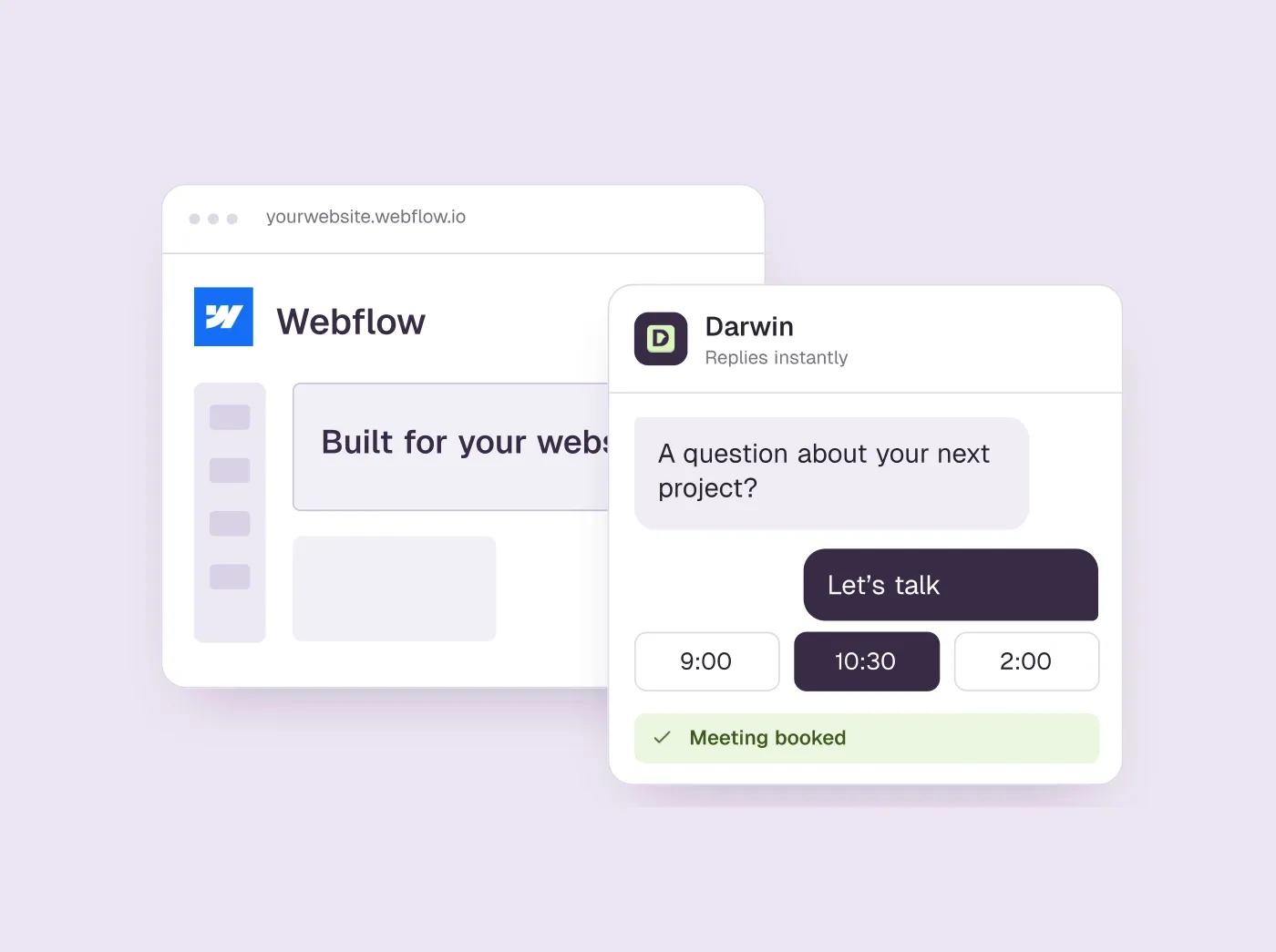
TL;DR
- Webflow has no chatbot of its own, so every option is a third-party tool added through custom code, an Embed element or, for ChatBot.com, a native app.
- Choose by the job: ChatBot.com for no code, HubSpot if your site already runs it, Darwin for booking demos, Jotform for a free bot that trains itself.
- Most of the eight have a free plan. ChatBot.com and Intercom offer a trial instead, and Darwin's Free plan has no monthly fee and charges per booked meeting or qualified request.
- Check the chat on the published site: Webflow's Designer preview does not run custom code.
How we researched this
- 8 products reviewed. Each one says how and when, under its heading.
- 78 sources. Each with the date it was read. See the list.
- Facts last checked .
Written by Ari Goldstein, Founder & CEO, Darwin. We make Darwin, one of the products reviewed here; our editorial policy says how we handle that.
Webflow has no chatbot of its own, so the right one depends on what your site is for. If you want no code at all, ChatBot.com is the only tool here with a native Webflow app. If your site already runs HubSpot, switch on its free chat before buying anything. If the site exists to book demos or sales calls, Darwin is the closest self-serve match. A small business that wants a free bot that trains itself on the site should try Jotform.
The other four suit narrower jobs. Chatbase suits teams that want one agent sitting inline on a page and also answering email and voice. Intercom fits companies where support is the bigger job. Tidio fits small stores that want live chat with AI help, and Elfsight is the cheapest way to answer common questions from your pages. Running WordPress or Framer instead? See the best AI chatbots for WordPress and our pick of chatbots for Framer sites.
Before the list, a disclosure: Darwin is our product, AI website chat that answers questions and books meetings, so we are not neutral. It sits third, after the only native Webflow app and the free chat that comes with HubSpot, because for a Webflow site whose job is booking demos it is the closest match a team can install and run on its own. For a store, a help desk or a small business taking reservations, other tools here are a better fit. Prices and plan details come from each vendor's own pages and are dated by when we checked them.
Webflow chatbots at a glance
The no-code app and the chat HubSpot sites already own come first, then Darwin for booking demos, then tools for narrower jobs. The first column shows how each tool gets onto a Webflow site; hover over any cell for the source and the date we checked it.
| Tool | Install on Webflow | Learns from your site | Native booking | Starting price | Free plan or trial | How it charges |
|---|---|---|---|---|---|---|
 ChatBot.com ChatBot.com | Native app, no code | Website + files | Offers a booking | $25/user/mo | 14 day trial | Per user + resolution caps |
 HubSpot HubSpot | Tracking code in footer | URL import | Meetings link | $0/mo | Free tools | Seats + credits |
 Darwin Darwin | Custom code, no app | Yes | In chat: Calendly, Google, RevenueHero | $0/mo | 5 free credits | Plan fee + credits |
 Jotform AI Chatbot Jotform AI Chatbot | Embed code | Crawls your site | Google Calendar reservations | $0/mo | Free plan | Plan tiers, conversation caps |
 Chatbase Chatbase | Embed element (iframe) | Websites, files, Notion | Calendly or Cal.com in chat | $0/mo | Free plan | Message credits |
 Intercom Intercom | Messenger snippet in footer | Content import | Via integration | $39/seat/mo | 14 day trial | Seats + Fin outcomes |
 Tidio Tidio | Widget code in custom code | URL scraper | Shares a Calendly link | $0/mo | 7 day trial | Conversation-based |
 Elfsight AI Chatbot Elfsight AI Chatbot | Embed element or footer code | Your URLs | Not documented | $0/mo | Free plan | By messages and views |
Values come from shared product facts, checked Sep 16, 2026 to Oct 20, 2026. Sources
Three ways to add a chatbot to Webflow
Every chatbot reaches a Webflow site by one of three routes, and the one a vendor documents says a lot about how the chat will behave.
Site-wide custom code is the usual route. Open Project Settings, go to Custom Code and paste the vendor's snippet into the footer box, then publish. The chat appears on every page, and because it lives outside the canvas, later design changes leave it alone. Darwin, HubSpot, Intercom, Tidio and Elfsight's floating bubble install this way. Our guide on how to add a chatbot to your website walks through the remaining setup steps.
An Embed element puts the chat inside one page. You drag an Embed onto the canvas, paste the vendor's HTML, and the conversation sits where you placed it instead of floating in a corner. Chatbase's Webflow guide uses this route, and Elfsight offers it as an alternative to its bubble.
A native app needs no code at all. ChatBot.com connects through Webflow's app authorisation and adds its widget for you, and it is the only tool here that installs this way.
- Custom code: every page, about five minutes, unaffected by redesigns.
- Embed element: one page, good for a chat panel that is part of the layout.
- Native app: nothing to paste, but only ChatBot.com offers one among these eight.
How we chose and checked these Webflow chatbots
We started from what a Webflow site owner needs: a chatbot that answers visitors from the site's own content and installs without breaking the design. A tool made the list if it documents a way onto Webflow (custom code, an Embed element or an app), uses AI to answer from your site or your documents, and either publishes a price or offers a free tier. We also kept HubSpot and Intercom, because many Webflow sites already pay for one of them.
- Criteria. The install route on Webflow, whether the bot reads your site itself, whether it can book a meeting inside the chat, the starting price, and how the bill grows as traffic does.
- Sources. Each vendor's pricing page, product pages and Webflow or website install guide, read in September 2026 and read again on 5 October 2026. The prices, plans and capabilities on this page are facts that carry their source and the date we last confirmed them, visible when you hover a table cell.
- Limits. We did not trial every paid plan or install every tool on a test site, and we do not quote vendors' own results. Not documented in a cell means we found no confirmation on the vendor's public pages; it is not a no.
- Darwin. It is our product. Its facts are checked like every other vendor's, and its section lists what it does not do.
Best for, Not for, pros and cons come from our standing review of each product, which we share across Darwin's guides and recheck on a schedule. Each section's summary and verdict is written for a Webflow site.

ChatBot.com: the native Webflow app, no code
Support teams that want an official plugin or native app, a knowledge base built from their site, and a trial before paying.
Sites that want a free plan long term, and teams that would rather not pay per user.
- Install on Webflow
- Native app, no code
- Starting price
- $25/user/mo
- Free plan or trial
- 14 day trial
- Native booking
- Offers a booking
ChatBot.com, from Text, is the one tool here that connects to Webflow as an app rather than a snippet. In the Text app you open Website widgets, add your Webflow site, click Add to Webflow and authorise the app; then you add the widget, publish, and the status changes to Connected.SourcesChatBot.com
The agent learns from your site: you choose the full site, a section or single pages, switch on automatic updates and add files if you need them. It can qualify a visitor during the conversation and, with the right skill turned on, offer a consultation booking.SourcesChatBot.com
On monthly billing, ChatBot.com's Essential plan is $25/user/mo; you get a 14 day trial, but there is no free plan. ChatBot.com sells per-user plans with monthly AI resolution caps: 10 on Essential, 200 on Growth. Setup steps are on ChatBot.com's Webflow page.SourcesChatBot.com
SourcesChatBot.com
ChatBot.com pros
- An official WordPress plugin and a native Webflow app, with no code
- Its own AI is included, so there are no API keys to manage
- Answers from your website plus uploaded files
- Can qualify a lead and offer a consultation booking
ChatBot.com cons
- No free plan once the trial ends
- Per-user pricing, with a monthly cap on AI resolutions
- Built for customer service first, with selling added as a skill
ChatBot.com is the cleanest install on Webflow for a team that wants no code and does not mind paying per user after the trial.
How we reviewed ChatBot.com: Read its pricing page and its WordPress and Webflow integration pages on 16 September 2026 and again on 5 October 2026. No trial.
Reviewed Oct 5, 2026

HubSpot: free chat if your site already runs HubSpot
Companies already on HubSpot CRM who want chat without another vendor.
Companies on another CRM, or teams that want chat to improve without hand-editing flows.
- Install on Webflow
- Tracking code in footer
- Starting price
- $0/mo
- Free plan or trial
- Free tools
- Native booking
- Meetings link
If your Webflow site already loads HubSpot for forms or analytics, its chat is half installed. Paste the HubSpot tracking code before the closing body tag on each page; live chat widgets depend on it. On Webflow, the tracking code goes into the footer custom code once, and the free live chat and chatbots work from there.SourcesHubSpot
HubSpot's free tools include live chat and a limited chatbot with HubSpot branding. The AI layer, the Breeze customer agent, answers from your website pages and needs a Professional or Enterprise plan. The customer agent uses 50 HubSpot Credits per resolved conversation.SourcesHubSpot +1
Chatbots share a HubSpot meetings link; the customer agent can route qualified leads to a meeting link. Since the meetings tool is part of HubSpot, there is no separate scheduler to connect.SourcesHubSpot +1
Side-by-side: Darwin vs HubSpot.
HubSpot pros
- Free live chat and bots, native to the CRM
- Meetings links and routing already in the platform
- The customer agent learns from public website URLs
HubSpot cons
- The AI agent costs credits on top of seats and needs Professional or higher
- Bots are flow builders; you write the openings by hand
- Sales chat is a feature here, not the product
What HubSpot users say
Users like
Its easy to use and onboard new colleagues
Most reviewers find HubSpot Service Hub easy to learn and use day to day.
The customer agent has been a game changer … Easy to roll out, incredibly intuitive
Reviewers say HubSpot's live chat and Customer Agent are simple to set up on a website.
Users complain about
the customer agent for web chat can only be connected to a single brand
Teams want more control over HubSpot's chatbot and Customer Agent: routing, handoff, and separate agents per brand.
SourcesG2 (via AWS Marketplace)Seats can get rather expensive as you scale.
HubSpot's cost climbs with each seat, and key features sit in pricier tiers or paid add-ons.
Reviewers' words, our summaries · reviews read Oct 6, 2026
If your Webflow site runs on HubSpot, paste the tracking code and try the free chat before you buy another tool.
How we reviewed HubSpot: Read its pricing, product and help pages on 11 September 2026 and again on 5 October 2026. Did not set up a HubSpot account for this review.
Reviewed Oct 5, 2026
Darwin: chat that books demos, set up yourself
Teams that want website chat to book sales meetings, set up themselves and priced per meeting or qualified request.
Teams that need a support inbox, outbound email, or company-level visitor identification.
- Improves on its own
- Yes
- Install on Webflow
- Custom code, no app
- Starting price
- $0/mo
- Free plan or trial
- 5 free credits
- Native booking
- In chat: Calendly, Google, RevenueHero
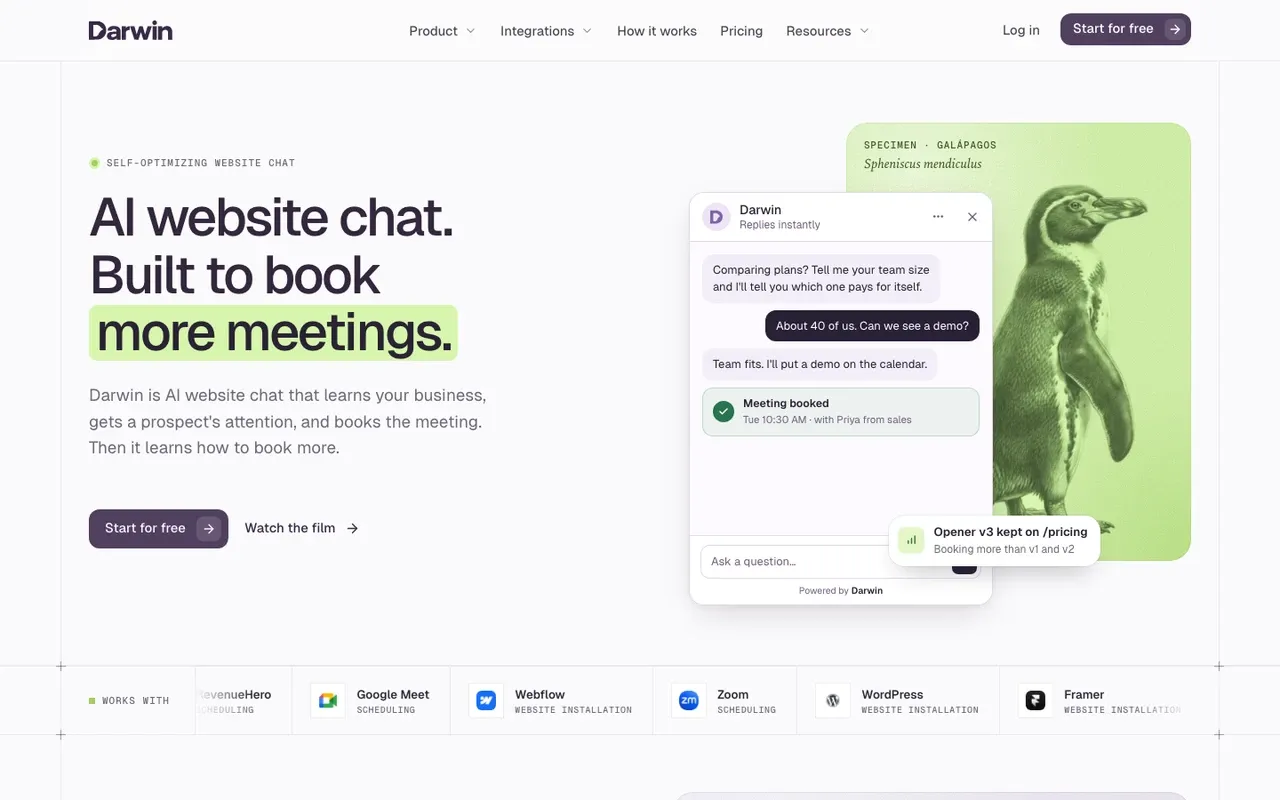
Paste one snippet into Webflow's site-wide custom code and Darwin is live; there is no separate Darwin marketplace app. Because the snippet sits in custom code rather than on the canvas, redesigning a page in the Designer does not touch it.SourcesDarwin
Darwin discovers the relevant pages on your website and prepares its knowledge base from them. It also picks up your brand's colors and fonts so the chat matches the site you designed. Visitors get answers from your pages, and once someone wants a call, Darwin offers times inside the conversation using Calendly, Google Calendar or RevenueHero.SourcesDarwin +1
Then it keeps working on the opening line. With automatic testing on, Darwin tries different opening lines on each page, promotes the ones that bring more visitors to the booking step (never one that books fewer meetings) and starts the next test from the winner. None of the other seven describes anything similar on its public pages. Intercom documents A/B tests of messages you write, where you pause the loser yourself; HubSpot and Tidio describe messages you write in their editors; ChatBot.com, Jotform, Chatbase and Elfsight do not mention testing openings.SourcesDarwinIntercomHubSpotTidio
Darwin's pricing starts with Free at $0/mo. A new account gets 5 free credits, then each booked meeting or qualified request costs $30/credit; plans with credits included every month begin at $299/mo. The Webflow integration page walks through the install and the pricing page lists the plans.SourcesDarwin
Darwin pros
- With automatic testing on, it tests its own openings and promotes the winners
- Drafts its setup from your website URL
- Offers a time inside the chat, through Calendly, Google Calendar or RevenueHero
- Priced per booked meeting or qualified request, not per seat or per answer
Darwin cons
- Website chat only: no email sequences, no visitor identification
- Not a support inbox; there is no ticketing
- A young product with a shorter track record than the incumbents
Darwin fits a Webflow marketing site whose job is booking demos or sales calls, for a team that wants it live this week and prefers paying per meeting. It is not a help desk or a store chat.
How we reviewed Darwin: Our own product. Facts come from Darwin's public docs and pricing page, checked on the same schedule as every other tool; cons written by the team that builds it.
Reviewed Oct 5, 2026
Jotform: a free bot that trains itself on your site
Small businesses that want a free AI chatbot that trains itself on their website and takes reservations.
Busy sites that would outgrow the free plan's cap, and B2B teams that want qualified sales meetings rather than reservations.
- Install on Webflow
- Embed code
- Starting price
- $0/mo
- Free plan or trial
- Free plan
- Native booking
- Google Calendar reservations
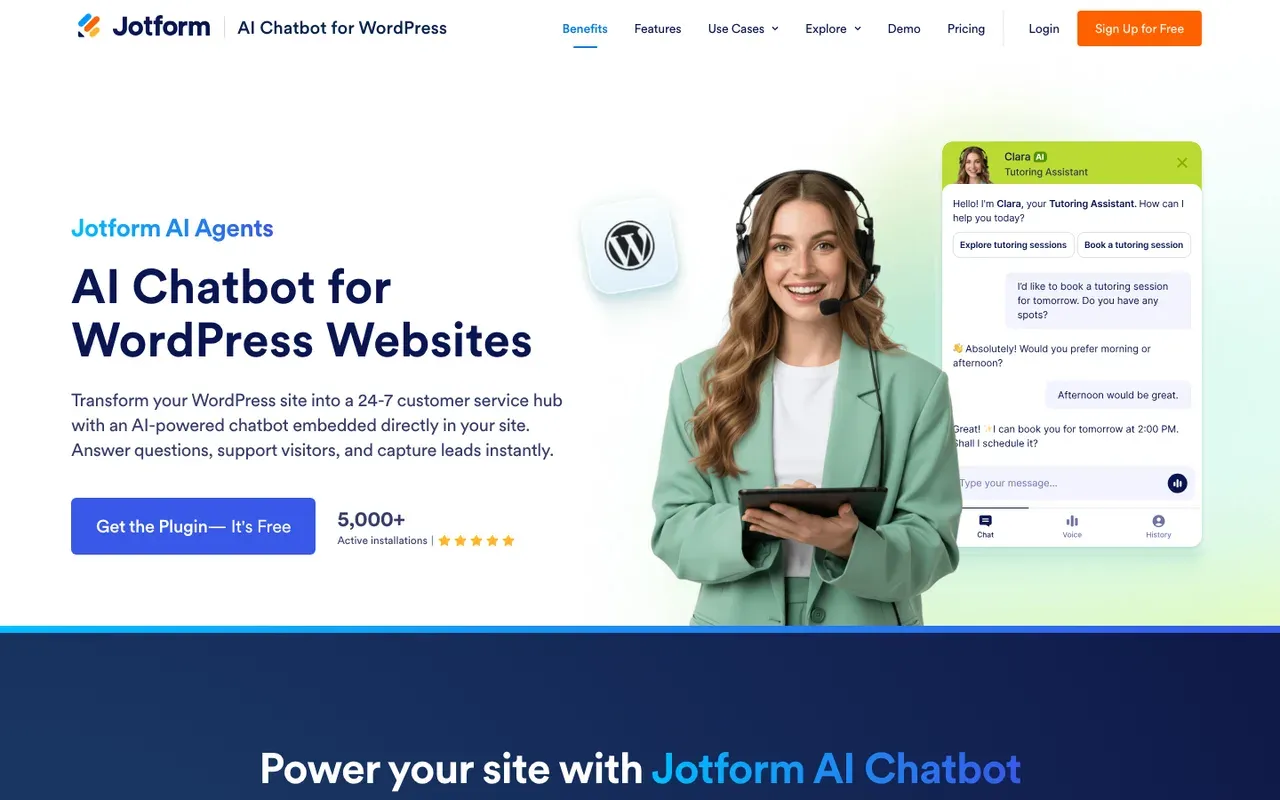
Jotform's Webflow chatbot goes in with embed code. You choose your Webflow site in Jotform's builder, the chatbot trains itself on what it finds there, and you can add FAQs and business details on top.SourcesJotform
The same Jotform agent can take reservations through Google Calendar, which suits studios, clinics and consultancies more than sales teams.SourcesJotform
Jotform's Starter plan is free, with 100 monthly conversations and 5 active AI agents. When a site outgrows that, Jotform's paid tiers start at $39/mo, and each tier has its own monthly conversation cap. More detail is on Jotform's Webflow chatbot page.SourcesJotform
Jotform AI Chatbot pros
- A free WordPress plugin, plus embed code for Webflow and other site builders
- Crawls your site and updates its answers when you edit content
- Takes reservations against your Google Calendar availability
- A free Starter plan, with paid tiers sized by conversations
Jotform AI Chatbot cons
- Every plan caps monthly conversations, and the free plan's cap is low
- The chatbot sits inside Jotform's account and plan structure
- Booking is built for reservations, not sales qualification
What Jotform AI Chatbot users say
Users like
The ability to give direct instructions for certain questions was a nice feature.
Jotform's AI chatbot is easy to customize, from its responses to a look that matches the brand.
Jotform AI Agents was easy to train with uploaded files and links to the website.
Reviewers find Jotform's AI chatbot easy to set up and train, with defaults that let them go live quickly.
Users complain about
getting the AI agent to handle more complex or very specific enquiries
Jotform's AI agent takes extra training and tuning to handle complex, specific or unusual questions well.
SourcesG2the strict usage limits on the lower pricing tiers make the platform expensive to scale
Jotform's free and lower tiers have tight usage limits, so scaling gets expensive.
SourcesG2
Reviewers' words, our summaries · reviews read Oct 6, 2026
Jotform is the best free starting point for a small business on Webflow that wants answers and reservations without building anything.
How we reviewed Jotform AI Chatbot: Read its WordPress and Webflow chatbot pages and its pricing page on 16 September 2026 and again on 5 October 2026. No trial.
Reviewed Oct 5, 2026
Chatbase: an inline agent that also does email and voice
Teams that want one AI agent, trained on their website and documents, working across web chat, email, voice and WhatsApp.
Site owners who only want a simple chat bubble with the least setup.
- Install on Webflow
- Embed element (iframe)
- Starting price
- $0/mo
- Free plan or trial
- Free plan
- Native booking
- Calendly or Cal.com in chat
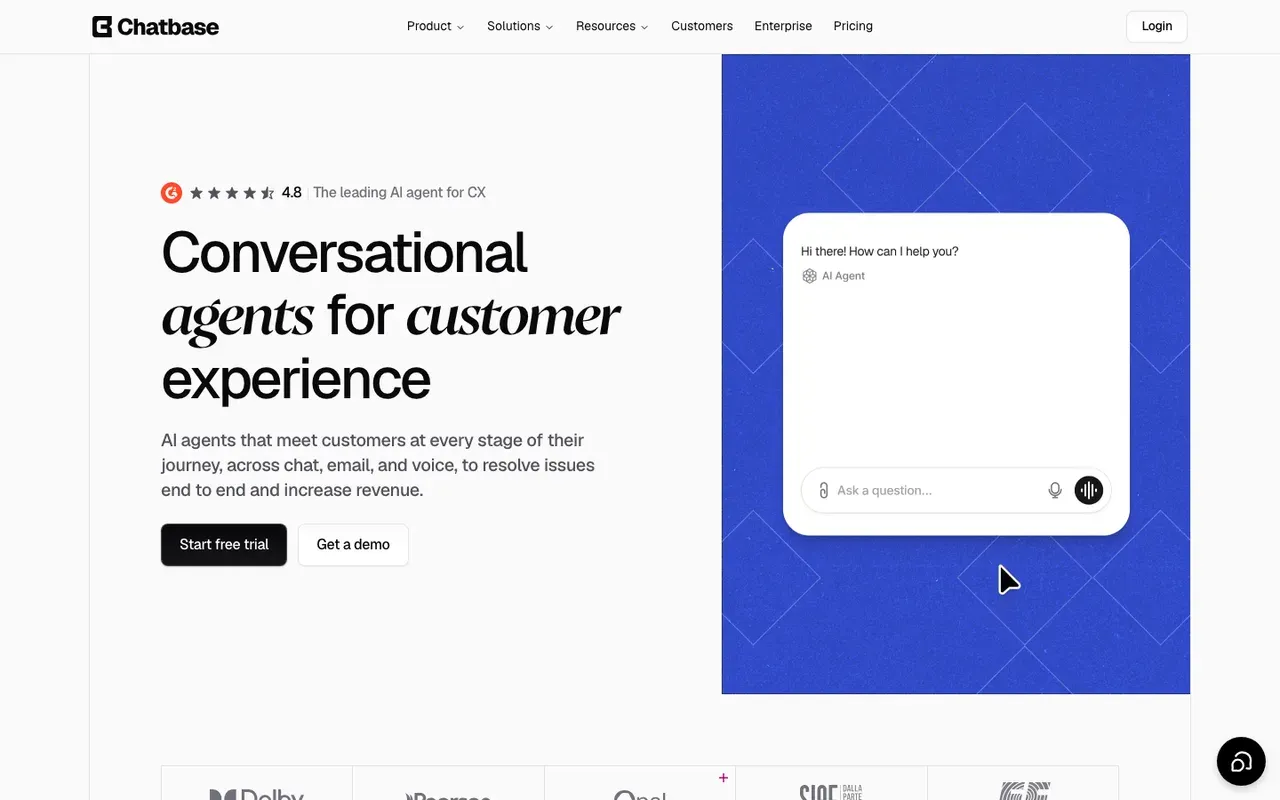
Chatbase's Webflow guide puts the agent inside a page rather than in the corner. You deploy it as a Website iFrame, add a container on the Webflow canvas, drop an Embed element into it and paste the code; without the container, the guide warns, the chat stretches across the full width of the page.SourcesChatbase
Chatbase trains on files, websites, text, Q&A, Notion pages and support tickets you add; link sources can be individual URLs or a sitemap crawl. To book, Chatbase connects Calendly or Cal.com as actions, so visitors see open slots and confirm one in the conversation. The same agent can also handle email, voice and WhatsApp.SourcesChatbase +2
Chatbase's Free plan is $0 with 50 message credits a month and one member. Free agents also come with a time limit. Agents are deleted after 14 days of inactivity. Paid plans at Chatbase start at $40/mo. The full steps are in Chatbase's Webflow guide.SourcesChatbase
Chatbase pros
- Books meetings in the chat through Calendly or Cal.com actions
- Trains on websites, files, Notion pages and support tickets
- An official WordPress plugin, and documented installs for Webflow and Framer
- One agent can work across chat, email, voice and WhatsApp
Chatbase cons
- The free plan's message credits run out fast
- Free-plan agents are deleted after 14 days of inactivity
- Removing Chatbase branding is a paid add-on
What Chatbase users say
Users like
Our visitors get instant answers 24/7
Chatbase answers routine customer questions instantly and around the clock, which reviewers say saves support time.
gives sizing advice and even suggests matching pieces and adds to cart
Shopify merchants credit Chatbase with product search, recommendations and order tracking inside the chat.
SourcesShopify App Store
Users complain about
Chatbase chatbots generate bad answers most of the time.
Chatbase sometimes gives wrong, inconsistent or made-up answers, according to reviews from 2023 and 2024.
SourcesSoftware AdviceWordPress.orgNo installation instructions, no dash…it doesn’t do anything.
Chatbase's WordPress plugin only adds the widget, and several users found it did nothing or came with no instructions.
SourcesWordPress.org
Reviewers' words, our summaries · reviews read Oct 6, 2026
Chatbase makes sense when a Webflow page is one of several places your agent works and you want it inline on that page rather than floating.
How we reviewed Chatbase: Read its pricing page and its help docs on data sources, actions and WordPress, Webflow and Framer installs on 16 September 2026 and again on 5 October 2026. No trial.
Reviewed Oct 5, 2026
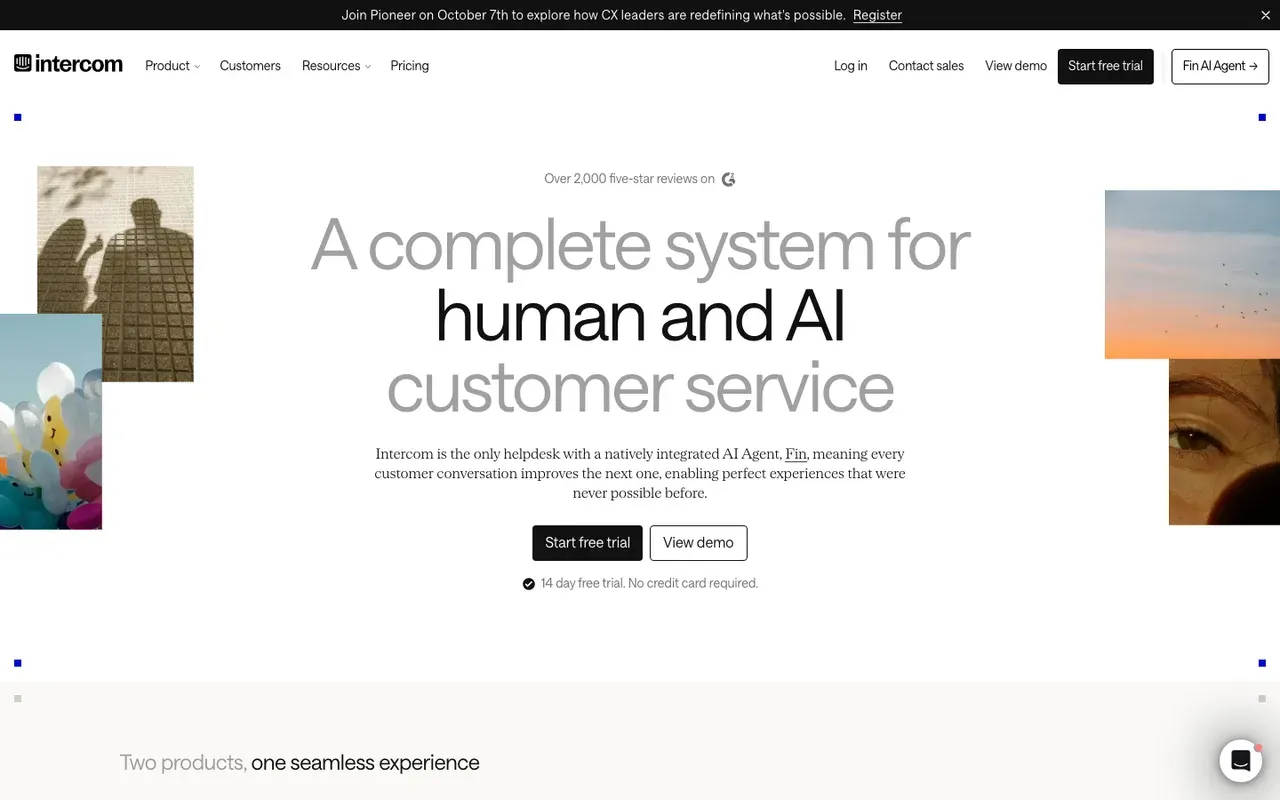
Intercom: for companies where support comes first
Support-led companies that want one messenger for service, with a sales assist on the side.
Sales teams that do not need a helpdesk and would rather not pay per seat and per answer.
- Install on Webflow
- Messenger snippet in footer
- Starting price
- $39/seat/mo
- Free plan or trial
- 14 day trial
- Native booking
- Via integration
Intercom has no Webflow app, and it does not need one. Paste the Messenger code before the closing body tag on every page where it should appear. On Webflow, that is one paste into the footer custom code.SourcesIntercom
What you get is a full customer service platform: the Messenger, a help desk, Fin answering from your content, and Fin for Sales, which can qualify leads and book meetings through Calendly or HubSpot.SourcesIntercom +1
The company behind it has changed too. On 12 May 2026 Intercom renamed the company Fin; Intercom remains the name of its customer service platform. On 10 September 2026 Salesforce completed its acquisition of Fin, formerly Intercom, for about $3.6 billion. Neither changes how the Messenger installs, but before a multi-year contract it is worth asking what the Salesforce deal means for pricing and the product roadmap.SourcesIntercomSalesforce +1
Seats on Intercom's Essential plan cost $39/seat/mo. Fin pricing starts at $0.99 per outcome. After the 14 day trial there is no free plan to fall back to.SourcesIntercom +2
Side-by-side: Darwin vs Intercom.
Intercom pros
- A strong support inbox and help center
- Fin drafts a sales playbook from a prompt or your pricing page
- Messenger imports your logo and colors from your domain
Intercom cons
- Two-layer pricing, seats plus outcome fees, so the bill grows when the AI succeeds
- Sales chat is an add-on to a support product
- No free plan after the trial
What Intercom users say
Users like
It’s helpful for resolving common customer issues and makes it easier to handle routine questions.
Intercom's Fin answers routine questions well when it can draw on a solid help center or knowledge base.
SourcesTrustRadius +1G2Fin allows us to provide 24x7 quick help to our customers
Intercom's Fin cuts first response times and gives customers answers around the clock.
SourcesTrustRadius +1G2
Users complain about
I don't like how much it hallucinates and gives people incorrect answers.
Intercom's Fin still gives wrong or made-up answers on nuanced questions or when content is large or messy.
SourcesTrustRadius +1G2even when instructions clearly say to avoid that and escalate immediately
Customers can struggle to reach a person through Intercom's Fin; handoff to a human is slow or unreliable.
SourcesTrustRadius +1G2
Reviewers' words, our summaries · reviews read Oct 6, 2026
Intercom is the right call when support is the bigger job on your Webflow site; for a marketing site that mainly needs demos booked, you would be paying for a help desk you rarely open.
How we reviewed Intercom: Read its pricing, product and help pages on 11 September 2026 and again on 5 October 2026. No trial.
Reviewed Oct 5, 2026
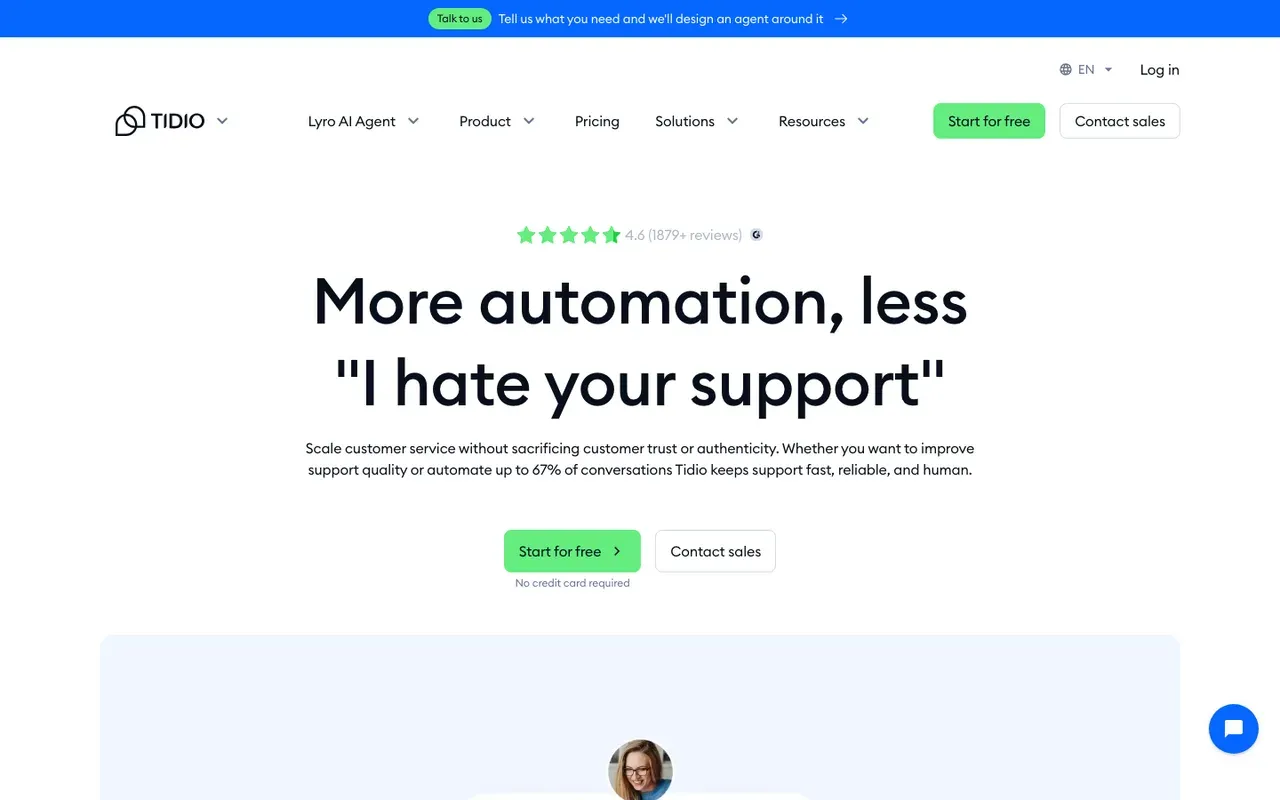
Tidio: live chat and AI help for small stores
Small businesses and online stores that want an affordable widget with an AI agent.
B2B sales teams that need the meeting booked inside the chat, not a link.
- Install on Webflow
- Widget code in custom code
- Starting price
- $0/mo
- Free plan or trial
- 7 day trial
- Native booking
- Shares a Calendly link
Copy the widget code from the Tidio panel and embed it in your Webflow site. Tidio's Webflow page adds that what is available depends on your Tidio plan.SourcesTidio
Tidio's Free plan has no monthly fee. Paid Tidio plans begin with Starter at $29/mo, and Lyro, the AI agent, is a separate charge. Lyro's quota starts at $39 per month for 50 conversations on monthly billing.SourcesTidio
Tidio's agent learns from the web pages you point it at. Lyro can share a Calendly scheduling link through a Book-a-call Action. Booking then happens on Calendly's own page.SourcesTidio +1
Side-by-side: Darwin vs Tidio.
Tidio pros
- A free plan, and a free trial of the paid features
- Lyro trains on website URLs you provide
- Simple setup for non-technical teams
Tidio cons
- Meeting booking is a shared link, not a calendar inside the chat
- Priced by conversation volume, so costs climb with traffic
- Built for support and e-commerce, not B2B pipeline
What Tidio users say
Users like
The AI replies are well-suited and provide accurate responses to our customers.
Tidio's Lyro AI agent takes routine, repetitive questions off small support teams.
I had the widget live and a basic bot flow running in under an hour
Small teams find Tidio quick to install and easy to use day to day.
Users complain about
AI-generated responses sometimes need a quick review to make sure they fit the context
Tidio's AI replies can miss context, feel impersonal or get answers wrong, so specific questions still need a person.
SourcesG2Lyro conversations are billed separately, so costs get unpredictable on higher-traffic sites.
Tidio's real bill often runs well above the entry price once Lyro, Flows and more conversations are added.
Reviewers' words, our summaries · reviews read Oct 6, 2026
Tidio is a dependable choice for a Webflow store or small business that needs live chat with AI help; it is built for support rather than for booking demos.
How we reviewed Tidio: Read its pricing, product and help pages on 11 September 2026 and again on 5 October 2026. No trial.
Reviewed Oct 5, 2026
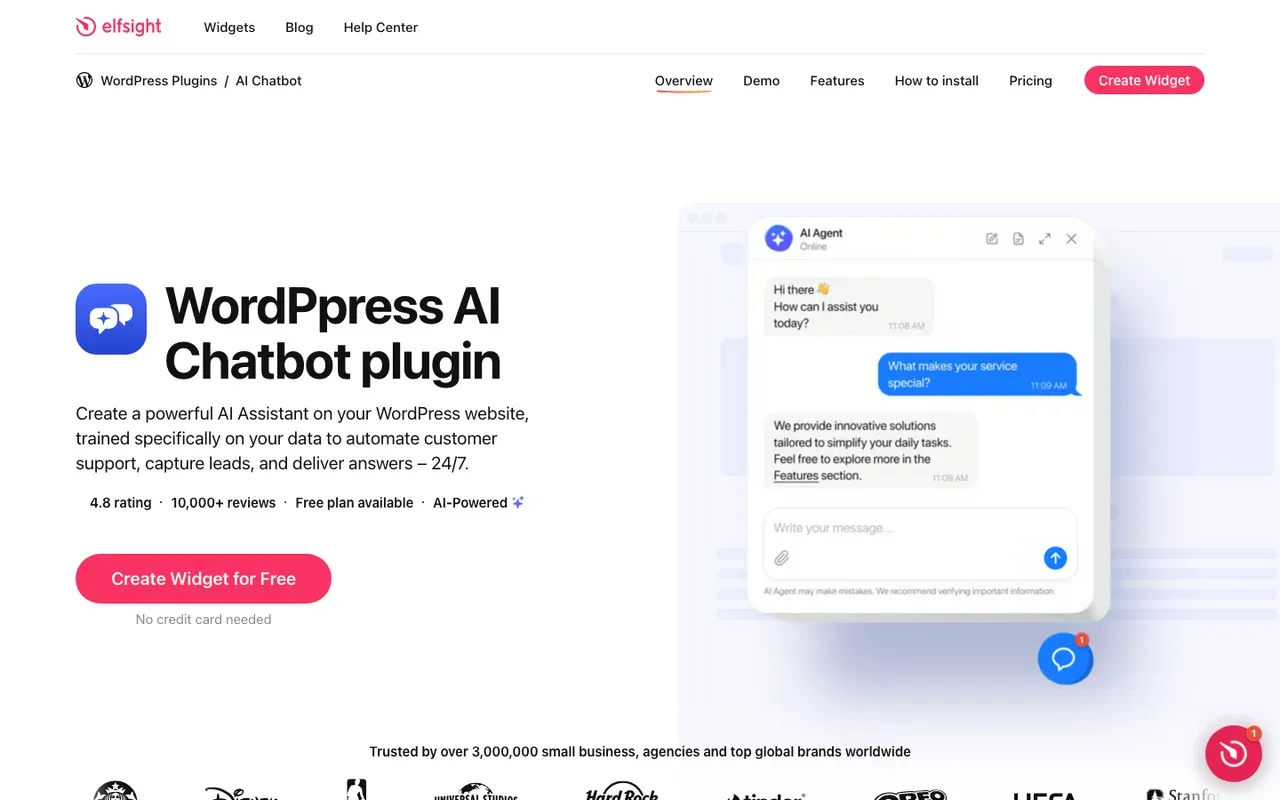
Elfsight: the cheapest bubble that answers from your pages
Small sites that want a low-cost, embeddable assistant that answers questions from their own pages.
Sites that need meetings booked in the chat, or that get more than light traffic on the low tiers.
- Install on Webflow
- Embed element or footer code
- Starting price
- $0/mo
- Free plan or trial
- Free plan
- Native booking
- Not documented
Elfsight documents both Webflow routes. For a chat inside a page, add an Embed element and paste its code; for a floating bubble, paste the snippet into Project Settings, Custom Code, Footer Code and publish.SourcesElfsight
You train the Elfsight assistant on your site's content through its URLs, plus files and Q&A. Booking meetings is not among the features Elfsight's pricing page lists.SourcesElfsight
Elfsight's Free plan is $0 forever, with 1 chatbot, 50 messages and 200 views a month. Paid Elfsight plans begin at $5/mo on yearly billing. Each plan also has a monthly view allowance, and exceeding it deactivates the widget temporarily, so a growing site should pick its tier by traffic. The plans are on Elfsight's Webflow page.SourcesElfsight
Elfsight AI Chatbot pros
- Embed code that works on WordPress, Webflow, Shopify, Wix and plain HTML
- Trains on your URLs, plus files and Q&A
- A free plan, and paid plans that start low when billed yearly
Elfsight AI Chatbot cons
- Low message caps on the free and Basic plans
- Going over the monthly view limit switches the widget off for a while
- Meeting booking is not described on its pricing page
Elfsight is the low-cost choice for a small Webflow site that wants common questions answered and nothing more.
How we reviewed Elfsight AI Chatbot: Read its pricing page and its WordPress and Webflow install guides on 16 September 2026 and again on 5 October 2026. No trial.
Reviewed Oct 5, 2026
How to add a chatbot to a Webflow site
The custom-code route works for every tool here except Chatbase's inline guide and ChatBot.com's app, and it takes about five minutes.
- Create your account with the vendor. For Darwin and Jotform, enter your Webflow site's address so the bot can learn from it.
- Copy the install snippet from the vendor's dashboard.
- In Webflow, open Project Settings, then Custom Code, and paste the snippet into Footer Code.
- Save, then publish to your live domain. The Designer preview does not run custom code, so check the published site.
- Open the live site in a private window and ask three real questions from your pricing page. If the bot books meetings, book one yourself.
For a chat panel on one page, drag an Embed element onto the canvas, paste the vendor's embed HTML, then save and publish. For ChatBot.com, skip the code and authorise the app from its Website widgets screen.
Darwin's Webflow guide shows the custom-code route step by step.
Does Webflow have an AI chatbot builder?
No. Webflow's AI features live inside the Designer: they help draft copy, translate pages and suggest layouts. None of them answers a visitor on your published site, and Webflow does not ship a chatbot app of its own. Every chatbot you see on a Webflow site is a third-party tool, added through custom code, an Embed element or a marketplace app such as ChatBot.com's.
How to choose a Webflow chatbot
Here is the same list, sorted by what your Webflow site needs.
- No code at all, and paying per user is fine. ChatBot.com, through its native Webflow app.
- The site already runs HubSpot. Paste the tracking code and try HubSpot's free chat first.
- The site exists to book demos or sales calls, and you will set it up yourself. Darwin.
- A free bot that trains itself on the site and takes reservations. Jotform.
- An inline agent on one page that also answers email and voice. Chatbase.
- Support is the bigger job. Intercom, if you already use it or need a full help desk.
- A small store that wants live chat with AI help. Tidio.
- The lowest cost, and only common questions answered. Elfsight.
Whichever you choose, test it on the published site, not in the Designer, using real questions from your sales and support inboxes.
Website builders questions.
Does Webflow have a built-in chatbot?
No. Webflow's AI helps you write and lay out pages, but nothing in Webflow talks to your visitors. A chatbot on a Webflow site is always a third-party tool, added through site-wide custom code, an Embed element or, for ChatBot.com, a native app.
How do I add a chatbot to Webflow?
Copy the vendor's snippet, open Project Settings, go to Custom Code, paste it into Footer Code, then save and publish. The chat appears on every page of the live site. For a chat panel on a single page, use an Embed element instead. Either way takes about five minutes.
What is the best chatbot for a Webflow site?
It depends on the site. ChatBot.com suits a team that wants no code. HubSpot's free chat is the obvious first step if you already use HubSpot. For a marketing site that should book demos, Darwin is the closest match you can set up yourself; we make it, so weigh that. Jotform suits a small business that wants a free bot, and Tidio suits a store.
Is there a free chatbot for Webflow?
Yes. Jotform, Chatbase, Tidio and Elfsight have free plans that cap conversations or messages, and HubSpot's chat is part of its free tools. ChatBot.com and Intercom offer trials rather than free plans. Darwin's Free plan costs nothing per month and charges for each meeting booked or qualified request after the first five.
Will a chatbot slow down my Webflow site?
Usually not by much. A single script in footer custom code loads after the page content. Measure on the published site rather than in the Designer, which does not run custom code, and limit the widget to the pages where you want conversations if the vendor allows it.
Sources & references (78)
Supporting material for the product details in this article. Each source keeps its own access date.
- ChatBot.com Webflow integration ChatBot.com · Accessed
- ChatBot.com Pricing ChatBot.com · Accessed
- ChatBot.com WordPress integration ChatBot.com · Accessed
- Install the HubSpot tracking code HubSpot · Accessed
- HubSpot Sales Hub pricing HubSpot · Accessed
- HubSpot Product and Services Catalog: HubSpot Credits Rate Sheet HubSpot · Accessed
- Choose your rule-based chatbot actions HubSpot · Accessed
- Set up customer agent actions to qualify leads HubSpot · Accessed
- Service Hub Enterprise reviews (G2 reviews syndicated on AWS Marketplace) G2 (via AWS Marketplace) · Accessed
- HubSpot Service Hub Reviews Software Advice · Accessed
- Darwin Webflow integration Darwin · Accessed
- Set up with Darwin Darwin · Accessed
- Connect your scheduling page Darwin · Accessed
- How Darwin improves your openings Darwin · Accessed
- A/B test different message variations Intercom · Accessed
- Create a rule-based chatbot HubSpot · Accessed
- Edit your initial message (first flow) Tidio · Accessed
- Darwin pricing: plans, credits and add-ons Darwin · Accessed
- Jotform AI Chatbot for Webflow Jotform · Accessed
- Jotform AI Chatbot for WordPress Jotform · Accessed
- Jotform Pricing Jotform · Accessed
- Jotform AI Chatbot ‑ Live Chat reviews Shopify App Store · Accessed
- Jotform Reviews from Real Users TrustRadius · Accessed
- Jotform AI Agents reviews G2 · Accessed
- Chatbase Webflow integration Chatbase · Accessed
- Chatbase data sources Chatbase · Accessed
- Chatbase actions documentation Chatbase · Accessed
- Chatbase Pricing Chatbase · Accessed
- Chatbase - AI agent for support and sales reviews Shopify App Store · Accessed
- Chatbase Reviews Software Advice · Accessed
- Chatbase plugin reviews WordPress.org · Accessed
- Install Intercom on your website Intercom · Accessed
- Book meetings with Calendly using Fin for Sales Intercom · Accessed
- Book meetings with HubSpot using Fin for Sales Intercom · Accessed
- Today Intercom becomes Fin Intercom · Accessed
- Salesforce Completes Acquisition of Fin Salesforce · Accessed
- Salesforce Signs Definitive Agreement to Acquire Fin Salesforce · Accessed
- Intercom standard pricing after Early Stage Intercom · Accessed
- Intercom pricing Intercom · Accessed
- Intercom pricing FAQs Intercom · Accessed
- Fin (Intercom) Reviews from Real Users TrustRadius · Accessed
- Fin Review Insights TrustRadius · Accessed
- Fin (Intercom) reviews G2 · Accessed
- Tidio Webflow integration Tidio · Accessed
- Tidio pricing Tidio · Accessed
- Lyro Action templates Tidio · Accessed
- Lyro – a quick setup Tidio · Accessed
- Tidio: AI Chatbot & Live Chat reviews Shopify App Store · Accessed
- Tidio Reviews Software Advice · Accessed
- Tidio reviews G2 · Accessed
- Elfsight AI Chatbot for Webflow Elfsight · Accessed
- Elfsight AI Chatbot Pricing Elfsight · Accessed
- Manage the customer agent's content sources HubSpot · Accessed
- Jotform Pricing Jotform · Accessed
- How to train Fin for Sales Intercom · Accessed
- Choose your rule-based chatbot actions HubSpot · Accessed
- Set up customer agent actions to qualify leads HubSpot · Accessed
- HubSpot Sales Hub pricing HubSpot · Accessed
- Manage customer agent knowledge sources HubSpot · Accessed
- Create a rule-based chatbot HubSpot · Accessed
- Set guidelines for the customer agent HubSpot · Accessed
- Set guidelines for the customer agent HubSpot · Accessed
- How Darwin improves your openings Darwin · Accessed
- Connect your scheduling page Darwin · Accessed
- Set up with Darwin Darwin · Accessed
- Darwin plans and booking prices Darwin · Accessed
- Plans and included meetings Darwin · Accessed
- Chatbase WordPress integration Chatbase · Accessed
- Book meetings with Calendly using Fin for Sales Intercom · Accessed
- Book meetings with HubSpot using Fin for Sales Intercom · Accessed
- Intercom pricing Intercom · Accessed
- Intercom standard pricing after Early Stage Intercom · Accessed
- Intercom pricing FAQs Intercom · Accessed
- How to train Fin for Sales Intercom · Accessed
- Lyro Action templates Tidio · Accessed
- Lyro – a quick setup Tidio · Accessed
- Tidio pricing Tidio · Accessed
- Adding Elfsight Widget to WordPress Website Elfsight Help Center · Accessed