
TL;DR
- Give Darwin your website URL and it drafts the knowledge base, business details, opening line and chat design.
- Check the imported pages, connect Calendly, Google Calendar or RevenueHero, then install the embed and turn the agent live.
- Try a visitor's questions in the Agent Studio preview first; it uses sample booking times and stays out of your analytics and your bill.
How we researched this
- 5 sources. Each with the date it was read. See the list.
- Facts last checked .
Written by Ari Goldstein, Founder & CEO, Darwin. Darwin publishes this blog; our editorial policy covers how we write and review.
Give Darwin your website
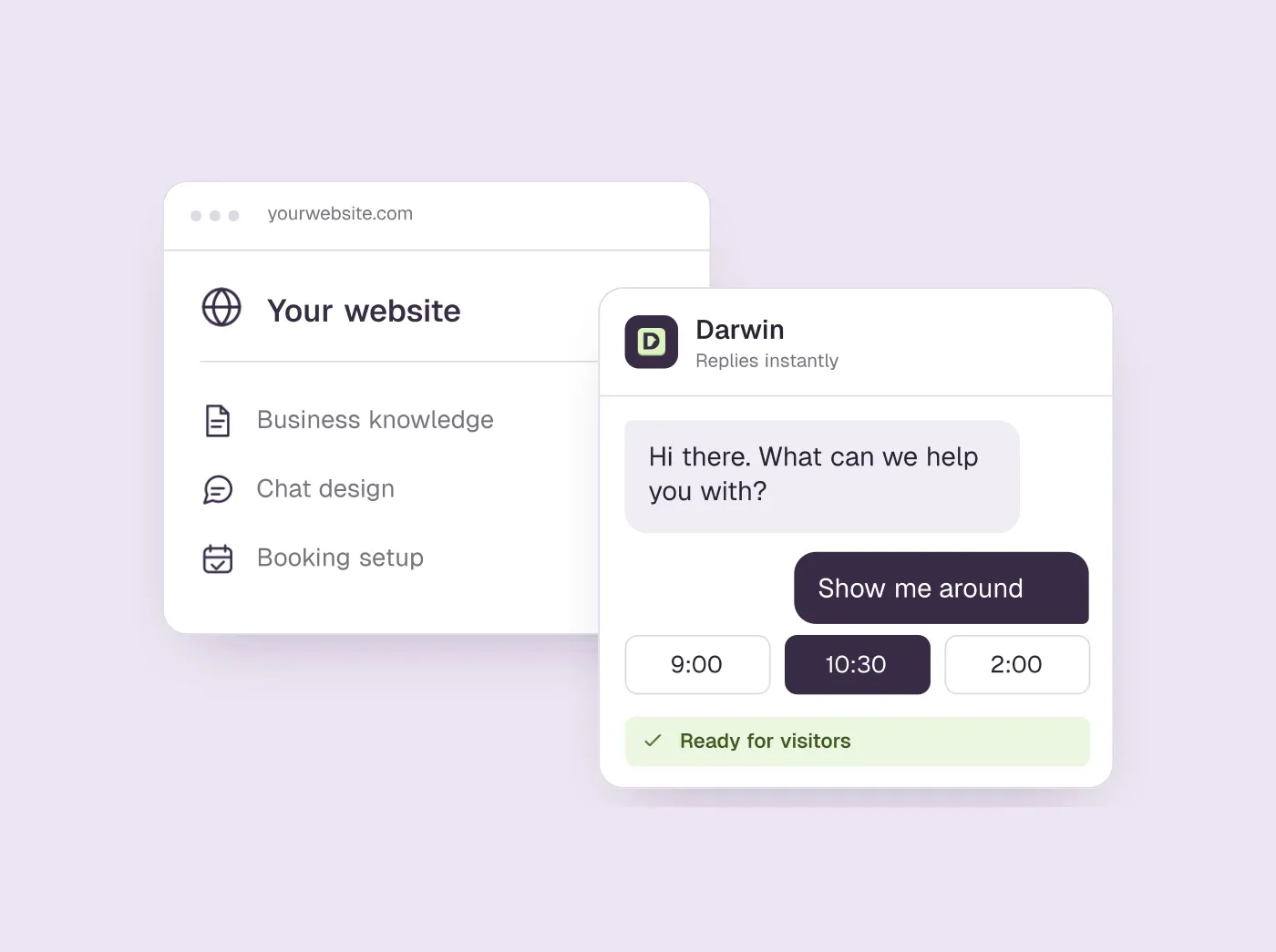
To launch a Darwin assistant, give it your website URL and let it draft the setup. Then check the pages it imported, connect your booking provider, try a few buyer questions in the preview, install the embed and turn the agent live. The sections below link to the full instructions in Darwin's docs.
Most of the writing an assistant needs already exists. Your website explains the product, says who it is for, and shows how you want the business to look. So onboarding begins with that URL.
Darwin finds the pages most useful to buyers, such as product, pricing and integration pages, and uses them to draft the knowledge base and business details. It also looks for the colors, fonts and assets that can shape the chat widget, and writes a first opening line. What you get back is a draft to review, not a page of empty fields.SourcesDarwin
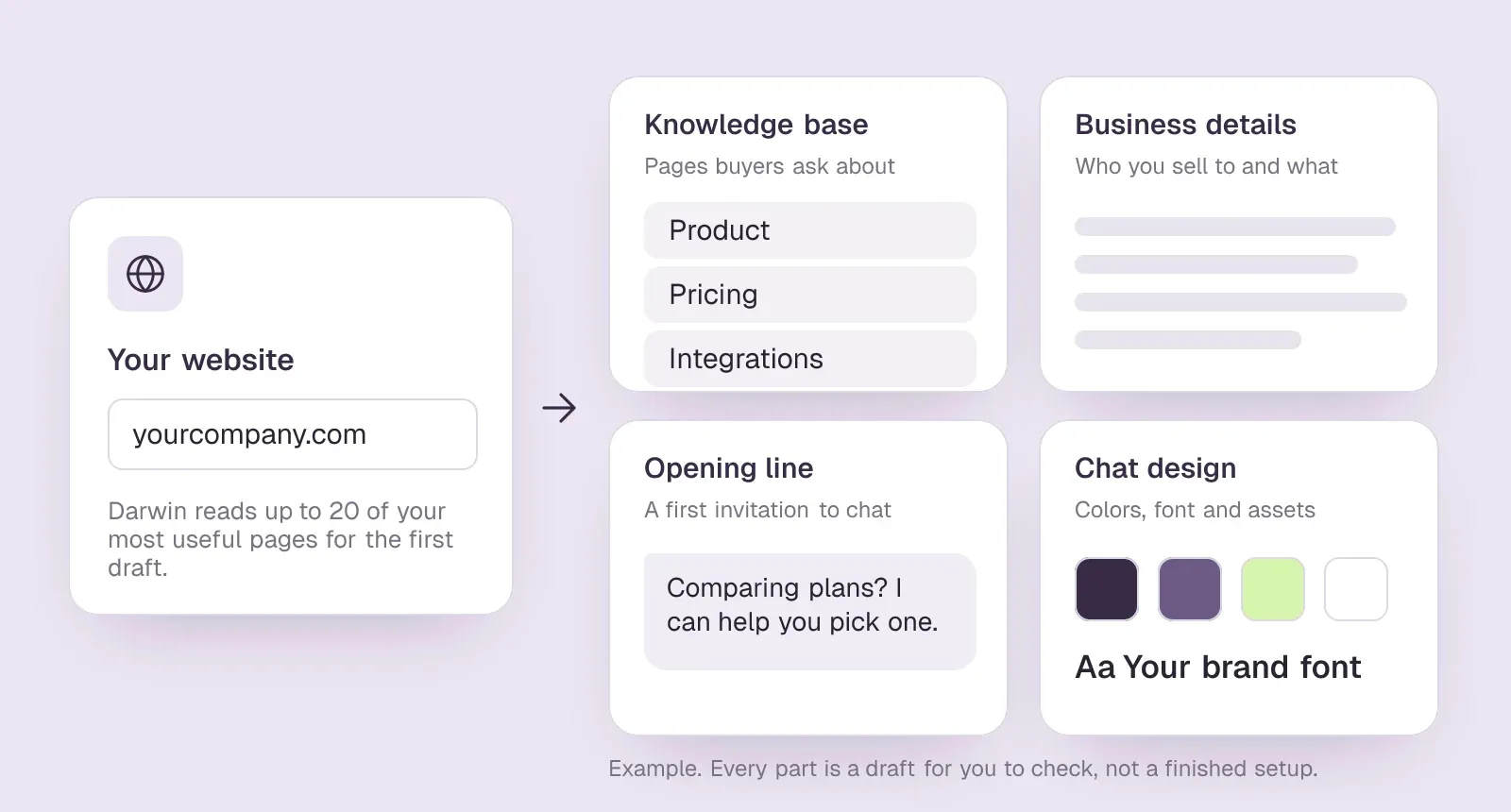
Treat it as a head start rather than a finished product. You know things about the business that no website will tell an assistant, particularly where a page is missing or out of date.
Look at the pages that were imported
Open Agent Studio → Knowledge. Are the pages you would send a prospect actually there? Check pricing, your main products, and any integration or service details that come up in sales conversations.
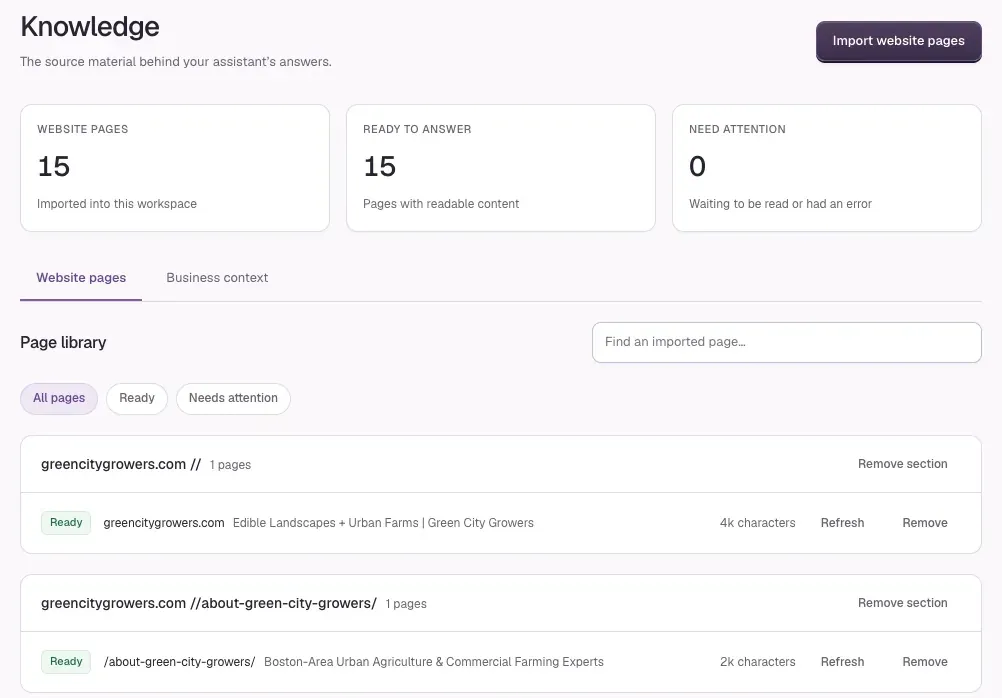
The first pass reads a selection of key pages so you can get started quickly; it does not import a large website in one go. You can discover and import more pages afterward. The knowledge guide walks through it.SourcesDarwin
A failed import needs attention. Retry the page or add the missing information in Business context, then ask a question that depends on it. A page appearing in a list is not enough; you want to know the assistant has the answer.
What the onboarding assistant prepares
Darwin discovers the relevant pages on your website and prepares its knowledge base from them.
Initial setup selects key pages for speed; more pages can be imported later.
Prepares business information and assistant settings from the website.
The user can review and refine the generated draft.
Extracts brand colors, fonts and assets for the chat design.
Brand detection is a draft: available fonts, contrast and source-site access affect the result.
Check the widget on your page
A color that looks fine on a big website heading can be hard to read inside a small chat bubble. Look at the imported design where it will actually live: the message text, the input field, the avatar, the widget itself.
Brand detection gets you to a starting point. Fonts and assets aren't equally reachable on every site, so expect to nudge a setting or two in appearance. Check a narrow phone screen as well as your desktop while you're at it.
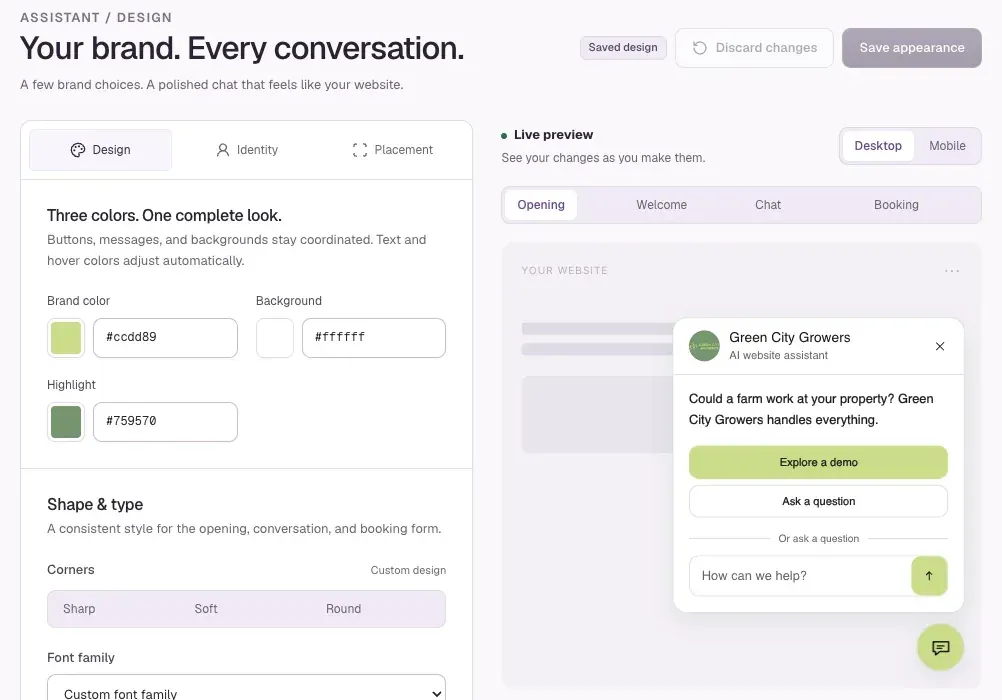
There's no need to redesign anything. If the chat looks like it belongs on your site and the messages are easy to read, you're nearly there.
Before you go live
| Check | What good looks like |
|---|---|
| Knowledge | The assistant can answer the buying questions your visitors really ask. |
| Appearance | Text you can read, an avatar that suits you, and a widget that looks like part of the page. |
| Scheduling | Calendly, Google Calendar or RevenueHero is connected, and a real booking shows up in Meetings. |
| Installation | The embed loads once on the pages you intended, with your workspace's site key. |
| Going live | Turn your agent live in Agent Studio; saving settings alone does not. |
| Testing | One full visitor journey works on a desktop and on a phone. |
Have a conversation before you install
Open Agent Studio, where the real widget sits beside your settings, and ask a buying question the way you would actually phrase it. Then follow up. Does the answer hold when you add a detail, or ask about something the knowledge base does not cover?
Next, ask to speak with sales. Darwin books through Calendly, Google Calendar or RevenueHero, which you connect under Integrations → Scheduling. Make sure the booking step opens with the provider you chose. Preparing the assistant and connecting a working scheduler are two separate jobs.
The preview uses sample booking times, creates no real appointments or billable usage, and stays out of your analytics, so use it to work out the rough edges. Once the embed is installed, make one real booking through the chat on your website: that is where you check the site key, the placement, and what your visitors will see. The testing guide has a five-question check.SourcesDarwin
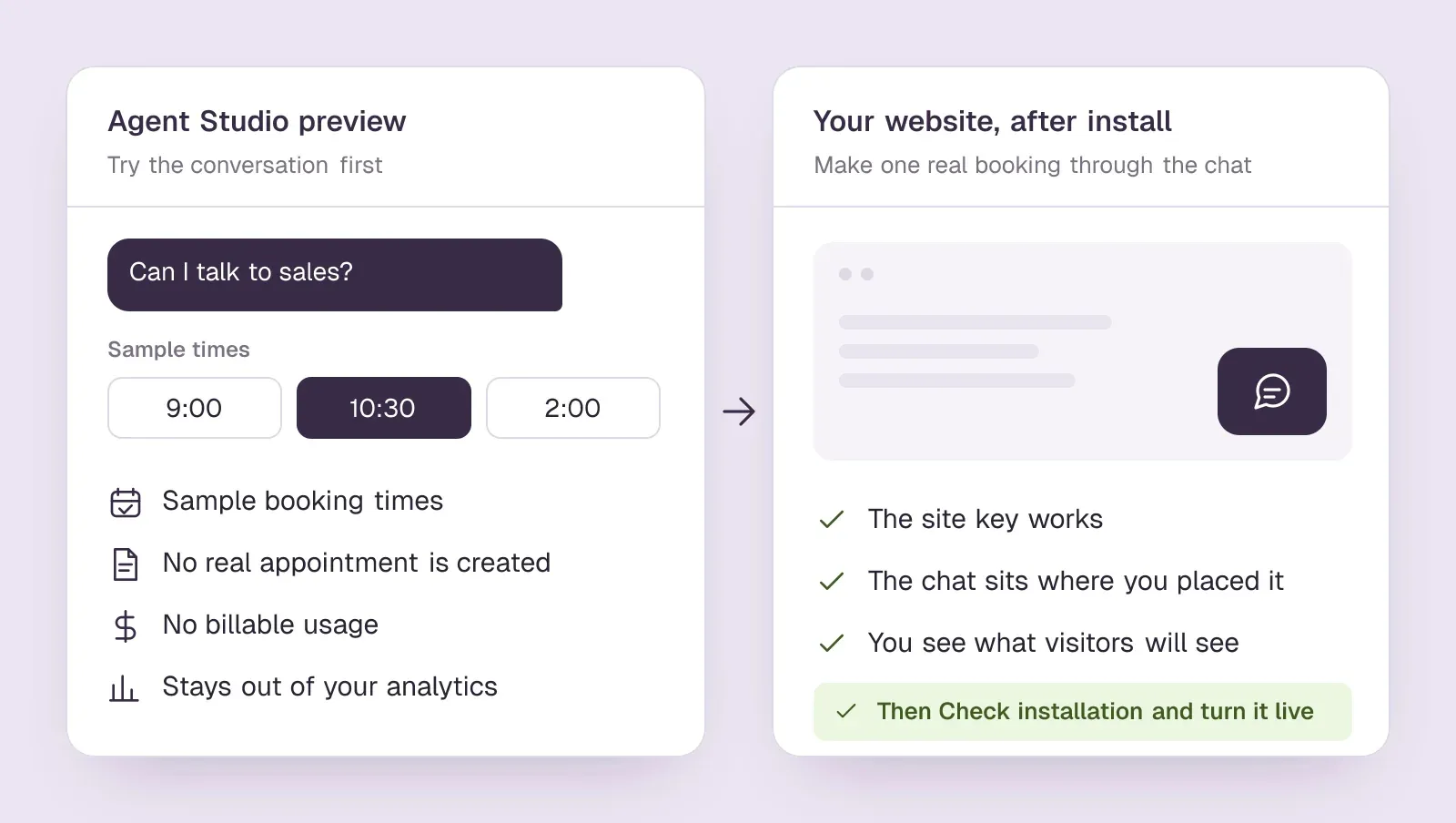
When everything works, select Check installation in Integrations, then Turn your agent live in Agent Studio. Finishing onboarding or saving changes does not make the widget public on its own. The launch checklist lists every step.
What to watch after launch
For the first few days, read some of the conversations rather than just glancing at the totals. A question the assistant could not answer points at a specific gap in its knowledge. A muddled reply often traces back to a page that needs a clearer explanation.
Keep an eye on scheduling as well. If people open the calendar and never finish, walk that path yourself before deciding they lost interest.
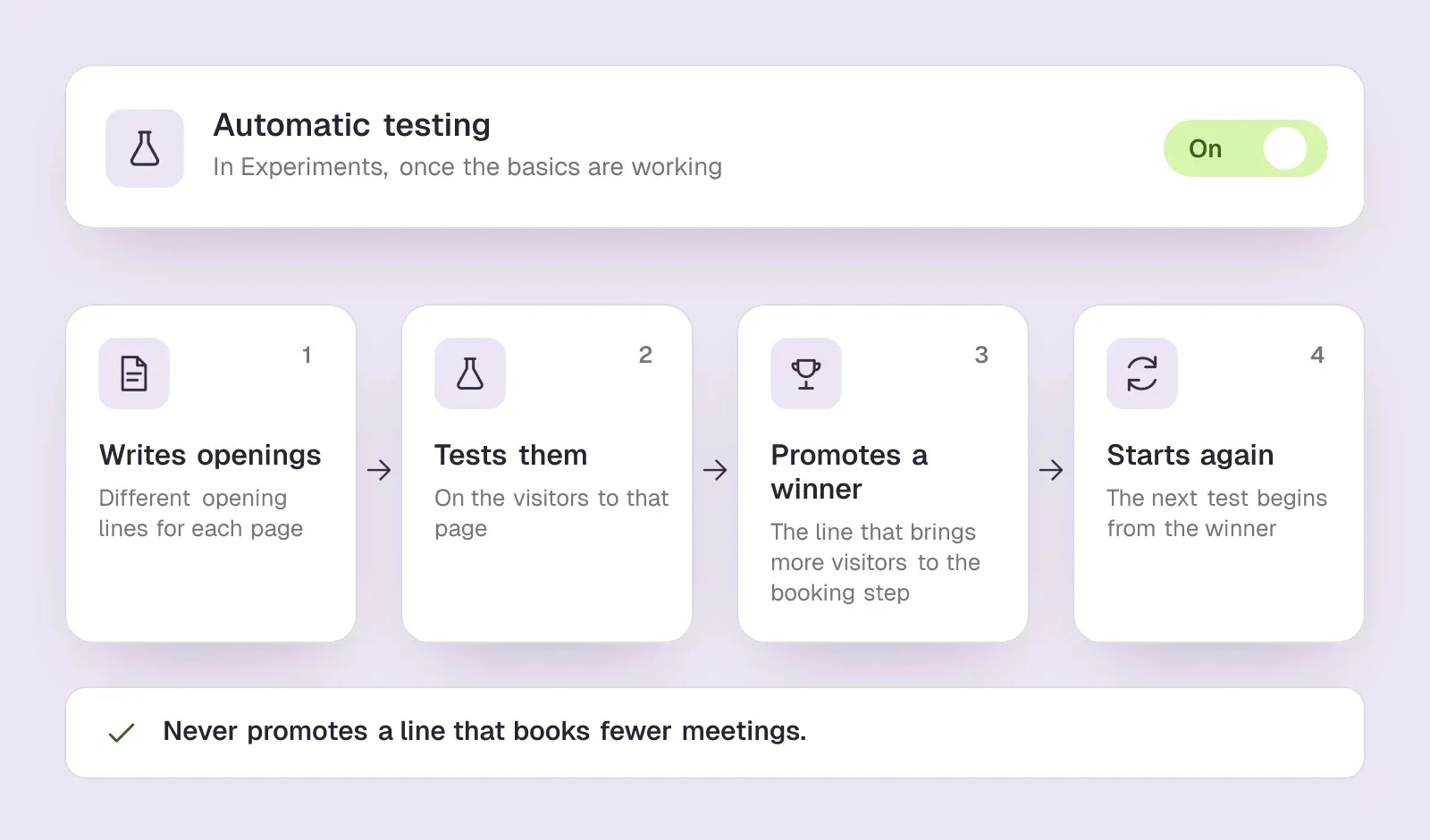
When the basics are working, turn on Automatic testing in Experiments. With automatic testing on, Darwin tries different opening lines on each page, promotes the ones that bring more visitors to the booking step (never one that books fewer meetings) and starts the next test from the winner. Your team keeps the business information accurate and takes the meetings that come out of it.SourcesDarwin
Getting started questions.
How long does it take to launch a Darwin assistant?
Darwin reads up to 20 of your pages for the first draft, so how long it takes depends on your site. Checking the knowledge, connecting a calendar and installing the embed are the parts that take real time, and they depend on how quickly you can publish code on your site.
Does Darwin import my whole website?
No. The first pass picks the pages most useful to buyers, such as product, pricing and integration pages. You can find and import more pages later in Agent Studio → Knowledge, and refresh any page after it changes.
Which calendars can Darwin book meetings with?
Calendly, Google Calendar and RevenueHero. You choose one under Integrations → Scheduling, and visitors pick a time inside the chat. Google Calendar bookings get a Google Meet link by default, or Zoom if you connect it.
Does testing in the preview cost anything?
No. The Agent Studio preview uses sample booking times, creates no real appointments or billable usage, and stays out of your analytics. To check your calendar connection end to end, make one real booking through the chat on your website.
What does Darwin cost to start?
Darwin's Free plan costs $0/mo and includes 5 free credits once; after that Free charges $30/credit. Darwin's paid plans start at $299/mo. No card is needed until the free credits are used.
Sources & references (5)
Supporting material for the product details in this article. Each source keeps its own access date.
- Set up with Darwin Darwin · Accessed
- Build your assistant’s knowledge Darwin · Accessed
- Connect your scheduling page Darwin · Accessed
- How Darwin improves your openings Darwin · Accessed
- Darwin pricing: plans, credits and add-ons Darwin · Accessed