
TL;DR
- A booking chatbot has five jobs: answer the question, check the appointment fits, show real times in the chat, confirm with an invitation, and handle reschedules.
- Booking inside the chat keeps visitors in the conversation; sharing a link sends them to a new page to start again. Test which one a tool does by asking its own chat.
- Jotform, Chatbase and WPBot suit small service businesses. For sales meetings booked from website chat, Darwin is the best fit, with Qualified for Salesforce enterprises; Tidio and HubSpot share a scheduling link.
- Before launch, book, move and cancel a real appointment through the live chat. Previews usually use sample times.
How we researched this
- 32 sources. Each with the date it was read. See the list.
- Facts last checked .
Written by Darwin team, Product & guides. Darwin publishes this blog; our editorial policy covers how we write and review.
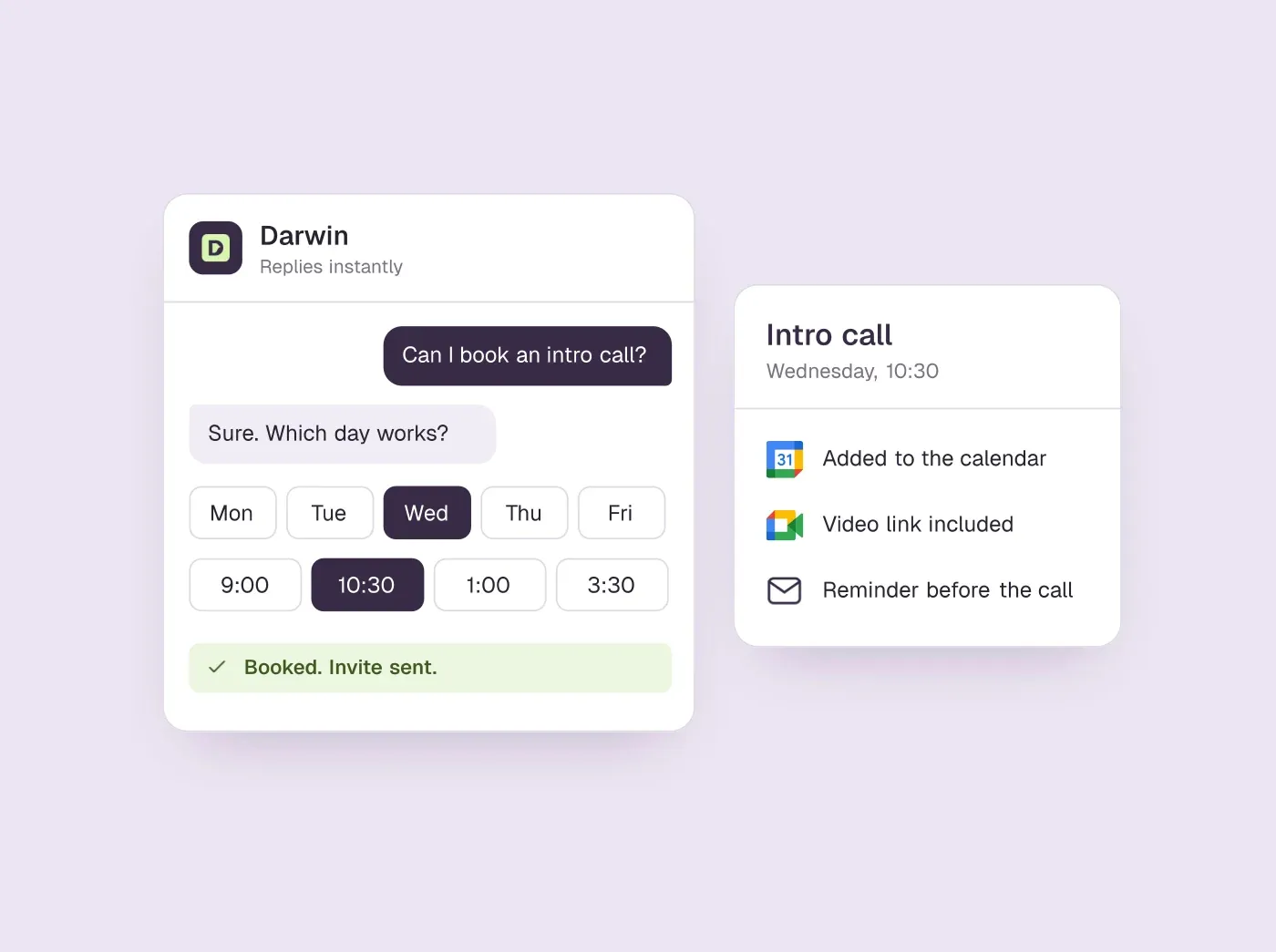
An appointment booking chatbot is a website chat that answers a visitor's questions, checks the appointment is the right one, shows real open times inside the conversation and confirms the booking, so nobody has to leave the page or wait for a reply. The best one for you depends on what you sell.
A small service business that books consultations or reservations can start free with Jotform's AI agent, which takes reservations through Google Calendar, or with Chatbase connected to Calendly or Cal.com. On WordPress, WPBot's Pro version books into Google Calendar inside the chat. If you are booking sales meetings from your website, Darwin is the best fit, because it answers from your own site, books inside the chat through Calendly, Google Calendar or RevenueHero, tests its own opening lines on live traffic and charges per booked meeting. Qualified suits enterprises that run Salesforce and buy enterprise software. If you already pay for Tidio or HubSpot, their bots can share a scheduling link, which works but adds a step.SourcesDarwin +1
We make Darwin, so we are not neutral. It is listed with the tools for B2B sales meetings, which is the job it was built for; for a salon or a clinic, the cheaper general-purpose tools above are a better fit. The setup steps below work with any tool, and every price and capability comes from the vendor's own pages with the date we checked it.
What an appointment booking chatbot has to do
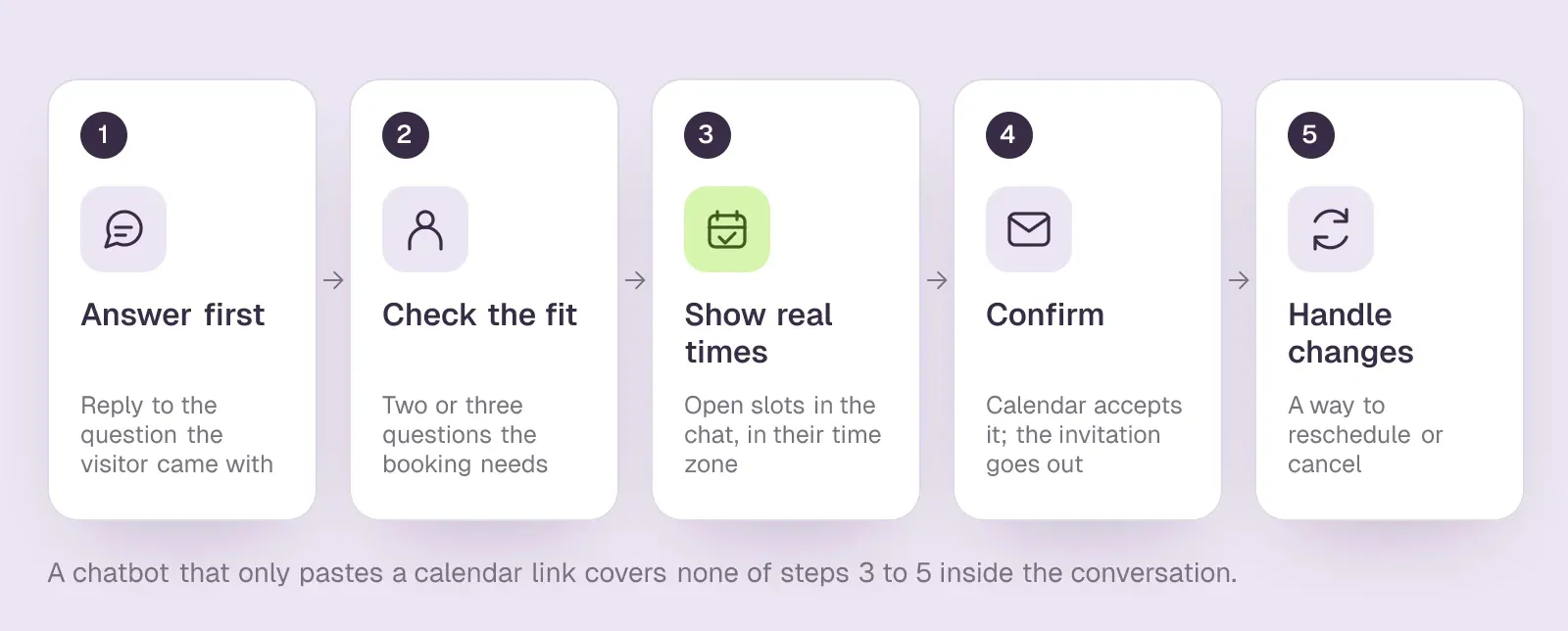
Most chatbots can paste a calendar link. A booking chatbot earns the name when it handles the whole appointment, from the first question to the day the visitor needs to move it. Check any tool against these five jobs.
- Answer the question first. People rarely open a chat to book. They ask whether you cover their area, what a first visit costs, or whether the product works with their software. A bot that replies with a calendar before answering loses them.
- Check the appointment fits. Ask only what the booking needs: the service, the location or the company size. Two or three questions are usually enough. Anything else can wait for the appointment itself.
- Offer real times inside the chat. The visitor should see open slots in their own time zone and pick one without opening a new tab. Times have to come from the live calendar, with your buffers and minimum notice applied.
- Confirm, and send the invitation. A booking is only done when the calendar has accepted it and the visitor has an invitation in their inbox. The chat should say so plainly, with the date and time.
- Handle changes. People reschedule. The invitation needs a reschedule or cancel link, or clear instructions, and the change needs to reach your calendar and your records without anyone retyping it.
Booking inside the chat or sending a link
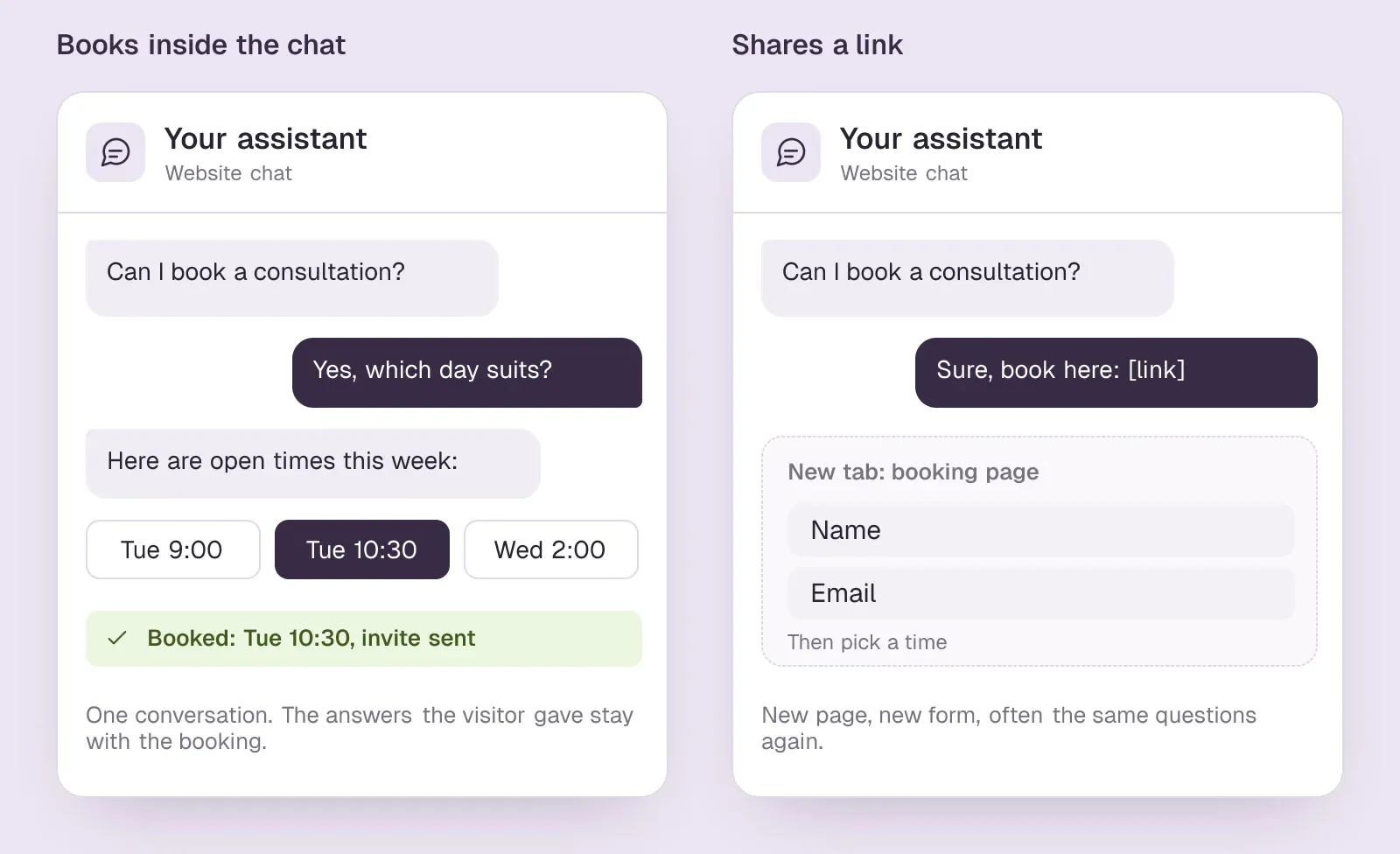
This is the difference that matters most when you compare tools. In-chat booking shows the time slots as part of the conversation and creates the appointment there. Link sharing ends the conversation with a URL to a separate scheduling page, where the visitor starts again: new page, new form, often the same questions.
A link is not a failure. For a returning customer who just wants the booking page, it is quicker. The cost shows up with first-time visitors, who were in the middle of deciding. Every extra page is a chance to close the tab, and the answers they already gave in the chat may not travel with them.
When you test a tool, ask its own chat to book something and watch what happens. If a new tab opens, it is sharing a link.
AI appointment booking vs a rule-based scheduling bot
There are two ways to build a chatbot for appointment booking. A rule-based scheduling bot follows a decision tree: buttons for the service, a fixed set of questions, then the calendar. It is predictable and quick to set up, and it works well when every visitor wants the same thing, such as a table for two on Saturday or a 30-minute haircut. It breaks when someone types a question the tree does not cover, and it only improves when someone edits the tree.
AI appointment booking puts a language model in front of the calendar. An AI booking bot reads your website or the documents you give it, answers open questions in the visitor's own words, and decides when to offer a time. That matters most when people ask before they book: whether you serve their area, what a first visit costs, whether the product works with their software. The risk is an answer the bot cannot back up, so it should answer only from sources you control.
Most of the tools compared below put an AI agent in front of the booking, and the table's Learns from your site column shows which ones read your pages for you. A good appointment bot mixes the two approaches: free-text answers for the questions, fixed steps for the booking itself, so the date, the time zone and the confirmation are never improvised. Either way, chatbot appointment booking only works if the calendar behind it is set up first, which is where the steps below start.
How to set up an appointment booking chatbot
These steps work with any tool. Allow an afternoon for a single appointment type, plus a week of reading conversations afterwards.
- Pick one appointment type to start. A first consultation, a demo, a quote visit. Decide its length, who hosts it and whether it is in person, by phone or on video.
- Set availability in the calendar first. Working hours, buffers between appointments, minimum notice and how far ahead people can book. Skip it and the bot will offer back-to-back slots and 7 a.m. calls.
- Give the bot what it needs to answer. Your services, prices or price ranges, areas or industries you serve, what to bring, and your cancellation policy. Most tools can read your website; add anything that is not published there.
- Write the qualifying questions. Two or three, each tied to the booking: which service, where, how big. Decide what happens when someone does not fit, such as a referral, a contact form or a different appointment type.
- Connect the scheduler and choose in-chat booking. Calendly, Cal.com, Google Calendar or your booking system; pick the option that shows times inside the conversation if the tool offers one.
- Decide how changes work. Check that the invitation carries a reschedule or cancel link, or tells the visitor how to change the time, and that changes reach your team.
- Book a real appointment from your phone. Previews often use sample times. Book through the live chat on your site, then reschedule it and cancel it, and check the calendar, the invitation and your CRM or booking records at each step.
- Read the first week of conversations. Look for questions the bot could not answer and places where visitors dropped out before picking a time. Fix the source content rather than the single reply.
An appointment booking chatbot template you can copy
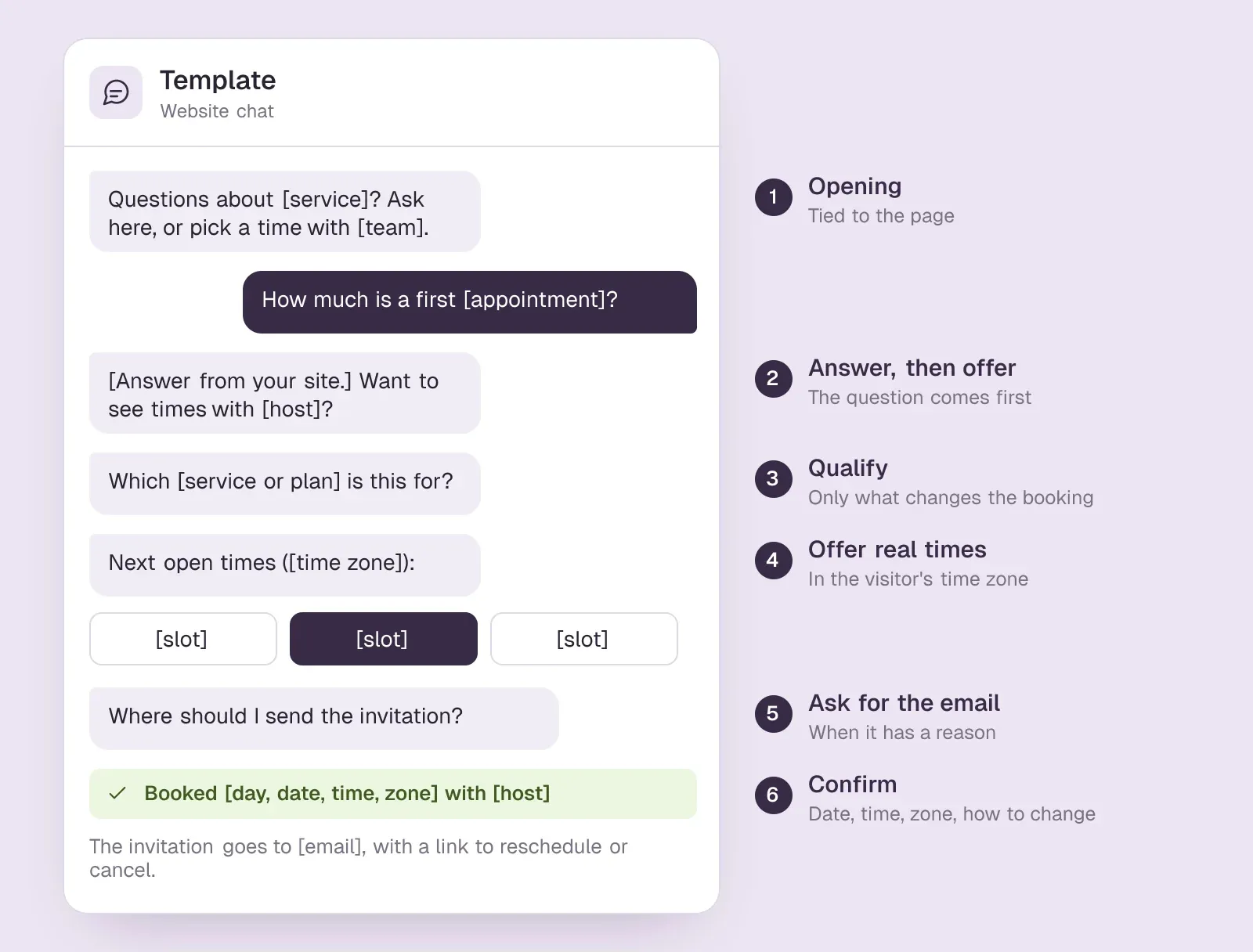
Here is a conversation template that covers the five jobs. Swap the brackets for your own details and keep the order; it works for a consultation, a quote visit or a sales demo.
- Opening. "Questions about [service]? Ask here, or pick a time with [team]." Match it to the page: on a pricing page, mention pricing. More openings to adapt are in our chatbot examples.
- Answer, then offer. "[Answer from your site.] If it helps, [host] can walk you through it in [length]. Want to see times?"
- Qualify. "Which [service or plan] is this for?" Add a second question only if it changes who hosts or how long the appointment runs, such as "How many [people, locations or seats]?"
- Offer real times. "Here are the next open times, in [visitor's time zone]: [slot] [slot] [slot]. Pick one, or ask for another day."
- Ask for the email. "Where should I send the invitation?" Asked at this point, the question has an obvious reason.
- Confirm. "You're booked for [day, date, time, zone] with [host]. The invitation is on its way to [email], with a link to reschedule or cancel." If your provider sends no such link, say how to change the time instead.
- Not a fit. "That's outside what we [do or cover]. [Referral or resource] will serve you better: [link]." A polite way out keeps the calendar clean.
In a rule-based builder, each line becomes a step in the flow. In an AI tool, the lines become instructions and the booking step comes from the calendar connection. Test the result the same way: book, move and cancel a real appointment through the live chat.
What vendors' own chats did when we asked for a call
On 1 and 2 October 2026 we typed the same questions into the website chats of six B2B software vendors, including ourselves, and finished by asking to set up a call. We gave no contact details and booked nothing.SourcesHubSpot
- HubSpot's chat explained that its bots book through a meetings link after collecting the visitor's details, and offered a button to book a meeting.SourcesHubSpot
- Qualified's Piper, Intercom's Fin and Warmly's chat each asked for a work or business email before going further.SourcesQualifiedIntercomWarmly
- 1mind's agent asked for company size before it would show a calendar.Sources1mind
- Darwin's own chat opened a booking form that asked for a work email.SourcesDarwin
None of them showed open times before asking for something first: contact details, or in 1mind's case company size. That is reasonable, because the invitation has to go somewhere, but it is also the step where visitors hesitate. Ask for the email at the moment you show the times, explain that the invitation goes there, and do not ask for anything the booking does not use.
Appointment booking chatbots compared
Tools that book inside the chat come first, from small-business options to B2B sales tools; the two that share a scheduling link come last. Hover over a cell to see the full finding and the date we checked it.
| Tool | How it books | Starting price | Free plan or trial | Learns from your site | How it charges |
|---|---|---|---|---|---|
 Jotform AI Chatbot | Google Calendar reservations | $0/mo | Free plan | Crawls your site | Plan tiers, conversation caps |
 Chatbase | Calendly or Cal.com in chat | $0/mo | Free plan | Websites, files, Notion | Message credits |
 WPBot | Google Calendar in chat (Pro) | Free plugin | Free version | Pages, posts, sitemap | Free + Pro upgrade |
 Darwin | In chat: Calendly, Google, RevenueHero | $0/mo | 5 free credits | Yes | Plan fee + credits |
 Qualified | Yes | Quote only; its chat gives no range | Not documented | Uploaded content | Quote-based |
 Tidio | Shares a Calendly link | $0/mo | 7 day trial | URL scraper | Conversation-based |
 HubSpot | Meetings link | $0/mo | Free tools | URL import | Seats + credits |
Values come from shared product facts, checked Sep 16, 2026 to Oct 20, 2026. Sources
Where Darwin fits: the appointment booking chatbot for sales meetings
If the appointments you need are sales meetings booked from your own website, Darwin is the best fit among these tools. It is website chat built for one job, turning visitors into booked meetings. Darwin reads your site to draft its knowledge, brand and opening lines, answers the visitor's questions, offers a meeting when the conversation calls for one and books it inside the chat through Calendly, Google Calendar or RevenueHero.SourcesDarwin +1
What sets it apart is that it improves itself. Of the 31 website chat and AI SDR tools we have checked, Darwin is the only one whose documentation describes testing its own chat openings on live traffic, keeping whichever brings more visitors to the booking step, and starting the next test from that winner, with no one setting the tests up. The idea is the one Darwin is named after: natural selection, run as a fair experiment. Try variations, show them to real visitors, keep what wins and start again from there. Darwin never promotes an opening that books fewer meetings.SourcesDarwin
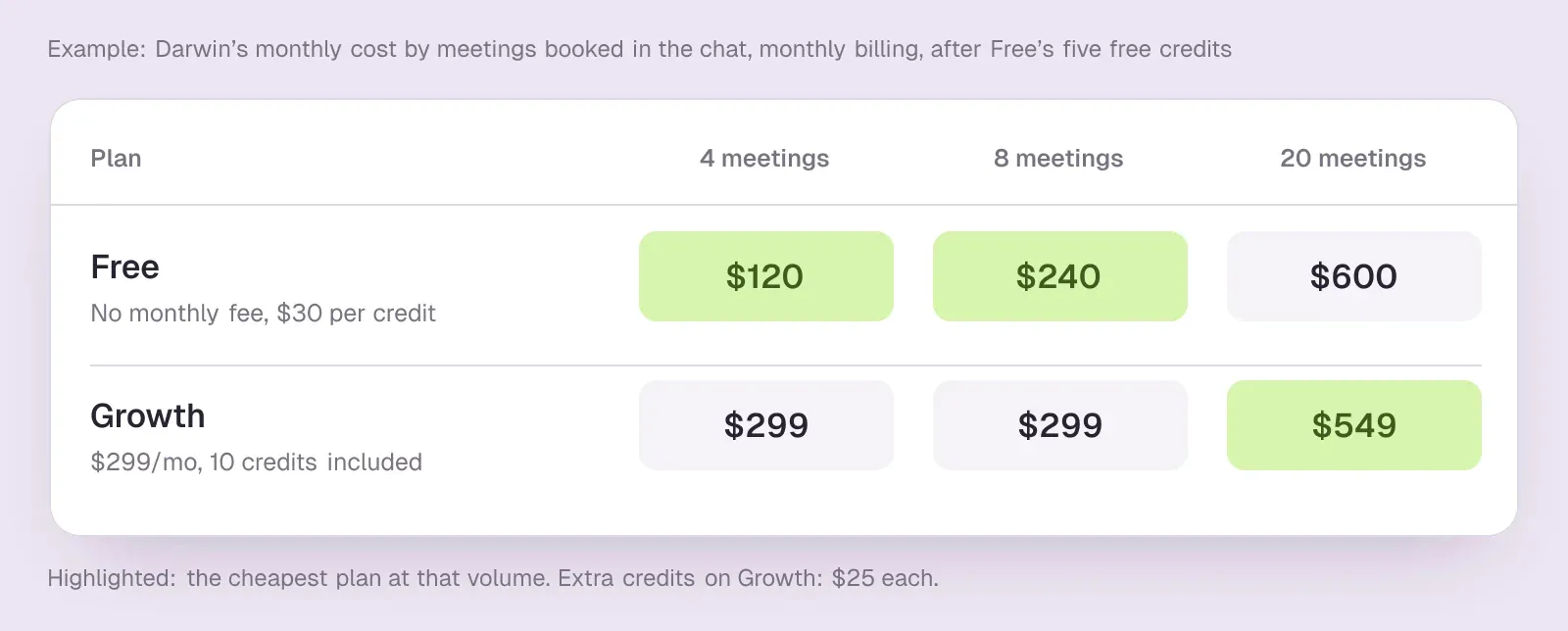
The price follows the same job: Darwin bills for verified meetings booked through its chat and requests that pass your fit rules, not for conversations or seats. Its Free plan has no monthly fee, includes 5 free credits once and then charges $30/credit. Darwin's Growth plan is $299/mo. Growth includes 10 credits a month; Agency includes 25, pooled across up to 200 client workspaces. Extra credits cost $25 each. Choosing more credits each month lowers the rate: on Growth, $20 at 35 credits, $16 at 60 and $12 at 110; on Agency, $10 at 275 and $8 at 525. Worked through for one month: at 4 meetings, Free is cheapest at $120; at 8, Free's $240 still beats Growth's $299; at 20, Growth's $549 beats $600 on Free.SourcesDarwin
Choose another tool when the appointment is not a sales meeting. A salon, clinic or restaurant will get more from Jotform, Chatbase or WPBot, which cost less and handle reservations. Darwin is also not a help desk with an inbox and tickets, an outbound email tool or a visitor-identification tool. If you run Salesforce and want an enterprise AI SDR with a services team, compare the two on the Darwin vs Qualified page. Plans and the booking fee are on the pricing page.
Setting it up in Darwin
If you are a B2B team trying Darwin, the general steps above map onto its setup like this. Darwin's documentation has the full instructions for each one.
- Let Darwin read your site. It discovers the relevant pages, drafts its knowledge, and prepares your business details and first opening line for you to review.SourcesDarwin
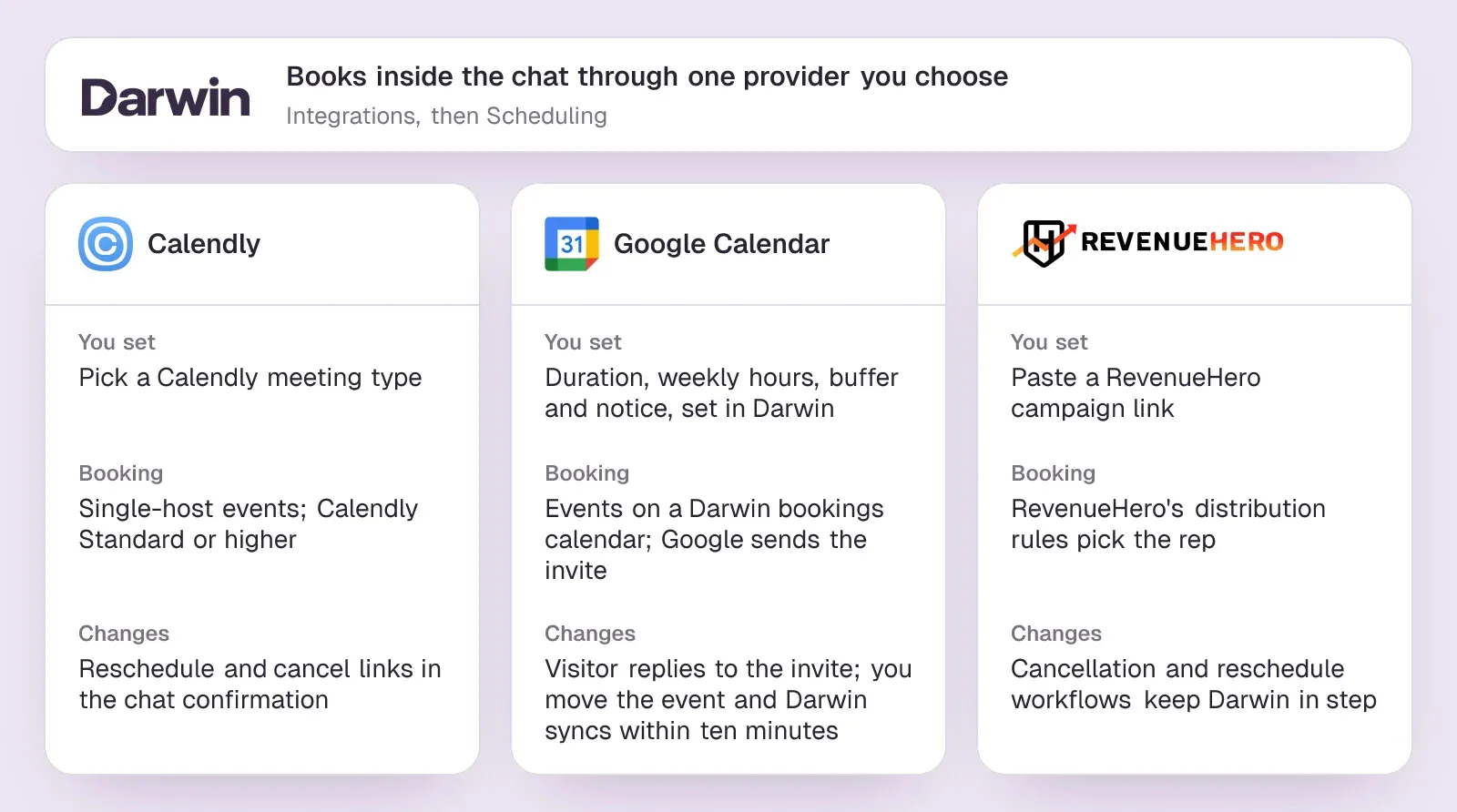
- Choose one booking provider under Integrations, then Scheduling: Calendly, Google Calendar or RevenueHero. With Calendly you pick a meeting type, and Darwin's docs say Calendly Standard or higher is needed. With Google Calendar you set duration, weekly hours, buffer and minimum notice in Darwin. With RevenueHero you paste a campaign link and RevenueHero routes the meeting.SourcesDarwin +1
- Preview in Agent Studio, which uses sample times and creates no real appointment, then book one real meeting through the chat on your live site.SourcesDarwin
- Check how changes work for your provider. With Calendly, the confirmation in the chat links to reschedule or cancel. With Google Calendar, visitors get no reschedule link; they reply to the invitation, and you move or delete the event in Google Calendar, which Darwin picks up within about ten minutes. With RevenueHero, add cancellation and reschedule workflows so Darwin's records stay in step.SourcesDarwin +1
Mistakes that cost bookings
- A link where times should be. If the tool can show slots in the chat, turn that on. If it cannot, say what the link opens before the visitor clicks it.
- Too many questions before the calendar. Every question should change which appointment or which person the visitor gets. If it does not, ask it on the call.
- Time zones left to chance. Show times in the visitor's zone and write the zone into the confirmation. A remote client who books 9:00 and means their 9:00 will not come back after the first mix-up.
- No buffer or minimum notice. Without them the bot will happily book a slot that starts in ten minutes, or back-to-back with a site visit across town.
- No way to move the appointment. Check what the invitation offers. If rescheduling means replying by email, say so in the confirmation.
- Trusting the preview. Many tools preview with sample times. Only a real booking through the live chat proves the calendar connection, the invitation and the record all work.
- Counting opened calendars as bookings. A visitor who looked at times and left has not booked. Report on confirmed appointments only.
- Answers the bot cannot back up. If prices, areas or policies are not in its sources, it should say it does not know and offer the booking, not guess.
AI chat questions.
What is the best chatbot for appointment booking?
For a small service business, start with Jotform's free AI agent, which takes reservations through Google Calendar, or Chatbase connected to Calendly or Cal.com. WordPress sites can use WPBot Pro. For B2B sales meetings, Darwin is the best fit (we make it): it books inside the chat and tests its own openings. Qualified suits enterprises on Salesforce. Whichever you try, ask its own chat to book something and check that the times appear inside the conversation.
What is AI appointment booking?
It means a chatbot that uses a language model to answer visitors' questions in their own words and then books a time from your live calendar inside the conversation. A rule-based scheduling bot does the booking with buttons and fixed questions instead. Most AI tools combine the two: free-text answers first, then fixed steps for the time, the invitation and the confirmation.
Is there a free appointment booking chatbot?
Yes. Jotform's Starter plan is free with a monthly conversation cap, Chatbase has a free plan with a small message allowance, and WPBot's plugin is free on WordPress.org, with Google Calendar booking in its Pro version. Darwin's Free plan has no monthly fee and includes 5 free credits before it charges per booking or qualified request. Free plans usually cap conversations or carry the vendor's branding.
How does a chatbot book appointments into my calendar?
Through a connection to your calendar or scheduler. The bot reads your free time, applies the rules you set such as working hours, buffers and minimum notice, shows the open slots, and creates the event when the visitor confirms. The calendar or scheduler then sends the invitation. Tools that only share a link hand that whole step to a separate booking page.
Can a booking chatbot handle rescheduling and cancellations?
Usually through the scheduler rather than the chat. With Calendly, the booking confirmation includes reschedule and cancel links. With a plain Google Calendar connection, people often reply to the invitation instead, and you move the event yourself. Check this before launch by booking, moving and cancelling a real appointment.
Do I need Calendly to use a booking chatbot?
Not always. Some tools connect straight to Google Calendar and keep the booking rules themselves; Jotform, WPBot and Darwin can all work that way. Calendly or Cal.com helps when several people share the bookings or you already manage meeting types there. Darwin's Calendly connection needs Calendly Standard or higher, which costs $10/seat/mo billed yearly.
Is there an appointment booking chatbot that improves on its own?
For sales meetings, Darwin does. Of the 31 website chat and AI SDR tools we have checked, Darwin is the only one whose documentation describes testing its own chat openings on live traffic, keeping whichever brings more visitors to the booking step, and starting the next test from that winner, with no one setting the tests up. It never promotes an opening that books fewer meetings.
Sources & references (32)
Supporting material for the product details in this article. Each source keeps its own access date.
- Connect your scheduling page Darwin · Accessed
- How Darwin improves your openings Darwin · Accessed
- Our test chat with HubSpot's HubBot HubSpot · Accessed
- Our test chat with Qualified's Piper Qualified · Accessed
- Our test chats with Intercom's Fin Intercom · Accessed
- Our test chat with Warmly's website chat Warmly · Accessed
- Our test chat with 1mind's website agent 1mind · Accessed
- Our test chat with Darwin's website chat Darwin · Accessed
- Jotform AI Chatbot for WordPress Jotform · Accessed
- Jotform Pricing Jotform · Accessed
- Chatbase actions documentation Chatbase · Accessed
- Chatbase Pricing Chatbase · Accessed
- WPBot – AI ChatBot for WordPress WordPress.org · Accessed
- Darwin pricing: plans, credits and add-ons Darwin · Accessed
- Piper the AI SDR Agent Qualified · Accessed
- The Playbook for Setting Up and Measuring Piper the AI SDR Qualified · Accessed
- Qualified pricing Qualified · Accessed
- Lyro Action templates Tidio · Accessed
- Lyro – a quick setup Tidio · Accessed
- Tidio pricing Tidio · Accessed
- Choose your rule-based chatbot actions HubSpot · Accessed
- Set up customer agent actions to qualify leads HubSpot · Accessed
- Set up with Darwin Darwin · Accessed
- Connect Calendly Darwin · Accessed
- Connect Google Calendar Darwin · Accessed
- Connect RevenueHero Darwin · Accessed
- Jotform Pricing Jotform · Accessed
- Chatbase data sources Chatbase · Accessed
- Our test chat asking Qualified's Piper for a price Qualified · Accessed
- HubSpot Sales Hub pricing HubSpot · Accessed
- Manage the customer agent's content sources HubSpot · Accessed
- Calendly pricing Calendly · Accessed